Remote for Fire TV - Firestick is a Tools application developed by DOSA Apps, but with the best Android emulator-LDPlayer, you can download and play Remote for Fire TV - Firestick on your computer.
Running Remote for Fire TV - Firestick on your computer allows you to browse clearly on a large screen, and controlling the application with a mouse and keyboard is much faster than using touchscreen, all while never having to worry about device battery issues.
With multi-instance and synchronization features, you can even run multiple applications and accounts on your PC.
And file sharing makes sharing images, videos, and files incredibly easy.
Download Remote for Fire TV - Firestick and run it on your PC. Enjoy the large screen and high-definition quality on your PC!
Remote for Fire TV & FireStick is designed specifically to control Fire TV using your Android mobile device. Supports Fire TV Box, Fire TV Stick, Fire TV Cube, and Fire TV.Just connect an Android mobile device and Fire TV or Fire Stick to the same Wi-Fi network and you will be able to control it using a mobile device after enabling ADB on Fire TV.
Features:
- Fully functional remote control TV as a real Fire TV Remote
- Keyboard feature to simplify text input and search on TV
- Quick access to your favorite channels and apps
- Mirror phone screen to Fire TV in low latency
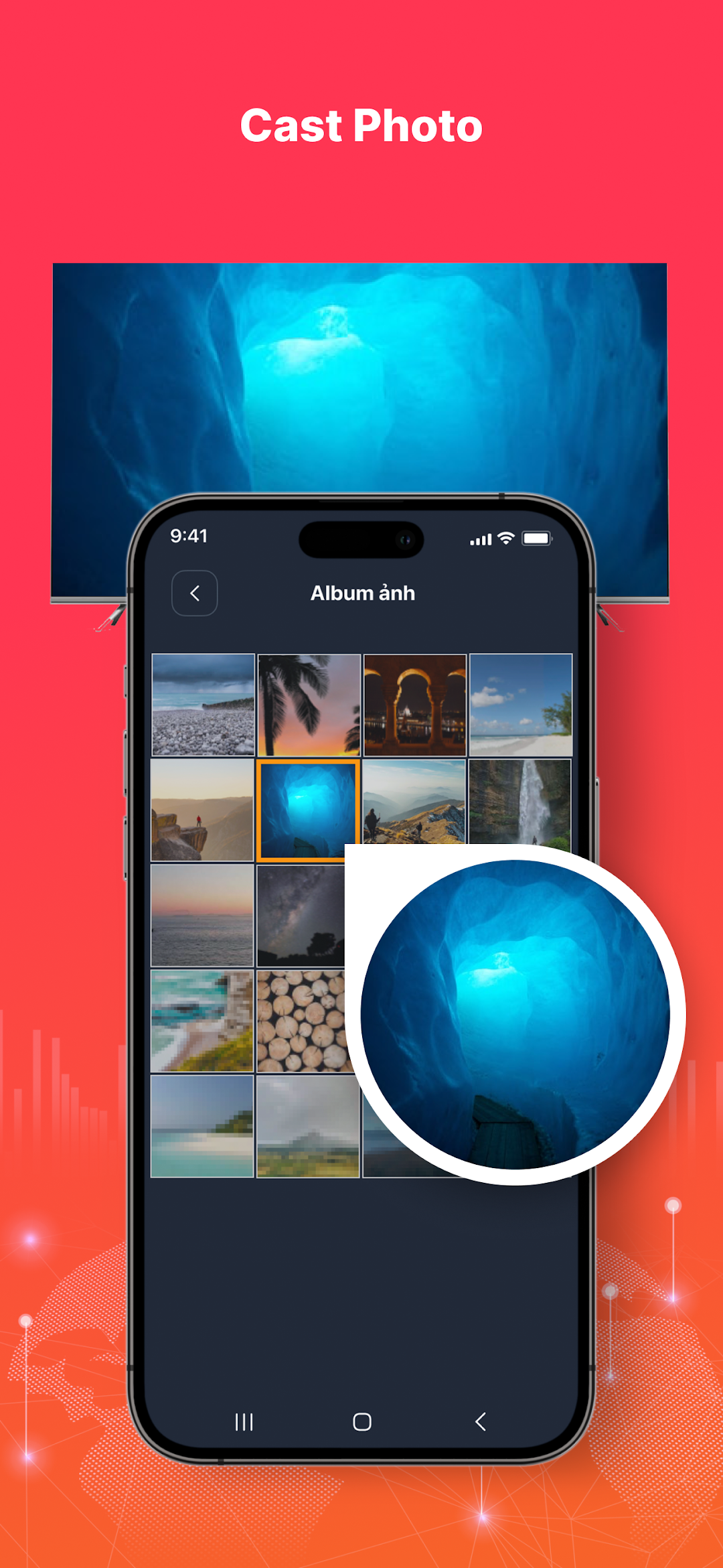
- Cast local photos and videos from phone to Fire TV
- Power ON/OFF Fire TV with just a tap
- Turn UP/Down volume with ease
- Enable Fire device auto-connect control button
NOTES: please download our companion mirroring receiver app, Screen Mirroring for Fire TV, on your TV device for smooth screen mirroring.
How to connect to Fire TV or Fire Stick:
1. You must enable ADB debugging on your Fire device before connecting.
2. Your Fire TV must be connected to your home's wifi network.
3. Your Android phone's WiFi must be turned on and connected to the same network as the Fire TV.
4. Tap to connect device. The app will automatically search for Fire devices in your home.
How to screen mirror to Fire TV:
1. Launch this remote app and connect it to Fire TV under the same network.
2. Click "Mirror" to enter the mirroring interface and choose to download our receiver app, Screen Mirroring Receiver for Fire TV, on the TV device per the prompt message.
3. After the receiver app is successfully downloaded on Fire TV, restart mirroring on the phone.
4. Enjoy rapid screen mirroring now!
Note: This app was not created or endorsed by Amazon.