How to Play Destiny: Rising on PC For Best Shooting
2025-09-19
Frustrated with playing Destiny: Rising on mobile? Bad aim, slow control and lag deeply annoy you, making you throw phone across window. Don't let device limit your ability. Turn on your PC, pick up your keyboard&mouse or gamepad, enjoy high FPS shooting experience. You will be the next top-tier marksman!
Contents
Why Play Destiny: Rising on PC
You may still hesitate to play Destiny: Rising on PC. Don't worry. Here we have listed pros and cons to help you make up your mind!
-
Your phone is instantly overheating that leads to lagging. In addition, touching screen limited your potentials while adjusting view and unleashing skills simultaneously.
-
In contrast, playing Destiny: Rising on PC allows you to customize and lock FPS, giving a smooth shooting gameplay. Keyboard&mouse and gamepad bring you into marksman thanks to more accurate operation and cohesive combos.
How to Download Destiny: Rising on PC
There is no official Destiny: Rising PC version, in order to download Destiny: Rising on PC, you should install an android emulator first, if you are seeking for Destiny: Rising emulator, LDPlayer is the best choice. It is easy to do if you follow our step-by-step instructions as follows. Let's enjoy Destiny: Rising with LDPlayer.
- Download LDPlayer 9 from the official website and Install it on your PC.

- Enter the emulator and log in your Google Account so as to use Google Play Store. You can find Google Play Store in system apps.
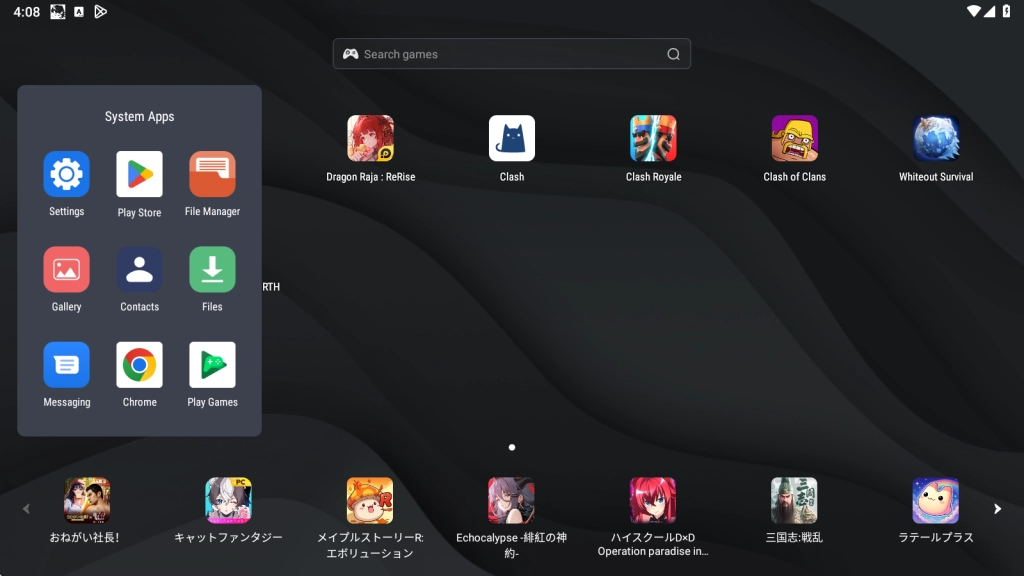
- Once you have signed in Google Play Store, search Destiny: Rising in LD store. The middle search box is also viable. The first game icon is what you want to play.
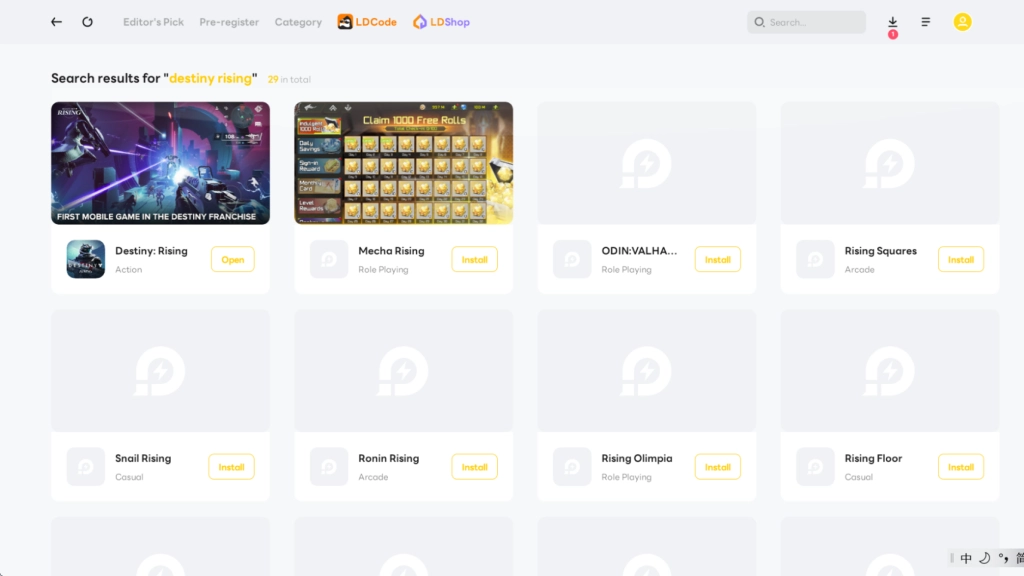
- Click Install button and redirect to Google Play store. After installation, you can play Destiny: Rising now!
Destiny: Rising 120 FPS Settings For Best Shooting
Now that you are going to play Destiny: Rising on LDPlayer, don't forget to optimize it at 120 FPS for the best shooting performance! You can clearly figure out amazing shooting experience at 120 FPS, because of lower shooting delay and faster crosshair lock-on to enemies.
How to set 120 FPS for Destiny: Rising
- Find and open the emulator settings on right toolbar.
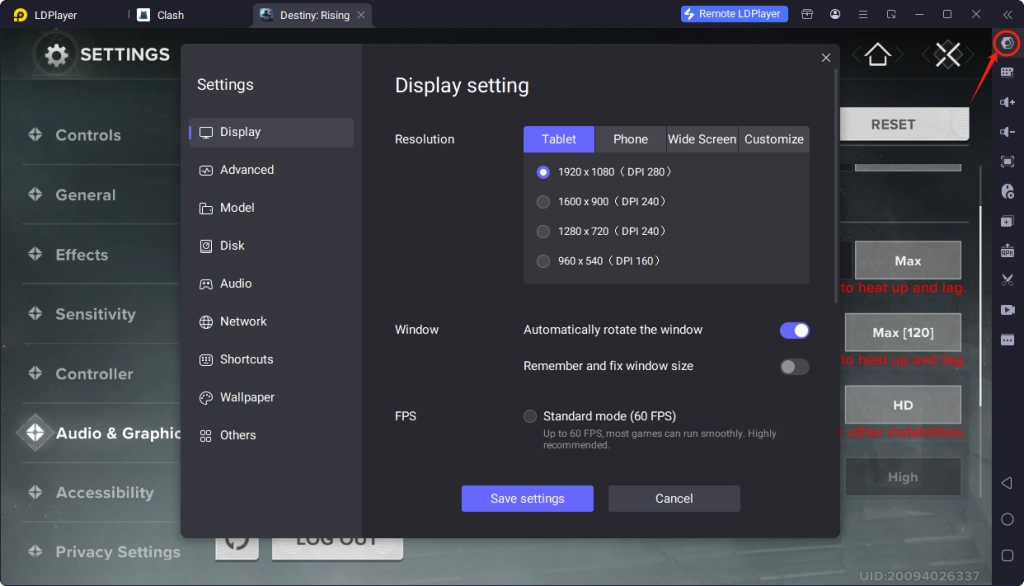
- Pinpoint Display → FPS location and switch to high FPS mode based on your specifications. We commonly recommend 120 FPS mode. Finally, click the save settings button.
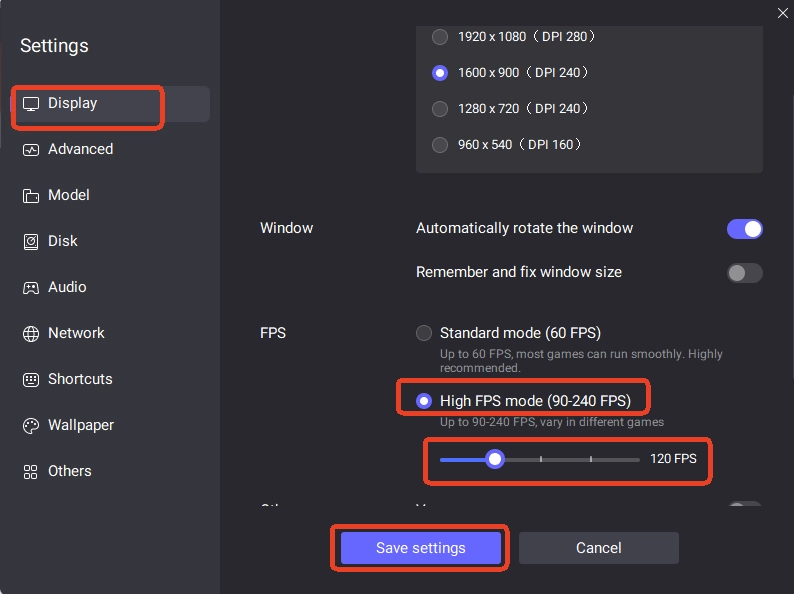
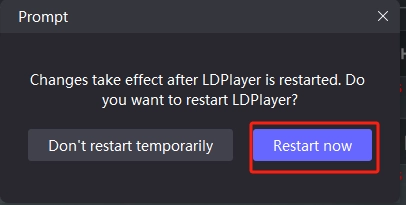
- If there are no exceptional cases, restart LDPlayer as soon as possible to make effects.
- Once you have successfully adjust emulator settings, we need to redirect to game Settings button in the top right. Choose Audio & Graphics on leftbar to adjust your Graphics Mode to Custom. Change Rendering Quality, Frame Rate and Texture Precision to Max and HD.
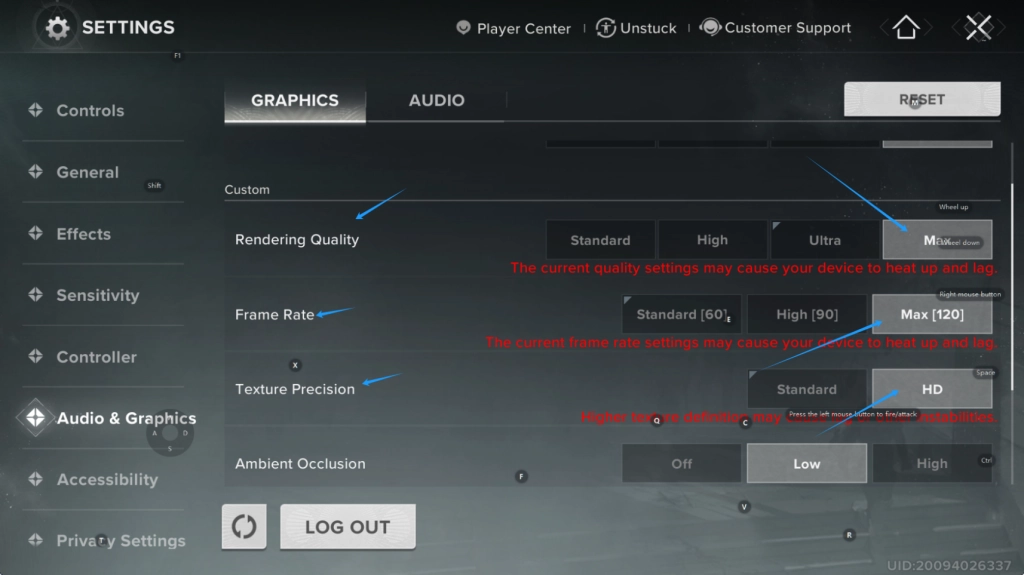
After completing all steps, you are able to experience 120 FPS now!
Tip: You can change to full screen by pressing F11. If your specifications is lower, you need to lower graphics quality and FPS.
Gamepad/Controller Unlock Seamless Control
Using gamepad/controller is the essential reason to play Destiny: Rising on PC which allows console user like Xbox and PlayStation to enjoy shooting game. Actually, LDPlayer supports native gamepad/controller without installing extra plugins. Without exaggeration, gamepad/controller provides unparalleled shooting experience, even when compared to a keyboard and mouse setup that needs to tap Alt to toggle mouse control.
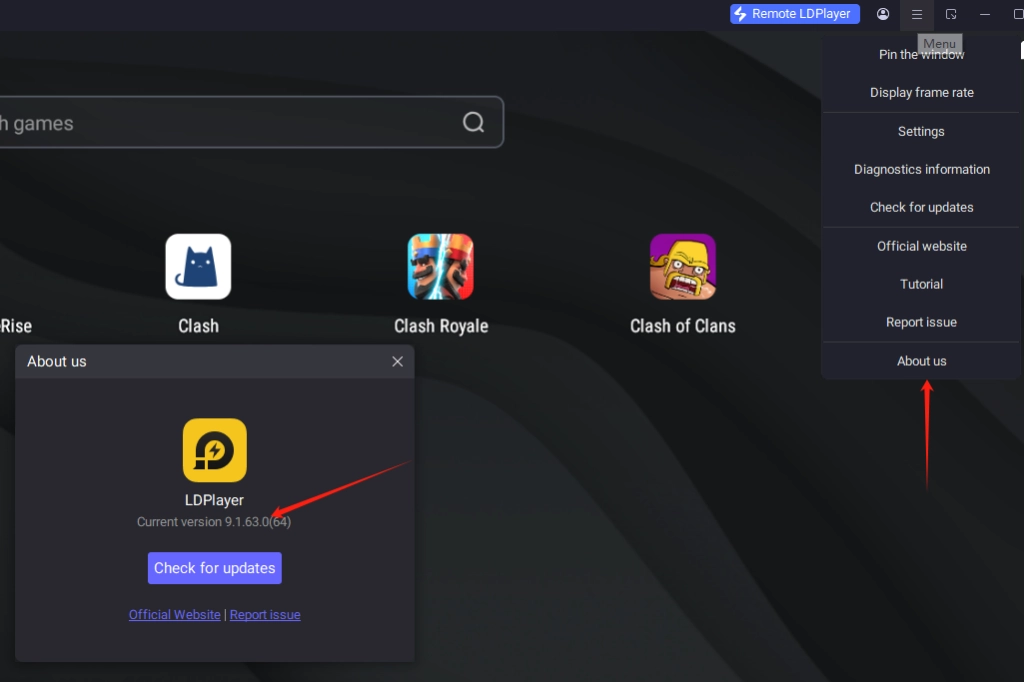
- Ensure that you have updated your LDPlayer to latest version(9.1.63.0) which supports using gamebox to play Destiny: Rising in emulator
- Connect your gamepad/controller via USB or Bluetooth
- When connecting your gamepad, the window prompt pops up that indicates you have successfully link your gamepad. In addition, there is a gamepad icon on top right position.
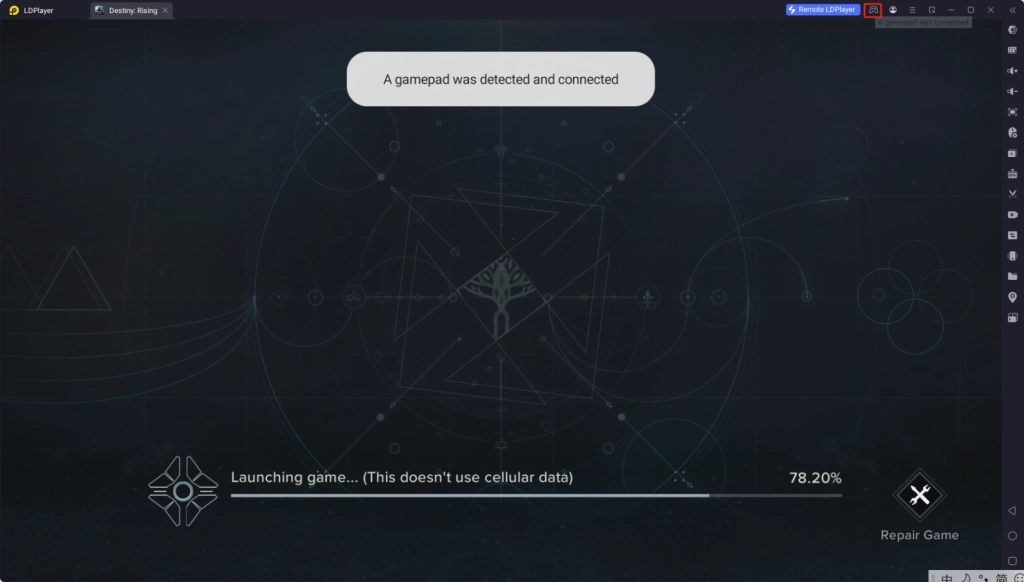
- After completing above steps, do start your Destiny: Rising PC for the best shooting experience now!
Here is the gamepad/controller gameplay live demonstration. Although the player looks like an idiot at the beginning, he gradually masters the gamepad/controller, unleashes skills cohesively and operates characters smoother without shooting pressure. He can quickly lock the target as the newbie!
Keyboard&Mouse Boost Shooting Accuracy
Playing Destiny: Rising benefits from keyboard and mouse. Veteran shooters must know the wide gap between playing with touch controls and playing with keyboard&mouse. The Keyboard Mapping embed in LDPlayer have deployed keys according to the habits of FPS players. You can also customize your layout to optimize your control. Here is the specific steps:
- Start Destiny: Rising
- Follow the highlights to learn with the in-game keymap prompt
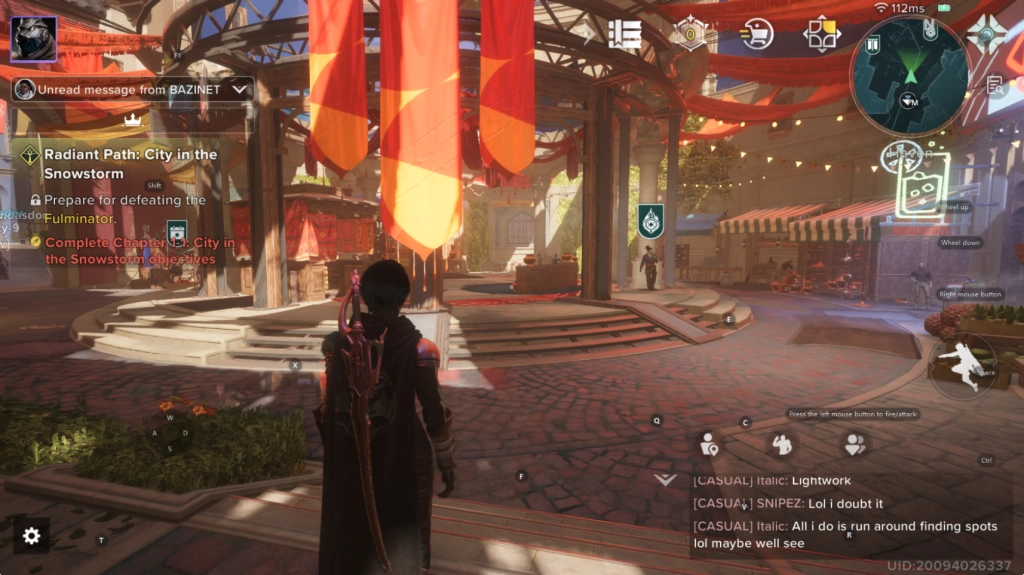
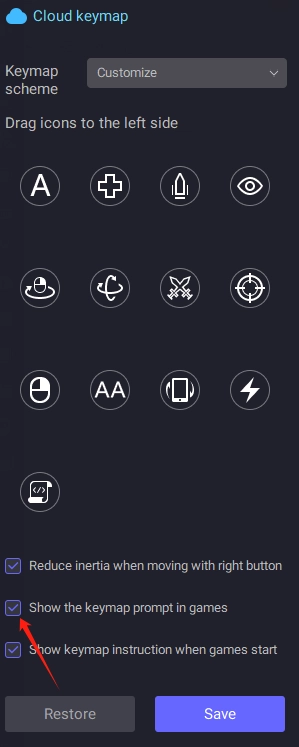
- Cancel the in-game keymap prompt to avoid blocking view once you get used to keyboard and mouse.
- Pressing Alt on your keyboard to hide mouse, so you can immerse into Destiny: Rising. However, you should use mouse to select items, follow highlight, skip story, start mission and etc..
Here is the keyboard and mouse gameplay live demonstration. In this hero tutorial, the player shows a series of complex operations. With the assistance of keyboard and mouse, he can repeatedly switch between scope and crosshair and shoot in accuracy.
Conclusion
Play Destiny: Rising on PC with the best emulator - LDPlayer for best shooting settings. Learn how to play it on PC with customizable FPS and keyboard mapping through our step-by-step instructions. Dominate Destiny: Rising with immersive battlefield, accurate shooting and smooth game experience on LDPlayer!
More from Destiny: Rising