How to Play DIGIMON UP on PC?

Thisara Dilshan
|2026-07-14Hello DIGIMON UP players! It’s time to begin your journey and experience the world of Digimon like never before on your PC. With LDPlayer 14, you can enjoy faster performance, enhanced visuals, and simple controls that make every battle more enjoyable. This guide will help you through the complete LDPlayer setup process. From installing LDPlayer, installing the game to fixing common issues and exploring useful LDPlayer features, everything you need for a better gaming experience is covered here.
How to Play DIGIMON UP on PC with LDPlayer in 4 Easy Steps
Step 1: Download and Install the Official LDPlayer 14 Emulator
Before going to start playing DIGIMON UP on your PC, you should have a reliable Android Emulator. The best choice for that is LDPlayer 14 Emulator. Because it lets you run DIGIMON UP smoothly with stable performance, easy keyboard and mouse controls, and a better gaming experience on a larger screen.
1.1 – Go to the official LDPlayer website and click on the Yellow Download button to download the latest version of LDPlayer, which is LDPlayer 14.
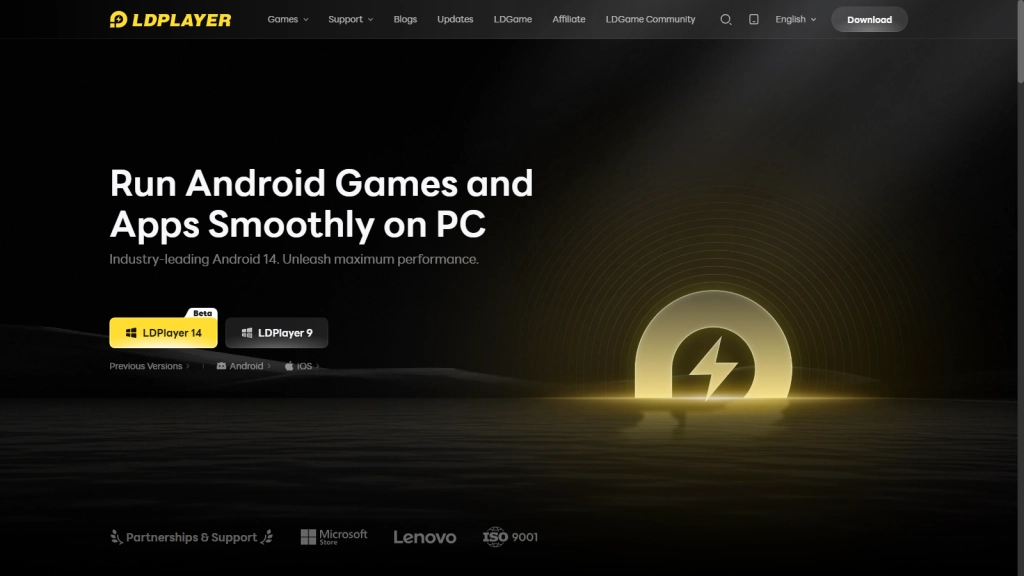
1.2 – After the downloading process is complete, double-click the installed file and start the installation process of LDPlayer.
1.3 - Double click the .exe file and click install; wait for a couple of minutes until the installation process is complete.
1.4 – After completing the installation, launch LDPlayer 14 from your desktop shortcut. Your emulator is now ready to play Android games on your PC.
Step 2: Searching for and Installing DIGIMON UP in LDPlayer
The LDPlayer 14 is installed successfully on your PC, the next step is search for the DIGIMON UP and download it through the LDPlayer's LD Store. Below are the steps to follow:
2.1 – Launch LDPlayer 14 and look for the search box. It can be found on the top part of the Home Screen of your emulator.
2.2 – Type "DIGIMON UP" on the search box and click enter. Take note that you have to choose the official DIGIMON UP developed by Bandai Namco Entertainment Inc.
2.3 – After that, press the Install button to start installing the DIGIMON UP game. This way, LDPlayer will automatically download and install the game.
2.4 – If it directs you to the Google Play store upon starting the game, you will have to go through Step 3 to continue with the installation process. However, if it starts downloading automatically, just continue the process until it finishes its installation.
Step 3: Set Up Your Google Play Store Account (If Needed)
Follow the below steps if LDPlayer redirects to the Google Play Store when trying to install DIGIMON UP via the LD Store. It is required for you to log into your Google Account before downloading any Android app on your computer.
3.1 – If you are redirected to the Google Play Store page, click Sign In to start setting up your Google account.
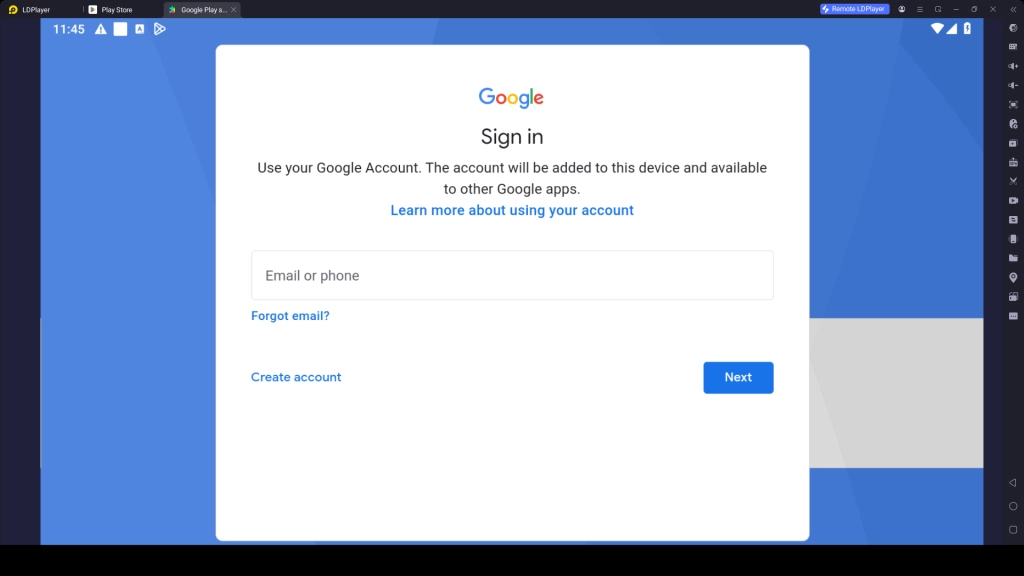
3.2 – Provide your Gmail email address and password. If you do not have an existing Google account, click Create account and create your own account.
3.3 – Complete the security authentication process if required by Google.
3.4 - After that, follow the pop up instructions and complete the sign-in process.
3.5 – Once you have signed in, return to the Play Store, and search for the “DIGIMON UP” game again from typing within the search bar and click Install.
3.6 – Wait for the installation process of the game to be completed. You will be notified after the installation is completed.
3.7 – Upon completion of the installation, the DIGIMON UP icon will appear on the home screen of LDPlayer. You can click the icon for launching the game through your emulator.
Step 4: Download Additional Data and Play DIGIMON UP
When playing DIGIMON UP for the first time using LDPlayer, there will be some additional data that you have to download to play the game properly. Once you’ve completed this process, you can logging into the game and begin your DIGIMON adventure.
4.1 – Open LDPlayer 14 and click on the DIGIMON UP icon within the LDPlayer home screen.
4.2 – When prompted, click on Confirm or OK to download the additional game data. The process could take a few minutes, depending on your internet connection.
4.3 – Once all the necessary game files have been downloaded, you have the chance to create or use your existing account and continue.
4.4 – Choose your preferred login method from the available options, such as Google, Bandai Namco ID, or any other supported login method.
4.5 – After you logged into the game, you're ready to play DIGIMON UP through LDPlayer 14 on your PC without any error! Now, it's time to explore the DIGIMON UP world from a bigger screen with enhanced graphics!
Common Issues and Easy Solutions for LDPlayer
When you start playing DIGIMON UP on LDPlayer, you may face some common issues that many emulator users experience, such as lag, FPS drops, or slow loading times. However, there is no need to worry, these problems can be easily fixed by following a few simple steps.
Fix Lag Issues When Using LDPlayer
Sometimes, you may experience lag when launching LDPlayer or starting the game. You might also face FPS drops, stuttering, or delayed controls during IDGIMON UP gameplay. During battles, even a small lag can make a huge difference, causing an exact winning moment into a defeat. Fortunately, you can easily fix these lag issues and enjoy a smoother and more stable gaming experience by following these simple steps:
How to fix lag issues:
- Restart your PC and enter BIOS to enable Virtualization (Intel VT-x or AMD-V)
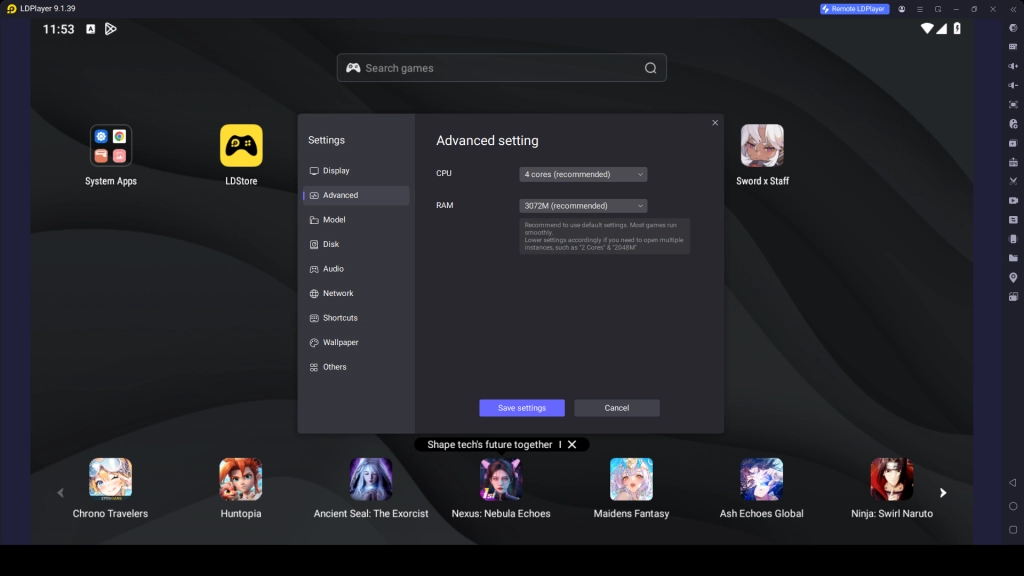
- Open LDPlayer settings, go to Performance, and Configure CPU and Ram. For a better experience, set the CPU for 4 cores and RAM to 4 GB.
- Change the graphics rendering mode. Try OpenGL first, and switch to DirectX if you still experience lag.
- Update Graphic Drivers from the official NVIDIA, AMD, or Intel website.
- Close unnecessary background applications, such as browsers or other heavy programs.
- Update your LDPlayer to the latest version, LDPlayer 14, to enjoy smoother gameplay, better stability, and reduced lag issues while playing.
Fix Resolution and Full Screen Issues in DIGIMON UP on LDPlayer
Sometimes you may experience resolution or full-screen problems while playing DIGIMON UP on LDPlayer. This causes your DIGIMON UP gameplay to appear blurry, stretched, or stuck in a small window, making it difficult to enjoy battles and exploration. That's why you need to fix this issue as quickly as possible for a better adventure with your DIGIMONs. Therefore, just follow the steps below.
How to Fix Resolution and Full Screen Issues:
- Switch to full screen mode in LD Player using the button or F11 key.
- Open LD Player settings and set resolution to match your monitor.
- Check and adjust DPI settings to a normal value.
- Change graphics mode between OpenGL and DirectX.
- Update LDPlayer for the latest version and also upgrade your graphics drivers.
- Reinstall LDPlayer if the issue still continues.
Play DIGIMON UP on PC with Special LDPlayer Features
With LDPlayer and its amazing features, your DIGIMON UP gameplay becomes even more fun and smoother. Below are the features that you can use to maximize the adventure with your favorite Digimon teams!
Enhance Your Gacha Summons with Multi Instance Feature
DIGIMON UP comes with a unique gacha system that uses gacha tickets to summon partners of different rarities for your adventure. However, at the beginning of the game, it is better to obtain higher-rarity partners with your free starting summons.
That is where LDPlayer's Multi-Instance and Synchronize features can help maximize your summon chances. With these features, you can create multiple game instances and run different accounts simultaneously. You can then perform summons on all accounts at the same time and start your adventure with the account that obtains the highest-rarity partners for your squad.
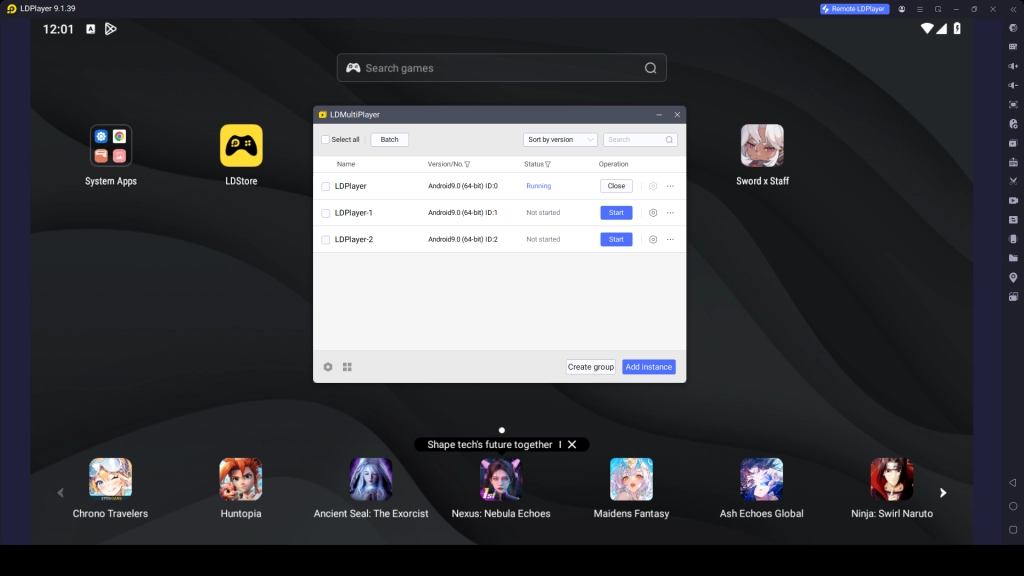
How to Use LDPlayer Multi-Instance Feature:
- Open LDPlayer and click on the Multi-Instance Manager icon on the right toolbar.
- Click New Instance to create additional emulator windows.
- Install DIGIMON UP on each instance.
- Log in with different accounts on every instance.
- Open the Synchronizer feature from the toolbar.
- Enable synchronization to control all instances at the same time.
- Use your free gacha tickets on all accounts simultaneously.
- Choose the account with the best summon results and continue your adventure.
Enjoy Smoother DIGIMON Gameplay with High FPS
Playing DIGIMON UP with high FPS on LDPlayer can provide a much smoother and more responsive gameplay experience when using your cards and managing your partners during battles. Higher FPS improves DIGIMON animations, character movements, and skill effects, while also providing better visual performance and more responsive controls. You can follow the methods below to easily set up higher FPS for better overall performance.
How to Set Up 120 FPS on LDPlayer:
- Open LDPlayer and click the gear icon (Settings) at the top right corner.
- Go to the Performance tab.
- Increase the CPU cores to 4 or 6 and set RAM to 4GB or 6GB for better stability, depending on your PC specifications.
- Open Display Settings, then change the resolution to 1280×720 and set DPI to Medium.
- In Graphics Settings, select OpenGL rendering mode first, as it is recommended for achieving higher FPS. If the performance becomes unstable, switch to DirectX and restart LDPlayer.
- Enable High FPS Mode.
- Set the Frame Rate to 120 FPS.
- Click Save and restart the emulator to apply all changes.
Hot Recommend
Download LDPLAYER, play DIGIMON UP on PC, enhance your gaming experience!


Conclusion
Finally, everything is set for you to begin your DIGIMON UP journey on your PC with LDPlayer 14. Just follow the instructions mentioned above from our guide to successfully complete the setup of LDPlayer into your PC and enjoy better gameplay performance. Moreover, do not forget to use the other LDPlayer features such as Multi-Instance, Synchronizer, and high FPS settings to enhance your gameplay and enjoy every battle with your Digimons!