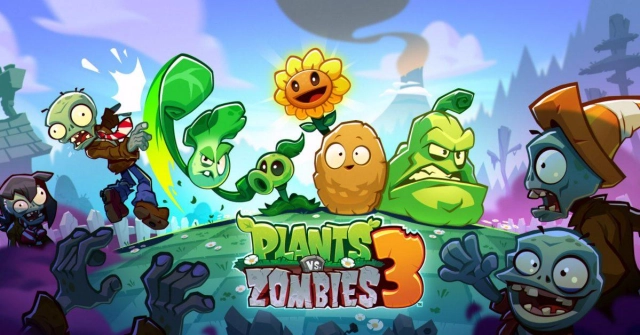
How to Play Plants vs. Zombies™ 3 on PC?

Thisara Dilshan
|2026-04-17Are you looking for a bigger and better gaming experience with Plants vs. Zombies™ 3 on a larger screen and smoother controls? The best solution is to run Plants vs. Zombies™ 3 on PC through LDPlayer. In this guide, we’ll show you how to download LDPlayer, boost your gameplay, configure the game, and troubleshoot any problems you may encounter. So, let’s try the game on PC and enjoy it to the fullest!
Contents
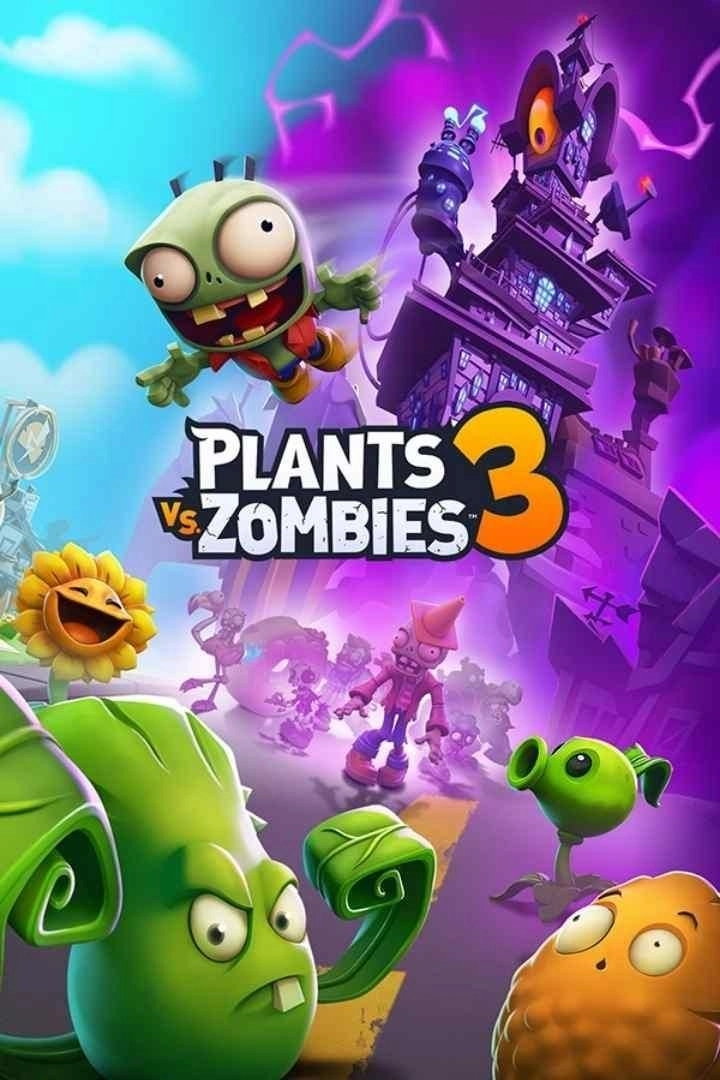
How to Play Plants vs. Zombies™ 3 on PC with LDPlayer in 4 Easy Steps
Step 1: Download and Install LDPlayer Emulator
To start playing the game, you will require an Android emulator on your computer. You can choose the LDPlayer 9 emulator, it's a great choice for running Plants vs. Zombies™ 3 smoothly.
1.1 – Visit the official website of LDPlayer and install the latest version of LDPlayer 9.
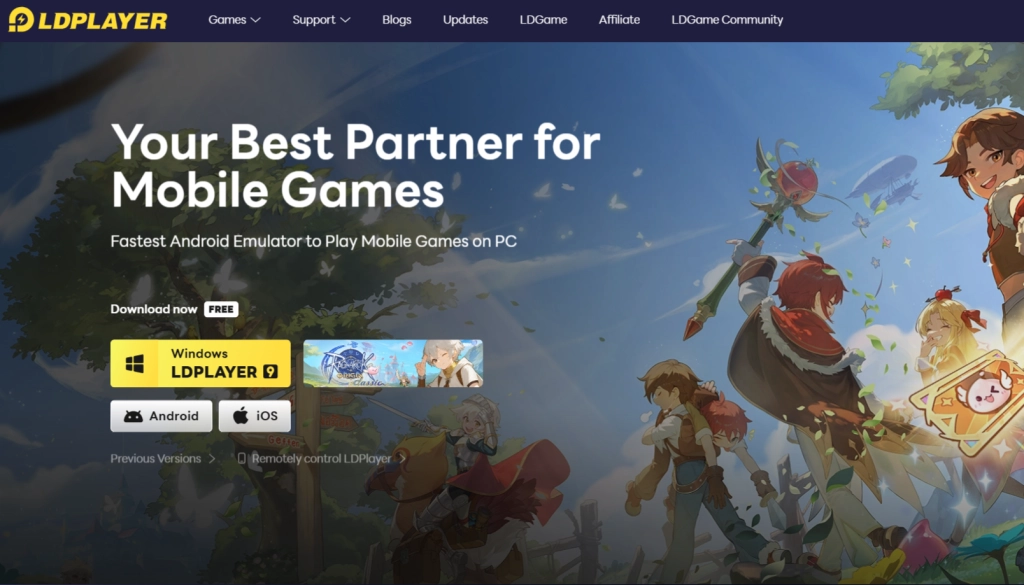
1.2 – Upon completion of the download process, double-click the installer
1.3 – Click Install to start the installation process; this will take some time (only a few minutes).
1.4 – After installation, launch LDPlayer using the desktop shortcut or Start menu. Your emulator is now ready.
Step 2: Find and Download Plants vs. Zombies™ 3
With the installation of LDPlayer done and dusted, you can now download the game straight into your emulator.
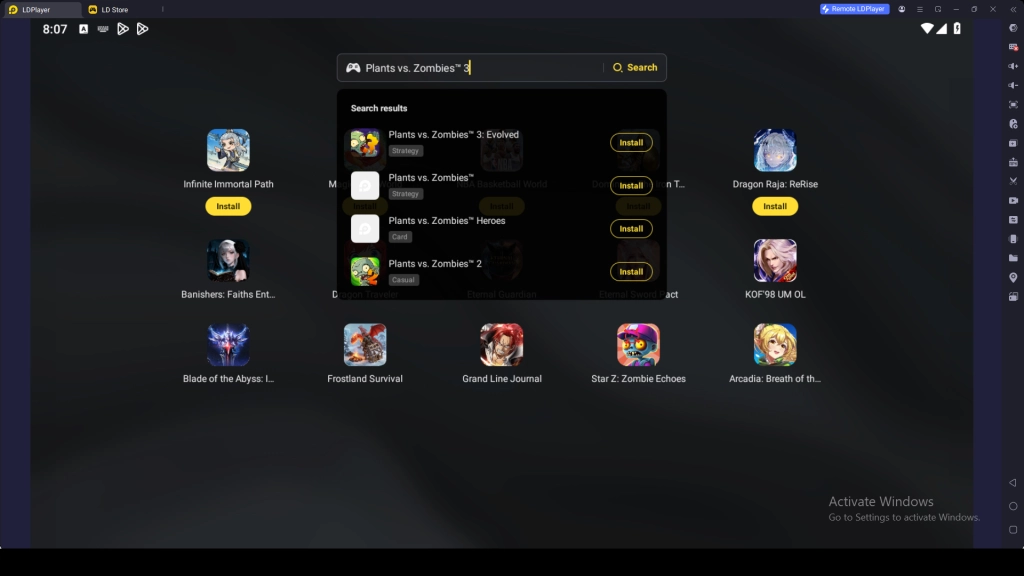
2.1 – Launch LDPlayer and go to the search bar on the homepage.
2.2 – Enter “Plants vs. Zombies™ 3” and find the official version of the game from Electronic Arts (EA).
2.3 – Press the Install button to start the downloading process.
2.4 – If you’re redirected to the Google Play Store, don’t worry, just continue with the next step.
Step 3: Sign in to Google Play (If Required)
When you get redirected to the Google Play store, upon clicking to install the game, you will first have to log in before downloading the game.
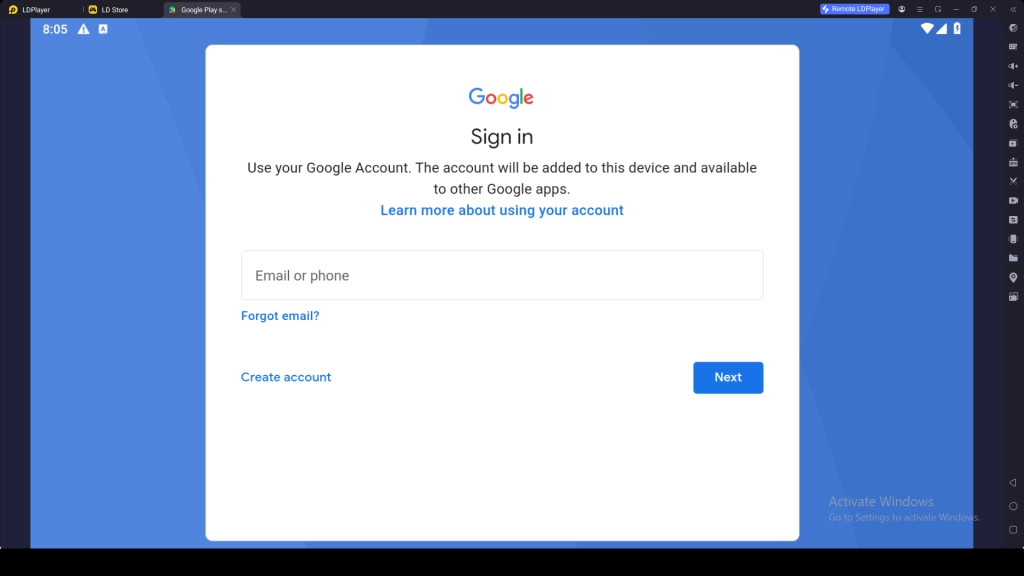
3.1 – Click the Sign In button on the Play Store screen.
3.2 – Enter your Gmail details, or create a new account if needed.
3.3 – Provide your password and complete any verification steps if required.
3.4 – Accept the terms and conditions to proceed.
3.5 – Decide on whether to activate backup on Google Cloud, then press Accept.
3.6 – Your account is now ready to use the Play Store.
3.7 – Search again for Plants vs. Zombies™ 3 and tap Install.
3.8 – Wait until the download finishes; you’ll see a notification once it’s done.
3.9 – The game icon will then appear on your LDPlayer home screen. Click the game icon to start the game.
Step 4: Download Plants vs. Zombies™ 3 Game Data and Start Playing
After completing the installation process, the next task will be downloading extra data and signing in. This can be done by creating a new account or logging in with your existing account.
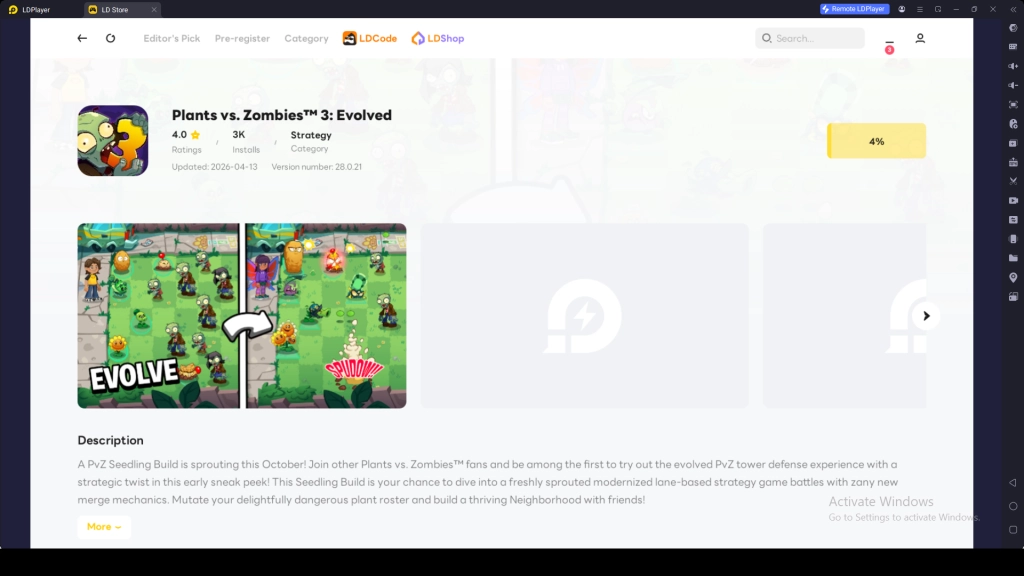
4.1 – Launch the game and tap on Confirm in order to download data files.
4.2 – After downloading completes, select the option of creating a new account or logging in.
4.3 – Select your preferred login option, such as Google or Facebook.
4.4 – Now that you are logged in, you can play Plants vs. Zombies™ 3 on PC through LDPlayer.
Common Problems and Easy Fixes
Game Not Supported in Current LDPlayer Version
While trying to launch Plants vs. Zombies™ 3 using the LDPlayer home screen, you may see a pop-up error saying, "The current version of LDPlayer is not supported." This happens when the emulator version is outdated or not fully compatible with the latest game update.
How to Fix
- Click the “Download Dedicated Version” button when the error appears
- Install the latest recommended version of LDPlayer (usually LDPlayer 9 or game-optimized build)
- Wait for the installation to finish completely
- Open the new LDPlayer version and launch Plants vs. Zombies™ 3 again
- If needed, re-check that your game is installed inside the new instance
The good news is that all your existing data and installed apps will remain safe, you don’t need to worry about losing anything during the update process.
Do Not Have Enough Storage Space To Download The Game
While trying to launch Plants vs. Zombies™ 3 using the LDPlayer home screen, you may see a pop-up error saying, "The current version of LDPlayer is not supported." This happens when the emulator version is outdated or not fully compatible with the latest game update.
How to Fix
- Make sure your LDPlayer instance has at least 6 GB or more of free storage space
- Open LDPlayer Settings and open Advanced Settings
- Enable the Auto-Expand Disk option
- Restart LDPlayer after applying the changes
- Delete unused apps or clear unnecessary files inside the emulator to free up space
- Try downloading Plants vs. Zombies™ 3 again after making sure enough storage is available
Fixing Lag Issues While Playing Plants vs. Zombies™ 3
Plants vs. Zombies™ 3 can feel laggy sometimes, especially during intense moments with lots of zombies, plant effects, and animations on screen. This slows down the game, making it less smooth and negatively affecting the overall gameplay experience.
How to Fix
- Enable Virtualization Technology (VT) in your PC’s BIOS to improve emulator performance
- Go to LDPlayer Settings → Advanced Settings and configure CPU cores and RAM.
- Restart LDPlayer after making changes for better performance
Hot Recommend
Download LDPLAYER, play Plants vs. Zombies™ 3: Evolved on PC, enhance your gaming experience!


Special Recommended Settings and LDPlayer Features
Auto Battles with Mini Mode
One useful feature that can improve your experience in Plants vs. Zombies™ 3 is Mini Mode. This feature allows you to minimize the game window while it continues running, making it easier to manage other tasks while the game handles easier early rounds automatically. You don’t need to keep the game fully open all the time.
How to Activate Mini Mode
- Click the Mini Mode button at the top-right corner of the emulator
- Or press Ctrl + F1 to quickly enable Mini Mode
Run More Accounts with Multi-Instances & Sync
Are you satisfied with only your first gameplay account, or do you want to cultivate several accounts from the beginning? You can do that with the special Multi-Instances & Sync feature in LDPlayer. This feature helps you run multiple instances, allowing you to log into several accounts and play Plants vs. Zombies™ 3 simultaneously with multiple accounts running the same gameplay on all instances. This helps you quickly grab the most valuable items early on for a better gameplay experience.
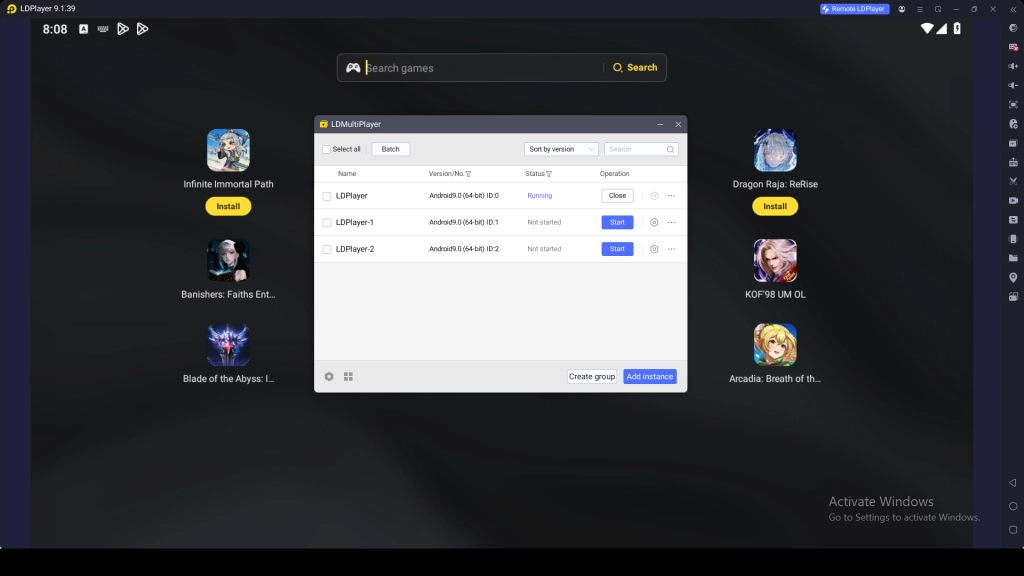
How to Multi-Instances & Sync works:
- Open LDMultiPlayer from your desktop or toolbar and create as many instances as you want. You can clone your main instance, so you don’t need to sign in to your Google account again and again. This makes it easier to manage multiple Plants vs. Zombies™ 3 accounts.
- Then use the Synchronizer tool to link all instances together. After that, you can control multiple accounts at the same time and farm resources more efficiently.
Conclusion
Now you are ready to enjoy Plants vs. Zombies™ 3 on PC with LDPlayer. So, you can experience the gameplay on a bigger screen with smoother controls. Get everything you need to fix errors and use the best features to improve the gameplay. Jump in and enjoy the game to its fullest!
More from Plants vs. Zombies™ 3: