EXPUTT RG is a Sports game developed by INVANT - INNOVATION FOR LIFE. LDPlayer is the best platform for playing EXPUTT RG on Windows PC, offering powerful features to enhance your immersive experience in EXPUTT RG.
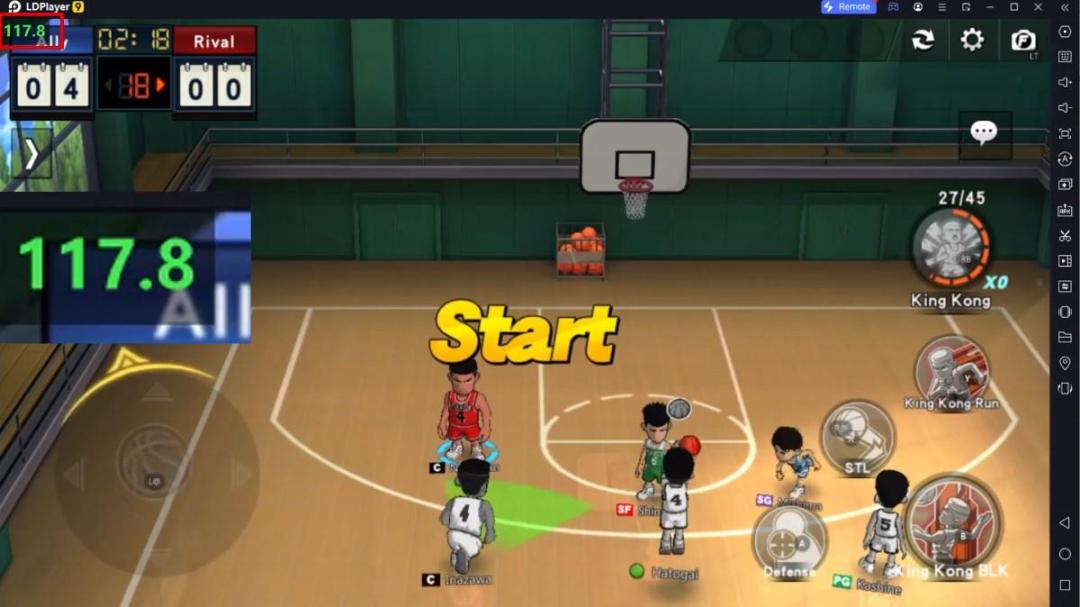
When playing EXPUTT RG on your computer, the larger screen and more powerful graphics performance enable you to enjoy clearer and smoother game visuals, enhancing the visual experience of the game.
The operation of peripherals such as gamepads is emulated to better mimic the feel of real sports, providing more precise control and richer operation options.
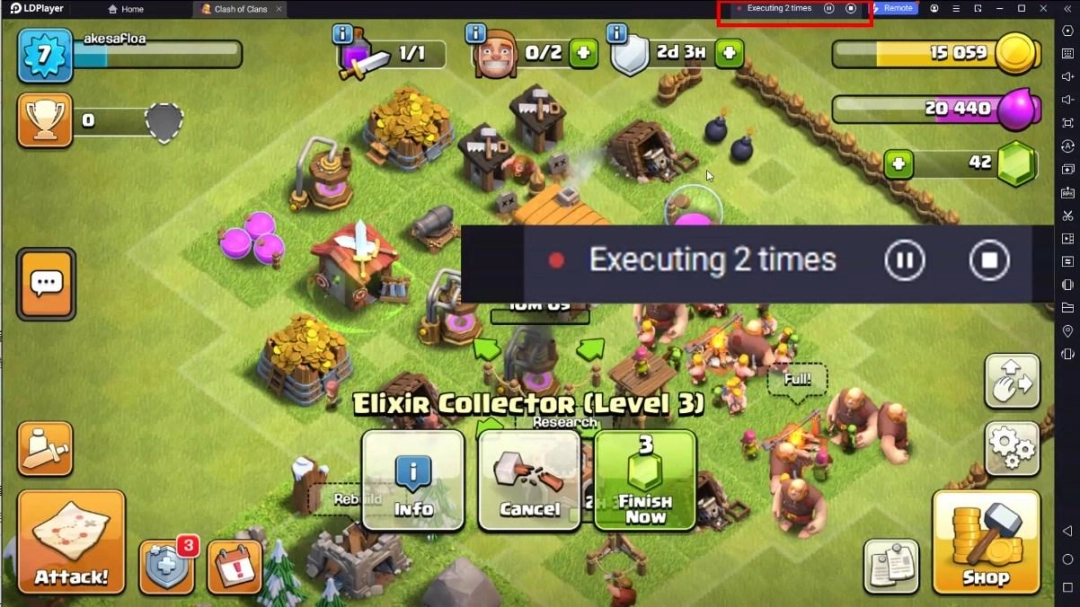
Furthermore, if you wish to execute a series of continuous key combinations, the one-click macro feature will be the functionality you've been dreaming of, allowing you to effortlessly stay one step ahead with one-touch operation. Start downloading and playing EXPUTT RG on your computer now!
[summary]The Output RG App (hereafter 'eApp') is an application program that connects the Output RG device (hereinafter 'eDevice') through a Wi-Fi network, receives measurement information from the eDevice, and drives the putting simulator.
The eApp runs alone and cannot practice putting, it requires an eDevice product. The eDevice is a product that includes more practice tools than the eApp, and it is a product that allows you to practice distance on flat greens and practice slopes and play games on greens modeled on real greens. eApp is a specialized application program that enables the distance practice mode included in the eDevice to be run on a mobile device (hereinafter 'mDevice').
[Supported languages]
Korean, English and Japanese are supported.
[Practice function]
1. Change green speed
2. Various distance change modes
3. Forward slope setting
4. Set the left and right inclination
5. Tempo sound output (0.7~1.4 sec)
6. Accuracy statistics by distance section
[Preparing to connect the eDevice]
1. The eDevice must be connected to a Wi-Fi network.
2. The mDevice must be connected to the same Wi-Fi network as the eDevice.
[How to connect eDevice]
1. Power on your eDevice.
2. After the LED of the eDevice turns green, press the 'Mode Change' button on the remote control for 3 seconds.
3. Check that the LED on the eDevice is blinking blue. If the LED of the eDevice blinks yellow, WiFi is not connected, and the connection is established within 1 minute and the LED changes to blinking blue.
4. Launch the eApp to connect with your eDevice.
* More information can be found on the Output RG homepage.
* https://www.exputtgolf.com