COSMO: Mission Control is a Communication application developed by Cosmo Technologies, Inc., but with the best Android emulator-LDPlayer, you can download and play COSMO: Mission Control on your computer.
Running COSMO: Mission Control on your computer allows you to browse clearly on a large screen, and controlling the application with a mouse and keyboard is much faster than using touchscreen, all while never having to worry about device battery issues.
With multi-instance and synchronization features, you can even run multiple applications and accounts on your PC.
And file sharing makes sharing images, videos, and files incredibly easy.
Download COSMO: Mission Control and run it on your PC. Enjoy the large screen and high-definition quality on your PC!
Keep your kids safe and connected with the COSMO Mission Control parent app and JrTrack kids smart watch. With Mission Control, you have all the tools you need for safety, connection, and convenience right in the palm of your hand.JrTrack is the all-in-one wearable phone, watch, and GPS tracker that’s safe for kids and trusted by parents. It pairs seamlessly with the Mission Control parent app where you can:
- Add and manage approved contacts and guardians for safety & security
- Check your child’s location with reliable GPS tracking
- Set custom geo-fence “SafeZones” to receive check-in alerts when your child enters or leaves a designated area
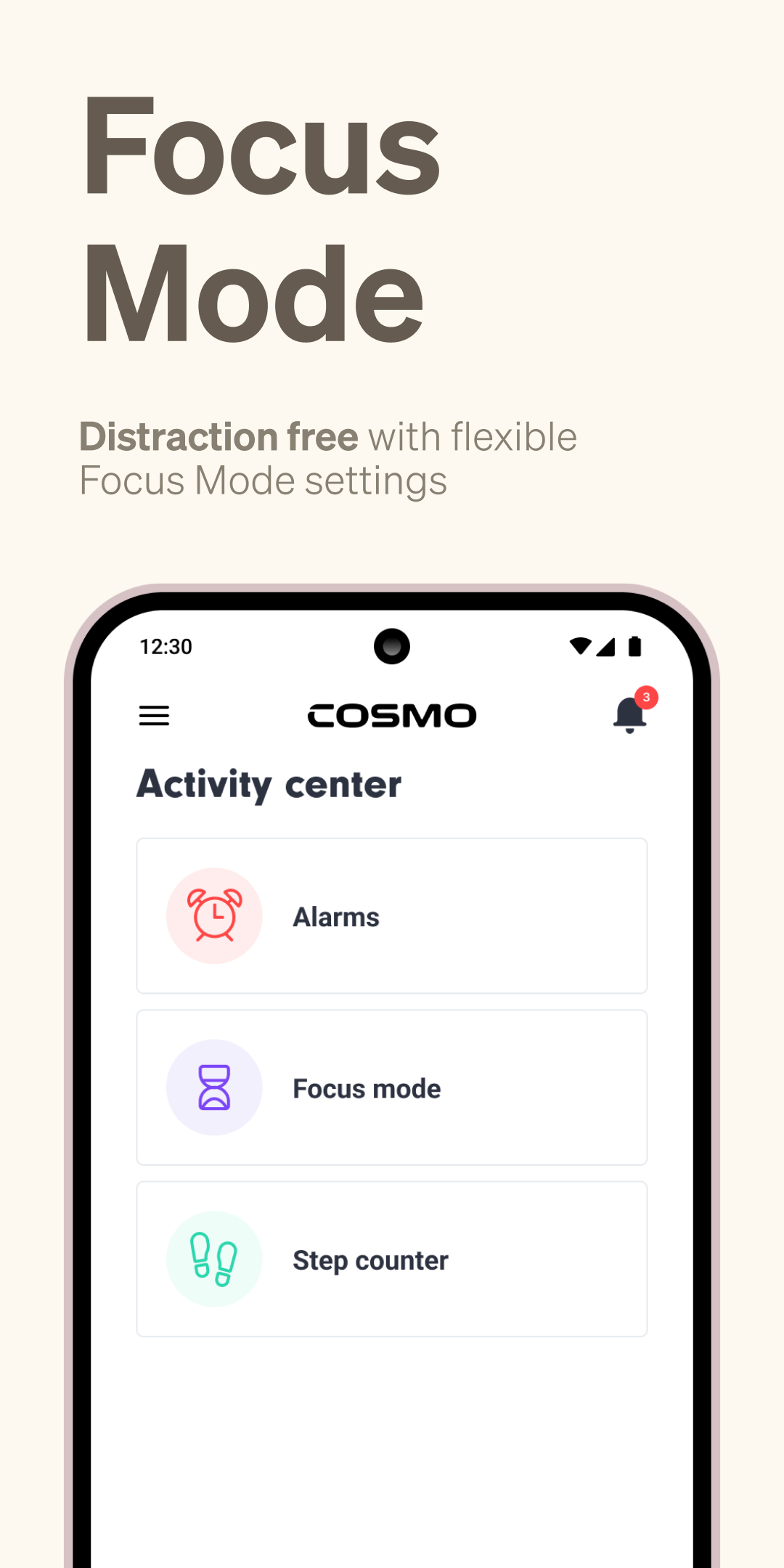
- Set Focus Mode days and times to limit distractions
- Track your child’s steps and set activity goals
- Receive emergency alerts when your child activates SOS mode
- Set custom alarms and reminders
- Manage settings for your child’s JrTrack watch
Loved by Parents & Kids
“This was easy to set up and works wonderfully...I recommend this watch 100%” - Michele S. (TN)
“We use this watch to stay in touch with my kids during the day while I’m at work. It’s a really nice thing being able to text your young kid to make sure they are okay during the day.” - Katie L (VA)
“It's given us a lot of freedom and confidence” - Eric E (TX)
Safe & Secure
Completely COPPA compliant, safety certified, and data secure. It’s the confidence parents need, and families deserve.
Connection without Compromise
Families shouldn’t have to choose between connection and kids’ safety. With JrTrack and the COSMO: Mission Control app, you’re in control - no internet browsing or social media access, plus a completely customizable approved safe contact list.
**The COSMO: Mission Control app is not compatible with first-generation JrTrack 1 devices.