
Function Instruction
120 FPS Setting: How to Play Games at 120 FPS on LDPlayer 9
2022-12-28
LDPlayer 9 gains a good reputation for its smooth and fast performance. Players can play Android games like Arknights, NIKKE, Higan: Eruthyll, and Archeland at 120 FPS on PC by using the latest version. In this article, I will show the detailed steps for setting 120 FPS.
Contents
120 FPS Game Settings Tutorial
It's very simple to set up 120 FPS in LDPlayer. Currently, LDPlayer supports playing Arknights, Higan: Eruthyll, Archeland and other popular games at 120 FPS on PC. For NIKKE, you can even play it at 240 FPS at most on LDPlayer 9.
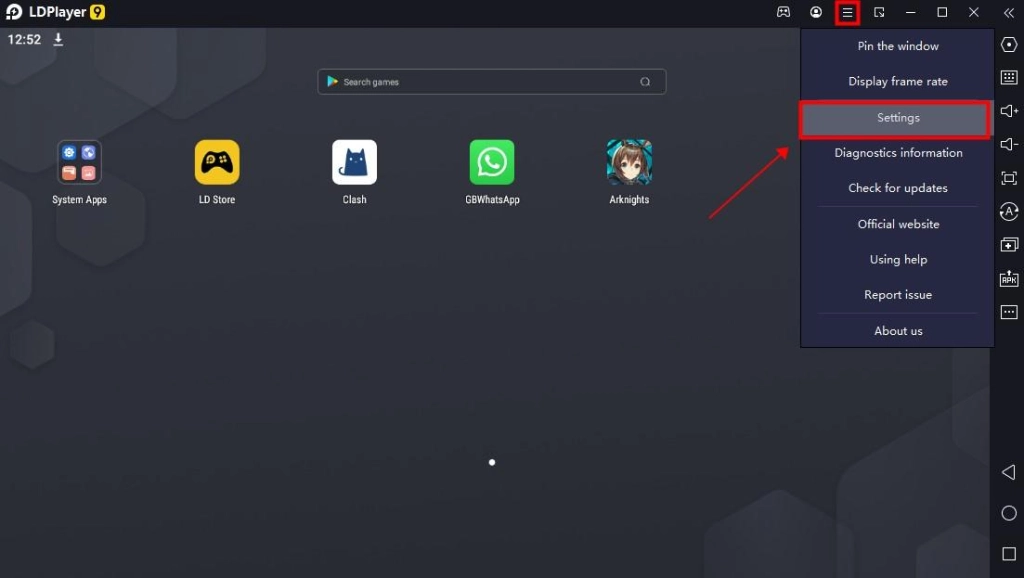
Step 1. In the latest version of LDPlayer 9 (Version:9.0.33 ), click the drop-down list of the menu > Settings.
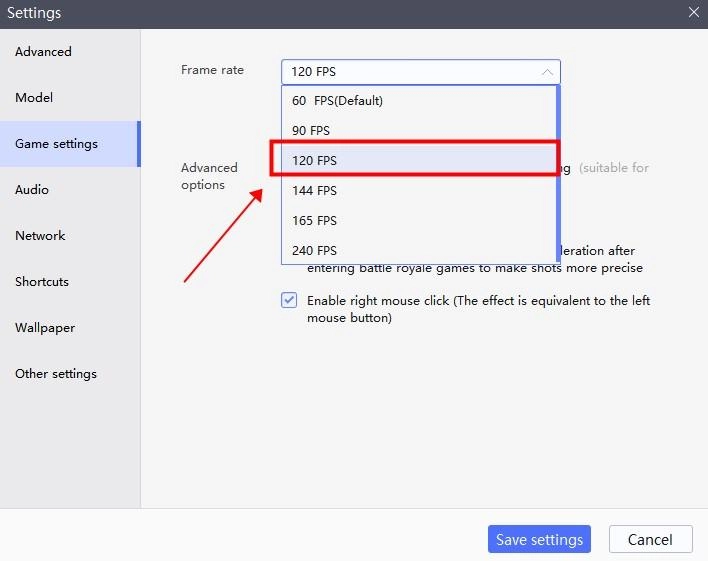
Step 2. In Game settings, click the drop-down list of Frame rate and choose 120 FPS. Then save your settings. If you want to enjoy 240 FPS in NIKKE, please choose 240 FPS.
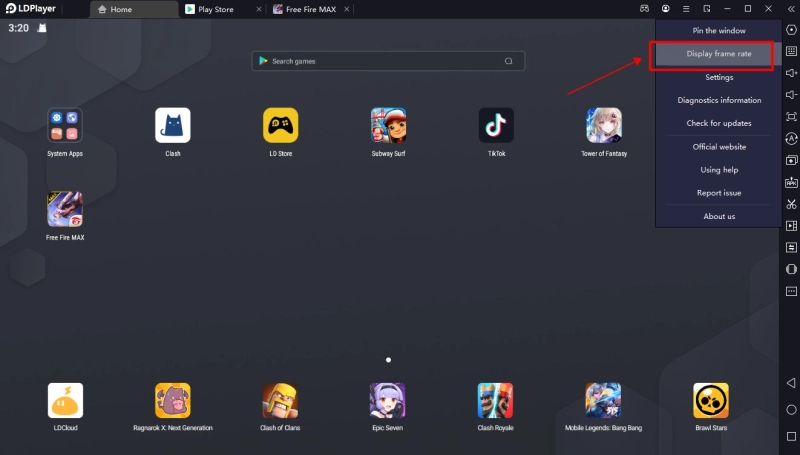
Tips: You can monitor the frame rate by clicking Menu > Display frame rate. Then you can see the frame rate at the top left during your gameplay.
Step 3. Enjoy playing Android games at 120 FPS on LDPlayer now!
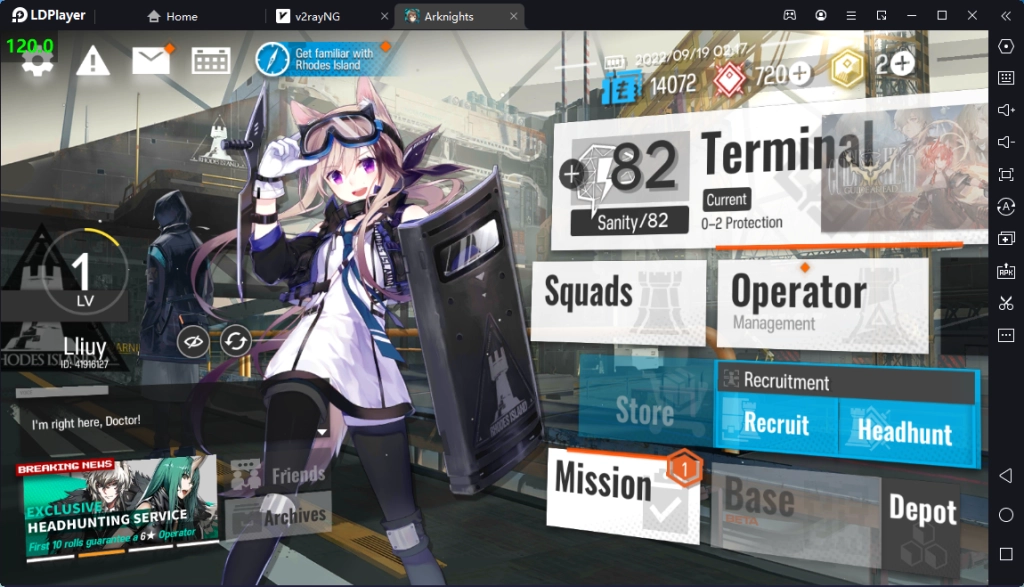
Notice: Due to the differences between the devices, the frame rate may fluctuate.
Multi-open Optimization: Lock FPS for Your Multi-open Instances
To open multiple instances of LDPlayer, users can gain a brilliant gaming experience such as in rerolling your gacha games.
But for computers with lower equipment, it is recommended to adjust the frame rate of your instances. This is because opening multiple instances of the emulator are restricted by the hardware of the computer which includes computer system, CPU, memory, graphics memory, etc. So it's better to adjust the lower frame rate when you open multiple instances to avoid computer error.
Step 1. In LDMultiPlayer, you need to make sure the frame rate of your instances is all set to 60 FPS in the Game Settings. The default frame rate in Game settings is 60 FPS. If you have modified it before, you can click the gear icon of each instance to set it back.
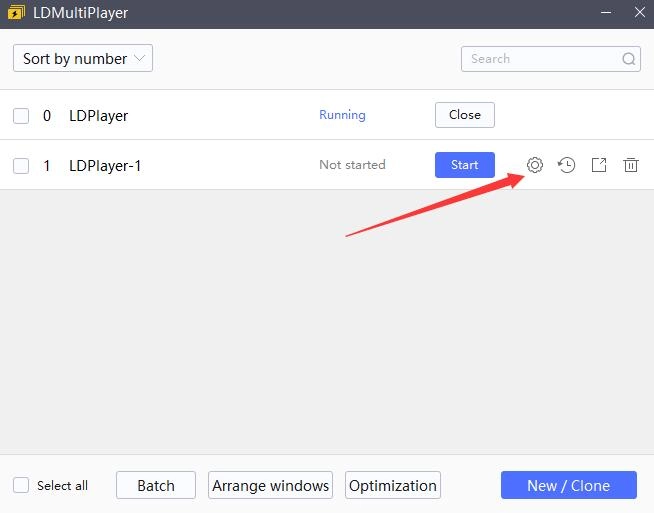
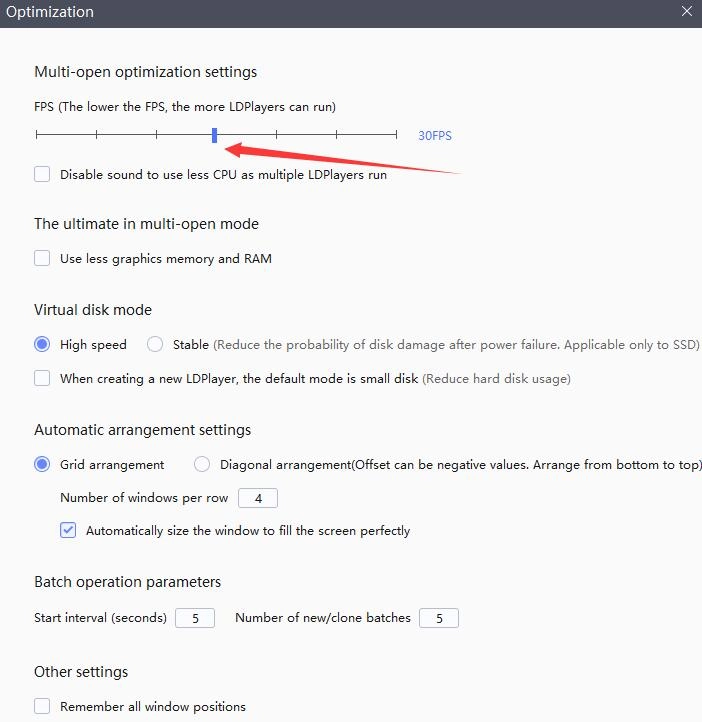
Step 2. Click the "Multi-open optimization" at the bottom. In the pop-up window, you can drag the FPS bar to adjust the frame rate. If you want to open as many instances as possible, it's recommended to change the FPS to 10~20. If you only need to open 3-4 emulators, you can appropriately increase the FPS to 30-50.
The frame rate of games is affected by many factors. The most important factor is the computer configuration, as well as the FPS settings offered by the game. The FPS setting in the emulator can only help improve the FPS of the game if the conditions are satisfied.