JuiceSSH - SSH Client is a Communication application developed by Sonelli Ltd, but with the best Android emulator-LDPlayer, you can download and play JuiceSSH - SSH Client on your computer.
Running JuiceSSH - SSH Client on your computer allows you to browse clearly on a large screen, and controlling the application with a mouse and keyboard is much faster than using touchscreen, all while never having to worry about device battery issues.
With multi-instance and synchronization features, you can even run multiple applications and accounts on your PC.
And file sharing makes sharing images, videos, and files incredibly easy.
Download JuiceSSH - SSH Client and run it on your PC. Enjoy the large screen and high-definition quality on your PC!
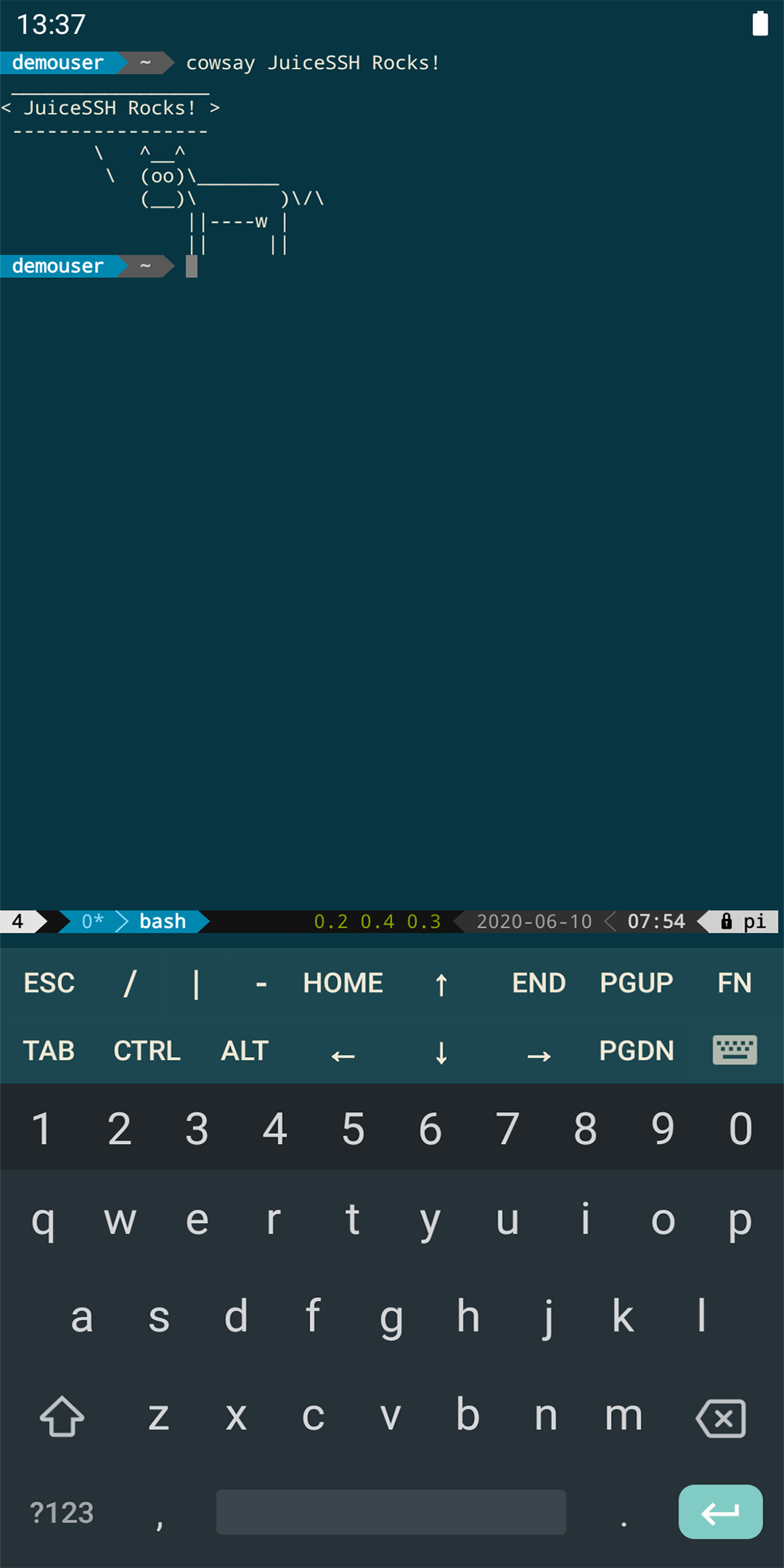
The all in one terminal client for Android including SSH, Local Shell, Mosh and Telnet support.Features:
- Full color terminal / ssh client
- Popup keyboard with all those normally hard to find characters
- Use the volume keys to quickly change font size
- External keyboard support
- Gestures for irssi, weechat, tmux and screen
- Community and third party plugins
- Official Mosh support (http://mosh.mit.edu)
- Telnet support
- Local Android terminal support
- Dark, Light, 80's hacker, Molokai, Solarized Dark and Solarized Light terminal color themes
For an overview of solarized color scheme and why it rocks for terminal usage check out http://ethanschoonover.com/solarized
- Click URLs to open in a browser
- Copy & Paste within sessions
- Save / Share SSH transcripts
- UTF-8 character support
- Easily organize your connections by group
- Keep multiple SSH sessions running in the background
- Seamlessly connect 'via' other SSH connections with one click
- Immediate access when you open the app to your frequently used connections
- IPv6 support
- Password & OpenSSH private key support (ed25519, ECDSA, RSA and DSA)
- SSH key generator (optional passphrase encryption supported)
- Identities (users/password/keys) are abstracted from connections. Instead of updating every connection when you change your password - just update the identity and any connections linked to it will use the new password/key.
- zlib compression to improve SSH sessions on high latency connections
Pro Features (optional in-app purchase):
- Quick and easy port forwards that can be connected to via the app or widget and can automatically open in a browser if required.
- Integrate with Amazon AWS / EC2, synchronize connections and automatically group servers based on their class or security groups.
- Securely keep everything in sync between multiple devices
- Automated AES-256 encrypted backups of all of your connections and settings
- A beautiful widget for fast access to either your frequently used connections, or a specific group
- Team collaboration. Share your groups of connections with team members and start working together instead of separately.
- Handy snippets library for quick access to your frequently used commands
- Security lock to automatically protect JuiceSSH after a period of inactivity