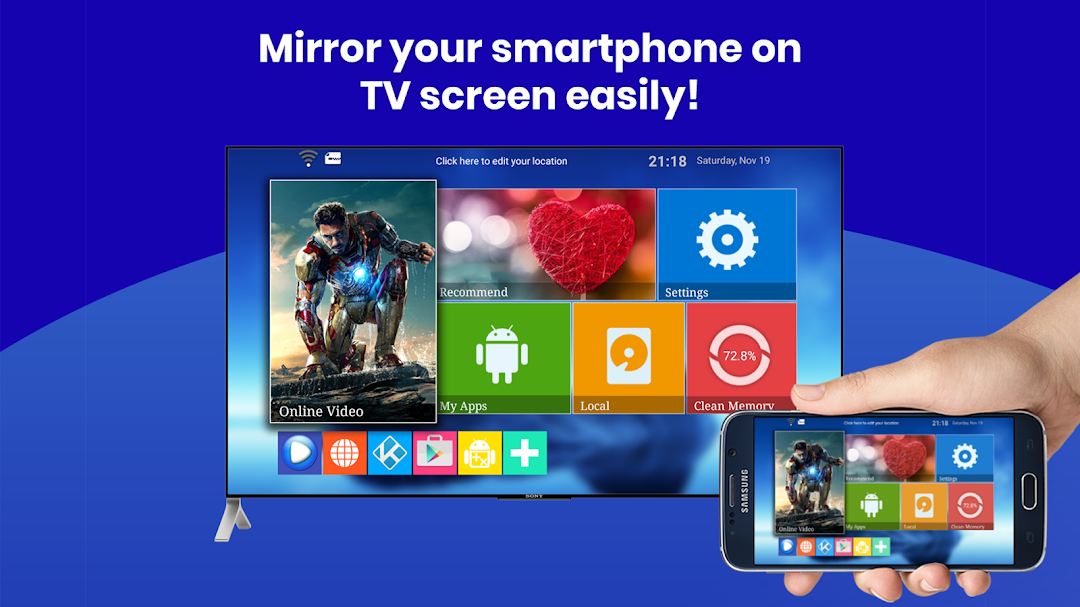
Screen Mirroring Samsung is a Tools application developed by ImsaTools LTD, but with the best Android emulator-LDPlayer, you can download and play Screen Mirroring Samsung on your computer.
Running Screen Mirroring Samsung on your computer allows you to browse clearly on a large screen, and controlling the application with a mouse and keyboard is much faster than using touchscreen, all while never having to worry about device battery issues.
With multi-instance and synchronization features, you can even run multiple applications and accounts on your PC.
And file sharing makes sharing images, videos, and files incredibly easy.
Download Screen Mirroring Samsung and run it on your PC. Enjoy the large screen and high-definition quality on your PC!
Turn any living‑room TV into a bigger, brighter Android display. Mirror your screen, stream 4 K video, or share a gaming session in seconds—no HDMI needed. “Screen Mirroring & Cast • Samsung TV” connects Samsung, LG, Sony Bravia, Roku, Fire TV, Chromecast, Miracast, and AirPlay with rock‑solid latency & HD audio.🔑 Why users love it
• Instant pairing—auto‑detects devices on the same Wi‑Fi ✔️
• Zero‑lag gaming mode (≤40 ms)
• Full‑HD & 4 K playback for Netflix™, YouTube™, IPTV
• Flexible layouts—portrait / landscape / DeX desktop
• Private cast—stream local files without uploading to cloud
• Works with Bluetooth speakers for synced sound
• Totally free. No cables. No signup.
🛠️ How to start
1. Connect TV & phone to the same Wi‑Fi.
2. Launch the app → select your TV.
3. Tap Start Mirroring. That’s it!
🎮 Perfect for
• Watching live sports on the big screen
• Presenting slides at work or school
• Mobile gaming with a wireless controller
• Sharing holiday photos with family
• Using your phone as a touchpad on DeX
📱 Compatibility
• Phones/Tablets: Android 5.0+
• TVs & Dongles: Samsung Smart TV (2013‑2025), LG webOS, Sony Bravia, Hisense, TCL, Roku, Fire TV, Chromecast, Xiaomi TV Stick, any Miracast/UPnP receiver
• Protocols: Miracast, Google Cast, DLNA, AirPlay, Samsung DeX
❓ FAQ
• “No device found?” → Make sure VPN is off & both devices share the same 2.4 GHz or 5 GHz band.
• “Audio delay?” → Toggle ‘Sync Audio’ in Settings.
• Still stuck? Chat with us—24 h reply guaranteed.
Stop squinting at a 6‑inch screen. Download now and enjoy cinema‑size mirroring in one tap!
Keywords: screen mirroring, screen mirroring app, screen mirroring Samsung, screen mirroring for Samsung Smart TV, cast to TV, Miracast Android, AirPlay to TV, Samsung DeX, mirror screen to TV