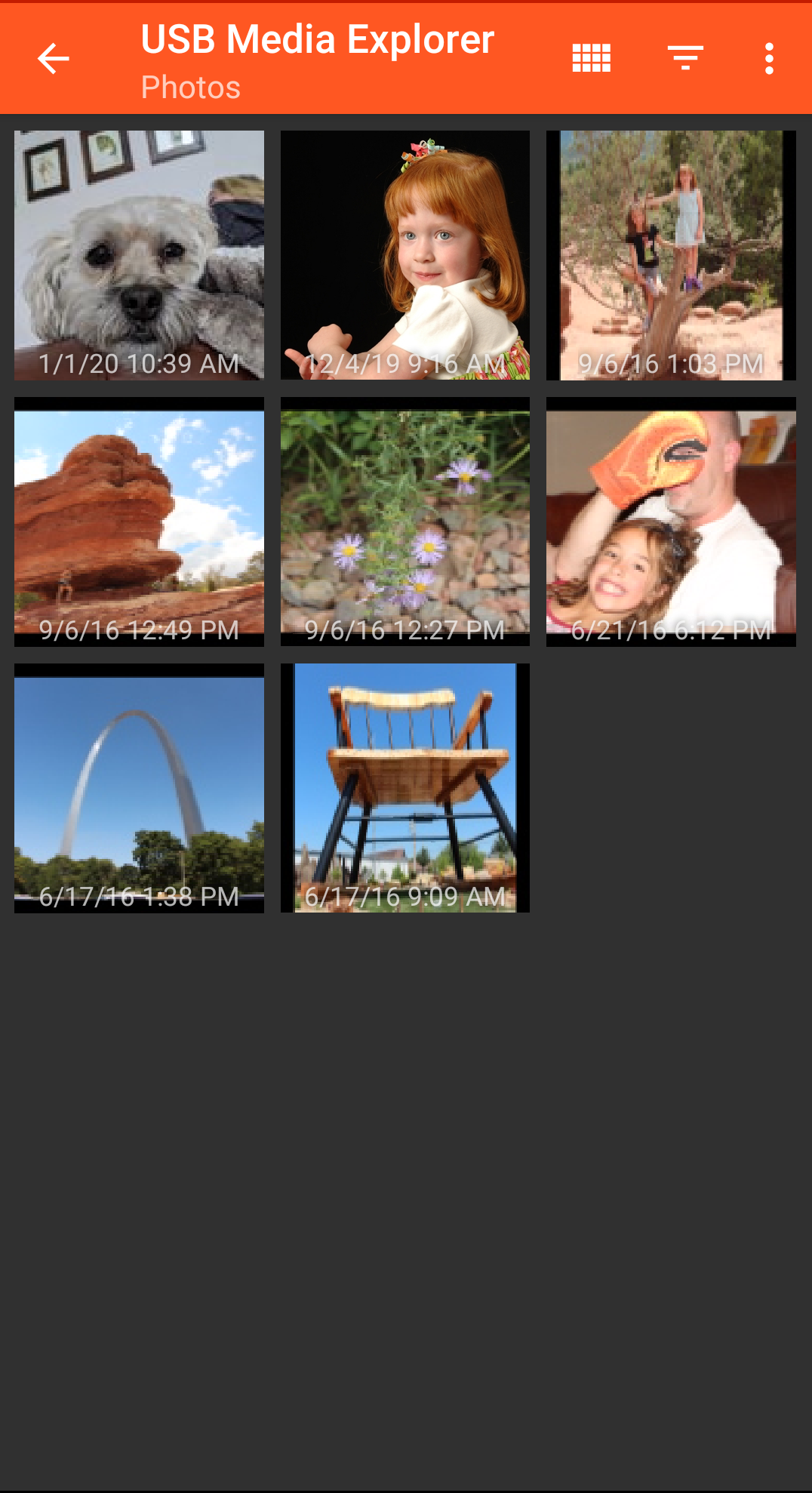
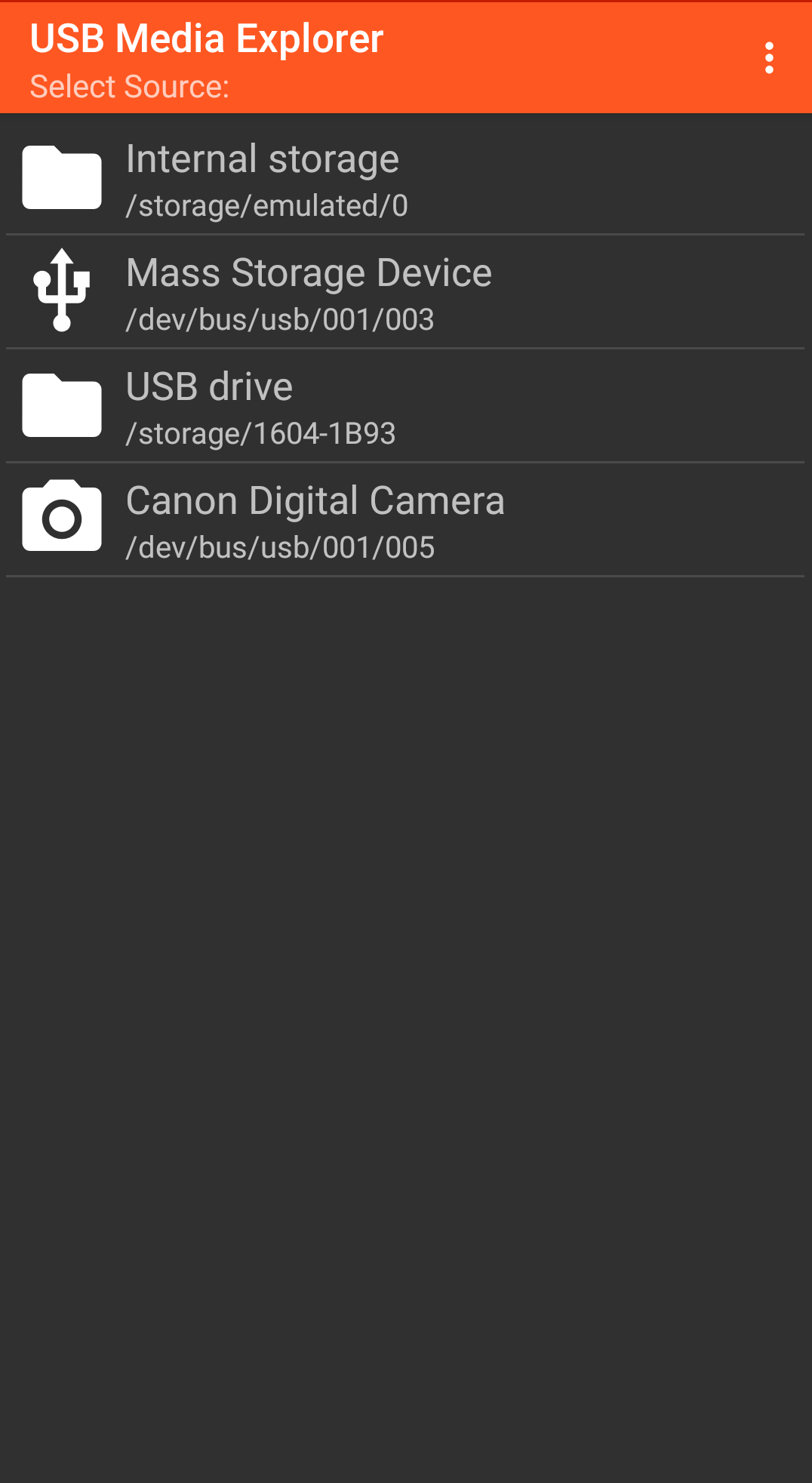
USB Media Explorer is a Photography application developed by Homesoft, LLC, but with the best Android emulator-LDPlayer, you can download and play USB Media Explorer on your computer.
Running USB Media Explorer on your computer allows you to browse clearly on a large screen, and controlling the application with a mouse and keyboard is much faster than using touchscreen, all while never having to worry about device battery issues.
With multi-instance and synchronization features, you can even run multiple applications and accounts on your PC.
And file sharing makes sharing images, videos, and files incredibly easy.
Download USB Media Explorer and run it on your PC. Enjoy the large screen and high-definition quality on your PC!
USB Media Explorer (UME), formerly known as Nexus Media Importer, allows you view photos (Jpeg and Raw), stream videos1, listen to music, and view documents from USB storage devices and cameras. Specialized screens for photos, videos, music, documents and file management. Copy files to and from the USB device. View full size photos and videos without importing!Supported Devices:
- Flash/Pen Drives
- Card Readers
- Hard Drives2
- Cameras3
- Other Android devices4
- MTP/UMS audio players5
- Some DVD drives6
Additional Hardware Requirements:
- Connecting most devices will require a microUSB OTG cable or USB C to USB adapter. These are available from most major retail websites.
Notes:
1. Video and audio formats not natively supported by Android (AVI, Dolby, DTS, WMV) may require a third party player like VLC.
2. Hard drives require considerable power and may require an external power source, like a powered USB hub.
3. Only cameras with storage are supported. Live image devices like endoscopes and webcams are not supported.
4. To access another Android device, put the target device in MTP/File Transfer Mode.
5. Most “i” devices use a proprietary protocol. These are NOT supported.
6. Only DVD drives that support AV Connect mode or similar are supported. See your DVD drive manual. Commercial DVDs are not supported.
Support:
- If you have an issue, you can tap "Homesoft" from the About screen for email support. I read and reply to reviews, but due to their one way nature, it’s difficult to resolve issues. If you have a support request, please include the Android device you are using, the USB device you are trying to use and a description of the problem.