How to Play Arknights Endfield on PC?

Ashi Prasadi
|2026-01-23Experience the ultimate gaming adventure today by playing Arknights: Endfield on PC. Explore a vast sci-fi frontier world, build and manage your base using advanced technology and team up with friends to engage in intense battles with impressive graphics and incredibly smooth gameplay using LDPlayer. This guide will walk you through the simple steps to download and play the game on PC with LDPlayer, the best Android emulator available.
Contents

Play Arknights: Endfield On PC With LDPlayer In 4 Easy Steps
Step 1: Download The Official LDPlayer Emulator
Download the official LDPlayer 9.0 Emulator from the official LDPlayer website.
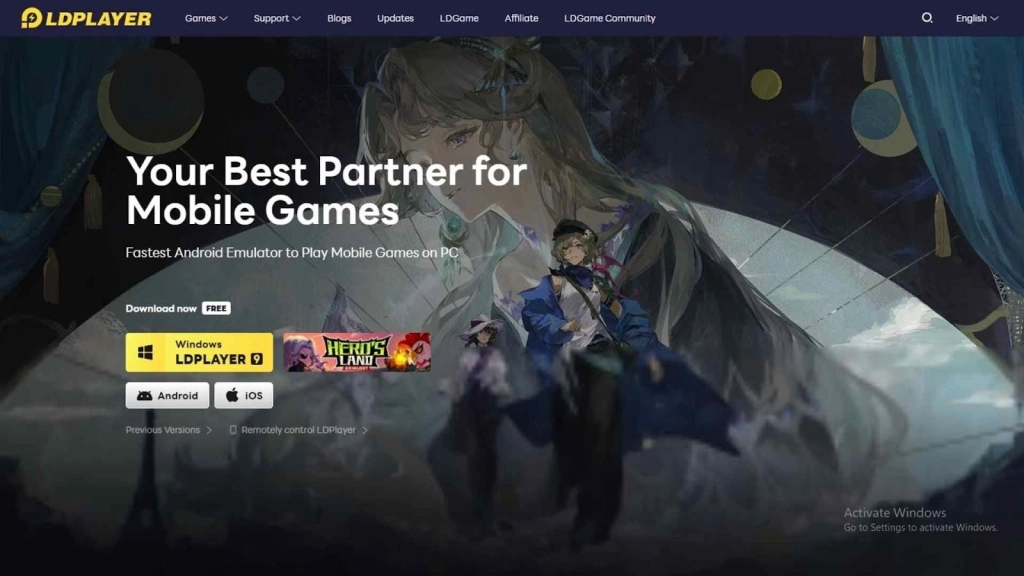
1.1 - Click the yellow "Download" button on the page to start the downloading process.
1.2 - Once downloaded, click the pop-up message on your browser to start the installation process for LDPlayer 9.0 on your PC
1.3 - Upon you open the exe file, the installation screen will appear. Just click Install and let the launcher complete the setup.
1.4 - After installed, launch the LDPlayer 9.0 Emulator through the desktop shortcut or from your system’s start menu
Step 2: Searching & Downloading Arknights: Endfield
After launching LDPlayer, players can start finding and installing games through LDPlayer’s special LD Store.
2.1 - Select the search bar and type in “Arknights: Endfield”
2.2 - Once found, click the Install button next to the Arknights: Endfield logo. (Ensure that the Arknights: Endfield app is the official game developed by GRYPHLINE.)
2.3 - If clicking Install redirects you to the Google Play Store, proceed to Step 3 to set up your Google Play account. If not, wait for the game to install and proceed to Step 4
Step 3: Setting Up Your Google Play Store Account
If redirected to Google Play Store, you need to set up your Google Play Account to gain access to app downloads.
3.1 – When you are redirected to the Google Play Store, you will be prompted to log in. Click the Sign In button to continue.
3.2 – Enter your existing Gmail account details to log in. If you do not have a Google or Gmail account, click Create account to make a new one.
3.3 – After entering your email, type in your password. If you forget your password, use the Forgot password option. If two-factor authentication is enabled, follow the on-screen steps to verify your account.
3.4 – Once your login details and password have been approved, the User Agreement page will appear. Click Agree to move forward.
3.5 – You may see an option to back up your data to Google Cloud. You can turn this option on or off based on your preference, then click Accept.
3.6 – After setup is complete, you will gain access to the Google Play Store for your region, allowing you to download games and make in-game purchases.
3.7 – Now, click Install on the Arknights game to begin downloading and installing it.
3.8 – Once the download and installation are finished, a small notification will appear at the bottom left of your screen.
3.9 – After everything is installed, you will find the Arknights game icon on the LDPlayer home screen.
Step 4: Download Arknights: Endfield Game Data and Logging In
Once you complete the installation, you'll need to download the in-game data and log into the game, either by creating a new account or restoring an old gameplay account.
4.1 - Open the Arknights: Endfield app and click "Confirm" to download required game data
4.2 - Once the download is complete, you can log into the game either by creating a new account or by logging into an existing account.
4.3 - Choose your login method: Gmail, Apple, or Facebook to download and access your account
4.4 - Once logged in, you’re ready to enjoy Arknights: Endfield on PC.
LDPlayer - The best android emulator to play Arknights: Endfield on PC
Multi-instance & Sync: Operate multiple accounts simultaneously to improve rerolling efficiency
One-key Macro:Record and auto-execute your actions, making resource farming and dungeon clearing a breeze
High FPS & Keyboard Mapping:Smoother combat, precise skill activation, and no lag or frame drops
Video Recorder:Record highlights and turn them into shareable videos
Download LDPlayer now and enjoy your epic adventure on PC!
Common Problems and Suggested Solutions
While you are getting Arknights: Endfield for LDPlayer, some problems may occur. So here are the problems and solutions:
Not Having Enough Storage Space on the Emulator Instances to Install the Game
Arknights: Endfield is a heavy game and you need at least 25 GB of storage for the basic app and its in-game data. So, it is highly recommended that players have more than 25 GB free for smooth gameplay.
In order to expand the emulator instance’s storage space, players can set the storage settings to automatically expand to help accommodate the large amount of game data through the settings menu.
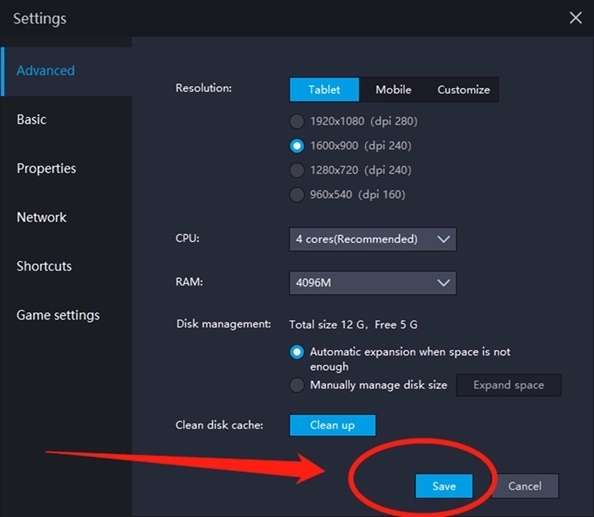
Steps: Go to LDPlayer Settings > Advanced Tab > Manage Disk > Choose “Automatically expand when there is not enough space”
Facing Lag Issues for Arknights: Endfield
Experiencing lag issues can be annoying while playing the game. If you are encountering lag while playing in LDPlayer, there are several ways to fix the lag and play Arknights: Endfield smoothly on your PC:
Increase CPU and RAM Performance
Adjusting LDPlayer settings according to your PC specifications helps for smoother gameplay without lag. To improve performance, properly configure CPU and RAM based on your PC:
Steps:
-
Go to LDPlayer Settings > Advanced
-
Set the CPU to at least 4 cores and allocate about 4 GB of RAM for optimized gameplay
-
If your PC has more RAM, you can allocate more than 4 GB for even smoother gameplay
Enable Virtualization Technology
If you face lag during the game’s animations or reduced smoothness, make sure your PC has Virtualization Technology (VT) enabled. Also, set up the appropriate Hyper-V sync settings to improve smoothness and performance. To set these settings up for your PC, check this How to Enable Virtualization Technology guide to enable it easily.
Special Recommended Settings & Features from LDPlayer
When playing Arknights: Endfield on PC with LDPlayer, players can gain many advantages by using LDPlayer’s special features.
Fight Efficiently with Keyboard Mapping Command
Arknights: Endfield mainly focuses on action-based battles, including skill usage and dodging enemy attacks. With LDPlayer’s Keyboard Mapping feature, players can enjoy more optimal gameplay by customizing keyboard and mouse controls based on their preferences. This feature allows you to assign keys freely for smoother combat and easier control during battles.
Here are the steps to customize your keyboard layout:
-
Drag and place the control buttons you want to use in the game
-
Arrange the keys according to the in-game touch controls
-
Assign a keyboard or mouse key to each placed button
-
Save your customized layout for gameplay
Make sure to use keys that feel familiar to you, as this will make gameplay easier and help you fight more efficiently.
Multi-Instance & Sync for Higher Rarity Heroes
For a better start in Arknights: Endfield, having higher-rarity hero characters from the beginning is very important. However, early-game summon rates are usually low. To solve this, players can take advantage of LDPlayer’s Multi-Instance and Synchronize features.
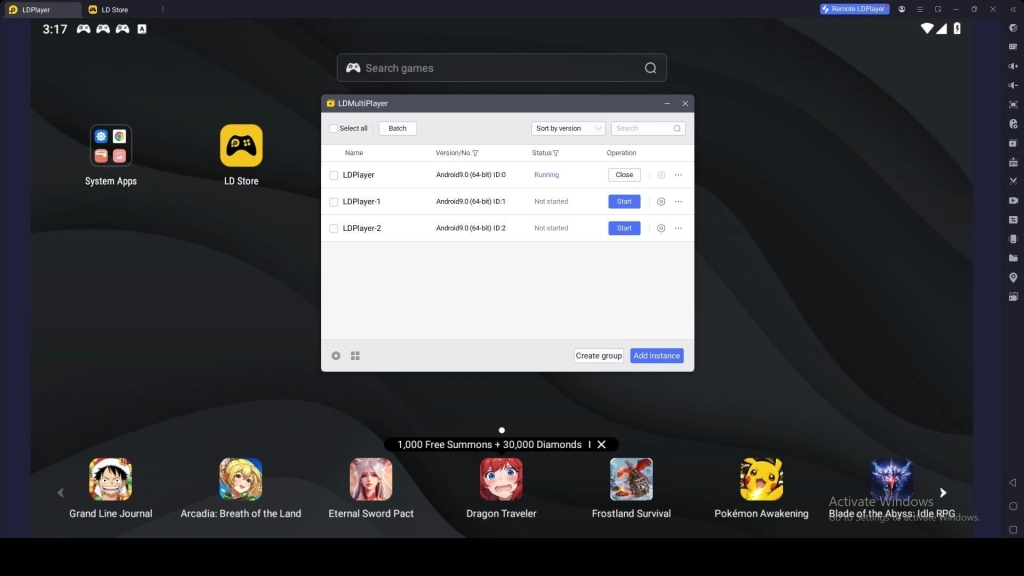
These features allow players to create and run multiple game instances at the same time and perform rerolls across all accounts simultaneously. This greatly increases the chances of obtaining higher-rarity heroes early on, helping players secure a stronger account from the start.
Conclusion
Now it’s time to jump into better battles in the world of Arknights: Endfield on PC with the help of LDPlayer. Experience a more exciting gaming journey with powerful emulator features and smooth, lag-free gameplay on your PC today with LDPlayer.