How to Play CookieRun Classic on PC

Thisara Dilshan
|2026-06-23Want to experience CookieRun Classic with smoother performance, better graphics, and easy controls on a bigger screen? Playing on PC with LDPlayer is the ideal way to upgrade your gaming experience. You can use the best emulator features to enjoy stable performance, faster response, and a more comfortable way to run, jump, and collect rewards without hassle. Follow this guide step by step to install and set everything up, and enjoy every run with your favourite cookies.
Contents
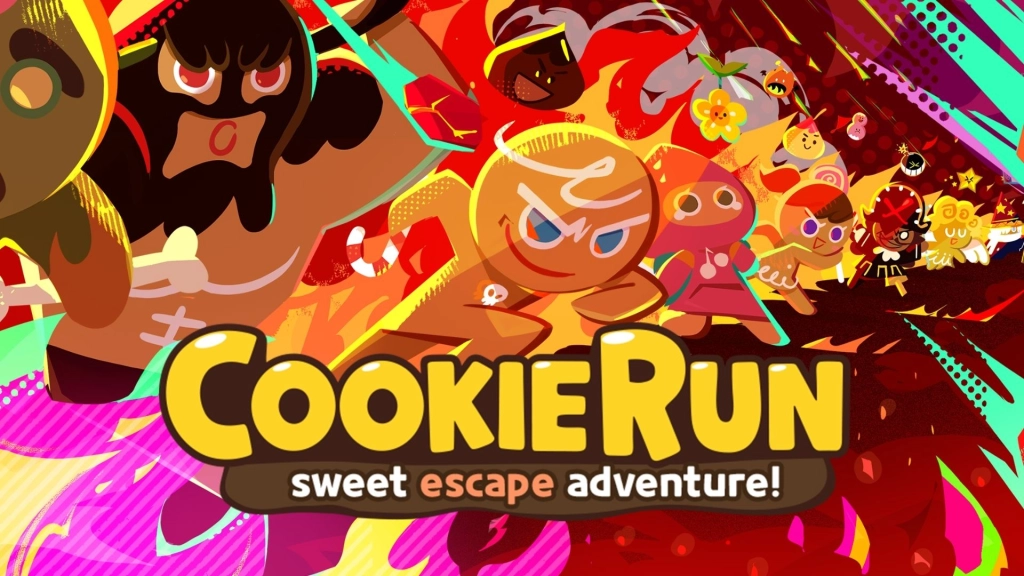
How to Play CookieRun Classic on PC with LDPlayer in 4 Easy Steps
Step 1: Download and Install LDPlayer Emulator on Your PC
Would you want to experience CookieRun Classic with enhanced visuals, and easy control options? Then your choice would be to play this game using your PC. With an Android emulator like LDPlayer 9, you can easily set up your PC into a full mobile gaming setup in just a few minutes. Therefore, let’s take the first step: download and install LDPlayer on your PC.
1.1 – Go to the official LDPlayer website and download the newest version of LDPlayer 9 to get the best performance and compatibility.

1.2 – After finishing the downloading process, find the location where your file has been downloaded and click on it to start the installation procedure.
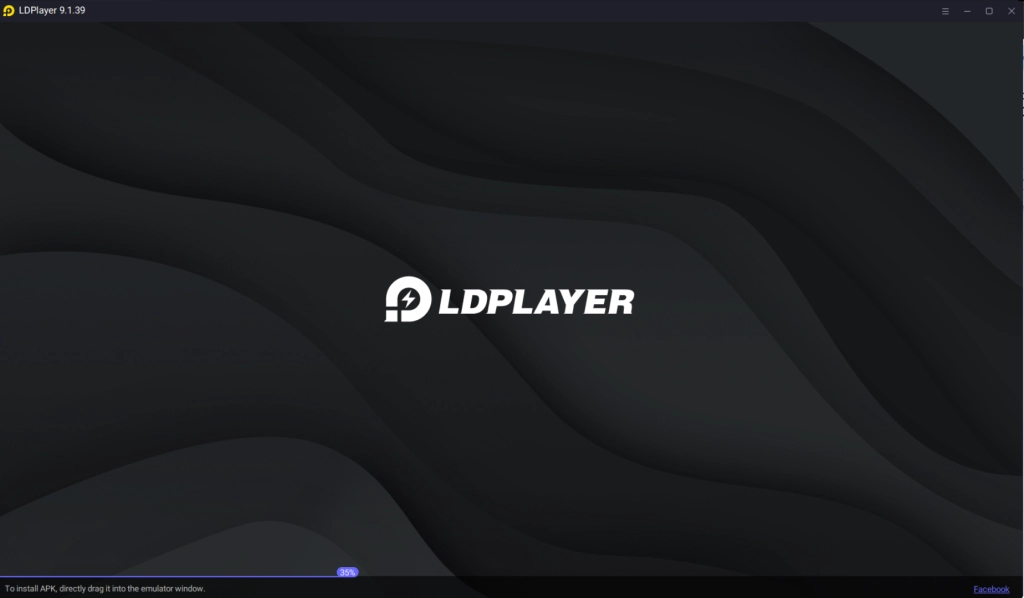
1.3 – Now click on the “Install” button and then wait until the process is completed.
1.4 – When installation is done,open it using the desktop shortcut icon or the Start Menu. Your emulator is now all set for mobile gaming on PC.
Step 2: Find and Install CookieRun Classic Inside LDPlayer
LDPlayer has been installed on your computer successfully. It is now time to install CookieRun Classic on the LDPlayer Emulator. Below are the steps you need to follow:
2.1 – Launch LDPlayer and locate the search bar on the main screen.
2.2 – Type “CookieRun Classic” and select the official game developed by Devsisters Corporation from the results.
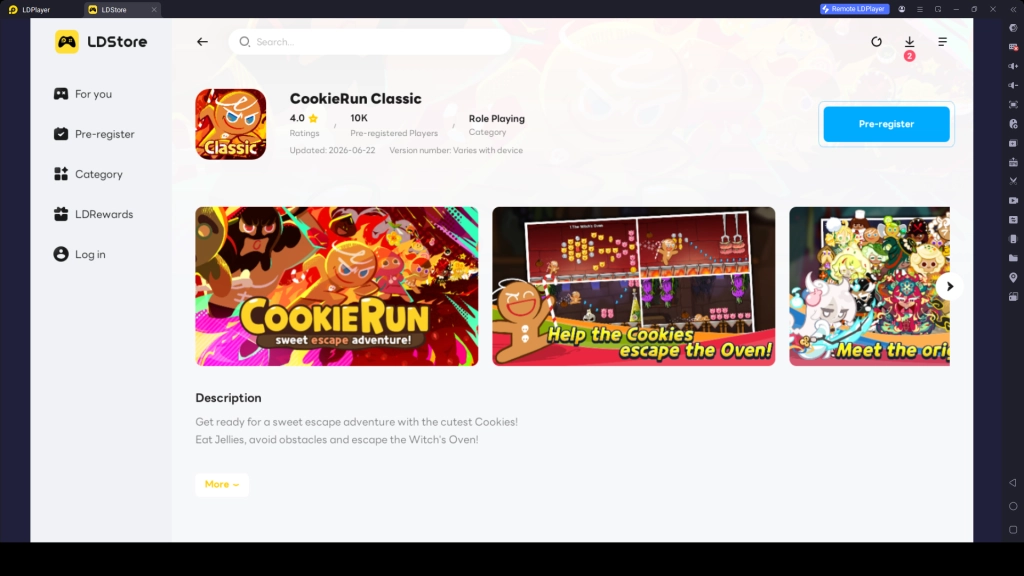
2.3 - Tap the 'Install' option to start the download process of the game.
2.4 - In some instances, you will be automatically redirected by LDPlayer to the Google Play Store, so, you need to follow the next steps provided below for completing the installation.
Step 3: Sign in to Google Play Store (If Required)
If you have not logged in through the Google Play Store app of LDPlayer, you might have to log in using your Google account in order to continue downloading the CookieRun Classic game. Just follow these easy steps below to continue your download without any error:
3.1 - After opening the Play Store, click the Sign In button.
3.2 - Enter your Gmail ID. Don’t have an account yet? It’s fine because you can create one right away!
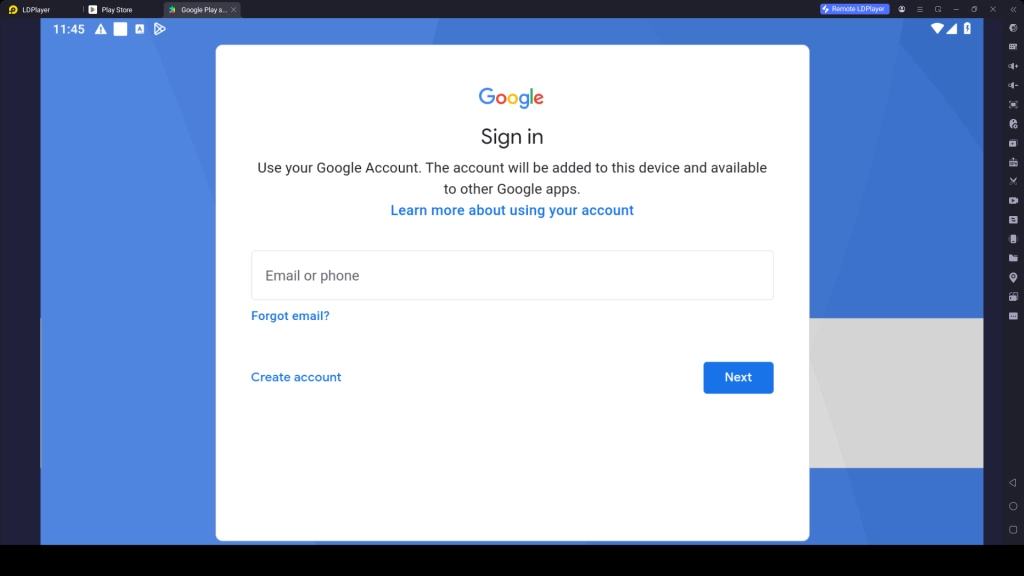
3.3 - Enter your password correctly and follow the verification process, if asked by Google.
3.4 - Read through the terms and conditions set by Google and hit Accept when you’re done.
3.5 - You may encounter the option regarding back-up services, then you can either turn it on or skip it for now.
3.6 - Return to the Play Store search page, enter "CookieRun Classic" and download the official game.
3.7 - Wait until the entire installation process is completed.
3.8 - When you have successfully installed the game, the CookieRun Classic game icon will appear on the LDPlayer homepage. That means it’s time to play the CookieRun Classic on your PC!
Step 4: Launch the Game and Download In-Game Resources
Now it's come to the final step. When you are launching CookieRun Classic for the first time through LDPlayer, you may be asked to download some additional files. These are useful resources for your gameplay.
4.1 – Click on the “CookieRun Classic” icon within the LDPlayer menu to launch the game.
4.2 – Allow access to all required files to get downloaded for the game. This process might take some time based on your internet connection speed.
4.3 – On the successful completion of the downloading process, sign in or register to the game by log in or creating a new account.
4.4 – Select a suitable method to sign in, such as through Google or Facebook or any other available options.
4.5 – Now you’re all ready to go! Go ahead and play CookieRun Classic on PC and have a good time with more fluid game play, bigger visuals, and easy control using LDPlayer.
Common Issues and Easy Fixes for LDPlayer
While you are playing CookieRun Classic through LDPlayer on your PC, there could be certain issues that can arise during the gameplay. But you don’t need to worry about it because it happens quite commonly and can be solved easily. Here are some common issues along with their solutions.
How to Fix CookieRun Classic Lag on LDPlayer
Are you facing lag issues while playing CookieRun Classic using LDPlayer? If yes, then lag might be the reason for causing stutters, delay in controlling, and reduced performance of your game. But, there are some easy ways to solve this problem.
How to Fix Lag Issues:
- Restart LDPlayer and start the game once again to solve temporary performance problems.
- Check the settings of your BIOS and enable Virtualization Technology (Intel VT-x or AMD-V).
- Go to LDPlayer Settings > Advanced Settings and allocate CPU and Ram ( Set CPU to 2-4 cores and 4GB RAM )
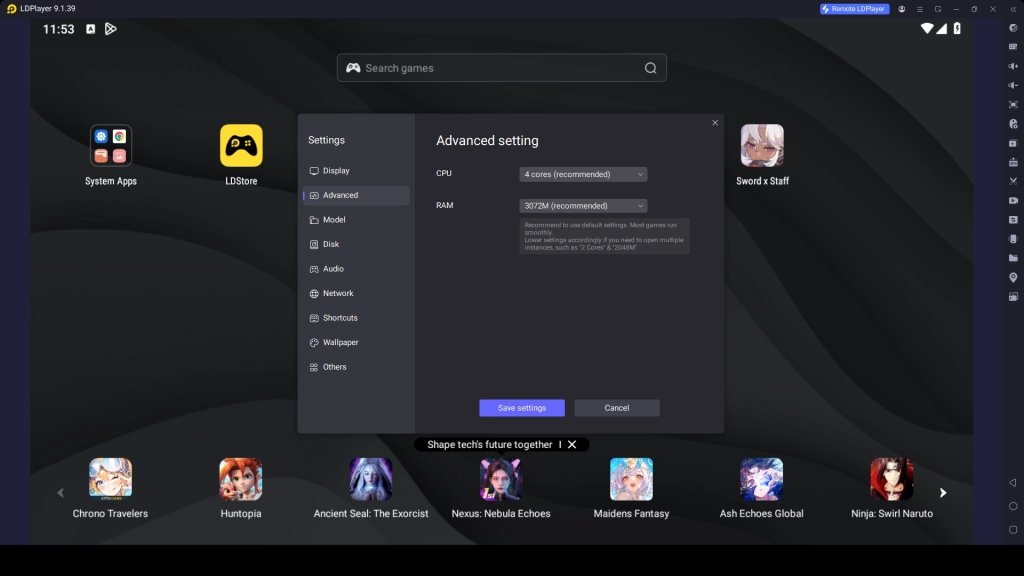
- Try switching the graphics renderer between OpenGL and DirectX to find the option that works best on your PC.
- Change your graphics rendering engine from OpenGL to DirectX
- Choose a High Performance power setting for your Windows OS.
- Reduce the game's graphics settings, resolution, or FPS if you have frame drops during the gameplay.
- Clear LDPlayer's cache and temporary files to free up resources and improve overall speed.
Fix “LDPlayer No Internet / Network Error” Issue
In case of LDPlayer network errors, you may face issues loading applications or games. This is usually caused by internet connection problems, incorrect settings, or something blocking internet access on your computer.
How to Fix LDPlayer Network Error Issue:
- First, confirm your PC has a working internet. If your main connection is down, LDPlayer won’t work either.
- Quick fix: Restart your PC and LDPlayer. This clears most temporary network glitches.
- Open LDPlayer settings and make sure the network connection is enabled.
- Disable any VPN you’re using, it can block LDPlayer.
- Allow LDPlayer through Windows Firewall and check that network access is enabled.
- If it still doesn’t work, reset your network settings and change DNS to Google DNS.
- Update LDPlayer to the latest version
- If nothing works, reinstall LDPlayer, this resets all network configurations.
Enjoy CookieRun Classic on PC with LDPlayer’s Exclusive Features
There are lots of unique features in LDPlayer that you can utilize to optimize your gaming experience in CookieRun Classic. Using these features, you can improve visuals, control, and make your gameplay much more smoother and comfortable. Here are the most useful features you can use:
Keymapping Feature for Faster Cookie Controls
CookieRun Classic is all about quick reactions, perfect jumps, and smooth slides. Missing a jump or reacting too late can end a great run instantly. To improve your control and response speed, you can use LDPlayer's Keyboard Mapping feature.
This feature helps you to assign keyboard keys to jump, slide and activate boosts. Using keyboard controls, you can respond faster and perform actions more accurately compared to using touch screen controls. This is very handy when performing long-distance races, fast stages and high scoring runs.
How to Set Up Keyboard Mapping:
- Launch CookieRun Classic in LDPlayer.
- Open the Keyboard Mapping tool from the side toolbar.
- Drag and assign keys to on-screen actions (Jump, Slide, Boosts Cookie Skill , etc.).
- Adjust the size and position of keybinds for optimal layout.
- Save the key configuration and it applies automatically every time you play.
Hot Recommend
Download LDPLAYER, play CookieRun Classic on PC, enhance your gaming experience!


Continuous Tapping Feature for Perfect Double Jumps
Every run in CookieRun Classic requires quick double jumps to avoid obstacles, collect Jelly chains, and reach hidden rewards. Performing repeated jumps manually can sometimes be difficult during fast-paced runs. LDPlayer's Continuous Tapping feature helps automate repeated taps for jumping actions. This makes double jumps and rapid jump sequences easier to perform with only one tap.
How to Use Continuous Tapping:
- While in game, open the Keyboard Mapping tool.
- Add a Continuous Tap keybind on the desired button (usually the Jump button area).
- Set the tapping interval (e.g., very fast for double jumps or skill combos).
- Toggle the continuous tap on/off with a hotkey during gameplay.
- Combine it with regular keymapping set up and use it during your runs.
Multi-Instance Feature for Testing Different Cookie Setups
Building the perfect CookieRun Classic setup is all about trying different Cookies, Pets, and Treasures to see what delivers the highest scores. Instead of testing everything one by one, LDPlayer’s Multi-Instance and Synchronize features let you run several game sessions simultaneously. This makes it easier to compare different set up and discover effective strategies much faster.
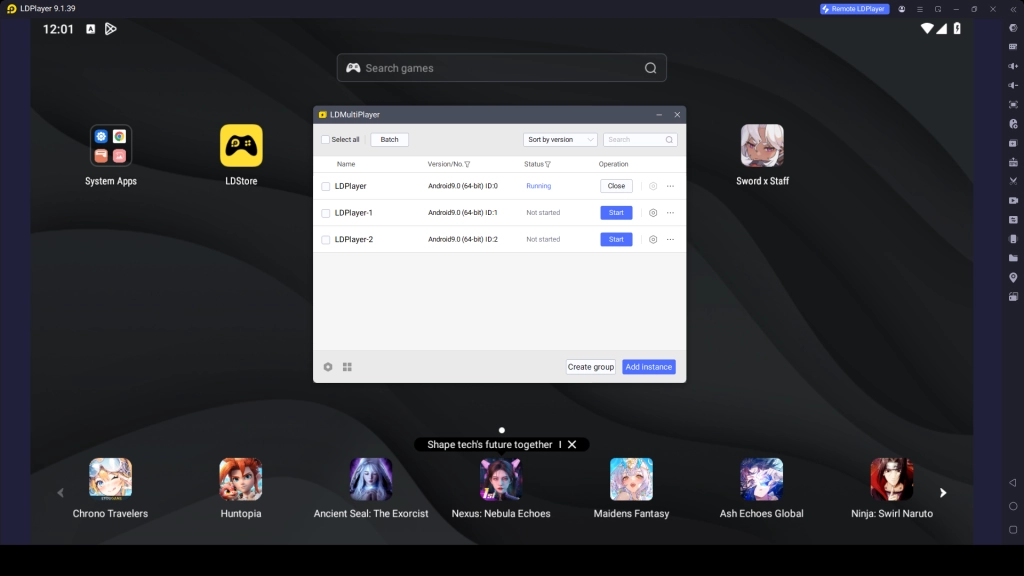
How to use Multi-Instance effectively:
- Open LDMultiplayer (Multi-Instance Manager) from your desktop or LDPlayer toolbar.
- Click Create New Instance to launch additional emulator windows.
- Install and log into CookieRun Classic on each instance (use different accounts or guest mode for testing).
- Experiment with various cookies, pet combinations, and treasure sets.
- Compare your high scores, survival times, and overall performance across instances.
- Keep the best-performing setup on your main instance and continue progressing.
Conclusion
And that’s it! You have successfully installed CookieRun Classic for your PC using LDPlayer following the steps mentioned above in this guide. Now you can experience the best gaming experience ever with enhanced graphics, smooth gameplay, and easy to use control mechanism on the bigger screen. Enjoy running, jumping, and getting high scores with a better gaming experience like never before!