Game Guides
How to Play Last Asylum: Plague on PC

Thisara Dilshan
|2026-07-28Hello Gamers! It's time to experience the dark survival world of Last Asylum: Plague on a bigger screen with LDPlayer 14. This powerful Android emulator lets you build your sanctuary, recruit heroes, and fight against the deadly plague in a much smoother way with better and easier controls. In this guide, you'll find step-by-step instructions to set up LDPlayer on your PC, download Last Asylum: Plague, and explore the exclusive LDPlayer features to make your survival adventure easier and more enjoyable.

Play Last Asylum: Plague on PC with LDPlayer in 4 Easy Steps
Step 1: Download and Install LDPlayer 14 to your Computer
Are you ready to step into the role of a plague doctor and survive in the zombie apocalypse? Playing the last asylum: plague on your computer by playing through the LDPlayer 14 is the best option that you have. This lightweight Android emulator helps you play Android games on your PC with stable performance and smoother controls using a keyboard and mouse setup.
1.1 – Open your preferred web browser and navigate to the official LDPlayer website. Make sure to download the latest LDPlayer 14 version to enjoy the best compatibility, performance, and new features.

1.2 – After downloading the LDPlayer 14, you need to open your Downloads folder and start installing the program by double clicking its file.
1.3 – Click "Install" to start the installation and wait until the process is finished. It takes just a few minutes to install the emulator.
1.4 – When installation is done, launch LDPlayer from your desktop or Start Menu. Your PC is now ready to run Android games.

Step 2: Search and Install Last Asylum: Plague in LDPlayer
After you open LDPlayer 14, the next move is finding the official Last Asylum: Plague and installing it right inside the emulator. You can easily download it through the LD Store, the official built-in app store of LDPlayer.
2.1 – Open LDPlayer and click on the LD Store icon. You can find the LD Store on the LDPlayer home screen.
2.2 – Use the search bar at the top right corner and type "Last Asylum: Plague", then press search to find the game. Please make sure to choose the official version of Last Asylum: Plague developed by 37GAMES GLOBAL from the search results.
2.3 – Click on the "Last Asylum: Plague" icon from the results to open the game's page and tap the "Install" button. LDPlayer will begin the download process automatically.
2.4 – If you are newly downloading LDPlayer and using it for the first time, LDPlayer redirects you to the Google Play Store. Then simply continue to the next step to complete the installation.
Step 3: Sign In to Google Play (First-Time Users)
If this is your first time using LDPlayer or the Play Store inside it, you’ll need to log in with a Google account. It only takes a couple of minutes.
3.1 – When the Google Play Store opens, click the "Sign In" button.
3.2 – Enter your Google email address. No account yet? Choose Create Account and follow the steps to set up a new account right from here.
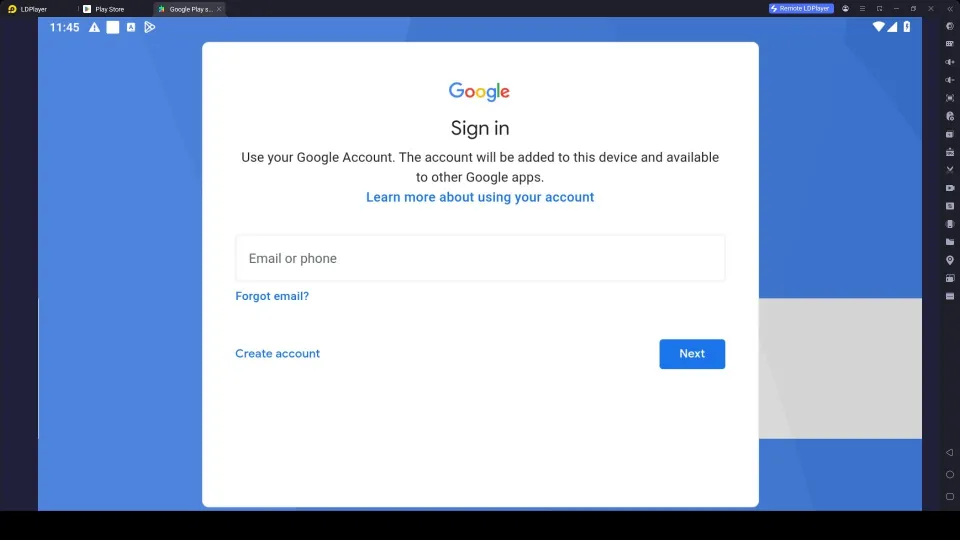
3.3 – Type your password and click "Next." Complete any security verifications Google asks for.
3.4 – Review Google's Terms of Service and Privacy Policy, then click "I Agree" to continue.
3.5 – You may see an option about Google Backup. Turn it on or skip it. Then tap on "I Agree" to
3.6 – Once signed in, return to the LD Store and search again for Last Asylum: Plague and tap "Install" to start the downloading process. Give it a little time depending on your internet speed.
3.7 – Leave LDPlayer open while both the download and installation are fully completed.
3.8 – When it’s finished, the Last Asylum: Plague icon will appear on the LDPlayer home screen. You can launch the game from LDPlayer.
Step 4: Launch Last Asylum: Plague and Complete the Game Setup
You're almost ready to enter the post-apocalyptic world in Last Asylum: Plague. Before starting your adventure, the game may need to download additional resources to ensure everything runs properly.
4.1 – Double-click the Last Asylum: Plague icon on the LDPlayer home screen.
4.2 – While this is your first launch, the game asks to download additional game data (maps, assets, etc.). Allow it to download to begin the process. This can take a few minutes depending on your internet connection.
4.3 – Once all required resources are installed, sign in using your preferred login method, such as Google, Facebook, or any other available option.
4.4 – Complete any beginner setup or character creation if prompted by the game.
4.5 – That's all! You're now ready to play Last Asylum: Plague on your PC with LDPlayer 14. Build your wards, treat patients, recruit heroes, and push back the rat swarms on a big screen with smoother gameplay and an easier keyboard and mouse setup.
Common Issues and Easy Fixes for LDPlayer
There are some technical problems that you may face such as LDPlayer crashes or connectivity problems while playing Last Asylum: Plague on PC using LDPlayer. But nothing to panic about, as these problems can easily be sorted out with some simple measures. Here is a list of some of the most common problems faced by players along with solutions.
How to Fix LDPlayer Crashing While Playing Ragnarok Origin Classic
Sudden crashes can be really frustrating while you're playing Last Asylum: Plague through LDPlayer. Imagine you're in a tough battle and just about to win, but the emulator suddenly closes. This can interrupt your progress and ruin the experience. These crashing issues usually come because of incorrect emulator settings, outdated drivers, or limited system resources. However, the good news is that these crash problems can be solved with a few easy steps and can make for a better adventure.
Simple steps to stop LDPlayer from crashing:
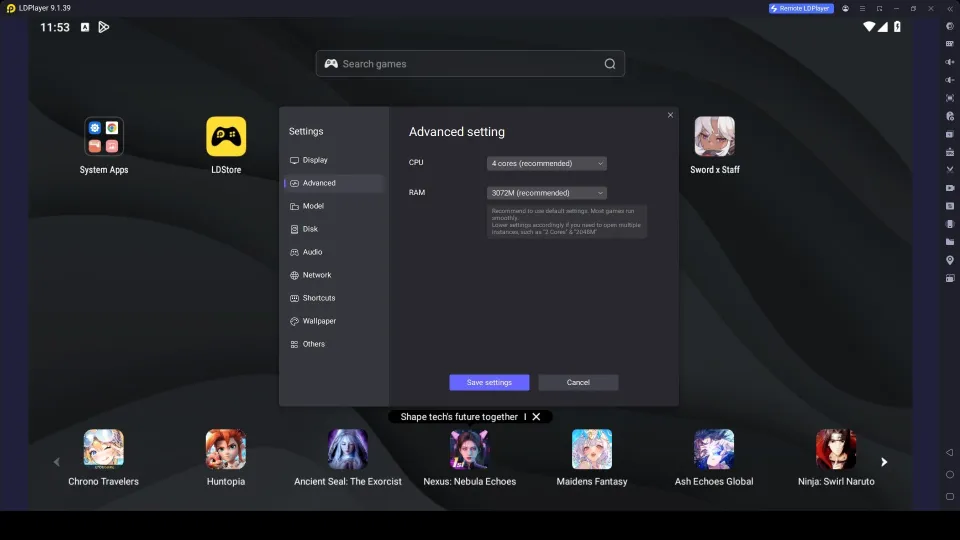
- Open LDPlayer Settings → Performance tab and configure the RAM and CPU. Set according to your PC performance, and set to 4 CPU cores and 4 GB RAM for the best performance.
- Go to Graphics settings and try OpenGL first. If the emulator still crashes, switch to DirectX and restart LDPlayer to test.
- Check if Virtualization Technology is enabled. Open Task Manager → Performance tab. If Virtualization is disabled, turn it on in your BIOS.
- Update graphics drivers from the official NVIDIA, AMD, or Intel website.
- Update LDPlayer to the latest version: LDPlayer 14. This version fixes bugs for almost all of the crashing issues and improves overall stability.
How to Fix LDPlayer No Internet / Network Error
If LDPlayer has no internet, apps won’t load, games won’t connect, or you keep seeing network errors while playing Last Asylum: Plague. In most cases, these problems are caused by incorrect network settings, firewall restrictions, and VPN conflicts. Fortunately, this common problem can be fixed easily by following simple steps.
Easy ways to fix LDPlayer internet problems:
- First, make sure your PC itself has a working internet connection. If your main connection is down, LDPlayer won’t work either.
- Restart everything (your PC, router, and LDPlayer). This clears temporary network glitches.
- Open LDPlayer Settings and make sure the network connection is enabled.
- If you’re using a VPN, disable it temporarily; VPNs often block emulator connections.
- Check your firewall and allow LDPlayer through it so it isn’t blocked.
- Try Network Bridging in LDPlayer settings or your PC network adapter. This helps the emulator share your PC’s internet connection more reliably.
- If nothing else works, reinstall LDPlayer. This fully resets all network configurations. Make sure to get the latest version: LDPlayer 14 for better performance.
Special LDPlayer Features to Enjoy Last Asylum: Plague on PC
You can enhance your Last Asylum: Plague adventure on PC with the special features offered by LDPlayer. These exclusive features can help you run the game with smoother controls and more enjoyment. Below are the best LDPlayer features to use.
Manage Multiple Accounts and Hero Teams with the Multi-Instance Feature
Last Asylum: Plague revolves around building one strong sanctuary, recruiting heroes from different factions and classes to battle with the enemies and farm resources. But testing different hero lineups or farming extra materials on a single account can feel slow and limited. Therefore, you can use LDPlayer's Multi-Instance and Synchronize, which help you run multiple instances at once to try different hero teams or accounts side by side, and speed up early progress without constantly logging in and out.
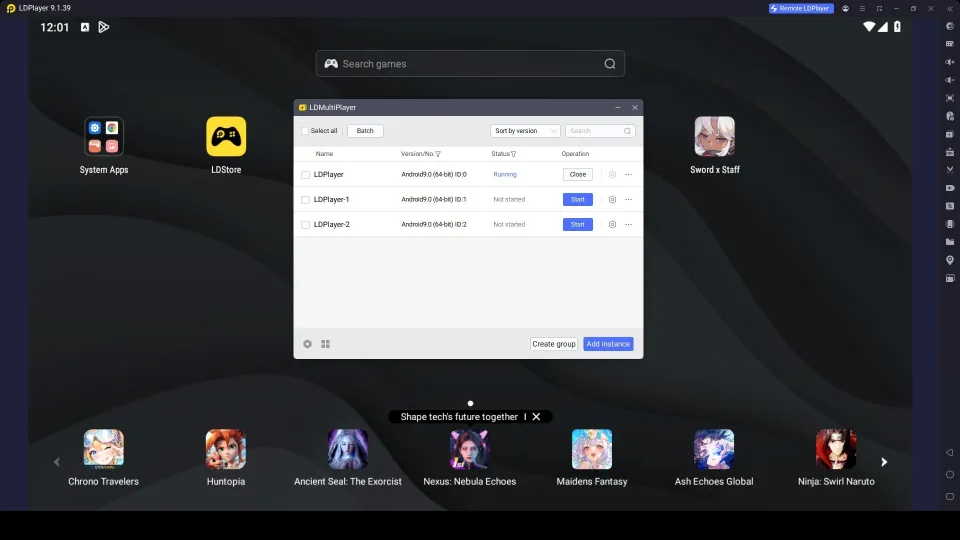
How to use Multi-Instance effectively:
- Open LDMultiplayer (Multi-Instance Manager) from your desktop or the LDPlayer toolbar.
- Click “Create New Instance” to open extra emulator windows.
- Install and log into Last Asylum: Plague on each instance (use different accounts if needed).
- Run different hero teams, farm resources, clear daily tasks, or level secondary accounts across the instances.
- Use the Synchronize feature to control multiple instances together for faster early-game gatherings.
- Keep your strongest main account on the primary instance and continue your adventure.
Hot Recommend
Download LDPLAYER, play Last Asylum: Plague on PC, enhance your gaming experience!


Speed Up Daily Tasks with the Keyboard Macro Command Feature
In Last Asylum: Plague, you spend a lot of time on repetitive actions like treating patients, collecting resources, upgrading buildings, or triggering hero skills in the right order. You need more effort and more key tappings to complete all these tasks. To help you with that, you can use LDPlayer’s Keyboard Macro Command and Operation Recorder. These features let you record a sequence of taps for upgrades or skill presses in battles and automate them with a single key press or on a loop, so you can focus on strategy instead of endless clicking.
How to Use the Keyboard Macro Command:
- Launch Last Asylum: Plague inside LDPlayer.
- Open the Keyboard Mapping panel (click the keyboard icon on the right toolbar or press F12).
- Drag a “Macro” or “Write Macro” button onto the screen, and open the Operation Recorder to write a script for the actions.
- Click Start / Record, then perform the actions you want to automate
- Click Stop when finished, give the macro a clear name, and save it.
- Set this command to run once, loop a fixed number of times, or run continuously with adjustable delays.
- Assign the macro to a specific keyboard key. Then you can use the key to automate the actions you want.
Conclusion
Now you have everything to play Last Asylum: Plague on your PC through LDPlayer. Use this guide and follow the step-by-step instructions to set up LDPlayer, then download the game to enjoy smoother gameplay performance, better controls, and a bigger screen for a more fun experience. And don't forget to use the exclusive LDPlayer features to make your survival adventure easier, more exciting, and more enjoyable.
More from Last Asylum: Plague: