Game Guides
How to Play Overgeared Hero on PC?

Thisara Dilshan
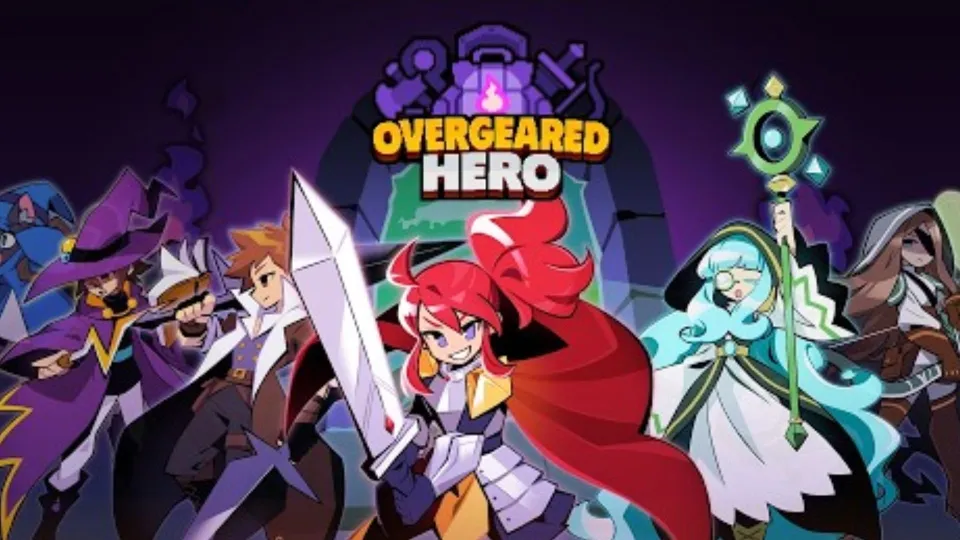
|2026-07-28Want to enjoy Overgeared Hero without the limits of a small mobile screen? Then playing Overgeared Hero on PC with LDPlayer 14 is the best way to enjoy it. With LDPlayer, you can have an improved gameplay experience with improved visuals, smooth performance, and easier controls. Follow this guide to set up LDPlayer on your PC, troubleshoot the common issues you face, and make your battles more fun with the exclusive LDPlayer features. So, let's take your Overgeared Hero to the next level right from your PC.
How to Play Overgeared Hero on PC in 4 Simple Steps
Step 1: Download and Install LDPlayer on Your PC
Ready to pack your backpack, merge powerful gear, and crush dungeon runs on a big screen? The best method to enjoy Overgeared Hero on PC is by playing it using LDPlayer 14. It's a perfect Android emulator that gives you smooth performance, easy controls, and a much bigger view with enhanced graphics.
1.1 Visit the official LDPlayer website from your browser. Download the latest version of LDPlayer by clicking on the “Download” button. Remember that installing the latest version of LDPlayer will help you enjoy better game performance.
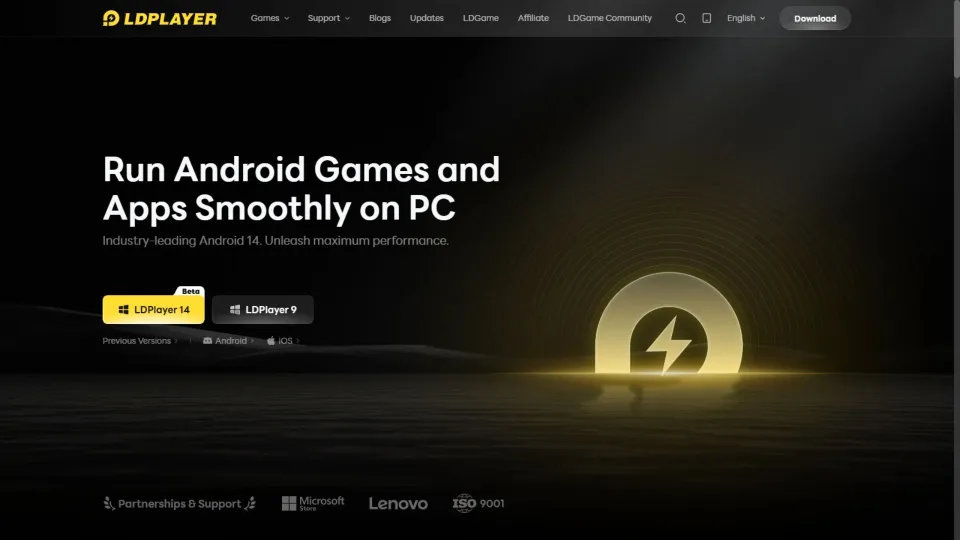
1.2 Now that the installation file is downloaded, go to your Downloads folder and double-click the installation file to begin the setup process.
1.3 -Click on the “Install” button to allow LDPlayer to complete the installation. The setup process may take a few minutes depending on your PC performance and internet connection.
1.4 – Once the installation is complete, launch LDPlayer from your desktop or Start Menu. Your PC is now all set to play Android games.
Step 2: Find and Install Overgeared Hero in LDPlayer
Now LDPlayer is ready to obtain Android games to play from your PC. Use LDPlayer's special app store, LD Store, to find the Overgeared Hero game and install it on your PC. Follow the steps below to install the game:
2.1 – Open LDPlayer and navigate to the LD Store. You can find the LD Store icon on the LDPlayer Home Screen.
2.2 – Locate the search bar in the upper right corner, then type “Overgeared Hero,” and hit search to find the game. Make sure to choose the official version made by 5minlab Corp. from the results that appear.
2.3 – Select the official Overgeared Hero game icon from the search results to go to the download page and click the “Install” button to begin downloading.
2.4 If this is the first time you install a game from LDPlayer, you'll be redirected to the Google Play Store. Use the next step below to continue the process.
Step 3: Sign In to Google Play (First-Time Users)
While this is your first time downloading an Android game through LDPlayer, you will need to sign in with a Google account. You can follow the steps below to create your account and download Overgeared Hero.
3.1 – When the Play Store opens inside LDPlayer, click the “Sign In” button.
3.2 – Type your Google email address. If you do not have an account yet, choose “Create Account” and follow the steps to set up your new account.
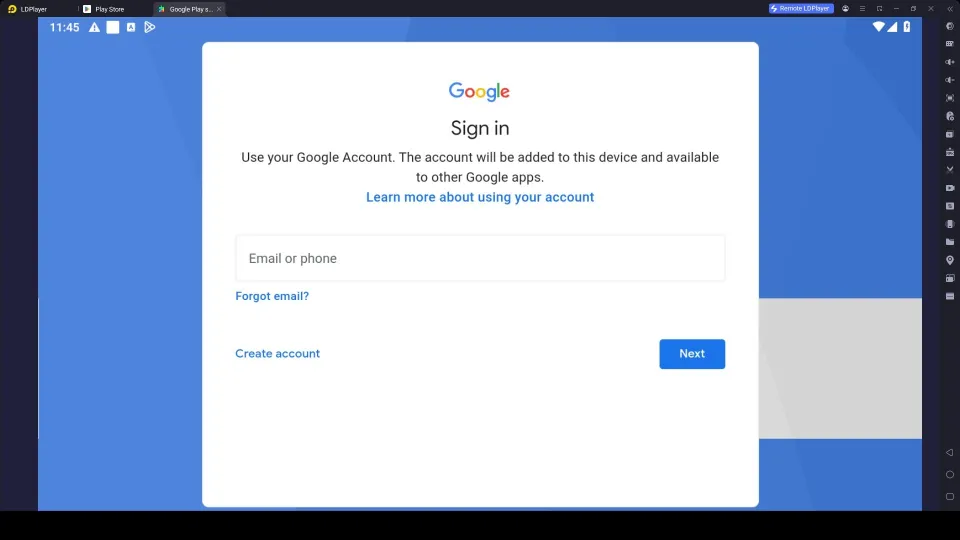
3.3 – After entering your Email, next you have to enter your password. Then click “Next” to continue.
3.4 – Complete any security verifications that Google may request to go through the account setup process.
3.5 – Read the Terms of Service and Privacy Policy, then select “I Agree.”
3.6 – You might see an option about Google Backup Services. Turn it on or skip it, then press “Accept.”
3.7 – After signing in, return to the LD Store and search again for “Overgeared Hero” and click “Install.”
3.8 – Keep LDPlayer open while the game finishes installing. This might take some time to complete, and it depends on your internet connection speed.
3.9 – When the installation process is completed, you can see the Overgeared Hero icon directly from the LDPlayer home screen, and you are ready to play.
Step 4: Open the Game and Download Additional Resources
Now you're in the final stage. Open the game right from the LDPlayer home screen to start playing. However, you will be asked to download some additional resources, which are essential for unlocking all game content and ensuring smooth gameplay.
4.1 – Double-click the Overgeared Hero icon on the LDPlayer home screen.
4.2 – If the game asks to download additional files, allow it to continue. This may take several minutes based on your
connection.
4.3 – Once the extra files are ready, choose how you want to log in from Google, guest, or any other option shown.
4.5 – That’s all! Now it's time to jump into Overgeared Hero on your PC and enjoy the game with bigger visuals, enhanced graphics, and smooth keyboard-and-mouse controls on your PC with LDPlayer 14.
Common Issues and Easy Fixes for LDPlayer
Having some technical issues like screen issues or audio issues when you are playing Overgeared Hero on PC with LDPlayer? No need to be stressed about these problems, as they are very common while using an Android emulator. The good news is these can be fixed easily with simple steps. Below are the common issues you may face while playing from LDPlayer.
How to Fix LDPlayer Showing a Black Screen
When you open LDPlayer and it shows a black screen or gets stuck before displaying the Android home screen, you need not worry. This is a common problem most of the gamers face due to wrong graphic settings or outdated graphic drivers. The good thing for you is this problem can be fixed easily by following some simple steps.
Steps to Fix the Black Screen:
- First, restart your computer and then launch LDPlayer.
- Right-click on the LDPlayer icon and click on Run as administrator.
- Go to the settings of LDPlayer and change its graphics rendering mode from DirectX to OpenGL and vice-versa, whatever suits you best.
- Update your graphics drivers to the most recent version.
- Enable Virtualization (Intel VT-x / AMD-V) in BIOS.
- Disable Hyper-V, Windows Hypervisor Platform and Virtual Machine Platform in Windows Features and restart your computer.
- If the problem persists, uninstall LDPlayer and install the latest version, LDPlayer 14.
How to Resolve Sound Lagging or No Sound in LDPlayer
Do you experience problems such as sound delay or no audio at all when playing Overgeared Hero in LDPlayer? It can ruin your whole gaming experience and this type of error occurs due to outdated audio drivers, incorrect audio settings, or insufficient system resources. Luckily, these audio errors can be fixed easily with just following some easy steps.
Steps to Fix Sound Delay or No Audio:
- Ensure that your PC volume is turned up, and the correct audio output device is chosen.
- Reboot LDPlayer to clear any audio error which could be temporary.
- Open LDPlayer Settings and make sure sound is enabled and not muted.
- Update your audio driver via Windows Device Manager.
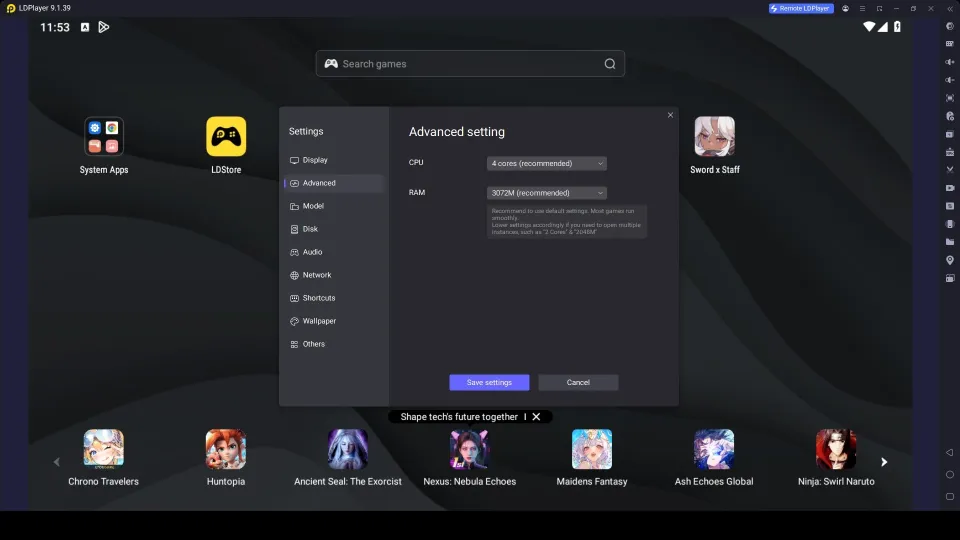
- Allocate CPU and RAM in LDPlayer Settings. Set up to 4 GB RAM and 4 CPU Cores if your PC has enough resources.
- Switch the default audio device in Windows to a different one, then switch it back again to refresh audio settings.
- If the issue continues, either update LDPlayer to the newest version (LDPlayer 14), or uninstall and install LDPlayer again.
Play Overgeared Hero on PC with LDPlayer's Special Features
LDPlayer transforms your PC into the perfect platform for playing Overgeared Hero with a range of exclusive features. With these features, you can make your gameplay much more comfortable with smoother controls and enhanced visuals. Below are the best LDPlayer features that help provide a better gaming experience:
Macro Command Feature for Effortless Farming and Combat
Overgeared Hero is full of battles with repeated actions, clearing stages, upgrading hero stats, and fighting the same bosses again and again. Doing all these activities by yourself can feel boring. That's why LDPlayer's Keyboard Macro Command and Operation Recorder features come in.
These features help you record a series of taps that you use for the different actions in battles and automate them for a single tap. Also, you can even set the macro to run in a loop, making it much easier to automate upgrading different stats of your hero while saving both time and effort.
How to use Macro Command effectively:
- Open LDPlayer and launch Overgeared Hero.
- Click the Operation Recorder icon on the side toolbar in LDPlayer
- Tap “Record” and perform the actions you want to automate
- Stop the recording when finished and save the macro with a clear name.
- Open Keyboard Mapping, place the created Macro to a specific button on the screen.
- Now you can use this key to perform the automated actions easily.
Play with High FPS for Smoother Overgeared Hero Gameplay
Overguard Hero is packed with fast combat, skill animations, and dynamic battles. Therefore, having a higher frame rate can enhance the whole game experience by making every movement sharper and actions more responsive. There is a special feature called High FPS Mode in LDPlayer to help you get a better frame rate and play with 90 FPS or even 120 FPS gameplay which is impossible for a regular phone screen.
Hot Recommend
Download LDPLAYER, play Overgeared Hero: Merge RPG on PC, enhance your gaming experience!


How to Enable High FPS Mode:
- Open LDPlayer and go to Settings.
- Navigate to Game Settings → Advanced Options.
- Turn on High FPS Mode.
- Set the frame rate to 90 FPS or 120 FPS if your PC can handle it.
- Save the settings and restart the Overgeared Hero game to make the changes.
- Adjust resolution and other graphics options if needed to keep performance stable.
Conclusion
And that's everything you need to start playing Overgeared Hero on your PC with LDPlayer 14. From this guide, you can set up LDPlayer and download the Android games without any issues. Also, you can fix common problems you may face while playing. Not only that, make sure to use the exclusive LDPlayer features like Macro Command, Operation recorder, and High FPS mode to enjoy your gameplay in a much smoother and more epic way.
More from Overgeared Hero: