How to Play Rainbow Six Mobile on PC with Keyboard & Mouse (Download Guide)

Ashi Prasadi
|2026-02-13Rainbow Six Mobile brings fast-paced shooting actions straight to your screen, but why limit that experience to a phone? Play smarter and sharper on PC with LDPlayer, which is the best Android emulator for smooth performance and precise keyboard & mouse controls. In this guide, you’ll learn how to download, install, and optimize Rainbow Six Mobile on PC with keyboard and mouse setup for the ultimate gameplay experience.
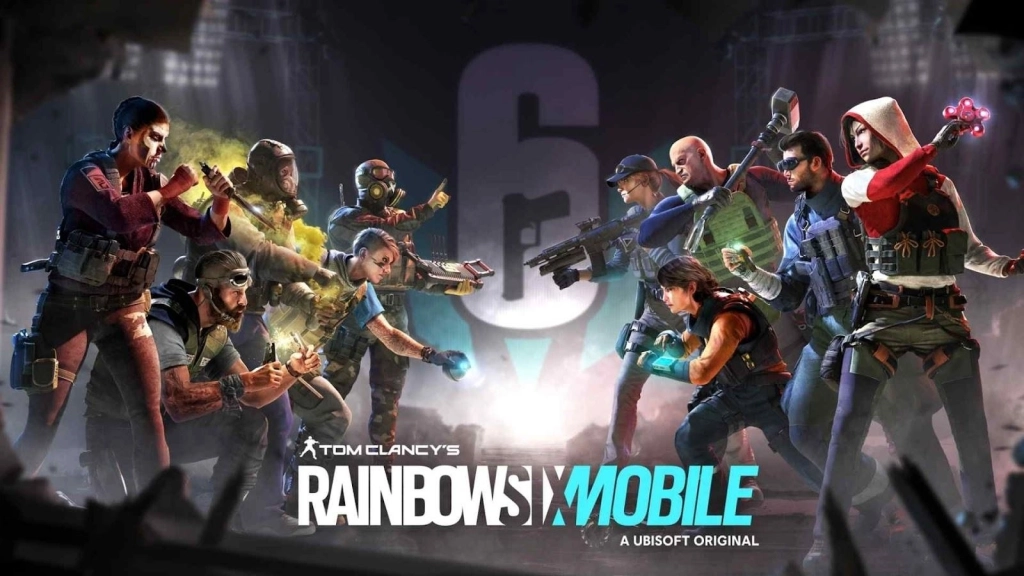
Play Rainbow Six Mobile On PC With LDPlayer In 4 Easy Steps
Step 1: Download LDPlayer Emulator
First, download the official LDPlayer 9.0 Emulator to run mobile games smoothly on your PC.
1.1 – Visit the official LDPlayer website and click the yellow "Download" button to start downloading LDPlayer 9.0.
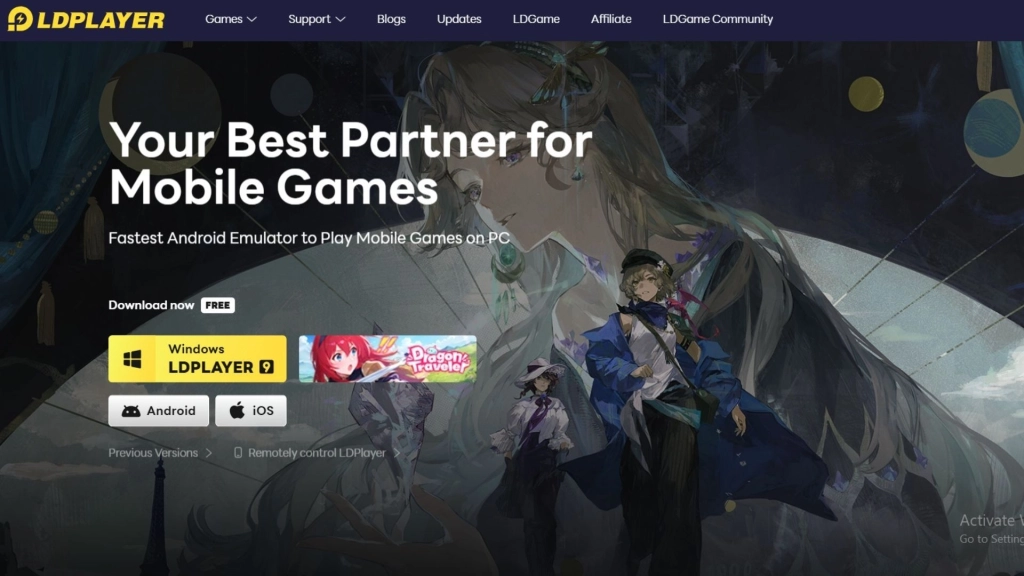
1.2 – Once the download finishes, click the pop-up in your browser to open the LDPlayer 9.0 installer and start the setup process.
1.3 – When the installation window appears, simply click Install and let the launcher do its work. This process usually only takes a few minutes.
1.4 – After installation is complete, launch LDPlayer 9.0 using the desktop shortcut or find it through your system’s Start menu. You’re now ready to play mobile games on your PC!
Step 2: Search and Install Rainbow Six Mobile
Now that LDPlayer is running, you can search for Rainbow Six Mobile through LDPlayer’s special LD Store.
2.1 – Use the search bar in LDPlayer and type “Rainbow Six Mobile”.
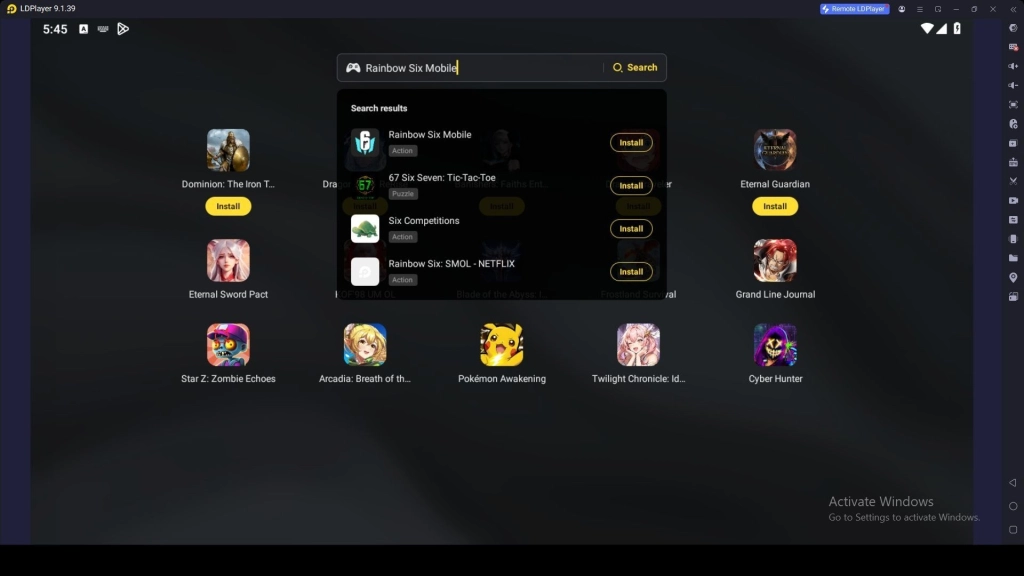
2.2 – When the game appears in the results, click Install next to Rainbow Six Mobile icon. (Make sure it’s the official app developed by Ubisoft Nova.)
2.3 – If clicking Install redirects you to the Google Play Store, continue to Step 3 to set up your Google Play account. If not, simply wait for the game to download and install, then move on to Step 4.
Step 3: Configure Your Google Play Account
If redirected to the Google Play Store, you’ll need to set a Google Play account to gain access to download the Rainbow Six Mobile game and other apps..
3.1 – When redirected to the Google Play Store, you’ll be asked to log in. Simply click the Sign In button to proceed.
3.2 – Type in your Gmail account information to log in. If you don’t have a Google or Gmail account yet, click Create account and follow the steps to make a new one.
3.3 – After entering your email, input your password. Forgotten it? No worries—click Forgot password to reset. If you’ve enabled two-factor authentication, just follow the on-screen instructions to verify your account.
3.4 – Once your login details and password have been approved, the User Agreement page will appear. Click Agree to move forward.
3.5 – You might be asked whether you want to back up your data to Google Cloud. Choose On or Off, depending on your preference, then hit Accept.
3.6 – That’s it! Your Google Play Store account is now ready. You can browse, download, and purchase apps or games available in your region.
3.7 – Now search for the Rainbow Six Mobile and Click Install to start downloading the game.
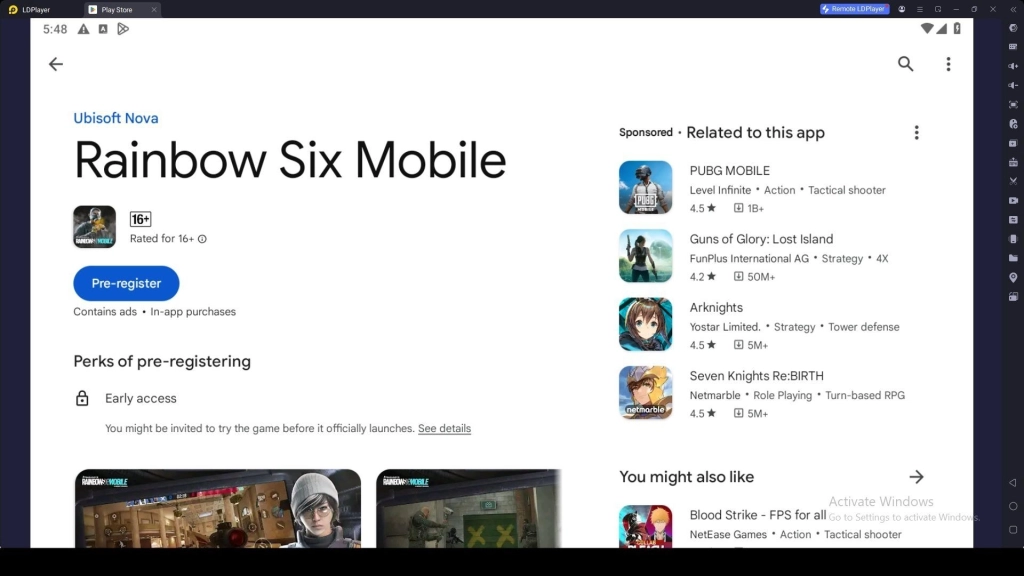
3.8 – Once the download is complete, a small notification will pop up in the bottom left corner of your screen.
3.9 – After installation, you’ll find the Rainbow Six Mobile icon on your LDPlayer home screen. Click it, and your adventure begins!
Step 4: Download Rainbow Six Mobile Game Data and Logging In
After the installation is finished, you’ll need to download the game’s data and sign in, either by creating a new account or by restoring your existing progress.
4.1 - Open the Rainbow Six Mobile app and click Confirm to download the required game files.
4.2 - Once the download finishes, you can either create a new account or log into an existing account to continue.
4.3 - Choose your login method: Gmail, Apple, or Facebook to download and access your account
4.4 - Once logged in, you’re all set! Dive into Arknights: Endfield and enjoy the game on your PC with LDPlayer.
System Requirements for Play Rainbow Six Mobile on PC
Rainbow Six Mobile can run more smoothly from the LDPlayer within the PCs with these requirements:
|
Component |
Minimum |
Recommended |
|
OS |
Windows 7/8/10/11 (64-bit) |
Windows 10/11 |
|
CPU |
Intel/AMD dual-core with VT enabled |
Intel i5 / AMD Ryzen 5 or better |
|
RAM |
4 GB |
8 GB+ |
|
Storage |
10 GB free |
20 GB+ SSD |
|
GPU |
Integrated (Intel HD / AMD Radeon) |
Dedicated (NVIDIA GTX 1050 / AMD RX 560+) |
|
Other |
Virtualization (VT-x/AMD-V) enabled in BIOS |
Up-to-date drivers |
Note: Enable Virtualization Technology (VT) on low-spec PCs to enhance performance while playing Rainbow Six Mobile.
Play Rainbow Six Mobile Easily on PC with Keyboard & Mouse
Rainbow Six Mobile delivers fast-paced shooting battles that need quick reflexes and precise control. With so many action buttons on screen, sometimes it might feel challenging to manage everything smoothly on a smaller mobile display. So, the perfect way to handle this is by playing on PC with a mouse and keyboard through the LDPlayer Emulator. Here is how to get the advantage:
Key Mapping Setup for Rainbow Six Mobile
Rainbow Six Mobile focuses on quicker movements, gun firing with precise aiming, and strategic decision-making. By using LDPlayer's Keyboard Mapping feature, you can turn your keyboard and mouse into a powerful control setup, giving you the chance for more precise aiming to target enemies’ heads and quicker movement and controls for smoother battles.
The biggest advantage of Keyboard Mapping is that you can customize your keyboard layout. Here is the way to do it:
-
Open the Keyboard Mapping panel, then drag and place the on-screen buttons where they’re easiest for you to reach.
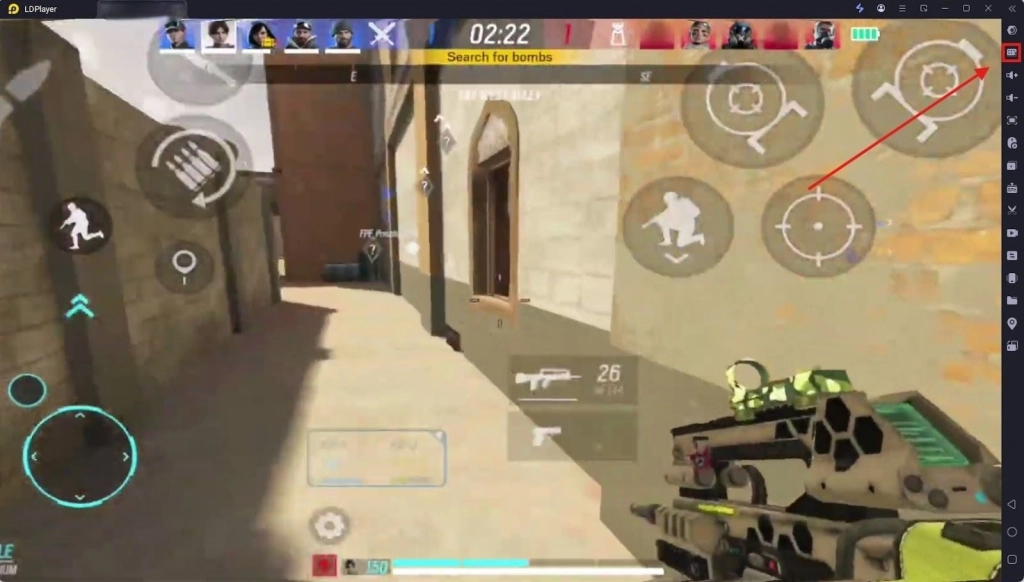
-
Arrange the keys according to the in-game touch controls.
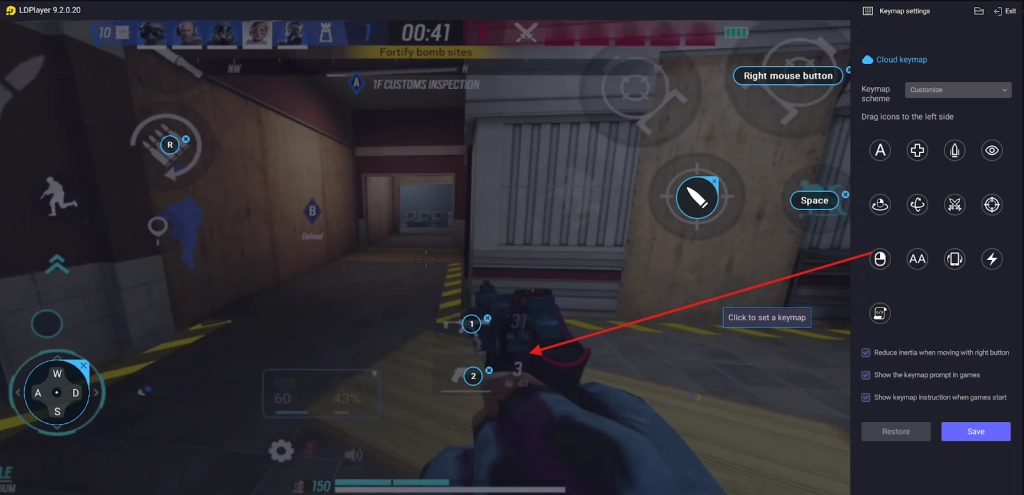
-
Assign a button from your keyboard or mouse for smoother and faster execution.
-
Save your own customized layout for gameplay.
Example Set Up: Set the W, A, S, D buttons for movement for easier control, and keep the firing and aiming functions on the mouse buttons so you can aim quickly and fire instantly at enemies.
Make sure to use keys that feel more natural to you. With that, you can improve your aim, crouching, throwing gadgets, creating traps, and movement speed. So, with a keyboard and mouse, you can easily become stronger in battles.
Continuous Firing with Only One Key
While you engage in intense battles in Rainbow Six Mobile, you will need to fire more quickly. Normally, you have to constantly click the fire button you set, but manually doing it might slow you down and could also harm your keyboard or mouse buttons over time. Instead of repeatedly tapping the key to fire, you can set a special key using the Generating Repeat Touch Actions feature to enable continuous firing with only one tap.
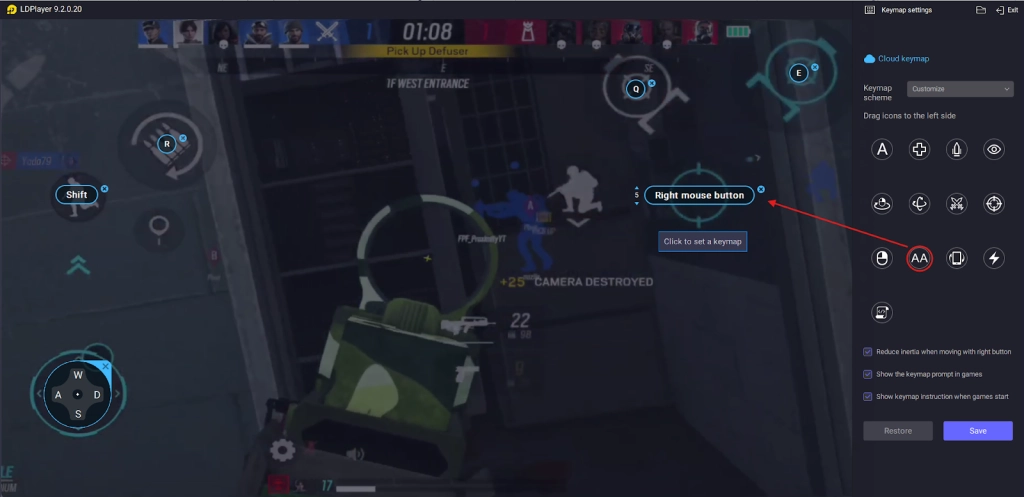
Here is how to set up auto fire with one key:
-
Open the Keyboard Mapping panel inside LDPlayer.
-
Drag the Generating Repeat Touch Actions function onto the screen and place it on the fire button.
-
Assign a keyboard or mouse key to activate it.
-
Adjust the repeat rate to control the automatic shots you want to trigger.
-
Save your settings.
Once the setup is completed, you do not need to worry about repeated tapping to fire. You can keep firing simply by pressing one key.
Launch Combos with One Key
Within the quick battles in Rainbow Six Mobile, you need to perform combo attacks to stay more effective in fights. But while performing them, you have to press multiple keys, which can be challenging and may slow you down. So, you can use LDPlayer's Keyboard Macro feature to perform combos with just one key.
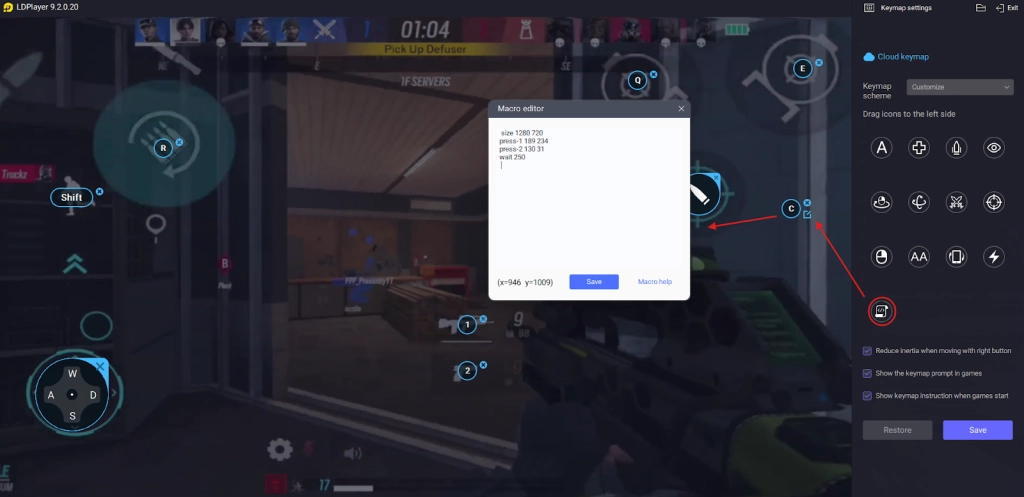
Combo Examples:
-
Jump and fire to reach headshots easily.
-
Crouch while firing to escape from battles.
-
Sprinting and throwing grenades to deal more damage.
You can set up these combos with only one key. Here is how to set it up:
-
Open the Keyboard Mapping layout.
-
Drag the Keyboard Macro feature onto the screen.
-
Assign a key for the button you are going to create.
-
Write the macro command to set it up (Size, Loop, Touch, Wait commands with the coordinates of the actions you are going to use).
-
Enter the screen resolution.
-
Then finish setting your button for the new combo attack.
After saving this special key, you can simply press the key you set to perform the combo during battle more easily and defeat enemies instantly.
LDPlayer - The Best Android Emulator to Play Rainbow Six Mobile on PC
One-key Macro: Easily execute combos to boost your combat efficiency.
Keyboard Mapping: Enjoy PC-like control experience with a keyboard and mouse, customize control with high sensitivity and precise skill casting to carry your team.
High FPS: Enjoy a smooth, no-lag gaming experience with high FPS and wide screen
Video Recorder: Record highlights and turn them into shareable videos
Download LDPlayer now and Enjoy Ultra Gaming Experience on PC
Conclusion
Now it’s time to play Rainbow Six Mobile on PC with the best emulator: LDPlayer, and enjoy better battles with the perfect keyboard and mouse setup for more precise aiming and faster reactions. Learn how to use the emulator’s features to customize your controls and simplify every action. So, level up your setup and make your gameplay smoother by playing Rainbow Six Mobile on your PC today with LDPlayer.