Rainbow 6 Mobile Best Settings Guide 2026: PC Performance & FPS Optimization Guide

Reese Avery
|2026-02-13Hey Guys~~! Rainbow Six Mobile was built for touchscreens—but it belongs on PC. Hundreds of hours of testing both mobile and emulator setups confirm one undeniable truth: tactical shooters demand precision that capacitive screens simply cannot deliver.You know the pain. Pixel-perfect angle on Bank? Thumb sweat drifts your joystick. Clutch round? Battery warning pops up. 60 FPS? Thermal throttling turns it into a stuttering mess. Here’s the hard truth: If you're serious about ranking up, you need to play on PC. Not next month. Not at global launch. Now.
This is your complete blueprint for transforming Rainbow Six Mobile from a mobile compromise into a true competitive PC shooter experience. We've analyzed pro configurations, reverse-engineered performance bottlenecks, and tested dozens of emulator settings—so you don’t have to.
Ready to click heads without the hand cramps? Let’s dive in.
Contents
PC Requirements for Emulator Play (LDPlayer)
|
Component |
Minimum (60 FPS) |
Recommended (120+ FPS) |
|---|---|---|
|
OS |
Windows 10 64-bit / macOS 12 |
Windows 11 64-bit / macOS 14 |
|
CPU |
Intel i5-8400 / Ryzen 5 2600 |
Intel i7-12700 / Ryzen 7 5800X |
|
RAM |
8GB |
16GB+ |
|
GPU |
GTX 960 / RX 560 |
RTX 2060 / RX 6600+ |
|
Storage |
SSD Required |
NVMe SSD |
|
Virtualization |
VT-x/AMD-V MUST BE ENABLED |
VT-x/AMD-V + 64-bit support |
Touch Layout: Building the Perfect PC HUD
When you transition from phone to PC, you’re not just changing your input method—you’re redesigning your entire muscle memory architecture. The default Ldplayer key mapping is usable, but it’s not optimized. Here’s exactly what to change.
Recommended PC Keybinds (LDPlayer Smart Mapping)
|
Action |
Default Key |
Recommended Key |
Rationale |
|---|---|---|---|
|
Move Forward |
W |
W |
Standard |
|
Move Left |
A |
A |
Standard |
|
Move Back |
S |
S |
Standard |
|
Move Right |
D |
D |
Standard |
|
Sprint |
Left Shift |
Left Shift |
Standard |
|
Crouch |
Left Ctrl |
C |
Easier thumb reach |
|
Prone |
X |
Z |
Prevents accidental crouch |
|
Lean Left |
Q |
Q |
Muscle memory from Siege |
|
Lean Right |
E |
E |
Muscle memory from Siege |
|
Primary Fire |
Left Mouse |
Left Mouse |
— |
|
Aim Down Sights |
Right Mouse |
Right Mouse |
— |
|
Reload |
R |
R |
— |
|
Gadget |
Middle Mouse |
Thumb Mouse Button |
Instant deployment |
|
Melee |
V |
F |
Faster access |
|
Drone/Cam |
Caps Lock |
Tab |
Easy thumb reach |
|
Mark/Ping |
G |
Mouse Wheel Click |
Precise pings |
|
Toggle Fire Mode |
B |
B |
— |
Critical PC HUD Settings
Left Double Tap Effect: OFF. You’re using a keyboard. You don’t need double-tap. Disabling this reduces accidental inputs .
Right Double Tap Action: Set to Melee. Even on PC, having a quick-melee bind on your mouse is essential for breaking barricades or panic situations.
Lean Slider Behavior: DISABLED. This is a touchscreen relic. On PC, you have dedicated Q/E lean keys. Remove the slider entirely from your HUD for cleaner screen real estate .
Joystick Lock in Place: OFF. This doesn’t apply to PC, but if you’re using a hybrid setup, keep this off to prevent missed movement inputs .
Display Vault Button: ON. Do not enable “Auto Vault While Sprinting.” PC players need precise control. You don’t want your operator automatically climbing over a deployable shield when you’re trying to hold an angle .
Display Alternate Fire Button: ON. This is your hipfire button. Keep it visible and bind it to a comfortable key (Thumb Mouse Button recommended).
ADS Button Behavior: TOGGLE. Hold-to-ADS is viable, but toggle reduces finger fatigue during long holding angles .
Lean Button Behavior: TOGGLE. Absolutely essential. Hold-to-lean is uncomfortable and slow.
Gameplay Settings: The Competitive Edge
These settings separate gold players from diamond players. Do not skip this section.
Core Gameplay Toggles
Auto Shoot (ADS & Hipfire): OFF. OFF. OFF. I cannot emphasize this enough. Auto-fire aims for center mass. You need headshots. Turn this off immediately and practice your trigger discipline .
Aim Assist: ON. Yes, even on PC. Aim assist in Rainbow Six Mobile is not aimbot—it’s a subtle sticky crosshair effect that helps with micro-corrections. Every pro uses it .
Auto Vault While Sprinting: OFF. This setting has killed more players than Kapkan traps. You do not want to auto-vault during a gunfight. Bind vault to a dedicated key (Spacebar) and control it manually .
Auto Swap Weapons on Empty: OFF. Personal preference, but I recommend OFF. You should control when you switch to your secondary—sometimes it’s better to take the extra second to reload .
Lean Input Behavior: LEAN ONLY. This is the most important setting change in 2026. Previously, lean was tied to ADS. Now, with “Lean Only,” you can lean independently—exactly like PC Rainbow Six Siege. This allows you to slice the pie, clear corners, and bait swings without ADS penalties. Master this, and you’ve already won .
Exit ADS Always Cancel Lean: OFF. You want to maintain your lean angle even when you un-ADS. This preserves your positioning .
Cancel Lean Always Exit ADS: OFF. Same logic. Keep your aim state independent of your lean state .
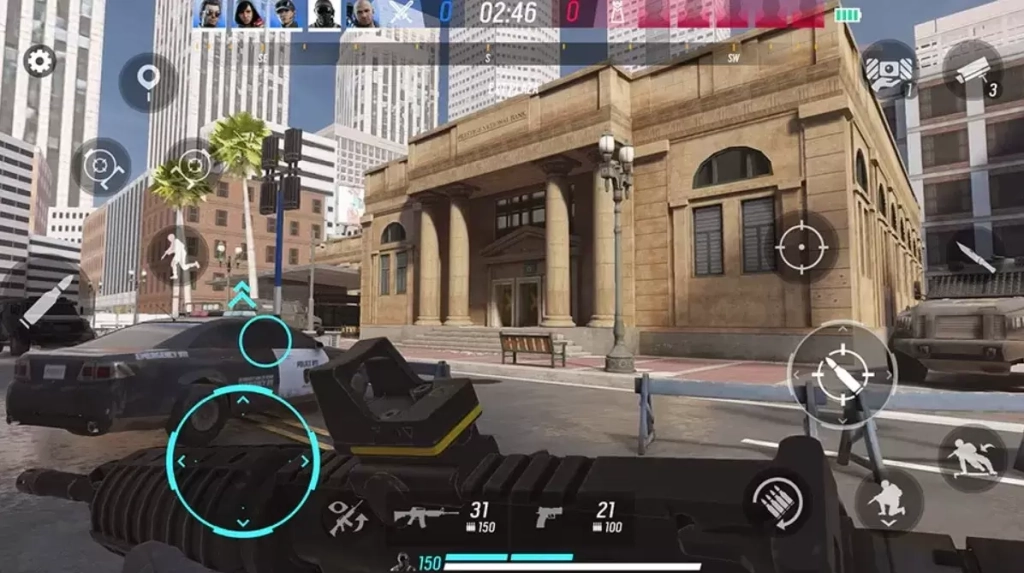
Gadget & Drone Settings
Weapon/Gadget Input: TWO-STEP. Press once to equip, press again to use. Prevents accidental gadget deployment .
Drone Movement Snapping: FREE FORM. This gives you analog-style drone control. You’re not locked to grid movements. Essential for precise drone navigation and hiding in complex geometry .
Drone Jump Preview: OFF. This new feature shows a ghost trajectory of your drone jump. It’s distracting screen clutter. Disable it .
Stay in Drone View When Prep Phase Ends: ON. I used to run this OFF, but I’ve converted. Having 2-3 extra seconds on your drone after the round starts lets you gather critical intel and call out spawn peeks .
Do Not Enter Drone View After Throwing: ON (Recommended). Having this OFF is viable for drone distraction tactics (throw drone at enemy, push while they shoot it), but for 90% of players, ON is better .
Operator-Specific Settings
|
Operator |
Setting |
Recommendation |
|---|---|---|
|
Ash |
Unequip Breaching Rounds After Shooting |
OFF. You may need to fire multiple rounds quickly . |
|
Buck |
Unequip Skeleton Key When Out of Ammo |
OFF. Personal preference; ON can save you in panic, but OFF gives you control . |
|
Sledge |
Unequip Breaching Hammer After Use |
ON. CRITICAL. You do NOT want to be holding a hammer when an enemy swings you . |
|
Caveira |
Silent Step Exits ADS |
OFF. CRITICAL. If this is ON, activating Silent Step forces you out of ADS. You will lose gunfights. Turn it OFF . |
Sensitivity Settings
Sensitivity is deeply personal, but there are mathematical baselines that work for the vast majority of competitive players.
|
Setting |
Value |
Notes |
|---|---|---|
|
Horizontal Touch Sensitivity |
0.65 |
Down from 0.70 in 2025. Precision > Speed . |
|
Vertical Touch Sensitivity |
0.65 |
Matched horizontal for muscle memory consistency . |
|
ADS Sensitivity |
0.65 |
Same as hipfire. Consistent tracking across all states . |
|
Camera/Drone Horizontal |
0.80 |
Faster drone scanning . |
|
Camera/Drone Vertical |
0.80 |
— |
|
Input Smoothing |
0.05 |
Minimal smoothing. You want raw input . |
|
Speed Acceleration Curve |
Speed Excel |
Fixed speed felt too sluggish after returning to the game. Speed Excel gives you controlled acceleration for flicks while maintaining fine control . |
|
Touch Speed Acceleration Multiplier |
1.0 |
— |
|
Touch Speed Acceleration Threshold |
1.0 |
— |
If you’re new, start at 0.60 and work upward in 0.05 increments until you find your sweet spot.
DPI Note: This sensitivity configuration assumes 800 DPI on your mouse. If you use 400 DPI, you may need to adjust upward to 0.80–0.85. If you use 1600 DPI, start at 0.35.
Audio Settings
In Rainbow Six, sound is a sixth sense. Your audio setup should be optimized for clarity, not immersion.
|
Setting |
Value |
Rationale |
|---|---|---|
|
Master Volume |
100 |
Maximum. You need to hear everything . |
|
Music Volume |
0 |
Zero. Music distracts. You don’t need it . |
|
Sound Effect Volume |
100 |
Footsteps, gadget sounds, reloads. Keep max . |
|
Menu Sound Effect |
0.25 |
Personal preference. Can be 0 . |
|
Announcer Dialogue |
0.65 |
You need to hear round start/end calls, but not overpowering . |
|
Operator Dialogue |
0.65+ |
CRITICAL. Your operator calls out “Enemy spotted!” before you visually confirm. This is a legal wallhack. Keep this at 0.65 minimum; max is better . |
|
Audio Mix |
Headphones |
Always. TV or Hi-Fi modes flatten the soundscape . |
|
Dynamic Range |
Night Mode |
Compresses audio peaks. Footsteps become more audible relative to explosions . |
|
Voice Chat Volume |
0.01 – 1.5 |
Buggy. 0.01 is still loud. Adjust per session . |
|
Voice Chat Record Mode |
Push to Talk |
Open mic is toxic and noisy . |
|
Enable Ally/Enemy Status Sounds |
ON |
Hear when teammates are downed or enemies are hurt . |
Pro Tip: Enable Audio Compass. This setting creates a visual directional indicator on your HUD when sounds occur. If you hear footsteps but can’t pinpoint direction, the compass saves you. Never turn this off .
In-Game Graphics Settings
Forget photorealism. You want competitive clarity and stable frame times.
|
Setting |
Value |
Rationale |
|---|---|---|
|
Graphics Quality |
MEDIUM |
Low is too blurry for pixel peeking. High introduces frame drops during explosions. Medium is the sweet spot . |
|
Frame Rate |
60 (Max currently) |
Global launch expected to unlock 90/120. Pray . |
|
Field of View (FOV) |
75 |
I tested 65 (too cramped), 90 (enemies looked too far), 70 (okay), and settled on 75. Perfect balance . |
|
Camera/Drone FOV |
MAX |
You want maximum peripheral vision when droning . |
|
Anti-Aliasing |
OFF |
Blurs edges. You want sharp pixels . |
|
Bloom |
OFF |
Distracting lens flare effect . |
|
Graphic Style |
Neutral |
“Vibrant” crushes contrast and hides shadows . |
|
Display Gore |
Default |
No competitive impact . |
Recommended UI Configuration
Cluttered UI loses rounds. Strip away everything non-essential.
Subtitles: OFF. Screen real estate is precious .
Operator Tips: OFF. You don’t need tutorial pop-ups .
Audio Compass: ON. As stated above—never disable this .
Friendly Outline Color: BLUE. Yellow was okay, but my muscle memory demands blue for friendlies. Enemy outline? GREEN. Green pops against every map background. Tested extensively—green is superior .
Display Ammo Counter Arc: ON. Visual magazine tracking .
Crosshair Center Dot: OFF. Personal preference. I found it distracting .
Show Network Status: ON. Monitor your ping and packet loss in real time .
Ping/Scan Marker Opacity/Size:
- Ping Opacity: 0.7
- Ping Size: 0.8
- Scan Opacity: 1.0
- Scan Size: 1.0
Drone Entrance Markers: OFF. Cluttered the screen with unnecessary UI elements. You know where drone holes are .
Stair Marker Visibility: Drone + Operator View .
Stair Marker Appearance: Only when objective is on different floor .
Haptic Feedback/Vibration: OFF. Consumes battery (irrelevant on PC) and provides no competitive value .
Conclusion
Rainbow Six Mobile is a phenomenal tactical shooter—but only when played on the right hardware.
On a phone, you’re fighting your own thumbs, thermal throttling, and a 6-inch screen. On PC with Ldplayer, you’re fighting with precision, clarity, and zero hardware compromises.
The settings above aren’t theoretical. They’re battle-tested across thousands of ranked matches. They’ve been refined through countless deaths, adjustments, and clutch victories.
Your next step is simple:
1. [Download Ldplayer] – It’s free, it’s fast, and it’s the only emulator properly optimized for Rainbow Six Mobile.
2. [Download Rainbow Six Mobile on PC] – Install the game through the Play Store inside Ldplayer.
3. Copy these settings exactly – Don’t guess. Don’t tweak yet. Run these settings for one week, then adjust 0.01 at a time.
The global launch is coming February 23, 2026. The player pool is about to explode. Get your PC setup dialed in now, and you’ll be ranking up while others are still figuring out why their phone keeps overheating.
See you on the ranked leaderboards.
GG, stay Frosty.