How to Play Sword × Staff on PC?

Thisara Dilshan
|2026-05-21Ready to begin your adventure in Sword × Staff with smoother gameplay and better controls on a bigger screen? LDPlayer is the best Android emulator that helps you run Sword × Staff more smoothly on your PC with stable performance and easier controls. You can follow this guide to learn the full installation process, fix common gameplay issues, and discover useful LDPlayer features that improve your overall gaming experience. So, let’s begin your Sword × Staff adventure on PC in a truly epic way!
Contents

How to Play Sword × Staff on PC with LDPlayer in 4 Easy Steps
Step 1: Download and Install LDPlayer Emulator
Before anything else, you should have an Android emulator to play the Sword x Staff mobile on your PC. The best choice for that is the LDPlayer 9 emulator. With its help, you will be able to run the game Sword x Staff smoothly with easier controls.
1.1 – Go to the official LDPlayer website and download the latest version.
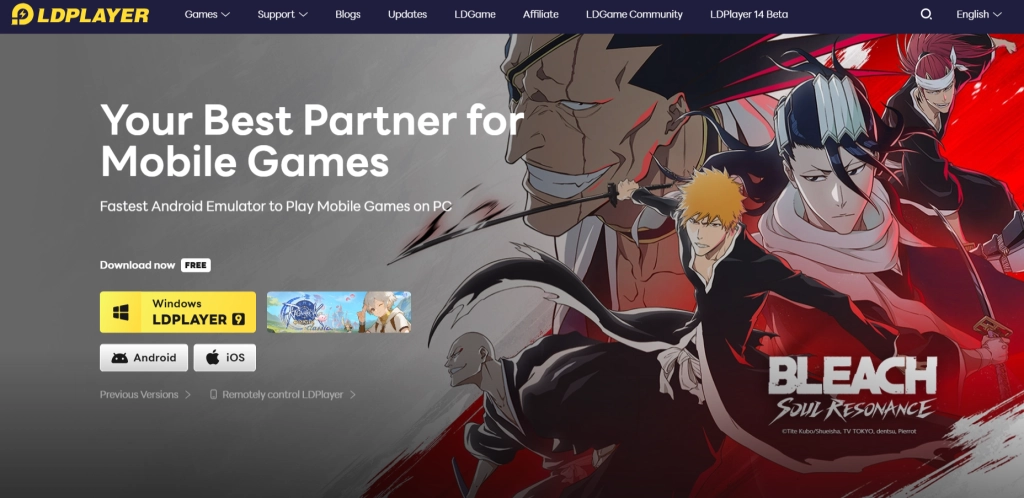
1.2 – Once the download is complete, double click to open the installer file.
1.3 – Click Install and wait for a few minutes for the setup to finish.
1.4 –After installation, open LDPlayer from your desktop shortcut or Start menu. It is now ready to use.
Step 2: Search and Install Sword × Staff
Now that LDPlayer has been successfully installed on your PC, the next step is to download and install the game directly inside the emulator.
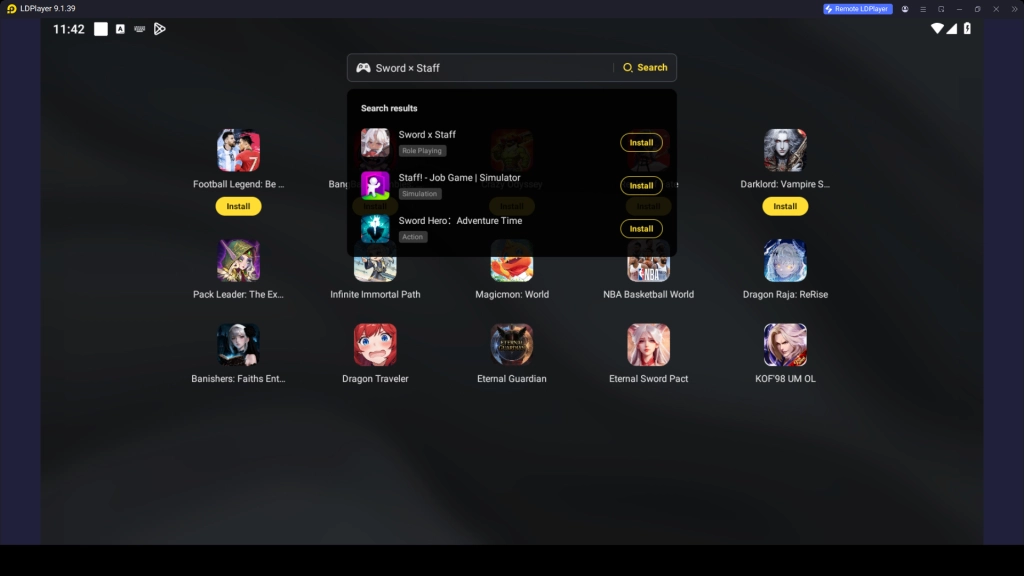
2.1 – Open LDPlayer and locate the search bar on the main home screen.
2.2 – Type “Sword × Staff” and select the official game from the search results. Make sure to choose the exact official Sword × Staff published by BOLTRAY GAMES.
2.3 – Click the Install button to begin downloading the game.
2.4 – If it redirects you to the Google Play Store after opening the game, you need to follow the next step provided to continue the installation process.
Step 3: Sign in to Google Play Store (If Needed)
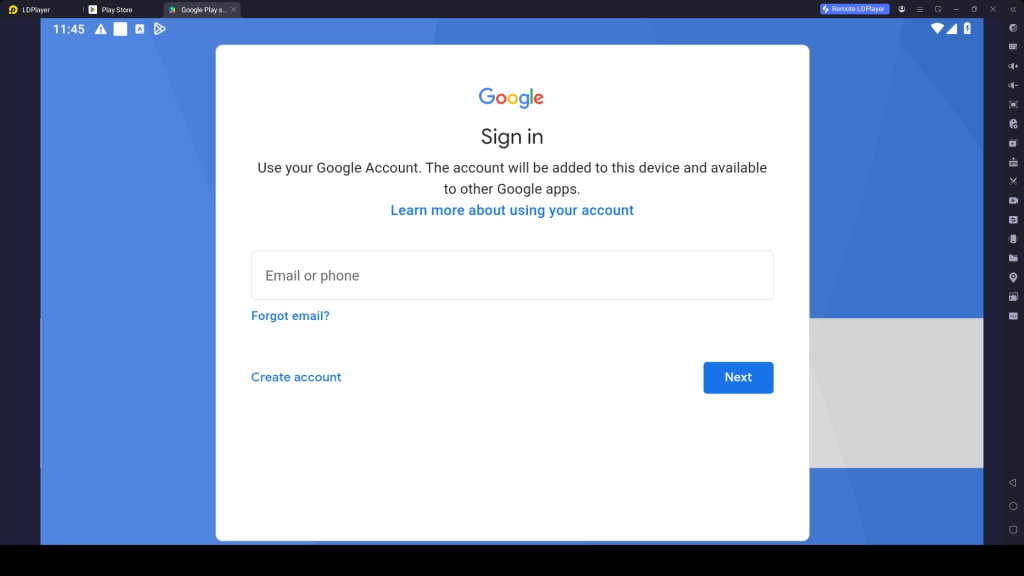
If you are not signed in to a Google Play Store account, you will be redirected to the Play Store to either create a new account or log into an existing one.
3.1 – On the Play Store screen, tap Sign In to continue.
3.2 – Enter your Gmail address, or create a new account if you don’t already have one.
3.3 – Type your password and complete any required security verification steps.
3.4 – Accept the terms and conditions to proceed.
3.5 – You can choose to enable Google backup or skip this option. This is based on your preference.
3.6 – Go back to the Play Store, search for the Sword x Staff game again, and press Install.
3.7 – Wait patiently until the game download is completed. You will receive a notification once it is completed.
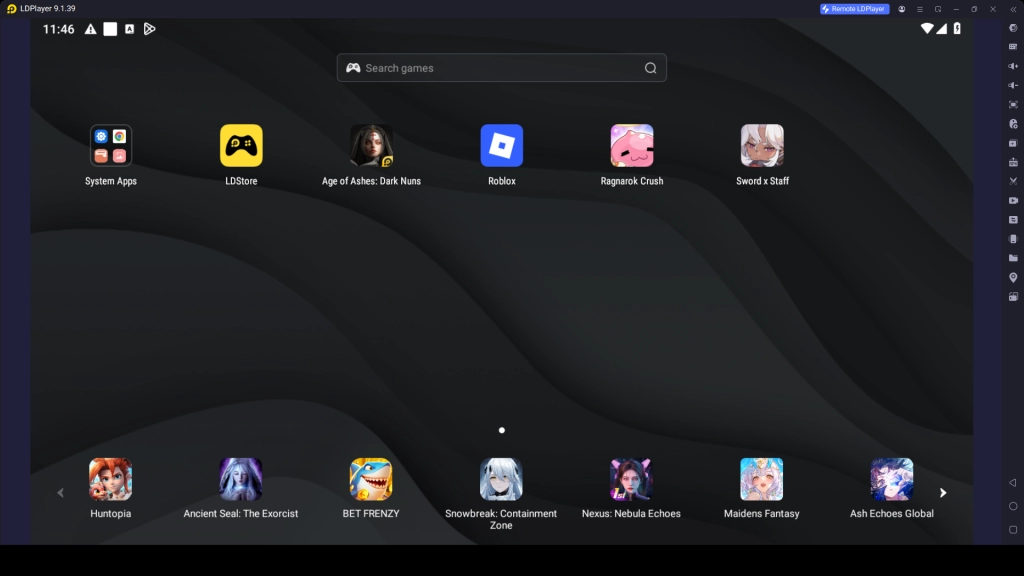
3.8 – After installation, the game icon will appear on your LDPlayer home screen. Now it’s time to launch the Sword x Staff on your PC.
Step 4: Game Data Installation and Playing the Game
Now, after having installed Sword x Staff, the very first time you try to play this game, you would be asked to download additional in-game data files before playing.
4.1 – Click on the Sword x Staff game icon for opening and starting the game.
4.2 – Click Confirm / OK for downloading the necessary game data file. (Note that this could take some time depending on your internet connection speed.)
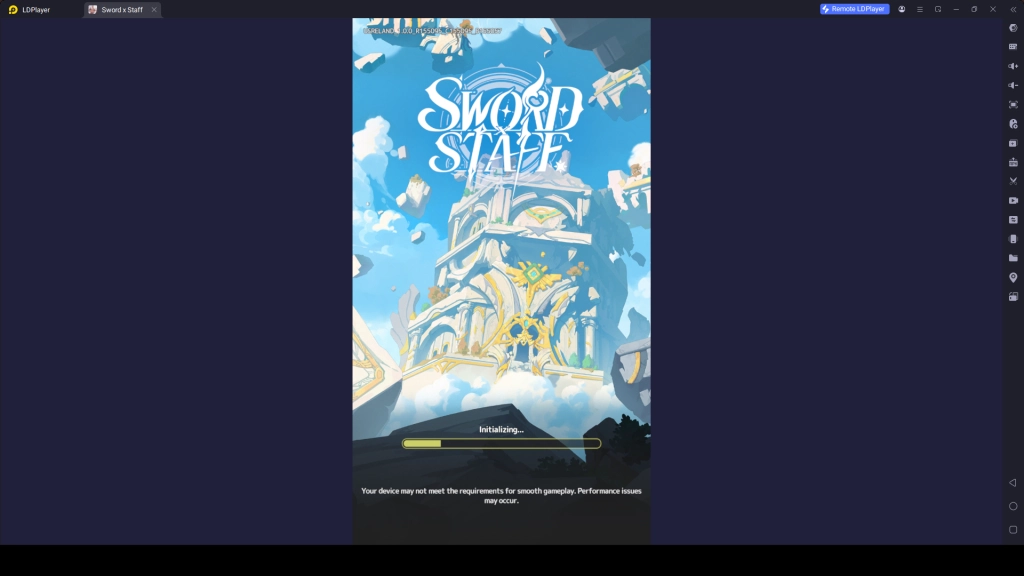
4.3 – After the installation of game data, continue with creating an account or logging into the game with the account that you already have created.
4.4 – Choose a login method of your choice, e.g., Google, Facebook, or any other available method.
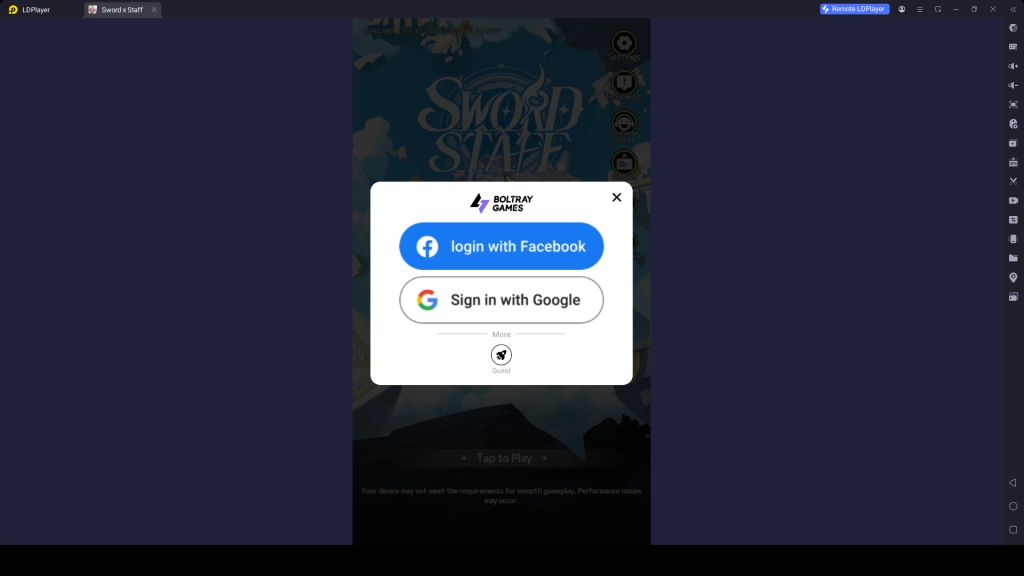
4.5 – After completing the log-in process, you're ready to launch Sword x Staff without any error! Now, start playing Sword x Staff on your computer with better gameplay experience from a bigger screen size and better controls!
Common Problems and Easy Fixes
When you start to play Sword × Staff on LDPlayer, sometimes you may run into certain problems that might trouble you. However, do not worry because most times, such problems are quite simple to solve. Here are some simple solutions that can assist you in fixing the issues you experience while gaming.
Fix “Unsupported Version” Error in LDPlayer
After running Sword × Staff in LDPlayer, you may receive the following error message on the screen: “The current version of LDPlayer is not supported.”This usually means that either your emulator needs to be updated, or that the recent game update is incompatible with your existing version of LDPlayer.
How to fix it:
- Click “Download Dedicated Version” from the pop-up message on the screen
- Download the newest version of LDPlayer (LDPlayer 9 or alternative builds)
- Wait for the installation to finish
- Launch the updated LDPlayer version and launch the Sword x Staff again.
- If the game does not appear in the new emulator version, you should install it once again.
Worrying about your game progress being lost? Don’t worry. Your current gameplay progress will not be lost even if you update LDPlayer to the latest version of the emulator.
Fix Storage Issues in LDPlayer for Sword × Staff
While trying to install or update Sword × Staff on LDPlayer, you may sometimes face storage-related problems. This usually happens when the emulator does not have enough allocated space to download and run the full game files properly.
When this issue occurs, the game may stop downloading, crash during installation, or show a warning about insufficient storage.
How to Fix Storage Issues in LDPlayer:
- Make sure your LDPlayer instance has at least 6GB or more free storage space available
- Open LDPlayer Settings → Advanced Settings → Configure CPU cores and RAM
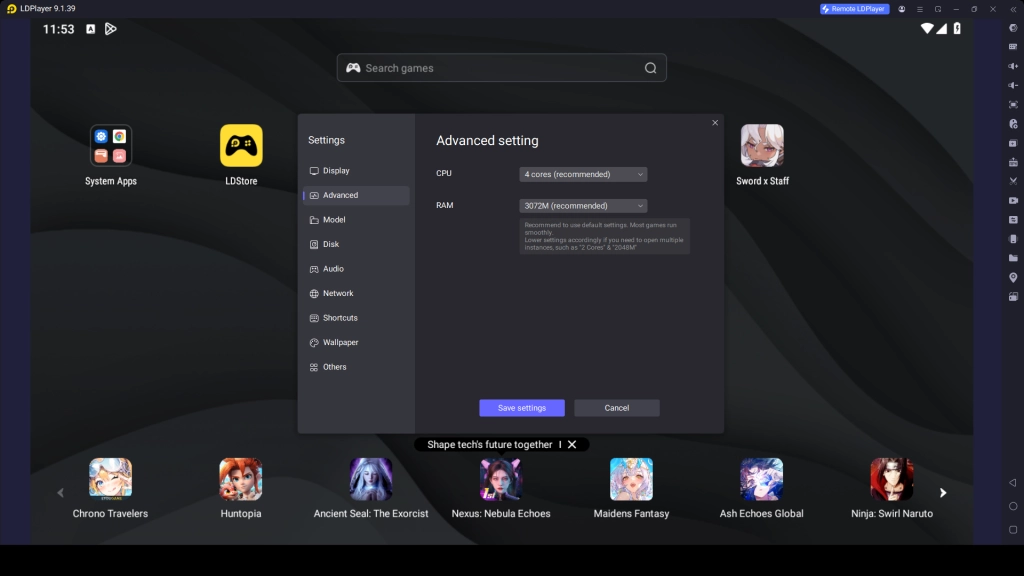
- Adjust and optimize CPU cores and RAM allocation for better performance and stability
- Enable the Auto-Expand Disk option to allow LDPlayer to use more storage when needed
- Click Save Settings and restart LDPlayer to apply changes
- Delete unused apps, old game files, or cached data to free up extra space
- Try downloading or updating Sword × Staff again after clearing space
Once you have enough storage available, Sword × Staff will install and run smoothly without interruptions or errors, giving you a stable gameplay experience on PC.
LDPlayer Features for a Better Gameplay Experience
The Sword × Staff gameplay experience on your PC with LDPlayer feels more comfortable and easier because LDPlayer has some special features that make the game run more smoothly and improve overall control.
Run Multiple Accounts to Try Different Classes
The Sword × Staff gameplay is based on unlocking different classes through different paths. So, if you want to go beyond just one account, LDPlayer gives you the option to manage multiple accounts at the same time using the Multi-Instance & Sync feature. This allows you to create and run several emulator windows, letting you play Sword × Staff with different accounts simultaneously. It is a great way to progress faster and try different classes at the same time through different instances.
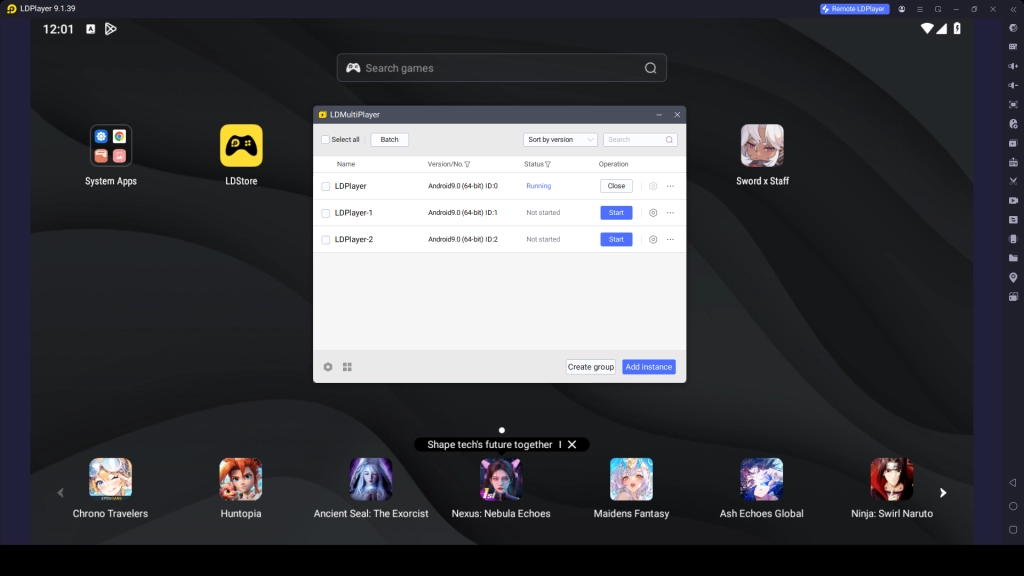
How Multi-Instance & Sync Works:
- Open LDMultiPlayer from your desktop or toolbar
- Create multiple emulator instances based on how many accounts you want
- You can also clone your main instance, so you don’t need to sign in to Google repeatedly
- This makes it easy to manage several Sword × Staff accounts without extra setup
After that, use the Synchronizer tool to sync all instances together. Once synced, you can control multiple accounts at the same time, perform actions together, and test different classes more efficiently in Sword × Staff without needing to switch characters from the same account.
Play in the Background with Mini Mode
LDPlayer includes a very useful feature that enhances the Sword × Staff gameplay experience, known as Mini Mode. This feature allows the game window to become small while still running in the background, making sure you can always keep track of your auto progression. It is ideal for players who want to monitor their auto battles and watch how their class path progresses over time.
More importantly, the Mini Mode feature helps you smoothly switch to other tasks on your PC while the game continues progressing on its own, allowing you to follow your gameplay without interruptions.
How to Turn On Mini Mode:
- Click the Mini Mode icon at the top-right corner of LDPlayer
- Or press Ctrl + F1 as a quick shortcut
Hot Recommend
Download LDPLAYER, play Sword x Staff on PC, enhance your gaming experience!


Conclusion
With all these steps, you can easily run Sword × Staff on your PC using LDPlayer and enjoy a much smoother and more stable gaming experience. You’ll get better graphics on a bigger screen, improved controls, and powerful LDPlayer features that make gameplay easier from the very start. So, get LDPlayer now, run Sword × Staff on your PC, use its powerful features, and feel the epic gaming experience.
More from Sword x Staff: