How to Play Last Origin R+ on PC?

Thisara Dilshan
|2026-05-22Ready to play Last Origin R+ on PC with a bigger screen and smoother controls? If yes, this guide will help you install and start the game easily using LDPlayer, the best Android emulator for playing Last Origin R+ on PC with a better performance. You will also learn step-by-step setup, common fixes, and useful features like keyboard controls, and multi-instance support. Follow this guide and enjoy a smoother, easier, and more fun Last Origin R+ experience on your PC!
Contents
Download and Play Last Origin R+ on PC in 4 Easy Steps
Step 1: Download and Install LDPlayer on Your PC
To begin your Last Origin R+ adventure on a bigger screen, first download the LDPlayer 9 emulator from the official website: LDPlayer Official Website

1.1 - Open the website and click on the “Download Last Origin R+ on PC” button to start downloading the emulator installer.
1.2 - After the download is completed, a setup notification will appear on your screen. Click the .exe installation file to continue.
1.3 - Press the Install button on the setup window and wait for the installation process to finish. Once completed, launch LDPlayer directly from the desktop shortcut created on your PC.
Step 2: Search and Install Last Origin R+ on LDPlayer
Once LDPlayer is successfully installed on your PC, you are ready to move to the next step. Now you can open the emulator and search for Last Origin R+ to begin the game installation process.
2.1 - When you enter LDPlayer, you will see a search bar at the top of the homepage. Type “Last Origin R+” and press Enter to search for the game in the LD Store.
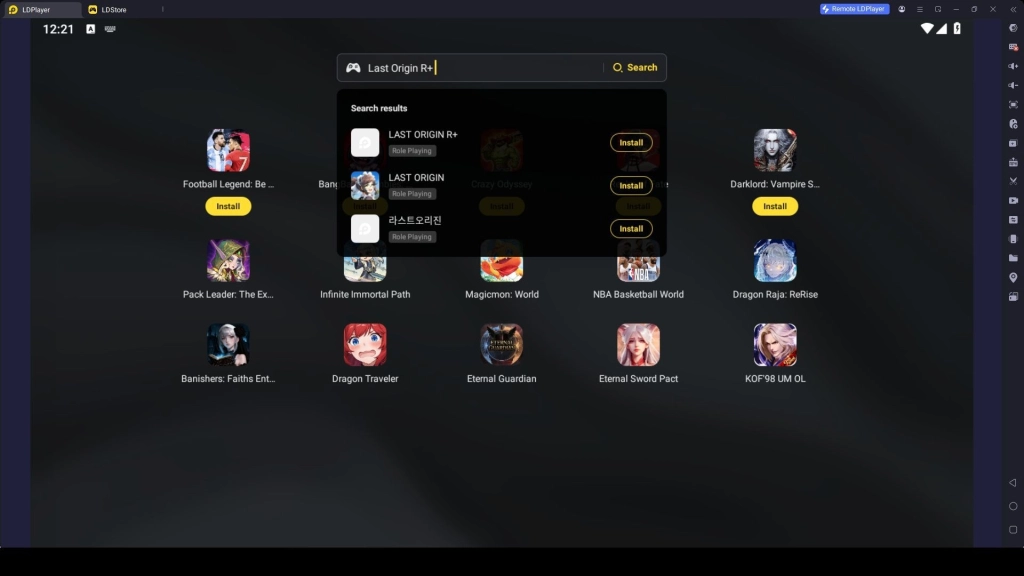
2.2 - Locate the official version of Last Origin R+ and click the yellow Install button. (Make sure to download the official Last Origin R+ that was developed by the GOP Co., Ltd.)
2.3 - If LDPlayer redirects you to the Google Play Store after opening the game, you need to follow the next step provided to continue the installation process.
Step 3: Sign In to Google Play Store
Before you install the game, log in with your Google account first or create a new account if you don’t have one. After signing in, you can continue downloading and installing Last Origin R+ without any issues.
3.1 - To download the game from Google Play Store, click the Sign In button and continue with your Google account.
3.2 - Type your Gmail address and password to log in. If you do not already have a Google account, you can easily create one from this page.
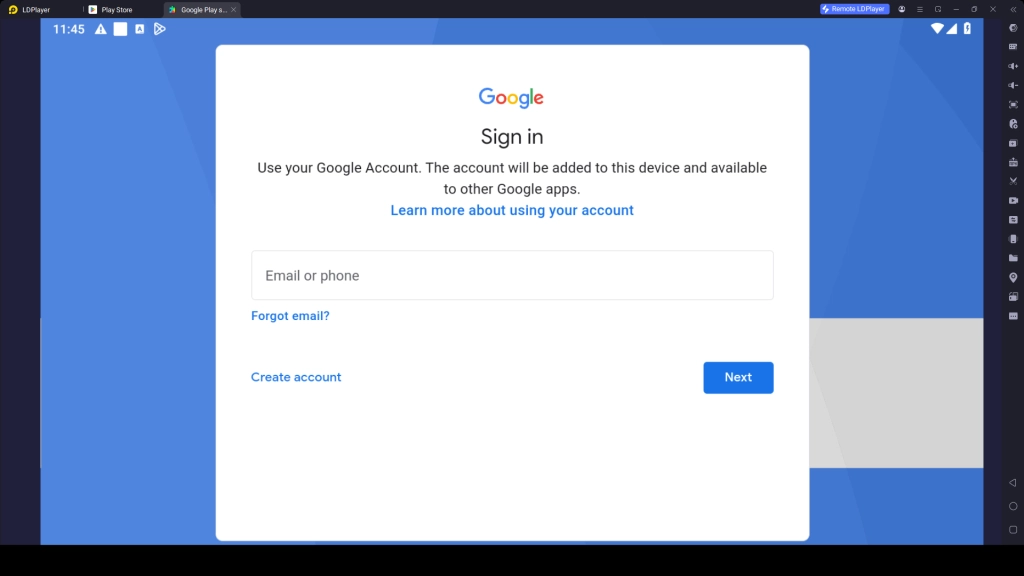
3.3 - During the setup process, Google may ask for permission to sync contacts or back up device data. You can choose the options you prefer before moving forward.
3.4 - After signing in, return to the Last Origin R+ page on Google Play Store and click the Install button again to begin downloading the game.
3.5 - Once the installation is complete, the Last Origin R+ icon will appear on the LDPlayer home screen, showing that the game is ready to launch.
Step 4: Launch Last Origin R+ and Begin Playing
Now the installation process is complete, and Last Origin R+ will appear on the LDPlayer home screen. You can now launch the game, complete the login process, and start downloading the required game files.
4.1 - Click the Last Origin R+ icon from the LDPlayer homepage to start the game. The game will automatically download additional files if needed.
4.2 - When the loading process finishes, you will arrive at the login page. Make sure to accept the game’s terms and policies before continuing.
4.3 - You can use several login methods depending on your region and account preference. Choose the option that works best for you.
4.4 - After logging in successfully, Last Origin R+ is ready to play on your PC. Now you can jump into the adventure and enjoy smoother gameplay, better controls, and a bigger screen experience with LDPlayer.
Common Problems You Face and Easy Fixes
When you’re playing Last Origin R+ on LDPlayer, you may face some issues such as lag, loading errors, or performance drops. But there’s no need to panic, these problems can be fixed very easily, Below are the issues you may face an easy fixes:
Fix Network Connection Issue
Occasionally, players could experience problems connecting their Last Origin R+ game with their internet because of network issues. In most cases, this problem usually results from unstable internet, VPN services, outdated emulator versions, or corrupted network settings inside LDPlayer.
How to Solve It:
- Start by checking the status of your PC's internet connection.
- Turn off your WiFi if there are any network problems.
- Restart LDPlayer and your computer.
- Turn off your VPN on the PC.
- Upgrade LDPlayer to the most recent version.
- Change your DNS settings to public DNS like Google DNS.
- If the network problem still continues, open LDPlayer network settings and set up the network bridging function to help the emulator connect to the internet more smoothly.
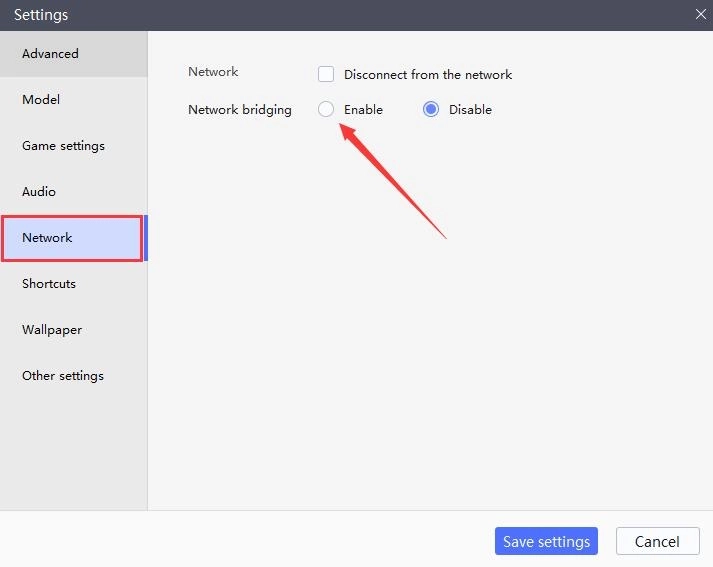
Fix Graphics Card Not Supported Error
Sometimes while opening Last Origin R+ on LDPlayer, players may receive a “Graphics Card Not Supported” error. This problem can stop the emulator from launching properly or cause the game to crash during gameplay. In most cases, the issue happens because of outdated graphics drivers, incorrect emulator settings, or hardware detection problems inside LDPlayer.
How to Fix It:
- Restart your computer to clear temporary system or driver issues.
- Update your graphics card drivers to the latest version.
- Open LDPlayer settings and switch between OpenGL and DirectX mode.
- If you are using a laptop, make sure LDPlayer is using the dedicated graphics card instead of integrated graphics.
- Enable virtualization (VT) from your BIOS settings to improve emulator performance.
- Update LDPlayer to the latest available version.
- If the issue still continues, uninstall and reinstall LDPlayer completely.
Play Last Origin R+ with Special LDPlayer Features
LDPlayer offers some special features that make Last Origin R+ gameplay easier and more fun on PC. These tools help you control the game more easily, test different teams, and improve performance during battles.
Hot Recommend
Download LDPLAYER, play LAST ORIGIN R+ on PC, enhance your gaming experience!


Play Last Origin R+ with Mouse and Keyboard
Playing Last Origin R+ with mouse and keyboard in LDPlayer ensures that your gameplay is much smoother and more seamless than using touch or touchpad controls. As a result, you can click more easily, gain better control over battles, and enjoy fluid gameplay with fewer delays. This setup also improves performance during long farming sessions and intense fights, making it easier to handle battles with a more comfortable and enjoyable PC experience.
How to Use Mouse and Keyboard Controls:
- Launch Last Origin R+ and click the Keyboard Mapping Tool on the side toolbar
- Assign keys for movement, skills, and menus (or use the default controls)
- Save your control settings
- Start the game and use your keyboard + mouse for smooth gameplay
- Adjust key settings anytime for better comfort
High FPS Mode for Smooth Gameplay
Playing Last Origin R+ on PC with LDPlayer becomes much smoother when you enable High FPS Mode. This feature helps improve battle animations, reduce lag, and gives a more responsive gameplay experience. It is especially useful for tougher content and long farming sessions where smooth performance matters most.
How to Activate High FPS:
- Open LDPlayer Settings from the side menu
- Go to the Game Settings / Performance Settings tab
- Find the Frame Rate (FPS) option
- Select 60 FPS / 120 FPS depending on your PC performance
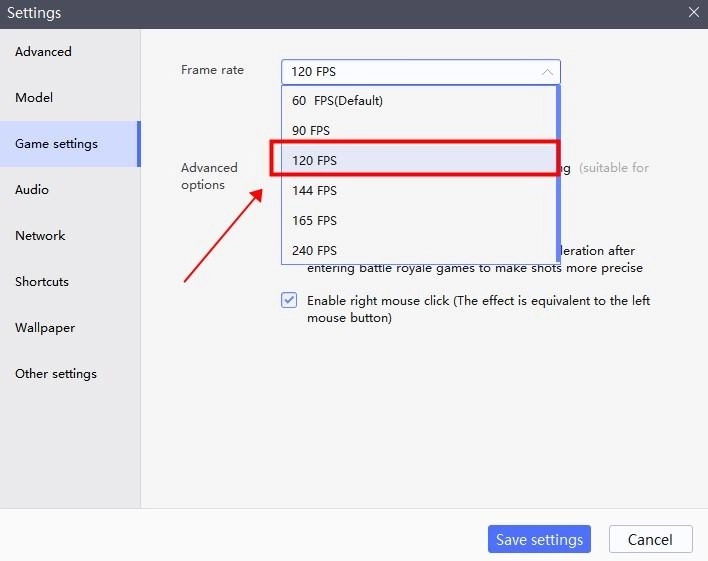
- Tick “Enable High Frame Rate” option
- (Optional) Enable V-Sync (Vertical Sync) to reduce screen tearing on high-end PCs
- Click Save and restart LDPlayer
After enabling it, open Last Origin R+ again and enjoy much smoother gameplay and better visual performance.
Multiple Instances for Perfect Summons
LDPlayer’s Multi-Instance and Sync feature is very helpful in Last Origin R+, especially when you want to get the best start with powerful characters in your roster. This feature allows you to run multiple accounts at the same time, which makes rerolling much easier. This way, you can summon powerful characters on different instances, test different team builds, and choose the best account to start your main progress.
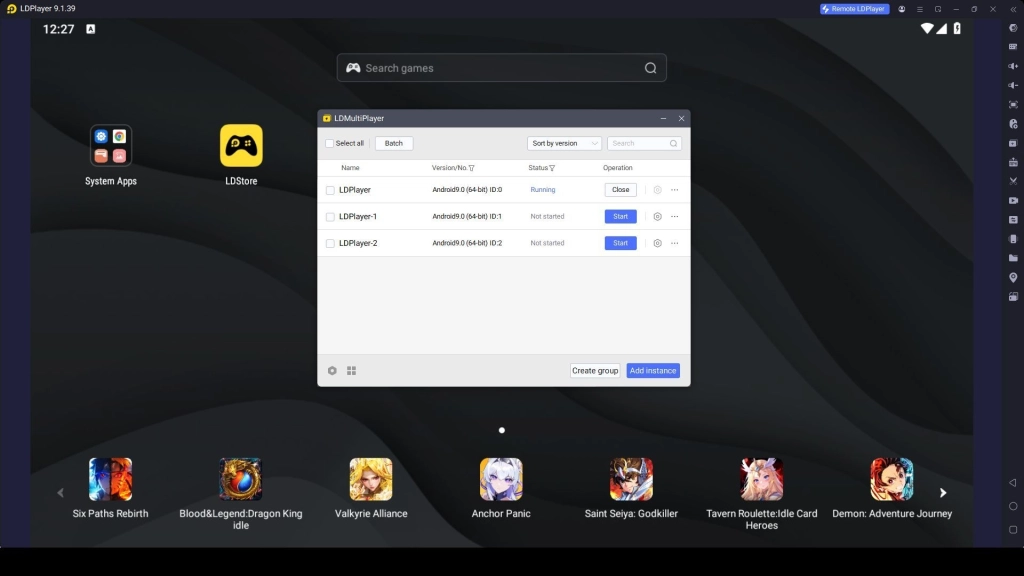
How to Use Multi-Instance for Perfect Summons:
- Open LDMultiplayer (Multi-Instance Manager) from LDPlayer
- Click Create New Instance to open multiple emulator windows
- Clone your main instance if you want the same base setup
- Open Last Origin R+ in each instance and use the Synchronizer Tool to control all instances together
- Log in with different accounts for rerolling summons
- Use each instance to perform summons and compare results
- Keep the best account and continue your main progress from it
- Delete or reset other instances if needed for more rerolls
Conclusion
This guide shows you how to easily install and play Last Origin R+ on PC using LDPlayer, along with fixes and useful features for better gameplay. By following this guide, you can enjoy smoother performance, easier controls, and faster progress. Now jump in and enjoy your upgraded Last Origin R+ PC gaming experience!
More from Last Origin R+: