How to Play Era of Legends on Windows PC Guide
2019-11-22
Era of Legends is a mobile MMORPG published by 101XP, an international online games publisher. The game has been made available for Android and iOS, but you can also play Era of Legends on PC with an Android emulator. LDPlayer is one of the best options for playing Era of Legends and it has been recommended to be one of the official ways to start the game.

How to Download Era of Legends on PC
To start Era of Legends on your computer, you need to install LDPlayer first on your desktop. LDPlayer is a virtual Android machine that allows you to download and install any Android apps on PC. It covers most basic features of a real Android phone and offers additional functions that can help you get better gaming experience on PC. Follow the below steps to get started with Era of Legends.

Step 1: Download LDPlayer and run the installer
Step 2: Complete the setup and open LDPlayer on your desktop
Step 3: Go to the search bar and search for Era of Legends
Step 4: Follow the on-screen instructions to finish the installation
Step 5: Once installation completes, click the Era of Legends icon to launch the game
Step 6: You’re all done! Enjoy playing Era of Legends on PC with LDPlayer
Tips for Playing Era of Legends on PC with LDPlayer
Playing Era of Legends on PC with keyboard and mouse controls is a different gaming experience. You can enjoy better graphics with your big screen and play Era of Legends in 60FPS. The performance may vary based on your computer configuration though. Nevertheless, here are some tips that can help you run Era of Legends on LDPlayer in the best condition.
Set custom keymapping for Era of Legends
In order to control your character in Era of Legends, you need to create a keyboard map which is essential for keyboard control. You can enable the Keyboard Mapping setting from the toolbar and set your custom keymapping. If you’re not sure how to do it, this tutorial Keymapping on Emulator - How to Use Keyboard Mapping can help you out.
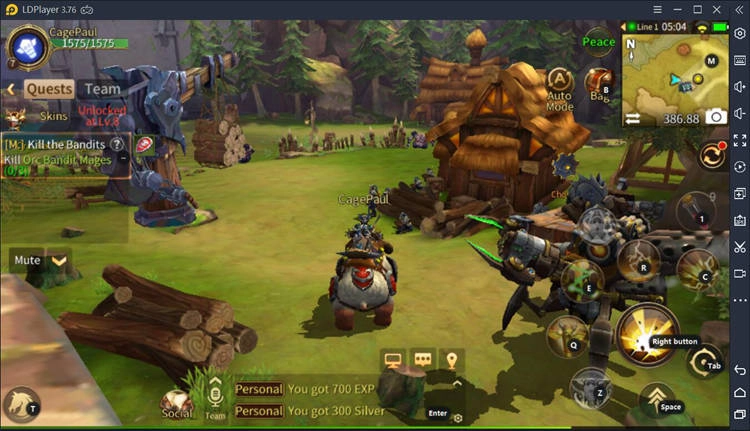
But of course, LDPlayer has offered a default control scheme and you can just start playing the game without worrying about the keymap. The mapping hints will be showed in the game and you will know what key stands for what command. If you want to zoom in or zoon out your character, you can press Ctrl and scroll your mouse.
Enable higher graphics quality and frame rate
It’s very easy to reach 60FPS in Era of Legends as long as you have a modern computer and a little time to adjust some game settings. First you can click the menu on LDPlayer to display the current FPS. This is a very useful feature helping you to check whether there’s a FPS drop. After you enable this function, you need to open the game settings in Era of Legends.
It’s a little bit hard to find the settings because you need to click the switch icon on the right side below the map to show more functions. Once you open the game settings, head to graphics quality section and choose the best graphics mode. This will normally give you both high FPS and HD graphics. Also, you can select the balanced mode to lower the graphics quality but at the same time enable high frame rate.
Play multiple accounts with multi-instance
One advantage you can’t get from your mobile device is the multi-instance feature developed by LDPlayer. You can play several accounts on your computer with multiple LDPlayer instances. Developing two or more characters at the same time is no longer a dream with only one computer and LDMultiPlayer.
Conclusion
Era of Legends is an incredible RPG mobile game that deserves your attention. It’s fun and advantageous to bring Era of Legends on your Windows computer with LDPlayer. LDPlayer is one of the best options to immerse in the magical adventures in all new Era of Legends. Download the latest version of LDPlayer and begin your new journey now!