Terraria Mobile Beginner Guide: Learn Touch Controls & Progress Quickly
2025-05-22
Are you having trouble chopping down trees, gathering stones, or building your sword to survive the first night in Terraria Mobile? Your problem could be related to the touch controls. Learn to use all the different buttons and movements in this Terraria beginner guide and see how the LDPlayer emulator makes every action precise when playing Terraria on PC.
Content
Understanding Terraria Mobile Touch Controls
Terraria Mobile has two different control modes to choose from such as Classic and Advanced (movement-based). Advanced Touch Mode is usually the preference for those who want a smooth gaming experience.
Key Touch UI Elements:
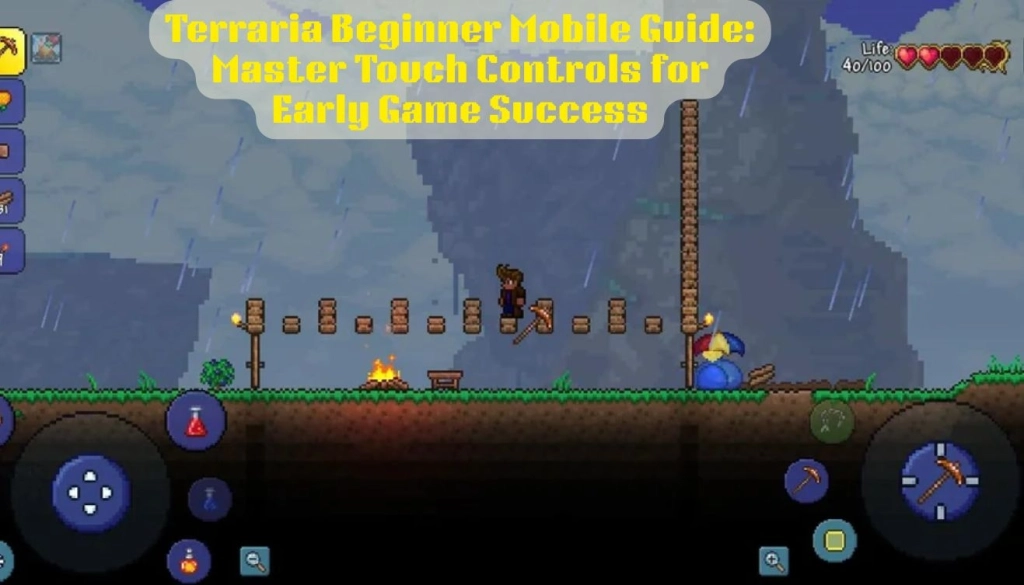
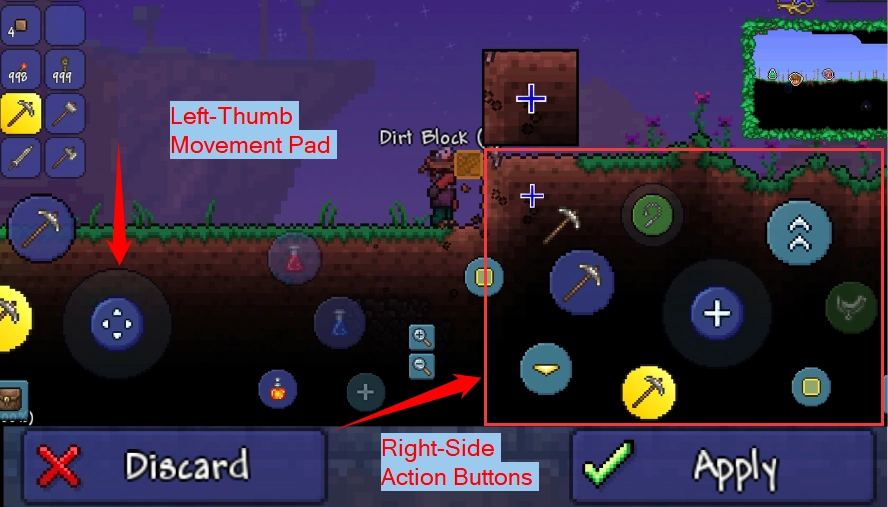
Left Thumb Movement Pad
In Terraria Mobile, the left thumb movement pad is the main control for both aiming and character control.
- Movement: Controls the left and right movements of your character.
- Aiming Tools/Weapons: If you are in "manual aim" mode, this focuses the spot where your pickaxe, axe, or weapon will be used.
- Jump Direction Control: Combining Jump Direction Control with the Jump button affects the jump's arc.
- Positioning for Interactions: Assists with your movement to reach resources, NPCs, and crafting stations.
For example, if you are mining a block of stone:
Using the left thumb movement pad, you move your character to the destination and aim slightly upward and to the right while holding down the pickaxe button. Using the angle of the movement pad, your character starts mining in the direction you are facing.
Right Screen Buttons
- Sword Icon: Choose a weapon and tap to attack.
- Pickaxe/Axe Icon: Hold down to mine or chop with no further action needed.
- Jump Button: Jump or make your character fly with their wings.
- Inventory & Crafting Menu: By pressing the top-right backpack icon, you can access all Inventory options.
In TerrariaMobile, you can customize the button layout by following:
Settings > Interface > Customize to avoid the inventory screen covering them.
Gather Essential Resources in Terraria Mobile Using Touch Controls
You can easily build, craft, and survive your first nights in the game by following this Terraria guide for beginners. It explains how to gather necessary resources using mobile touch controllers, from mining to cutting wood.
How to Gather Wood
- Take out your Copper Axe from the inventory and select it.
- Hold the left movement pad to move beside a tree.
- When the Axe Icon is at the bottom right, tap and hold to swing automatically.
- Right after a tree hits the ground, wood is gathered immediately.
Tip: Use Auto-Swing (from the options) to avoid having to tap constantly—just hold down the button.
How to Collect Stone
- Use the Left thumb movement pad to find stone blocks
- From the hotbar, equip your Pickaxe.
- Use the left side movement pad to navigate to the block of stone.
- Click and hold the Pickaxe Icon to start mining.
- When you destroy some stones, they appear in your inventory after a few hits.
Tip: To adjust your mining angle in "Manual Aim Mode," move the screen a little.
Ore Mining (Copper, Iron, Gold)
- Use the movement pad to explore caves or underground places.
- Identify the ore blocks. They differ in texture and sheen (copper is orange-brown, iron is gray)
- Get the pickaxe ready and follow the instructions.
- Mine the ore by tapping and holding the use button.
How to Gather Gel (from Slimes)
- First, use the movement pad to approach a slime.
- Prepare a pickaxe or other weapon.
- To defeat the slime, swing your tool or weapon by tapping and holding the Action button.
- The gel will automatically drop and accumulate into your stock.
Tip: In close quarters, Auto-Swing lessens the possibility of missing slimes.
Advanced Touch Tips for Optimum Gathering:
- Use the "Smart Cursor Mode" (gear icon in controls options) to target blocks automatically.
- For resource spotting, turn on "Pinch to Zoom" to zoom out and see more of the terrain.
- Rotate tools and weapons by pressing the "Quick Switch" button without having to open the inventory.
Crafting in Terraria Mobile
In Terraria Mobile, crafting is essential, but are you having trouble making your first tool or torch? The secret is to master the Crafting Tab! Discover how to use easy touch controls to craft necessary tools and equipment in this Terraria beginner crafting guide.
Crucial Beginner Items:
|
Item |
Requirements |
Function |
|---|---|---|
|
Wooden Sword |
7 Wood |
Superior to the initial copper sword. |
|
Wooden Walls |
Wood |
To protect the home |
|
Torch |
1 Wood + 1 Gel |
To Provide Light in dark areas |
|
Workbench |
10 Wood |
Useful to unlock advanced crafting |
|
Door |
6 Wood |
Enter/Exit in home or room |
|
Bed |
15 Wood + Silk |
Sets the spawn point when placed in a house. |
|
Furnace |
20 Stone + 4 Wood |
Smelt ore into bars for better tools/gear. |
How to Craft a Wooden Sword
- Hold the Axe icon in front of trees to chop them down.
- Open your Inventory
- To access the Crafting Menu, tap the Hammer symbol.
- Find the Wooden Sword in the "Weapons" section.
- To construct it, tap once.
How to Craft Wooden Walls
- Gather wood by chopping trees.
- Click the Hammer symbol to open the Crafting Menu.
- Browse to the "Walls" area.
- To create, tap the Wooden Wall symbol (or hold to create in bulk).
How to Craft a Torch
- Gather wood from chopped trees and gel from slimes.
- Open your Crafting Menu, access the list, and scroll to "Light Sources" or torch.
- Tap to create.
How to Craft a Workbench
- First, cut down trees till you obtain 10 or more pieces of wood.
- Proceed to the Crafting Menu.
- Find the Workbench icon and tap on it.
- Use your inventory to place it in the world.
How to Craft Wooden Doors
- First, make sure you're standing close to a workstation.
- Select "Furniture" from the Crafting Menu.
- To begin crafting, tap the Wooden Door icon.
- Place the door in a wall at a height of three blocks.
How to Craft a Bed
- First, collect cobwebs from underground or caverns. For five Silks, you'll need 35.
- Build a loom at a sawmill (a sawmill is made with 10 wood, 2 iron/lead bars, and 1 chain).
- Create Silk using the Loom.
- After you have 15 wood and 5 silk, stand close to a sawmill.
- Create the bed by opening the crafting menu.
- To determine your launch spot, place the bed and press it.
How to Craft a Furnace
- Use a pickaxe to mine stone blocks.
- Create 3 torches by following (How to Craft Torch)
- Take a position close to a bench.
- Locate the Furnace under "Crafting Stations" by opening the Crafting Menu.
- Built by touching/tapping the screen.
Pro Tips for Touch Control
- To go close to craft stations, use the movement pad.
- Tap and hold crafted items to create copies.
- If an item does not appear, double-check that you are standing near the correct station.
- In the Crafting Menu, you can browse categories by swiping up or down.
Common FAQS
How can I improve my mobile crafting?
To constantly craft, tap, and hold the item icon. Tap each one to create it if you want an exact amount.
Is it possible to cancel a craft that is in progress?
Not at all. When an item is tapped, it is immediately crafted.
How do I know whether a crafting station is close enough to me?
You're in range if the one you want is in the menu and visible and active (not grayed out). If not, get closer.
Why do specific items not appear in my crafting menu?
Most likely, you're not close to the appropriate crafting station. For instance, the Bed's crafting list has to include a sawmill and a loom.
Make Crafting Easier with LDPlayer.
On mobile devices, players frequently have trouble with screen size, touch reliability, or unexpected actions. Your control technique is improved by using LDPlayer, the best android emulator for PC:
- Give the action, inventory, and crafting menu buttons keyboard shortcuts.
- For quicker and more precise navigation of the crafting user experience, engage your mouse.
- No more misclicks or cramped fingers when quickly creating a lot of things!
To significantly improve workflow, assign "C" for Crafting, "I" for Inventory, and mouse clicks to drag and drop resources or crafted goods.
Terraria Mobile Combat Guide: How to Fight & Survive
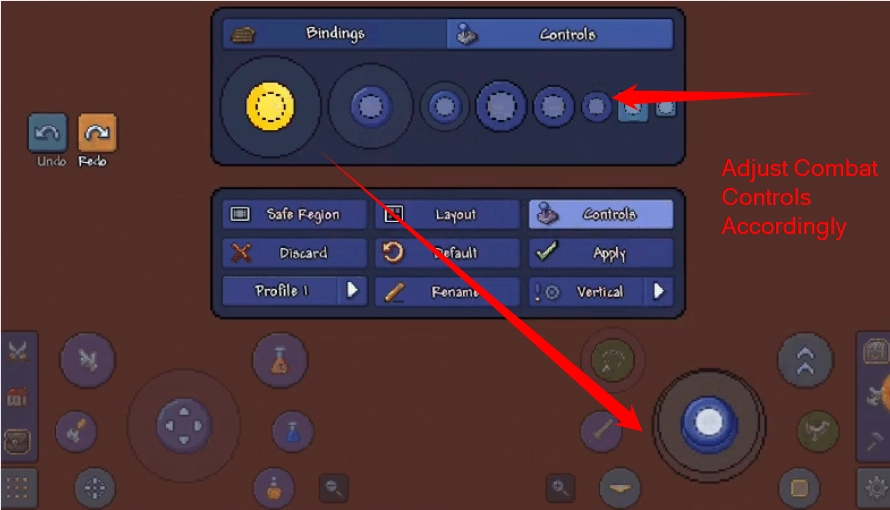
In Terraria Mobile, combat skills are necessary to survive groups of adversaries and bosses. Once you understand the arrangement, the touchscreen interface provides controls that are easy to use.
Move your character with the movement pad (bottom left) to start a battle. Use the right side of the screen for aim, and to attack, press and hold the weapon sign in the lower right corner. Auto-targeting helps in taking down close adversaries with melee weapons. To manually target a ranged weapon (such as a gun or bow), move your finger toward the target and press the fire button.
How to Enable Auto-Swing?
Activate Auto-Swing by going to Settings → Controls → Enable Auto-Swing. This will allow for free attacks without the need for constant taps and increase melee weapon effectiveness.
How to Use a Grappling Hook?
- Insert it into your hotbar.
- To fire in any direction, tap the hook icon on the screen.
- Perfect for climbing, avoiding, or fleeing aggressive groups.
How to Avoid & Attack?
Use the movement pad to quickly swipe in any direction to avoid or evade. The use of items such as Shield of Cthulhu or Hermes Boots allows dashes. Use jump (up arrow) or double-tap jump with Cloud in a Bottle attachments for upward mobility. Later, add wings or other equipment to enable flying and double-jumping.
Advanced Interactions Touch Control in Terraria Mobile
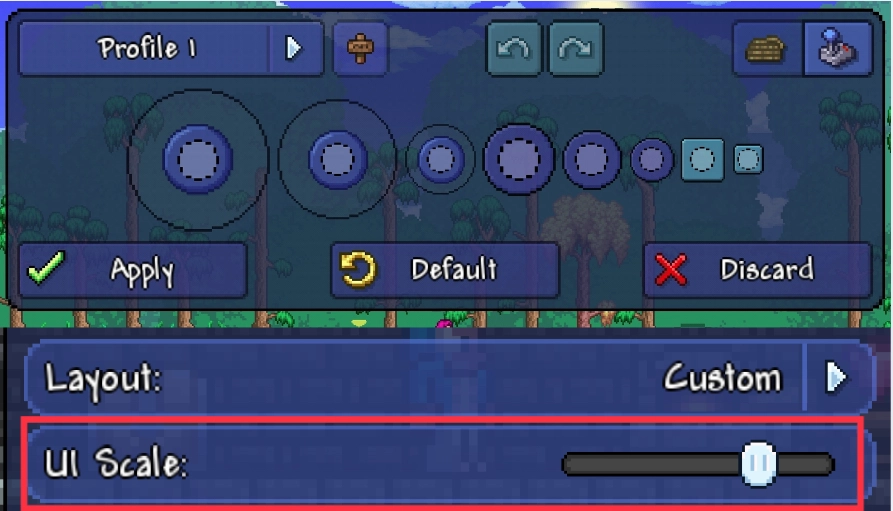
Use this terraria beginner guide to unlock full potential and explore its powerful touch controls to maximize gameplay mechanics.
Quick Heal & Buff Buttons
Use to either restore health or put buffs into effect while fighting or exploring.
Tips for Performing Accurately on Touch Screens:
Press or tap the heart icon (Quick Heal) located on the top-left corner of the screen (default UI).
To customize these:
- Click on the backpack icon in the bottom left to access your inventory.
- Drag your healing or buff potion to the Quick Bar.
- The item automatically gets placed on the quick-action buttons.
Go to Settings → Interface and enable “Smart Controls” to ensure the priority of the right item.
You can customize hotkeys (e.g, H for Quick Heal) on LDPlayer to react quickly in tough fights against bosses.
Housing NPCs
Place NPCs in the designated rooms to ensure they help you either through trade or healing.
How to Play Using Touch Controls
- Choose the three-dot icon at the top → push on the house icon (Housing Menu).
- You will see a grid layout with all accessible places to live on it.
- Tap the NPC portrait and then pick from the available rooms to assign it to.
If a room does not have enough space or is empty of any furniture, it will be symbolized as invalid with a red X. Swipe your finger to open room lists and pinch & drag your finger to check the house layout.
Utilize key-mapped user interfaces and mouse clicks to quickly arrange NPCs while increasing pleasure on LDPlayer.
Interact with Objects (Chests, Doors, Crafting Stations)
Use Terraria's interactive environment for journey, storage, crafting, and rest.
Methods for Using Touch Controls:
Tap the item while standing close to it:
- Doors: To open or close, tap once.
- Chest: Tap the chest to reveal the inventory. Drag objects in and out.
- Crafting Stations: Sensitive to context, recipes appear when you stand close by and open your crafting menu.
- Beds: Press to establish the spawn point (the bed needs to be in a room).
Go to Settings → Interface → Smart Cursor On and turn it on. For more precision while handling interaction-heavy tasks on LD Player, employ precise mouse pointer control rather than finger taps.
How LDPlayer Enhances Terraria Mobile Gameplay
1. Accurate Mouse and Keyboard Controls
With LDPlayer, you can use adjustable keyboard and mouse controls in place of touch controls. For activities like mining, creation, and combat, this precision is crucial because it reduces misclicks and improves control overall.
2. Experience High-Definition Visuals
LDPlayer supports high-resolution graphics, and navigating challenging terrain and locating resources is made simpler.
3. Support for Macro and Multi-Instance
Launch many game instances at once and use macros to automate repetitive tasks. This is very helpful when managing many worlds or trying out various strategies.
4. Deep Personalization
Utilize the settings in LDPlayer to customize your game experience. You can change layouts, performance metrics, and other aspects to your liking.
Final Words
This Terraria beginner’s guide for new players is intended to help them gain the correct technical and practical experience. Every aspect of the game, from crafting to fighting, can feel intimidating. Get resources, construct a shelter, and proceed with caution. This beginner's guide for Terraria will help you get started, whether you're familiar with the basics or just getting started.