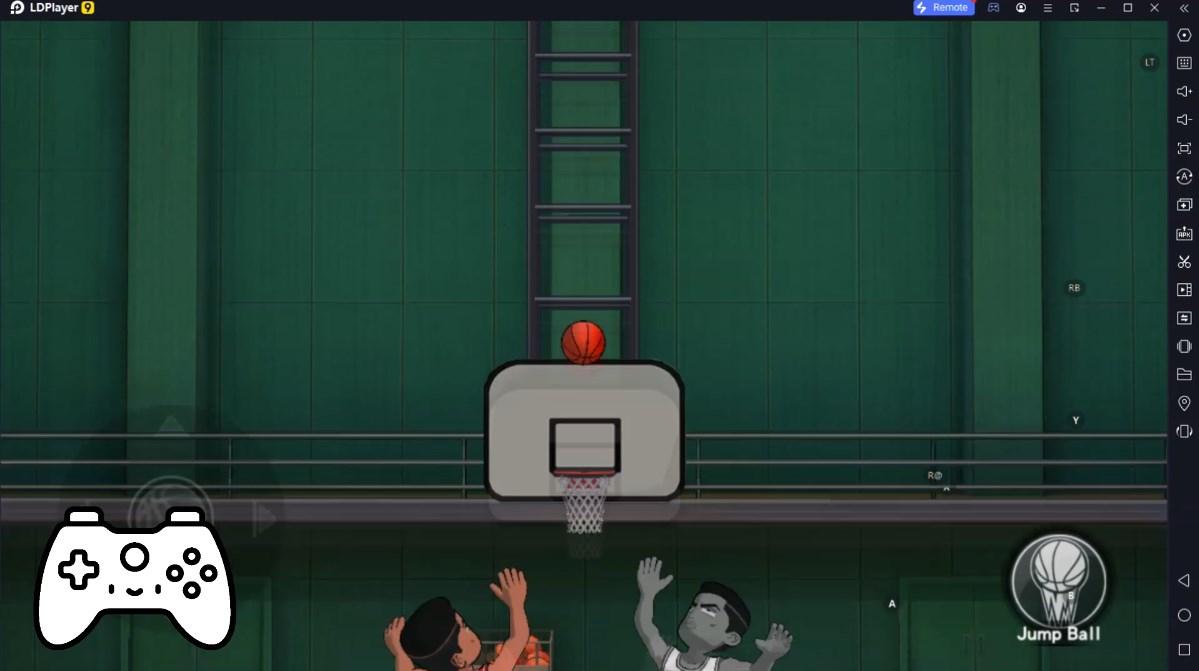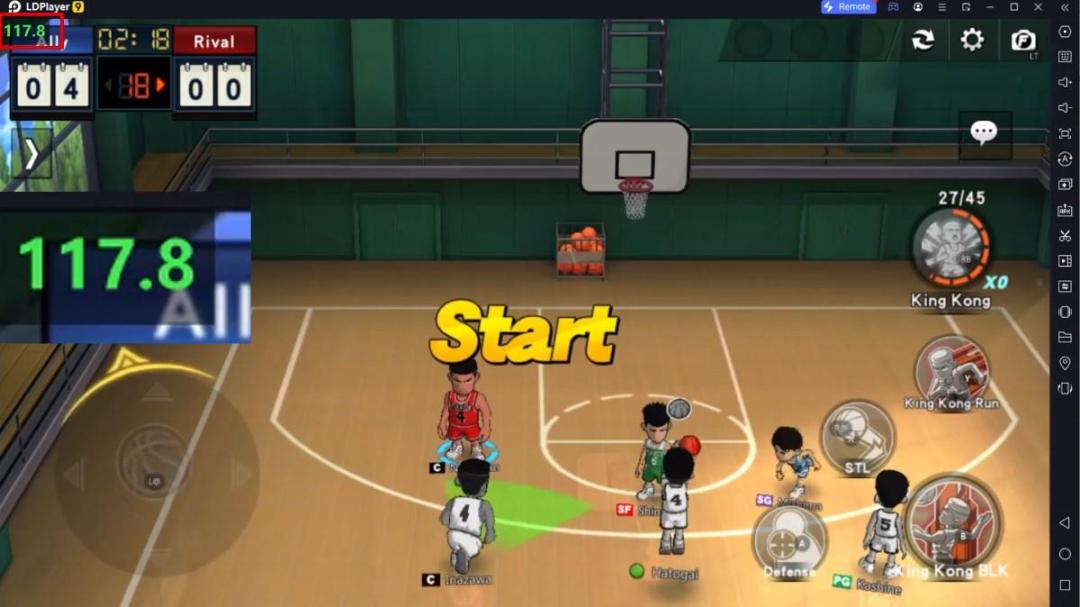


Handball Scoreboard is a Sports game developed by SeedsJP. LDPlayer is the best platform for playing Handball Scoreboard on Windows PC, offering powerful features to enhance your immersive experience in Handball Scoreboard.
When playing Handball Scoreboard on your computer, the larger screen and more powerful graphics performance enable you to enjoy clearer and smoother game visuals, enhancing the visual experience of the game.
The operation of peripherals such as gamepads is emulated to better mimic the feel of real sports, providing more precise control and richer operation options.
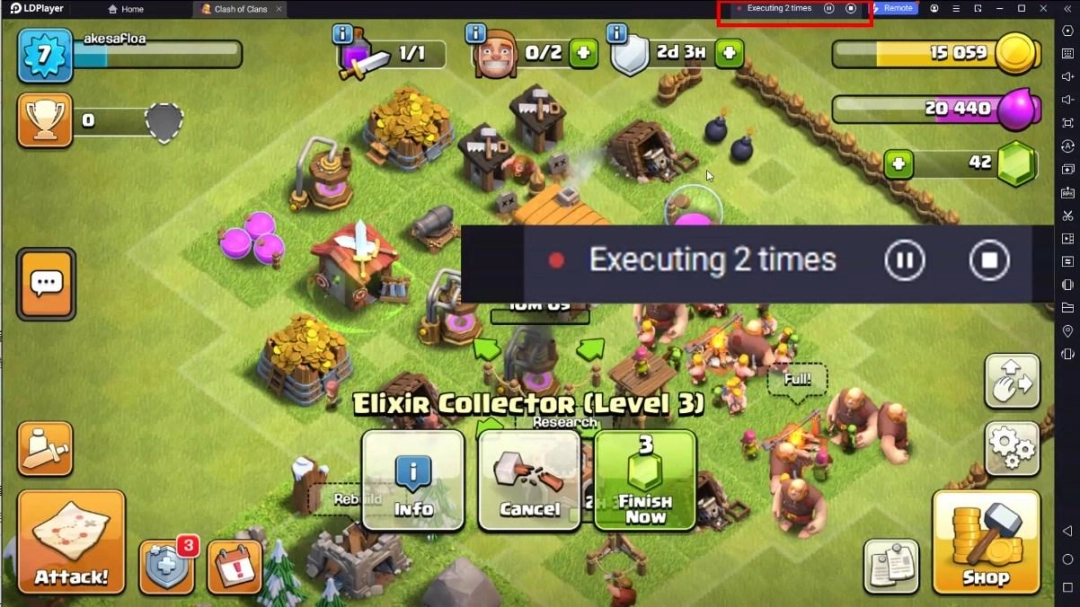
Furthermore, if you wish to execute a series of continuous key combinations, the one-click macro feature will be the functionality you've been dreaming of, allowing you to effortlessly stay one step ahead with one-touch operation. Start downloading and playing Handball Scoreboard on your computer now!
A scoreboard app specialized for handball.It is easy to use and allows you to set the match time in detail and register multiple penalties.
●Basic Functions
1. Team name
Tap “HOME or “GUEST” on the screen to enter the team name.
2. Adding and subtracting points
You can add or subtract points by tapping the button next to the score. You can also add points by tapping the score.
3. Period
Tap "First half" or "Second half" in the middle of the screen to go to the next period.
4. Game timer
Tap the time to start the timer. If you want to stop it, tap it again.
By default, the game time is set to 30 minutes each for the first and second halves, and the overtime is set to 5 minutes each for the first and second halves, but this can be changed in the settings.
5. Register Penalty
Tap the number on the edge of the screen to display the penalty registration screen. Select the number of the player to be penalized and the type of penalty (warning, suspension, or dismissal), and register it. If you choose “Suspension" or "Dismissal”, a 2-minute timer will be set automatically. If the game timer is running, the penalty timer will also start automatically.
6. Timeout
Tap the number under "Timeout" on the edge of the screen to start the one-minute timeout.
7. Reset
Tap the gear icon at the bottom center of the screen to display the menu, where you can reset the score and timer.
8.shootout
Swipe the scoreboard screen to either the left or right to display the shootout screen.