
Data Recovery/Backup
How to Backup/Restore Emulator Data for LDPlayer
2021-11-05
Data is priceless, so do the gaming settings and the brilliant gaming-grade. Regular backup can prevent the loss of important information. For your convenience, LDPlayer develops a function that enables users to backup and restore emulator data.
You May Need:
How to open as many instances of LDPlayer as possible
Contents
- 1. Why You Should Backup Data of LDPlayer
- 2. How to Backup Emulator Data of LDPlayer Easily
- 3. How to Restore Backup Data on New Emulator
- 4. More Information About Backup/Restore LDPlayer
Why You Should Backup Data of LDPlayer
If you meet the situations like emulator errors or the inability to launch the emulator, you may know how important backup the emulator data is. Or if you are using a guest account for your games, all your well-made gaming glory will be gone when you delete the data by mistake. This is why we recommend you back up the emulator data of LDPlayer.
If you find your emulator failed to load, you can read this article to try to recover your data or account from LDPlayer: How to Recover Game Data (Guest Account Especially) on Broken Instance.
How to Backup Emulator Data of LDPlayer Easily
The backed-up data includes the applications you logged in, games and other files, log-in information, etc. Please be aware that the running emulators cannot be backed up and restored. So if you want to backup or restore your emulators, please exit them.
Step 1. Open the LDMultiPlayer on your PC.
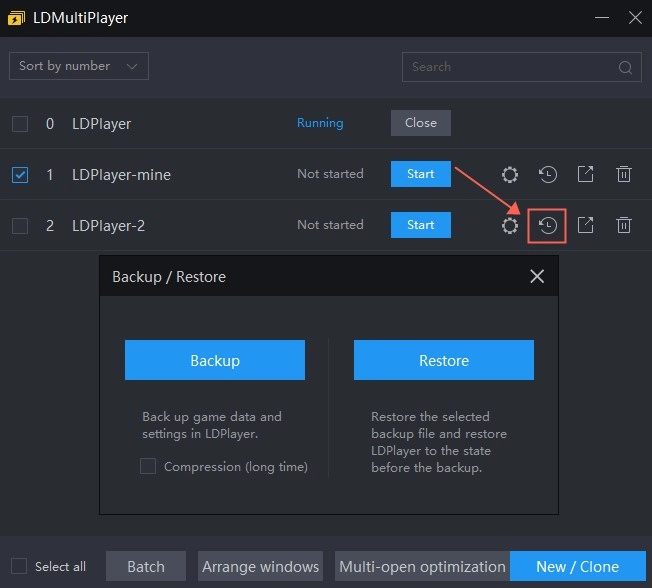
Step 2. Then you can see the interface below. Move your cursor to the instance you want to backup and click the circled icon in the following picture. It will pop up a window where you can choose “Backup” or “Restore”. Choose “Backup” and proceed.
Tips: The “Compression” means it can compress the data to reduce the disk space occupied by the files. But it will spend more time backing up. And the speed of backup depends on the applications and settings. If you want to speed up, you’d better not choose “Compression”.
Step 3. Now you can choose the location path for the backup file. We recommend you not to save on the System disk (your C Drive usually) for it can be destroyed if the computer system is reinstalled. Don’t forget to rename the file for better management. The more data of the emulator, the longer time it will spend.
Notice: It's recommended to backup your latest emulator data of LDPlayer once a week.
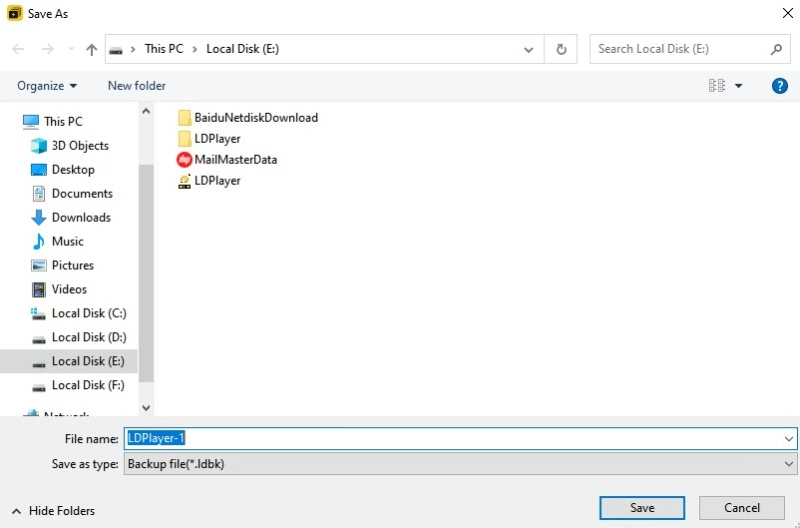
Finish! You can find the backup file on the location path you chose just now. You don’t need to worry about data loss anymore.
How to Restore Backup Data on New Emulator
To restore an LDPlayer means restoring the backed-up file you saved before, then you can enjoy the game in LDPlayer with the same settings you saved before.
Warning: Before scrolling down to get the step-by-step tutorial, you need to notice that it is recommended to create a new emulator first when you choose to restore. If not, the restoration will overwrite other existing emulators resulting in the data loss of the existing emulator!
Step 1. Open LDMultiPlayer and click New/Clone at the bottom right. In the pop-up window, choose “New LDPlayer”.
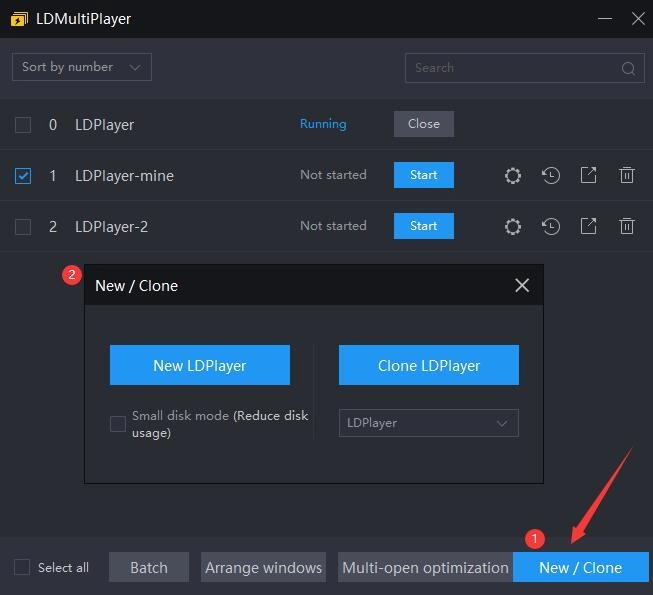
Step 2. In the main interface, you can find the LDPlayer you created just now. Then click the circled icon below and choose “Restore”.
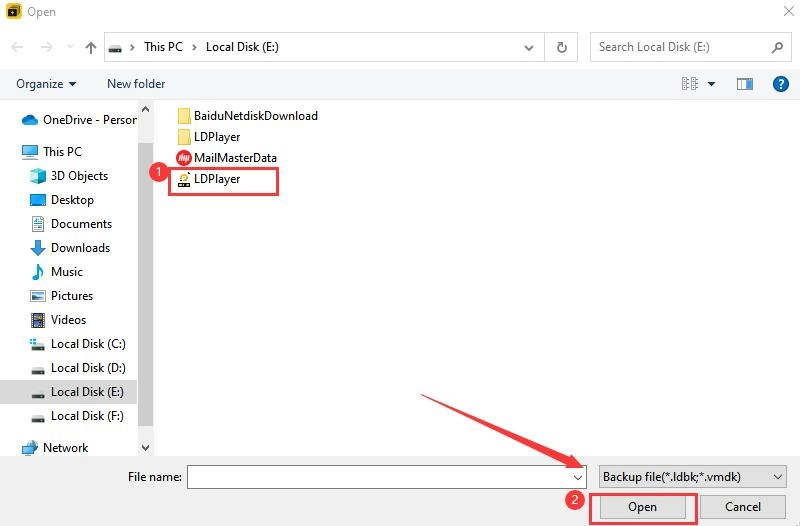
Step 3. In the pop-up folder, click the backed-up file and “Open”. The process of restoration will proceed then.
That’s all on how to backup and restore emulator data of LDPlayer easily on PC. Backing up emulator data of LDPlayer regularly is a good habit for enjoying games. If you still have any questions, you can find the answers in part 4.
More Information About Backup/Restore LDPlayer
Can I transfer and use my backup file on another PC?
Yes, you can transfer the backed-up file and then use it on another PC. But it’s noted that you need to restore your backed-up file to the same version of LDPlayer. It means the backed-up file of LDPlayer (32 bit) can be restored on LDPlayer3.0 (32 bit), not LDPlayer 4.0 (32 bit) or LDPlayer (64 bit).
Can I use "Clone LDPlayer" to backup emulator data directly?
Many users may be confused: Can I use "Clone LDPlayer" in LDPlayer to back up emulator data directly? The answer is "not exact". In most cases, cloning emulators can just copy the games and applications, etc, not all the data. We don’t recommend you to do that.
More Resources: