How to Play Illusion Connect: Re on PC?

Thisara Dilshan
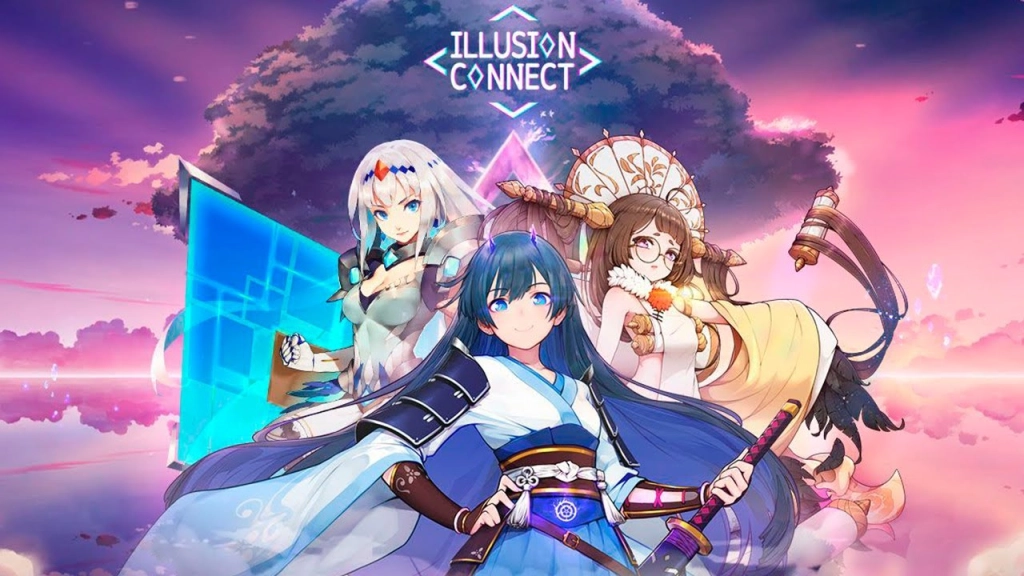
|2026-06-01Want to play Illusion Connect: Re in a smoother and better way on your PC? If so, LDPlayer is the most reliable choice for getting improved performance, a bigger screen, and stable gameplay for easier hero management and battles. To make everything easier, you can use a guide to install LDPlayer to optimise performance, fixing common issues, and using special features that help you in your gameplay. So, summon powerful characters, build smarter lineups, and enjoy a much smoother overall gaming experience from your PC.
Contents
How to Play Illusion Connect: Re on PC with LDPlayer in 4 Easy Steps
Step 1: Download and Install LDPlayer Emulator on Your PC
Before anything else, you should have a reliable Android emulator to play Illusion Connect: Re mobile on your PC. The best choice for that is the LDPlayer 9 emulator. With its help, you will be able to run the Illusion Connect: Re game smoothly with stable performance and easier controls.
1.1 – Visit the official LDPlayer website and download the latest version of the emulator.
1.2 – After the installer finishes downloading, double-click the setup file to begin the installation.
1.3 – Press the Install button and wait until the emulator setup is completed.
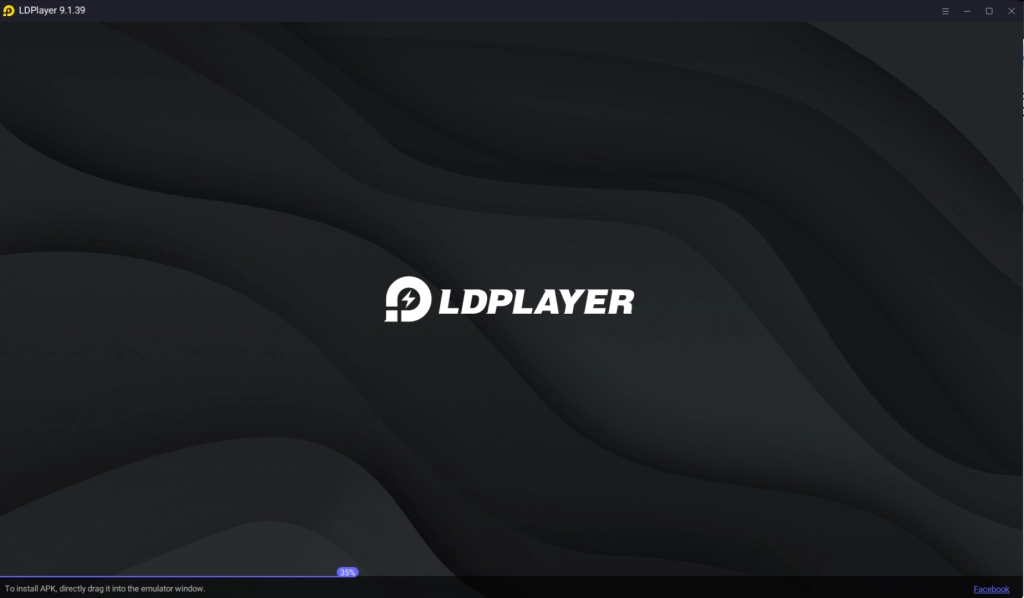
1.4 – Once installed successfully, launch LDPlayer using the desktop shortcut or from the Start menu. Your emulator is now ready for playing mobile games on your PC.
Step 2: Search and Install Illusion Connect: Re from LDplayer
Now your emulator is ready for gaming, and to play Illusion Connect: Re on PC, the next task is to download Illusion Connect: Re directly through the emulator.
2.1 – Open LDPlayer and find the search bar displayed on the home screen.
2.2 – Search for “Illusion Connect: Re” and choose the official version developed by SUGARGAME NETWORK LIMITED (HONG KONG) from the search results.
2.3 – Then click the Install button to begin downloading the game files.
2.4 – While downloading the game, you might be redirected to the Google Play Store through LDPlayer. If so, continue with the next step to complete the installation process.
Step 3: Sign Into the Google Play Store (If Needed)
If you are not signed into a Google account within LDPlayer, the Google Play Store will request that you sign in before installing Illusion Connect: Re. This step is simple and only takes a few minutes.
3.1 – The first thing to do when the Google Play Store launches is click the Sign In button.
3.2 – Enter your Gmail email address and proceed to the next screen. If you do not have a Google account yet, you can create one directly in the Play Store.
3.3 – Enter your Google account password correctly and verify your identity with any additional security steps if Google asks for them.
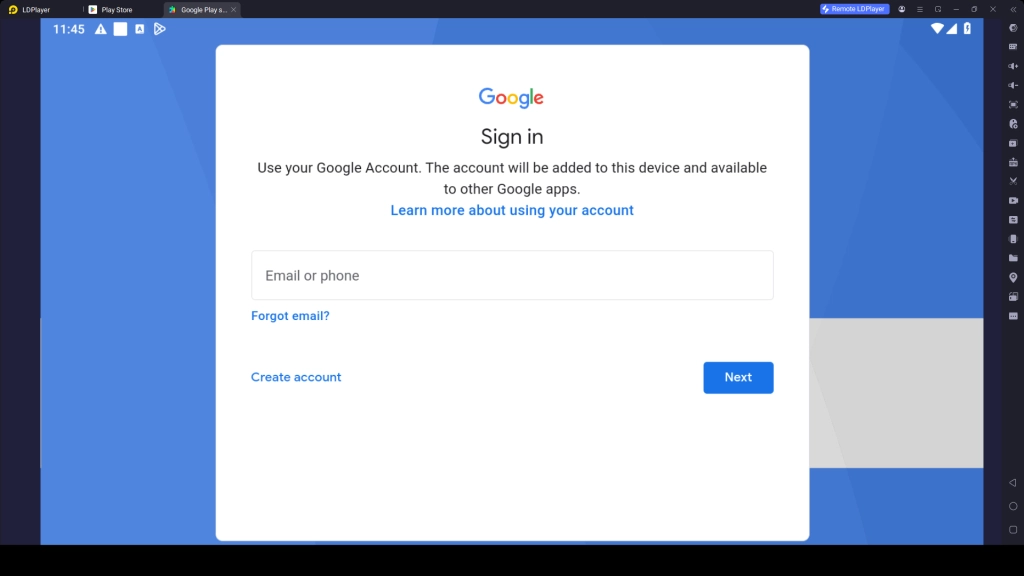
3.4 – After logging in, Google will show its terms and conditions. Read them and press Accept to continue using the Play Store.
3.5 – Optionally, Google may prompt you to set up its backup service. You can enable it to back up your app data or skip it for later.
3.6 – Once the setup is complete, go back to the Google Play Store search bar and type Illusion Connect: Re again.
3.7 – Wait until the game finishes downloading and installing on LDPlayer.
3.8 – Once installation is completed, the Illusion Connect: Re icon will appear on the LDPlayer home screen, ready to launch.
Step 4: Download Game Resources and Start Playing
Now, after launching Illusion Connect: Re for the first time, you may need to download additional resource files before entering the main gameplay. These resource files are necessary to enjoy the game fully.
4.1 – Open the game by clicking the Illusion Connect: Re icon inside LDPlayer.
4.2 – Confirm the download to install all necessary extra in-game resources. The download duration may vary depending on your internet speed.
4.3 – After the resource download is completed, proceed by creating a new account or logging in with your existing account.
4.4 – You can select your preferred login option, such as Google, Facebook, or any other available method.
4.5 – Once you log in to the game, you can fully enjoy Illusion Connect: Re on your PC with improved controls, smoother performance, and a much bigger screen experience using LDPlayer.
Common Problems and Easy Fixes
As you play Illusion Connect: Re via your PC using LDPlayer, there may be times when you will encounter technical problems which may disrupt your gaming experience. But don’t worry, for most of the time these problems are actually common and can easily be resolved by following some simple steps. So, here are the issues you face and how to fix them easily.
Fix “Unsupported Version” Issue with LDPlayer
Once you launch the game Illusion Connect: Re on LDPlayer, it may show you a popup notification stating “The current version of LDPlayer is not supported.” This issue normally arises because of an update in the game which is incompatible with your old emulator version.
How to fix it:
- Go to the “Download Dedicated Version” option on the popup screen.
- Update LDPlayer 9 to the newest version.
- Let the installation process complete.
- Open the updated LDPlayer and start Illusion Connect: Re again.
- If the game isn't installed anymore, simply reinstall it using the search box.
Worried about losing your game progress? There is no need to worry. Your gameplay progress will not be lost when updating LDPlayer to the latest version, as long as your game account is properly linked.
Fix Storage Issues in LDPlayer for Illusion Connect: Re
Sometimes, while trying to download or update the Illusion Connect: Re through LDPlayer, you might face issues related to storage space on your device. This happens because LDPlayer does not have enough storage space to download or install the entire game files.
In case you are facing such an issue, then the Illusion Connect: Re application won't download completely, crash while installing, or display a warning regarding insufficient storage space.
How to Fix Storage Issues in LDPlayer:
- Check whether your LDPlayer emulator has at least 6GB of free storage space available.
- Go to LDPlayer Settings → Advanced Settings → Allocate the CPU and RAM configuration options.
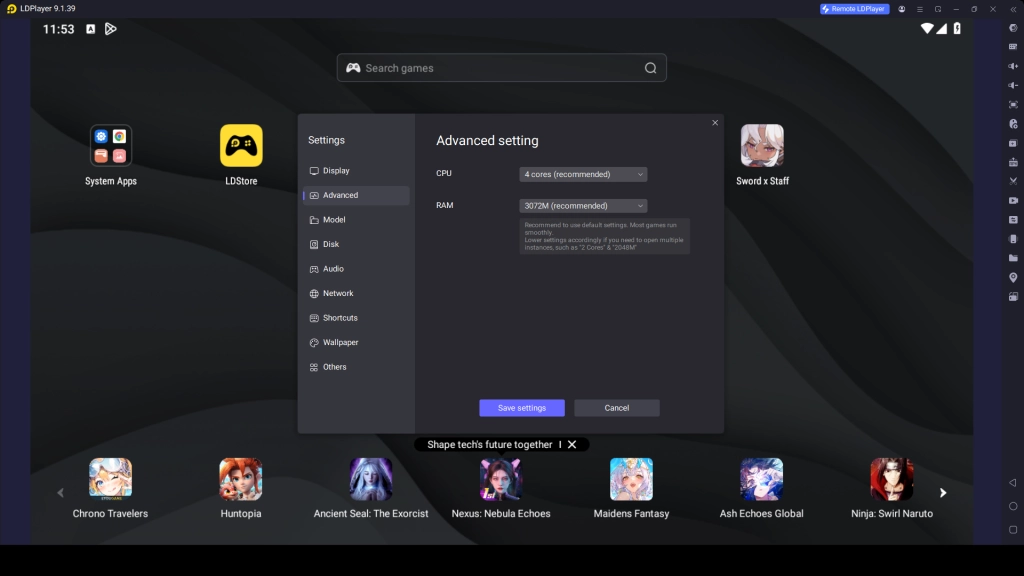
- Increase or optimize the CPU cores and RAM settings to improve emulator performance.
- Enable the Auto-Expand Disk feature so LDPlayer can automatically use additional storage when required.
- Save the new settings and restart the emulator for the changes to take effect.
- Remove unnecessary apps, unused files, or cached data from LDPlayer to create more free space.
- After freeing up storage, try installing or updating Illusion Connect: Re again.
Hot Recommend
Download LDPLAYER, play Illusion Connect: Re on PC, enhance your gaming experience!

Play Illusion Connect: Re on PC with Special LDPlayer Features
For optimal gameplay in Illusion Connect: Re on PC, you have the chance to use special LDPlayer features to make your gameplay smoother with higher graphics, better lineups, and more comfortable with easier controls. So, below are the special features that you can use:
Summon Powerful Characters with Multi-Instance Feature
One of the most enjoyable things while playing Illusion Connect: Re is collecting powerful heroes and creating strong team lineups for battles. But summoning powerful heroes for your battles might be harder because of the lack of resources you have.
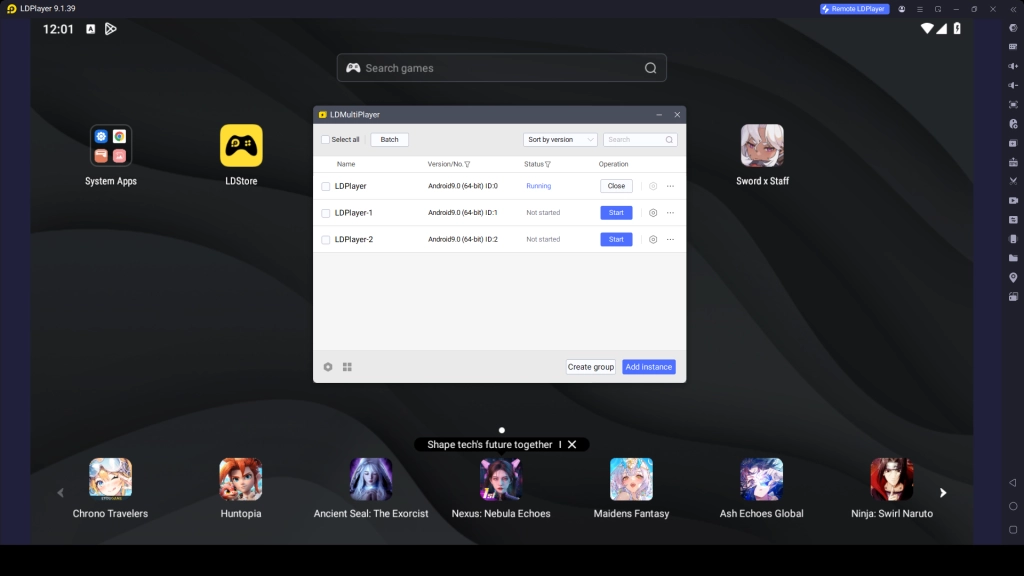
However, with LDPlayer’s Multi-Instance and Synchronize features, you can reroll multiple accounts at the same time to summon better SSR characters faster. It also helps you test different hero combinations, roles, and strategies to discover the best lineup for story stages, PvP battles, and boss fights.
How to Summon Effectively with Multiple Instances:
- Open LDMultiplayer (Multi-Instance Manager) from your desktop or toolbar.
- Click Create New Instance to open extra emulator windows.
- Launch Illusion Connect: Re on each instance.
- Log in with different accounts and summon heroes.
- Try different team lineups and strategies.
- Choose the account with the best characters and continue playing
Play Illusion Connect: Re with Higher FPS
Illusion Connect: Re gameplay comes with smooth battle animations and colorful skill effects that look much better with higher FPS settings. By using LDPlayer, you can improve the game’s frame rate for more stable and responsive gameplay during combat. Higher FPS also helps reduce lag and makes battles feel smoother, especially during PvP matches, boss fights, and stages with multiple skill animations happening at once.
How to Enable Higher FPS in LDPlayer:
- Open LDPlayer and launch Illusion Connect: Re
- Click the Settings icon in LDPlayer
- Open the Display Settings → Enable High Frame Rate mode
- Set FPS to 60 or higher if available
- Save the settings and restart LDPlayer
- Relaunch the game and enjoy smoother gameplay
Conclusion
That’s everything you need to set up Illusion Connect: Re on PC with LDPlayer. We mentioned the process for getting LDPlayer for your PC, installing the game, optimizing performance, and using special features to improve your gameplay experience. Now you’re fully ready to enjoy smoother battles, better controls, and a more powerful way to play on a bigger screen. So, enjoy your Illusion Connect: Re gameplay in a more enhanced way with LDPlayer.