How to Play Ragnarok: Twilight Global on PC?

Thisara Dilshan
|2026-05-29Wanna play Ragnarok: Twilight Global with smooth gameplay, great graphics, and easy control set up to handle? Playing Ragnarok: Twilight Global on PC via LDPlayer will be a much better and more fun experience than playing it on your mobile device. You can use this guide to set up LDPlayer, download and install the game within minutes and have a great time with useful tools to make your adventure more thrilling with easier controls.
Contents
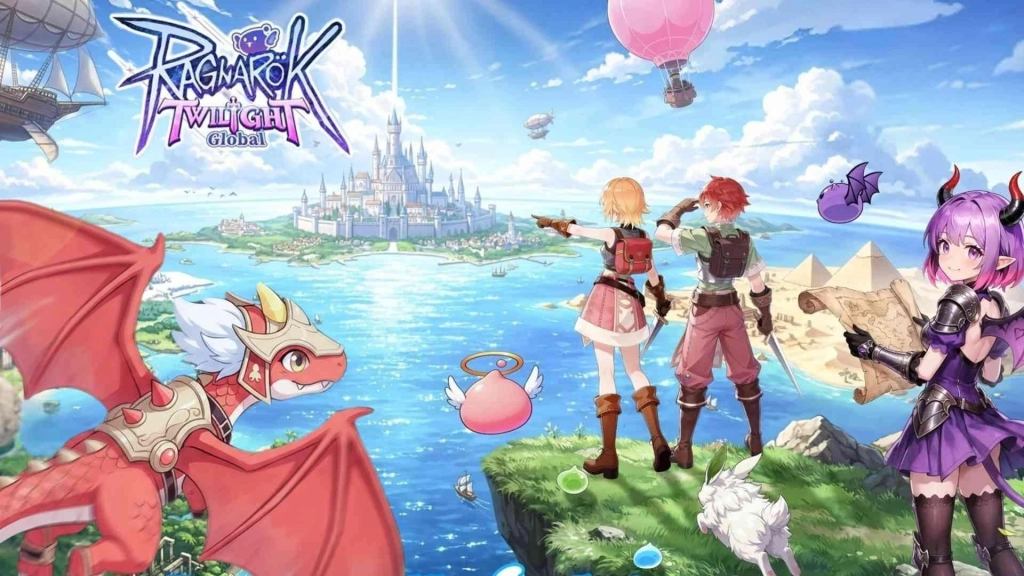
Ragnarok: Twilight Global - How to Run on PC with LDPlayer in 4 Simple Steps
Step 1: Download and Setup LDPlayer Android Emulator
Before entering Ragnarok: Twilight Global on PC, you need an Android emulator for smooth gameplay. Among all options, LDPlayer is one of the best, offering great performance, useful features, and a lag-free gaming experience to make your adventure more enjoyable from the start.
1.1 – Head to the official LDPlayer site and download the latest version of LDPlayer 9 on your PC.
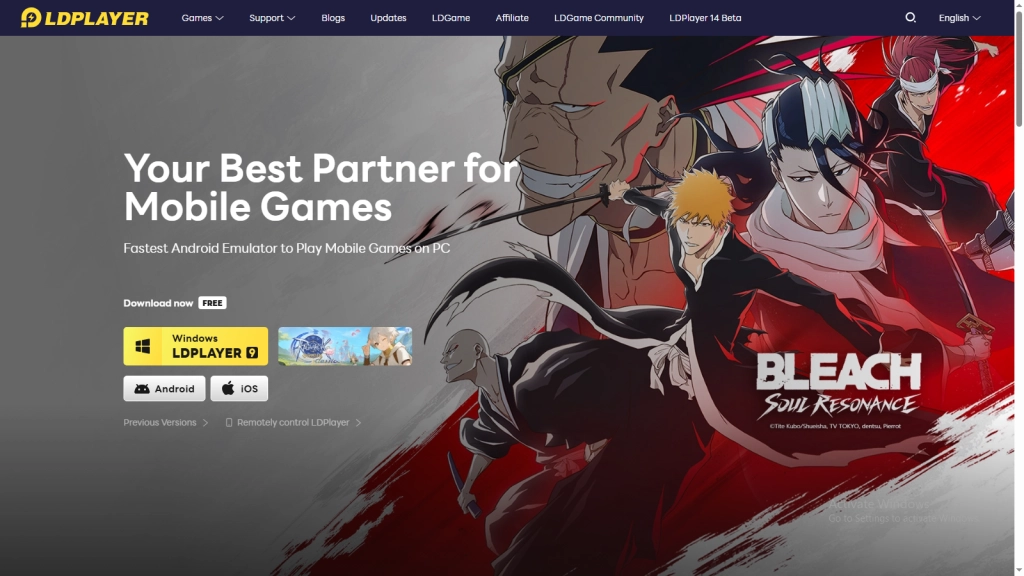
1.2 – When the downloading process is finished, find the downloaded file and double-click it to start the installation.
1.3 – Click the Install button and let LDPlayer 9 complete the setup process automatically to ensure everything is configured smoothly for the best gaming experience.
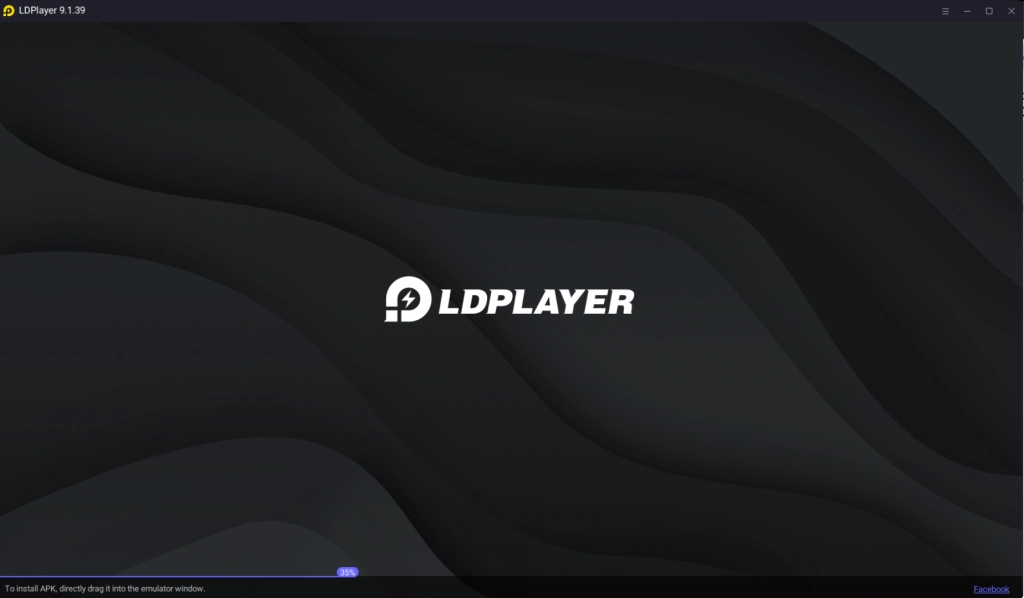
1.4 – Once installation is done, launch LDPlayer right from your computer's desktop or Start Menu. Your PC is now fully ready to run mobile games smoothly.
Step 2: Searching and Installing Ragnarok: Twilight Global in LDPlayer
With the successful installation and operation of LDPlayer at hand, it's time to download Ragnarok: Twilight Global and explore this wonderful fantasy world of magic from your PC.
2.1 – Open LDPlayer and proceed to the search box found on the main emulator screen.
2.2 – Type “Ragnarok: Twilight Global” and choose the exact version of the game which was officially released by Gravity Game Vision.
2.3 – Click the Install button to start downloading the game directly in the emulator itself.
2.4 – Sometimes, you might get redirected to Google Play after searching for the game. In that case, follow the next step to complete the installation process without any issues.
Step 3: Sign into Google Play Store (If Required)
If you are redirected to the Google Play Store while installing the game, then the next step is to sign into it using your Google Account before continuing further. Just go through these steps:
3.1 - Click the Sign In button provided within Google Play Store.
3.2 - Enter your Gmail address, or create a brand-new Google account if you do not already have one.
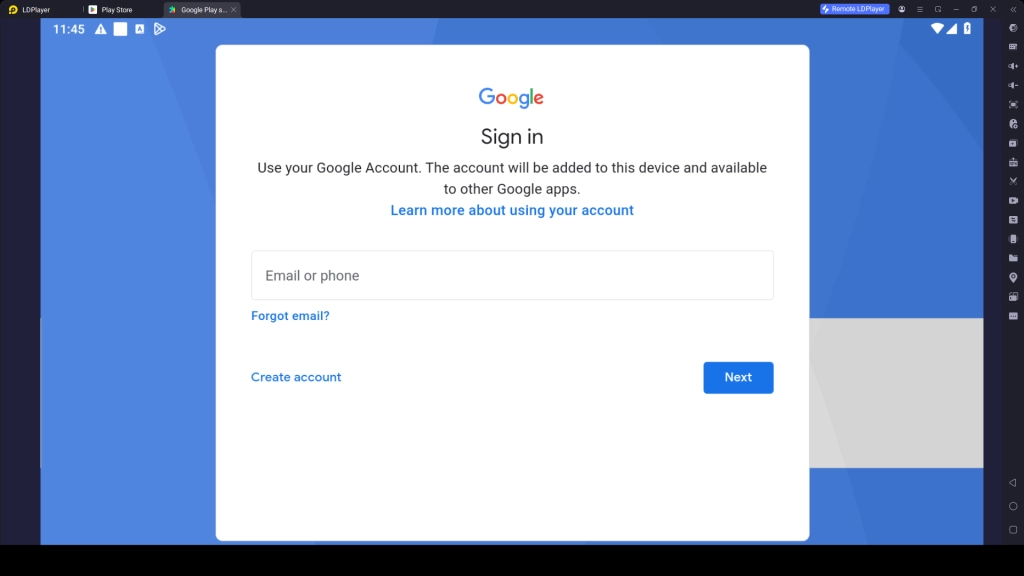
3.3 - Put in your password and pass through other verification steps, if needed.
3.4 - Agree to the terms and conditions of Google by clicking on I accept.
3.5 - Choose whether you want to enable Google Backup or skip that option for now.
3.6 - Look up the name of Ragnarok: Twilight Global once again in the Play Store and click Install.
3.7 - Wait for the process of downloading and installation of the game to finish inside LDPlayer.
3.8 - Upon successful installation, the app icon of the game will be on the LDPlayer home screen. Now you can launch the Ragnarok: Twilight Global anytime you want.
Step 4: Download Extra Resource Files and Play the Game
If this is the first time that you are playing Ragnarok: Twilight Global, then the game might require you to download some extra resource files which will be essential for playing the game smoothly as these files include game data, graphics, voice packs, and other content required for the best gameplay experience.
4.1 – Launch the Ragnarok: Twilight Global application by tapping on its icon in the LDPlayer.
4.2 – Tap Confirm/Download when asked to do so in order to download the game's additional resource files. This process takes only a couple of minutes depending on your internet connection speed.
4.3 – Once done with downloading extra files, sign up for an account or log in with the details of your pre-existing account.
4.4 – Now pick any login method available among Google, Facebook, or other supported platforms..
4.5 – That's it! And there you go. Now you are all set to enjoy Ragnarok: Twilight Global on your PC with better control, enhanced performance from a larger display, and a far more enjoyable gameplay experience through LDPlayer.
Common LDPlayer Problems and Their Easy Solutions
Playing android games on a PC using the LDPlayer is always thrilling, but there might be certain technical problems you might encounter while playing games through LDPlayer. But most of them are very usual and easily solved without putting any effort at all. Here are some of the common LDPlayer problems and the easiest ways to solve them:
Fix LDPlayer Stuck on Loading Screen
When launching the LDPlayer emulator, you may sometimes experience issues such as the emulator freezing, failing to start properly, getting stuck at percentages like 50% or 94%, or remaining on the loading screen for a long time. These problems can happen when virtualization is disabled, Windows security settings interfere with the emulator, or some important LDPlayer files become corrupted or damaged.
How to Solve This Issue:
- Restart your computer and run LDPlayer once more
- Enable Virtualization Technology (VT) from your BIOS settings
- Disable Hyper-V and Windows Hypervisor Platform from Windows features
- Update to get the the latest version of LDPlayer
- Run LDPlayer as Administrator for proper permissions
- Temporarily disable antivirus software if it blocks emulator files
- If the issue still remains, reinstall LDPlayer completely
Fix Game Crashes and Random Freezing
You might encounter issues such as game crashes, freezing during gameplay, and even sudden shutdowns of applications on their own when playing the mobile version of Ragnarok: Twilight on your PC with LDPlayer. This generally occurs due to the fact that your system configuration is too heavy for your PC or if your graphics drivers are outdated.
How to Fix Crashing Issues:
- Lower the graphics settings inside the game
- Increase RAM and CPU allocation from LDPlayer settings
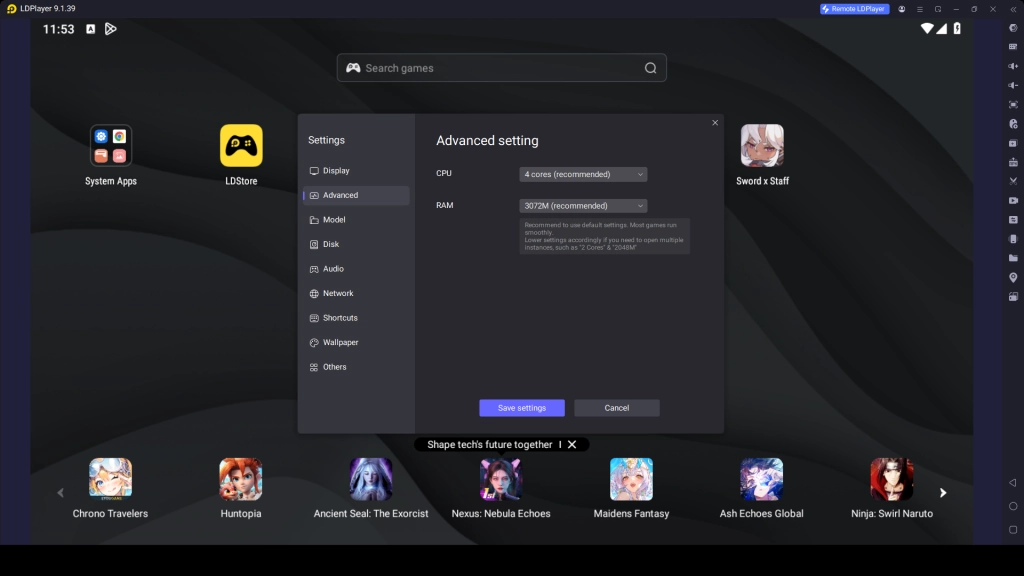
- Update your graphics card drivers to the latest version
- Close unnecessary programs running in the background
- Turn on FPS optimization options in LDPlayer settings
- Restart LDPlayer after applying the changes
Play Ragnarok: Twilight Global on PC with Special LDPlayer Features
Playing Ragnarok: Twilight Global on PC with LDPlayer gives a much better experience than mobile. You can enjoy a larger screen, improved graphics, smooth gameplay, and easy controls. LDPlayer also has helpful tools that make the game more fun and simple to play. These features let you play faster, respond quickly, and handle everything with less effort and stress.
Enjoy Different Classes with Multi-Instance Feature
The most fun part of Ragnarok: Twilight Global is the variety of classes like Swordsman, Archer, Mage, Thief, and Acolyte. Each class has its own strengths, but normally you can play only one at a time, which can make it hard to choose the best one for your playstyle. This is where LDPlayer’s Multi-Instance and Sync features become very useful.
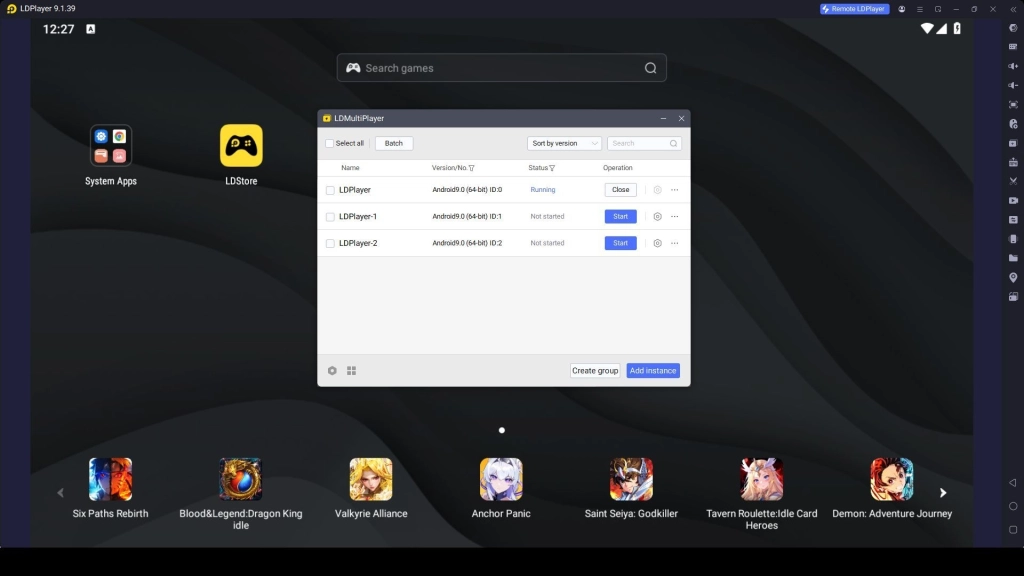
With these features, you can create multiple instances and use different accounts. This allows you to play with different classes and easily learn which playstyle suits you best.
How to Use Multiple Instances:
- Open LDMultiplayer (Multi-Instance Manager)
- Click Create New Instance to open extra emulator windows
- Clone your main instance for faster setup if needed
- Launch Astral: New Fantasy on each instance
- Log in with different accounts and select different characters
- Try different classes and check which playstyle fits you best
- Keep the best setup and continue your main progress
Auto Farming with Macro Loop
One of the best tools in LDPlayer for the game Ragnarok: Twilight Global is the Macro Loop, especially for auto farming. Rather than having to repeat the same sequence of activities repeatedly, one can have it automated and let the emulator handle the grinding while you focus on upgrades, battles, or simply enjoying the game.
Through the Macro Command feature, you can set up a loop for actions such as collecting drops, repeating dungeon runs, upgrading gear and confirming actions, and claiming mission rewards into a repeated cycle that runs automatically. This is very helpful for farming EXP, gathering resources, and completing daily tasks without doing everything manually.
Auto Farming Using Macro Loop
One of the most useful features in LDPlayer for Ragnarok: Twilight Global is the Keyboard Macro, especially for creating a loop for auto farming. This feature helps you to automate repeated tasks like collecting drops, running dungeons and upgrading equipment, so you don’t have to keep doing everything manually. Instead of grinding the same way again and again, you can set a loop once and let the emulator handle it while you focus on leveling up, fighting, or exploring the game.
How to Set Up Auto Farming with Macro Loop:
- Open Ragnarok: Twilight Global in LDPlayer
- Click on the Keyboard Mapping Tool from the side panel
- Select the Macro Recorder option
- Record your farming actions step by step (attack, skill use, collect, repeat)
- Add small delays between actions for smooth performance
- Enable the Loop Mode to repeat the sequence continuously
- Assign the macro to a single key for easy control
- Save the setup and start farming automatically in-game
Hot Recommend
Download LDPLAYER, play Ragnarok: Twilight Global on PC, enhance your gaming experience!


Conclusion
With all the details from this guide, you’re perfectly ready to enjoy Ragnarok: Twilight Global on PC with smoother performance, better controls, and powerful LDPlayer features. So, you can master all the special features and unlock the best gaming experience possible. Now step in, start your journey, farm smarter, and enjoy every battle like never before.
More from Ragnarok: Twilight Global: