home page
Games
Pre-RegisterRPGStrategyAdventureCasualArcadeRacingActionSimulation
Support
LDPlayer 9 IntroductionEnable VTStartup Stuck at 50%/94%Fix Invalid Virtual DiskUpdate Graphics DriverKeyboard MappingEnable LDMultiplayerFPS Setting
Blogs
Updates
LDGame
Affiliate
LDGame Community
download ldplayer
Download LDPlayer
Watch and Follow
Was this article helpful?
2205 users found this helpful.
English
繁體中文한국어Tiếng ViệtภาษาไทยPусскийPortuguêsEspañolFrançaisDeutsch日本語Indonesiaالعربية

LDPlayer Support

EmailFacebookDiscordLDGame Customer Service(For LDPlayer account & recharge problem)

Products

LDCloudOSLinkEasyFunLDShop

About

About UsBusiness InquiryDMCA Takedown

Follow Us

©2025 LDPLAYER.NET , ALL RIGHTS RESERVED.JUST OKAY LIMITED , OFFICE F, 12/F, YHC TOWER , 1 SHEUNG YUET RD, KOWLOON BAY KLN, HONG KONG
Games and applications on this site are collected from the internet. If there is any infringement, please contact the email: support@ldplayer.net
Privacy Policy|GDPR Privacy Notice|Help Translate
English
繁體中文한국어Tiếng ViệtภาษาไทยPусскийPortuguêsEspañolFrançaisDeutsch日本語Indonesiaالعربية

Support/

Enable Virtual Technology

Enable Virtualization Technology (VT) on Lenovo desktop and laptop

2026-03-30

This article will talk about how to enable VT on Lenovo desktop and laptop through BIOS.


    • 1. How to enable VT on Lenovo computers 
    • 2. How to enable VT on Lenovo ThinkPad 


1. How to enable VT on Lenovo computers

AD_SIGN
STEP 1

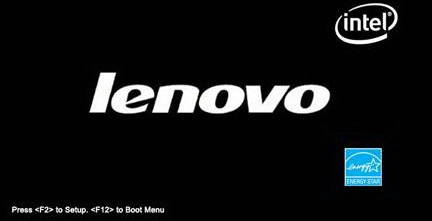
Restart the computer. When the screen is on, press the key prompted on the screen repeatedly. For desktops, if there is no prompt, try pressing the "F1", "F2" or "Del" key repeatedly to enter BIOS; as for laptop, try pressing the " Fn+F1" "Fn+F2" or "Del" key for the BIOS entry.

Note: If none of them work, you can also try pressing "Esc", "F8", "F9", "F10", "F11" or "F12".
How to enable VT (Virtualization Technology) on Lenovo desktop and laptop through BIOS

STEP 2

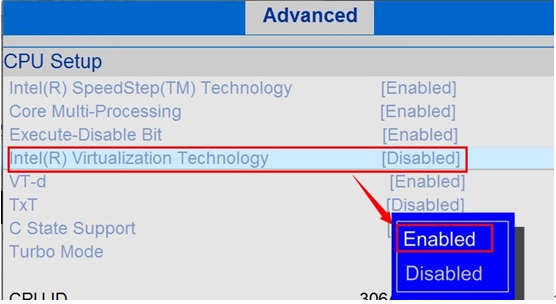
After entering the BIOS, switch items through the "←", "→"key or your cursor. "Advanced" > "CPU Setup" (some computers do not have this option). Select Intel(R) Virtualization Technology and change to Enabled.

After changing to "Enabled", press "F10", or "Fn+F10" (for laptop). Then [SAVE and EXIT] will pop up, confirm it.
How to enable VT (Virtualization Technology) on Lenovo desktop and laptop through BIOS


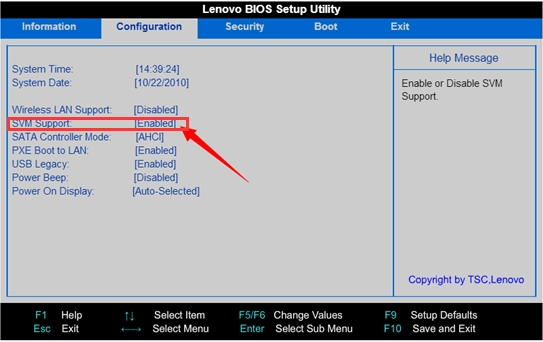
Note: If your computer processor is AMD CPU, select "Configuration" >"SVM Support" after entering the BIOS, and switch from "Disabled" to "Enabled", and then press "F10" (for laptops, press "Fn+F10"), and finally confirm when [SAVE and EXIT] pops up.
Enable VT (Virtualization Technology) on Lenovo desktop and laptop through BIOS

2. How to enable VT on Lenovo ThinkPad

AD_SIGN
STEP 1

Restart the computer. When the screen is on, press the key prompted on the screen repeatedly. If there is no prompt, try pressing the "F1", "F2" or "Del" key repeatedly to enter BIOS; ; as for laptop, try pressing the " Fn+F1" "Fn+F2" or "Del" key for the BIOS entry.

Note: If none of them work, you can also try pressing "Esc", "F8", "F9", "F10", "F11" or "F12".
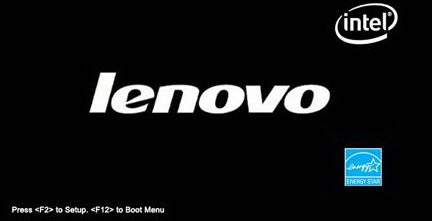
Enable Virtualization Technology (VT) on Lenovo desktop and laptop

STEP 2

Then the Boot Memu will appear. At this time, you need to press the "Tab" key to switch to the Application menu menu, select the Setup item, and press "Enter". If the Setup item does not appear, please restart the computer and then do the same things as above to enter this interface again.
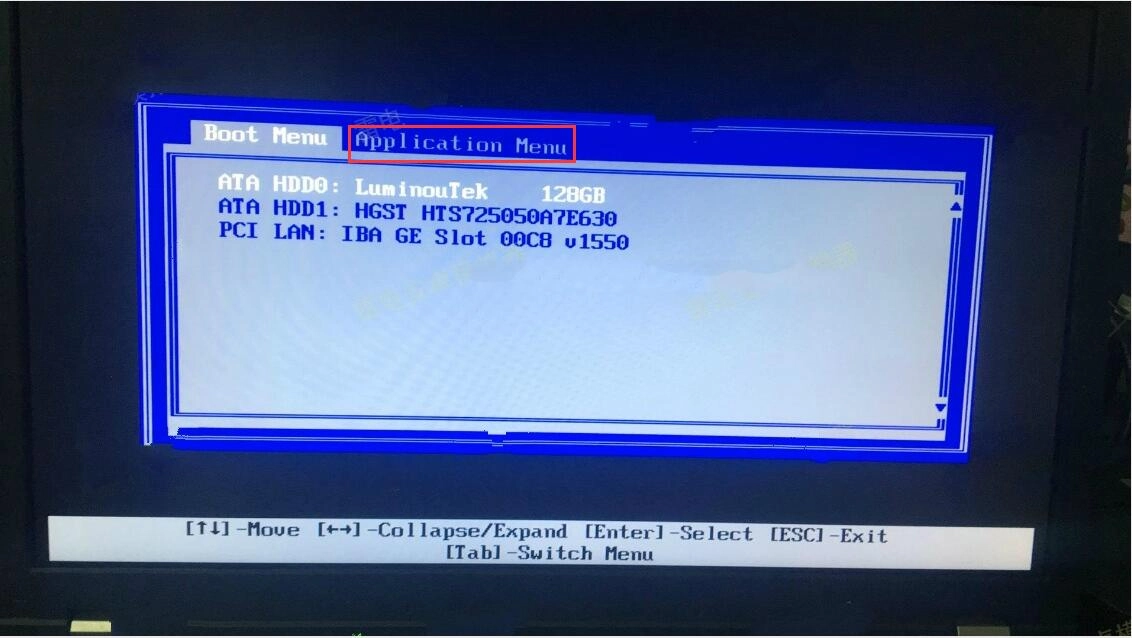
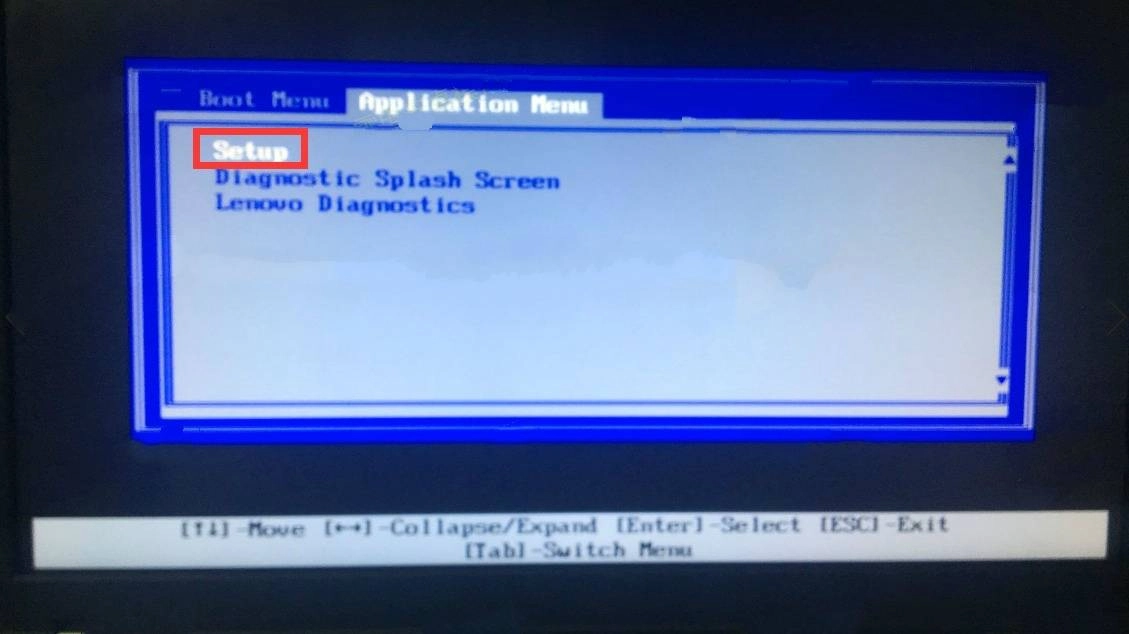
Enable VT (Virtualization Technology) on Lenovo desktop and laptop through BIOS

Enable VT (Virtualization Technology) on Lenovo desktop and laptop through BIOS

AD_SIGN
STEP 3

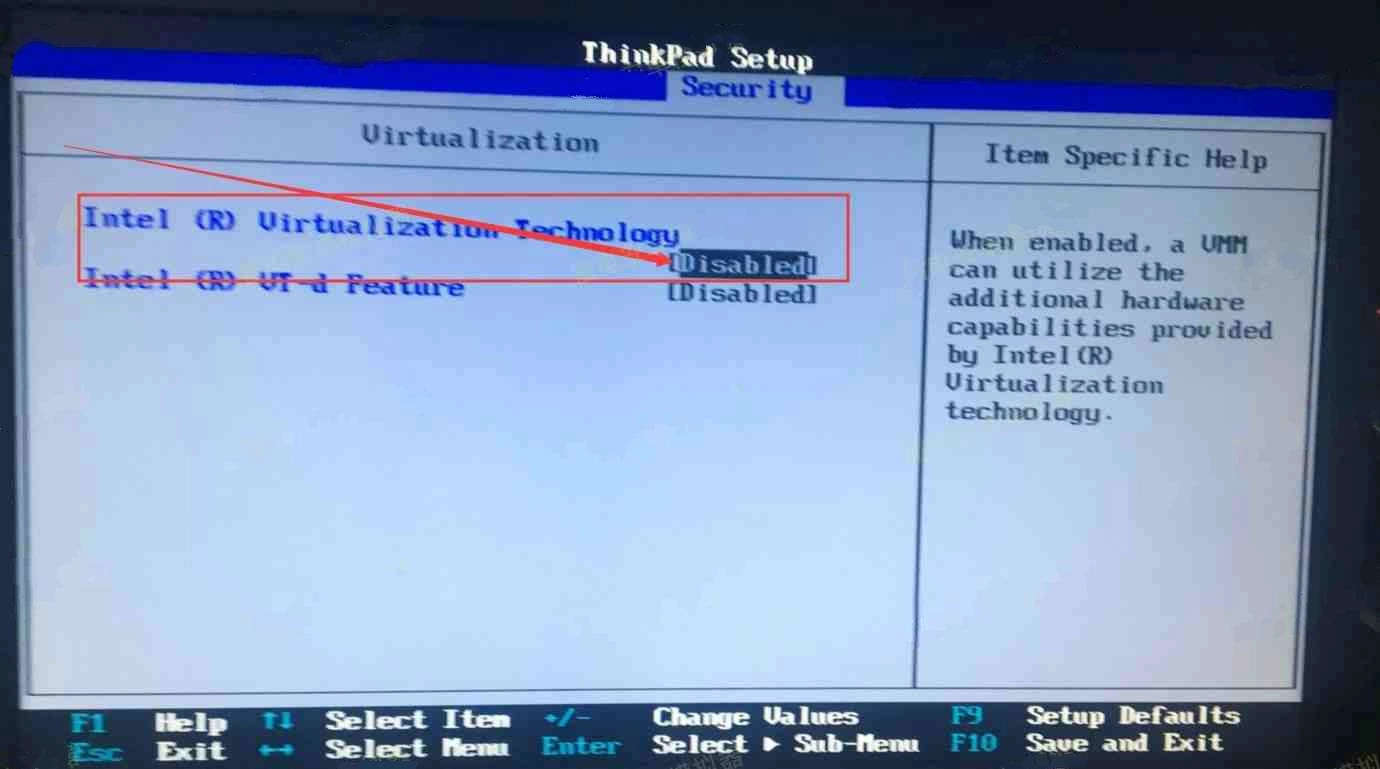
After the previous steps are completed, select "Security" > "Virtualization" > "Intel(R) Virtualization Technology", switch from "Disabled" to "Enabled", and then press "F10" (for laptops, press "Fn+F10"), and finally confirm when [SAVE and EXIT] pops up.
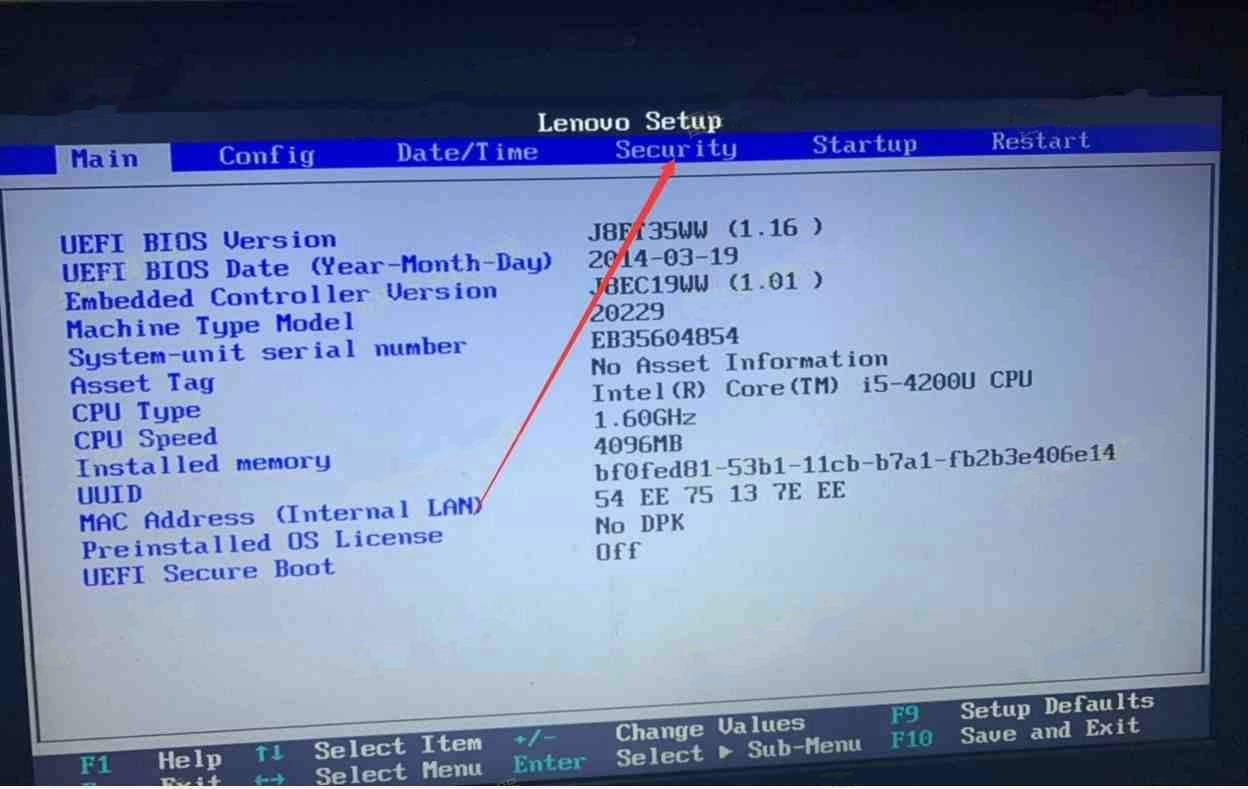
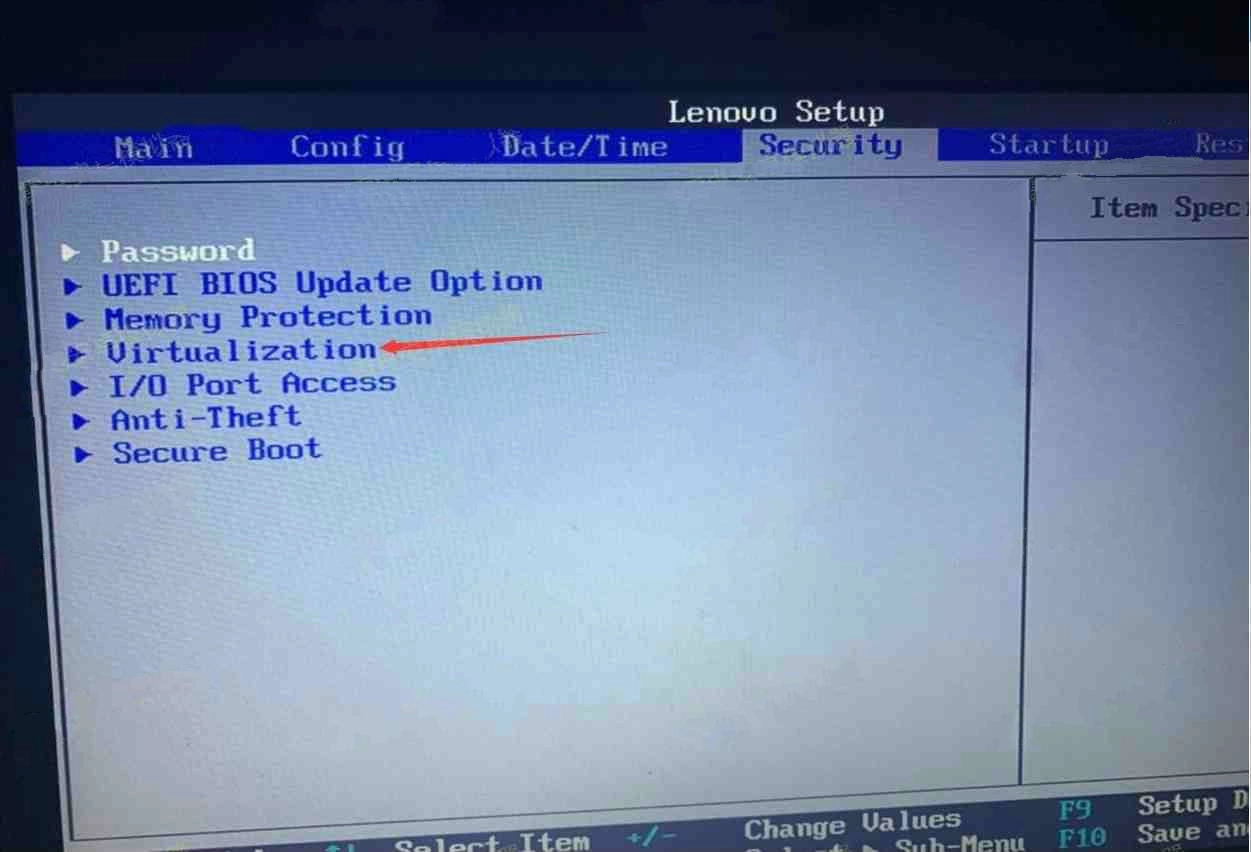
Enable VT (Virtualization Technology) on Lenovo desktop and laptop through BIOS

Enable VT (Virtualization Technology) on Lenovo desktop and laptop through BIOSEnable VT (Virtualization Technology) on Lenovo desktop and laptop through BIOS


Video Tutorials
LDPlayer Introduction
Affiliate Program
Launch Error
Enable Virtual Technology
Overview of Enabling VT on PCFix LDPlayer Not Detecting Your Already-Enabled VTGIGABYTE Computer & MotherboardHP Desktop & LaptopLenovo Desktop & LaptopMSI Computer & MotherboardASUS Desktop & LaptopDell Desktop & LaptopFixed: too Fast to Press the Key to Enter BIOS
Function Instruction
Game Installation
Device Optimization
Multi-instance
Network Bridging
Data Recovery/Backup
Game Troubleshooting