How to Play Pokémon Champions on PC

Thisara Dilshan
|2026-06-19Hello Pokémon lovers! It’s time to take your Pokémon Champions adventure to a much smoother experience on a bigger PC screen. The best method to do that is playing Pokémon Champions through LDPlayer on PC. It helps you enjoy amazing graphics and also easy keyboard-and-mouse controls for easier gameplay. So, jump into this guide, follow the steps to set up LDPlayer, install Pokémon Champions, and use its special features to enjoy your Pokémon adventure in the most enjoyable way!
Contents

How to Play Pokémon Champions on PC with LDPlayer in 4 Easy Steps
Step 1: Download and Install LDPlayer Emulator
Want to enjoy Pokémon Champions on a larger screen with amazing visuals? Then, the first thing you need is a reliable Android emulator to run the game smoothly on your PC. For that, we recommend LDPlayer 9 as the best choice. It offers smooth performance, stable gameplay, and easy-to-use controls, allowing you to enjoy your Pokémon battles in a more comfortable and more enjoyable way.
1.1 – Visit the official LDPlayer website and download the latest version of LDPlayer 9.
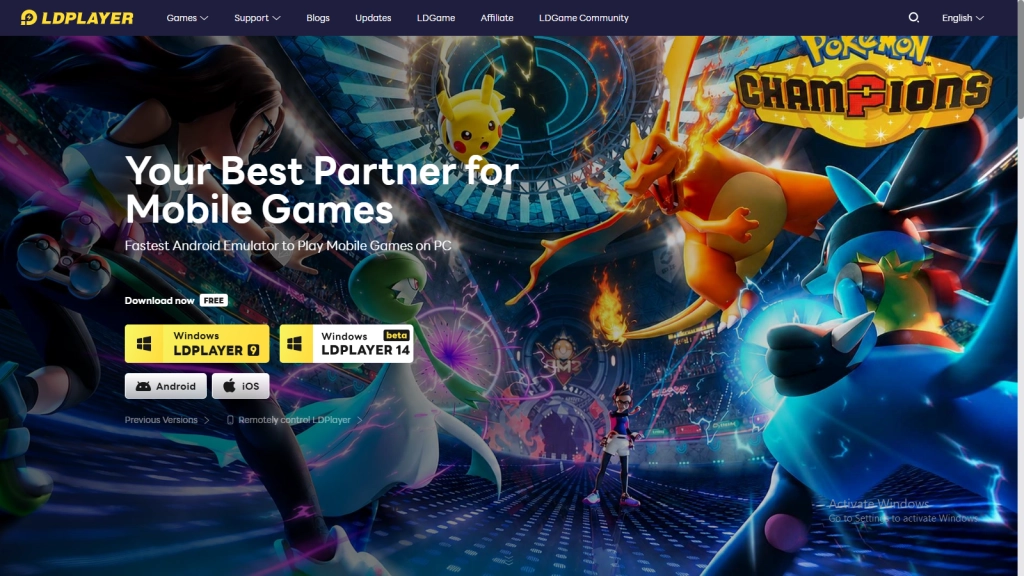
1.2 – After the download is completed, open the installer file by double-clicking it.
1.3 – Press the Install button and let the installation run until it is completed. It will not take too long.
1.4 – When it’s done, launch LDPlayer from your desktop or Start menu. Your emulator is now ready to play Android games on your PC.
Step 2: Find and Install Pokémon Champions in LDPlayer
LDPlayer is ready to run your Android games more smoothly on your PC. Now it's time to install Pokémon Champions directly inside the emulator.
2.1 – Open LDPlayer and use the search bar on the home screen.
2.2 – Type “Pokémon Champions” and select the official game published by The Pokémon Company. Make sure to find the exact game from the results.
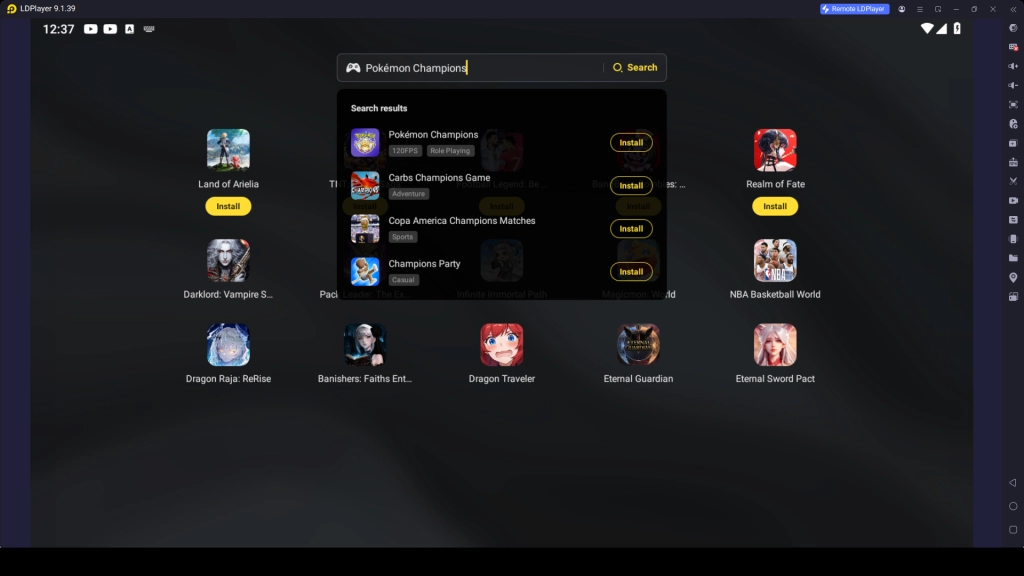
2.3 – Click the Install button to begin downloading the game.
2.4 – In some cases, LDPlayer may open the Google Play Store automatically. If that happens, you can use the next step below to continue the installation through the Play Store.
Step 3: Log In to Google Play Store (If Required)
If you're not logged into the Google Play Store within LDPlayer, you may need to sign in with a Google account to continue downloading Pokémon Champions. Just follow these easy steps below to continue your download without any error:
3.1 – Tap the ‘Sign In’ button on the Google Play Store page when it appears.
3.2 – Enter your Gmail address. If you don’t have an account yet, you can create one during this step.
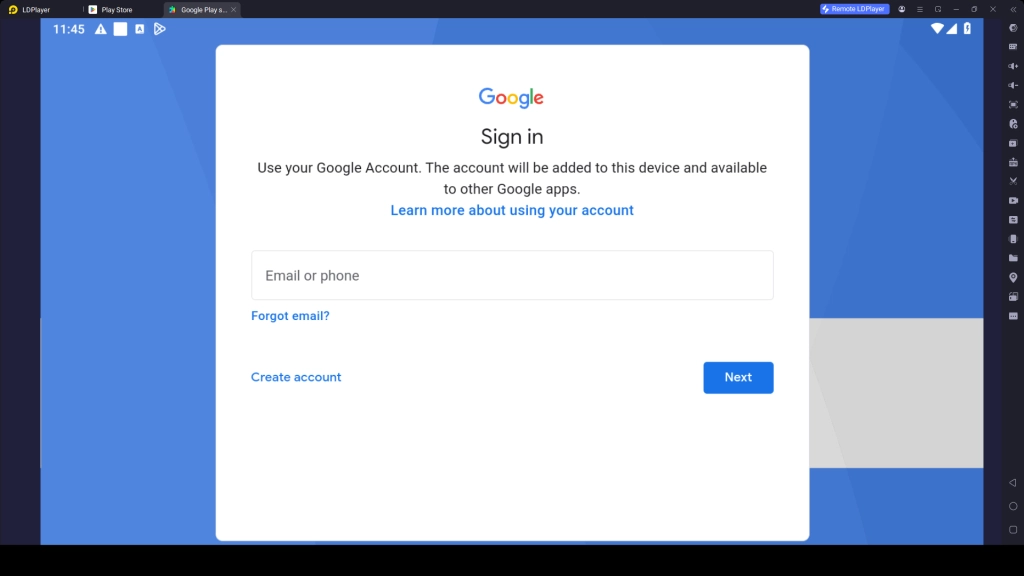
3.3 – Type your password and complete any verification process if Google requests it.
3.4 – Review Google's terms and conditions, then tap Accept to continue.
3.5 – There could be an option regarding backup services; turn it on or skip it for now.
3.6 – Return to the Play Store search bar and search again for “Pokémon Champions” to proceed with your download.
3.7 – Wait a few minutes until the full installation is finished.
3.8 – Once installation is completed, the Pokémon Champions icon will appear on the LDPlayer home screen. So, it's all ready to launch your Pokémon Champions game.
Step 4: Download Additional Files and Begin Your Adventure
After launching the Pokémon Champions game for the first time through LPDLayer through LDPlayer, sometimes you may need to download extra resources files before you start the gameplay. These additional resources are required to run the game properly.
4.1 – Click the Pokémon Champions icon inside LDPlayer to launch the game.
4.2 – Give permission to download all the required files. This process takes some time, depending on your internet speed.
4.3 – After the download is complete, sign in to the game or create a new game account.
4.4 – Choose your preferred login method, such as Google, Nintendo Account, or any available option.
4.5 – Now you're all set! You can start playing Pokémon Champions on PC and enjoy smoother gameplay, larger visuals, and comfortable controls with LDPlayer.
Common Issues and Easy Fixes for LDPlayer
As you play Pokémon Champions through your computer using LDPlayer, you might encounter some minor technical glitches while playing the game. Do not get stressed; all these glitches are very common and can be easily fixed by following some simple solutions.
Some of the common problems that you could encounter and their fixes are listed below:
Fix LDPlayer Crash Issue in Pokémon Champions
If LDPlayer keeps crashing while playing Pokémon Champions game and experiencing problems like unexpected shutdown of the emulator, startup failures or unexpected game exits, then it is very annoying to play the game in a smoother way. However, this is a very common problem which can be easily sorted out with some easy optimization steps.
How to fix crash issues:
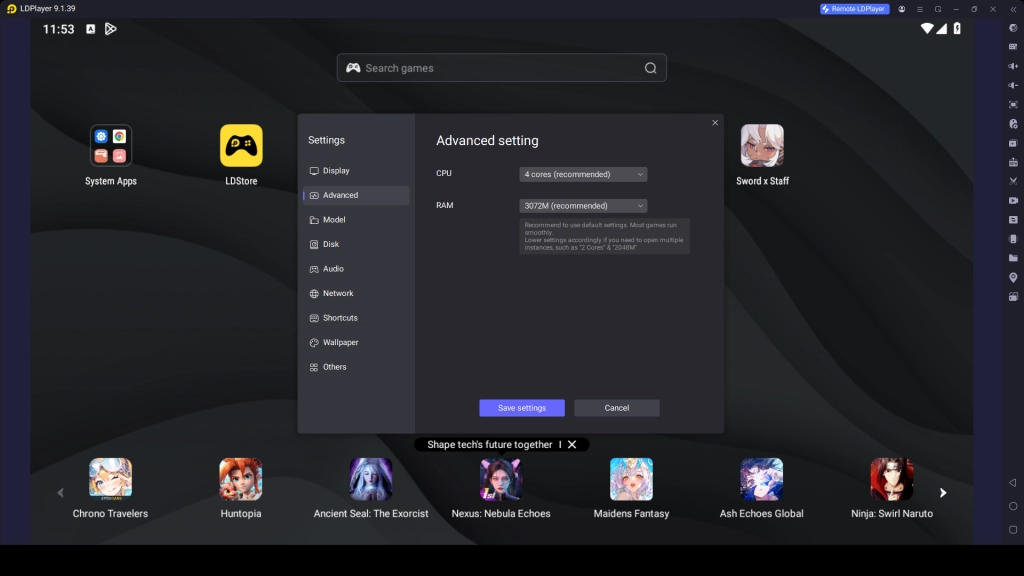
- Adjust CPU and RAM allocation. Open LDPlayer → Advanced Settings, then set CPU to 4 cores and RAM to around 4 GB.
- Switch graphics rendering mode. Go to Settings → Graphics, select OpenGL mode first, and if crashes continue, switch to DirectX mode.
- Check virtualization (VT). Open Task Manager and make sure VT-x or AMD-V is enabled.
- Install the latest version of LDPlayer to fix bugs and improve crash stability.
- Update graphics drivers to the latest version.
- Close heavy apps like browsers or editors to free up memory.
- Restart your computer after making changes to apply fixes properly.
Fix LDPlayer Lag Issues in Pokémon Champions
Do Pokémon Champions feel slow or lagging when played on a PC using LDPlayer? Lag can make your game experience less fun due to the problems like delay in the action or freezing during the game. In case you are experiencing lag, it is very easy to solve it with the help of these optimizations.
How to fix lag issues:
- Restart LDPlayer to fix small temporary glitches and improve performance
- Enable Intel VT-x or AMD-V virtualization (VT) in BIOS
- Go to LDPlayer Settings → Advanced Settings → set CPU to 2 or 4 cores and RAM to around 4 GB
- Switch graphics mode to OpenGL, or try DirectX if lag continues
- Enable High Performance mode in Windows power settings
- Lower in-game graphics settings, resolution, and FPS (30–40 recommended)
- Open LDPlayer settings and clear cache or temporary files to improve speed
Play Pokémon Champions on PC with Special LDPlayer Features
Want to make your Pokémon Champions gameplay even more enjoyable? LDPlayer offers special features that make your Pokémon battles and gaming adventures much smoother and easier to play than on a touch screen.
Multi-Instance Feature for Try different Pokemon Teams
The most fun part of Pokémon Champions is team building and trying different Pokémon setups for battles. But testing many setups and finding the best one can take a lot of time. This is where LDPlayer helps with its Multi-Instance and Synchronize features. These features allow you to run multiple game instances and use several accounts at the same time.
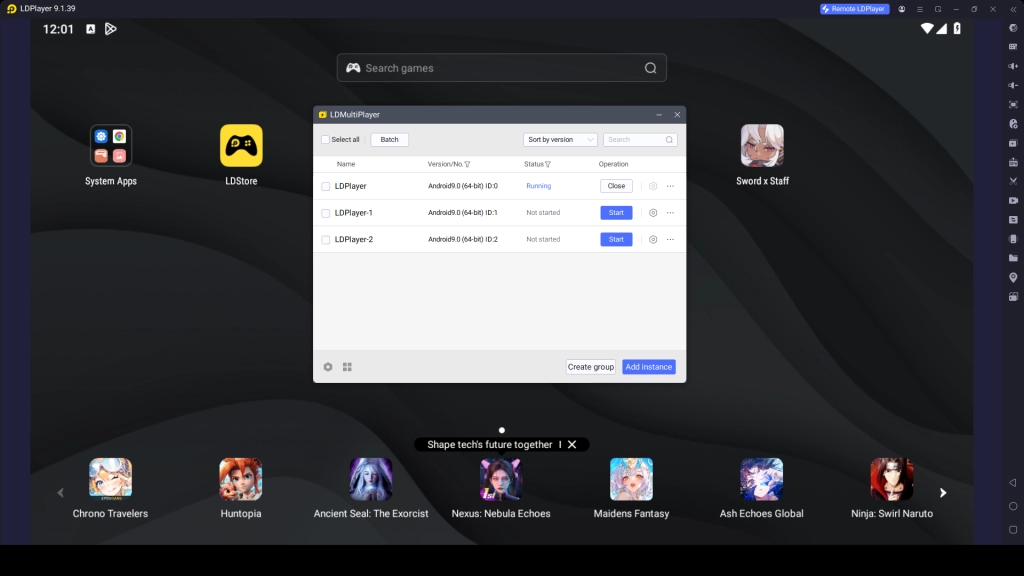
This makes it easier to compare progress, test different Pokémon teams, and find the best strategy without affecting your main account or main gameplay.
How to use Multi-Instance effectively:
- Open LDMultiplayer (Multi-Instance Manager) from your desktop or LDPlayer toolbar
- Click Create New Instance to launch additional emulator windows
- Install and open Pokémon Champions on each instance
- Log in with different accounts (or use guest mode for quick testing)
- Experiment with different team compositions, move sets, abilities, and battle formats (Single or Double Battles)
- Compare performance across teams and identify the strongest setup
- Keep the best-performing account and continue your main journey
Keymapping Feature for Smooth Battle Controls
Pokémon Champions features turn-based battles that require smart decision-making, such as switching Pokémon and choosing battle moves to outsmart your opponent. However, time is limited, so you need to act quickly. To make your inputs faster and more precise, you can use LDPlayer’s Keyboard Mapping Tool.
This feature allows you to assign keys for moves, switching Pokémon, targeting, and menu navigation. It gives you faster and more accurate control compared to touch controls. This is especially useful in intense ranked matches or when using complex double battle strategies.
How to Set Up Keyboard Mapping:
- Launch Pokémon Champions in LDPlayer
- Open the Keyboard Mapping tool from the side toolbar
- Drag and assign keys to on-screen buttons (such as move selection, Pokémon switching, Mega Evolutions/Z-Moves if available, or menu confirmations)
- Customize the layout based on different battle situations
- Save and apply the setup so you can use it consistently in every session
Hot Recommend
Download LDPLAYER, play Pokémon Champions on PC, enhance your gaming experience!


Conclusion
That wraps up your complete guide to playing Pokémon Champions on PC. With LDPlayer, you get better performance, easier controls, and a larger screen experience. Also make sure to use its powerful features like Multi-Instance and Keymapping to make your gameplay more flexible, faster, and more enjoyable in every Pokémon battle.
More from Pokémon Champions: