How to Play Light and Night on PC?

Nipun Gimhan
|2026-06-10Looking for an amazing way to experience the magic of Light and Night in a smooth and enhanced way? Then the best option is to play Light and Night on your PC using LDPlayer. This allows you to enjoy beautiful graphics, stable performance, and easy controls right on a bigger screen. So, jump into this guide, follow the steps to download LDPlayer, install the Light and Night game, and use its special features to make your magical gameplay even better.
Contents

Play Light and Night on PC with LDPlayer in 4 Easy Steps
Step 1: Download and Install LDPlayer Emulator on Your PC
Want to enjoy Light and Night on a bigger screen with amazing visuals? Then you need a good Android emulator that runs the game smoothly on your PC. We recommend LDPlayer 9 as the best choice. It delivers smooth performance, stable gameplay, and easy-to-use controls, making your gaming experience much better and more comfortable.
1.1 – Go to the official LDPlayer website and download the latest version of the LDPlayer.
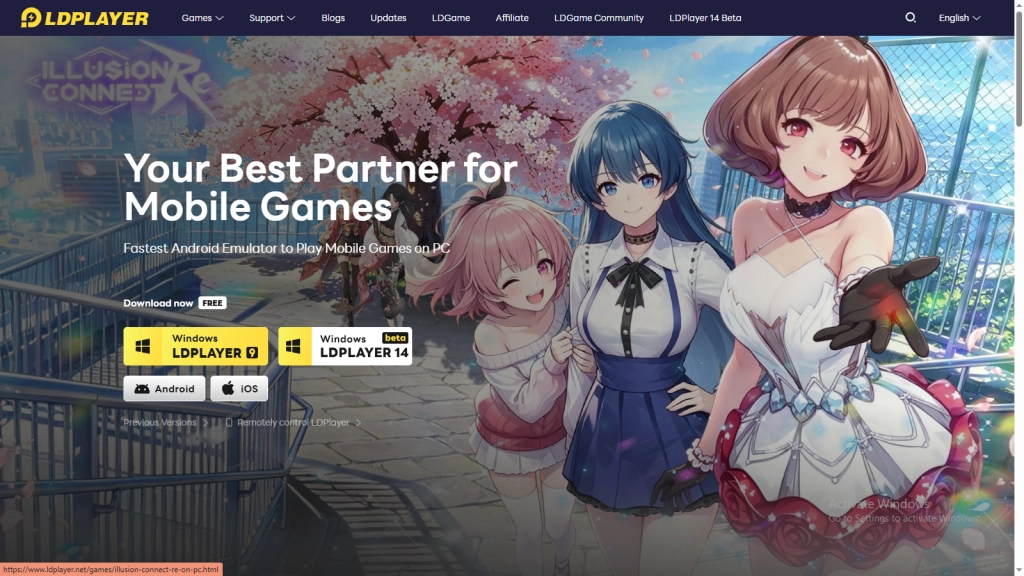
1.2 – After download is done, you can launch the installation program by double clicking on it.
1.3 – Press the Install button and wait till the emulator gets everything ready.
1.4 – When it’s done, open LDPlayer from your desktop shortcut or Start menu. Your emulator is now all set for mobile gaming on PC.
Step 2: Search and Install Light and Night from LDPlayer
LDPlayer is ready to run Android games smoothly on your PC. Now the next step is to install Light and Night directly inside the emulator.
2.1 – Launch LDPlayer and locate the search bar on the main screen.
2.2 – Type “Light and Night” and select the official game developed by VNGGames Co., Ltd. from the results.
2.3 – Click the Install button to begin downloading the game.
2.4 – In some cases, LDPlayer may redirect to the Google Play Store automatically, so you can use the next step to continue from there if prompted to complete the installation.
Step 3: Sign Into the Google Play Store (If Needed)
If you’re signed in to a Google account within the LDPlayer, then you need to log into your Google account first before proceeding with the installation process. Just follow the steps below to quickly get started with downloading and playing without any hassle.
3.1 - Click the Sign In button once you've accessed the Play Store.
3.2 - Provide your Gmail address. Haven't made an account yet? Well, you can make one from there!
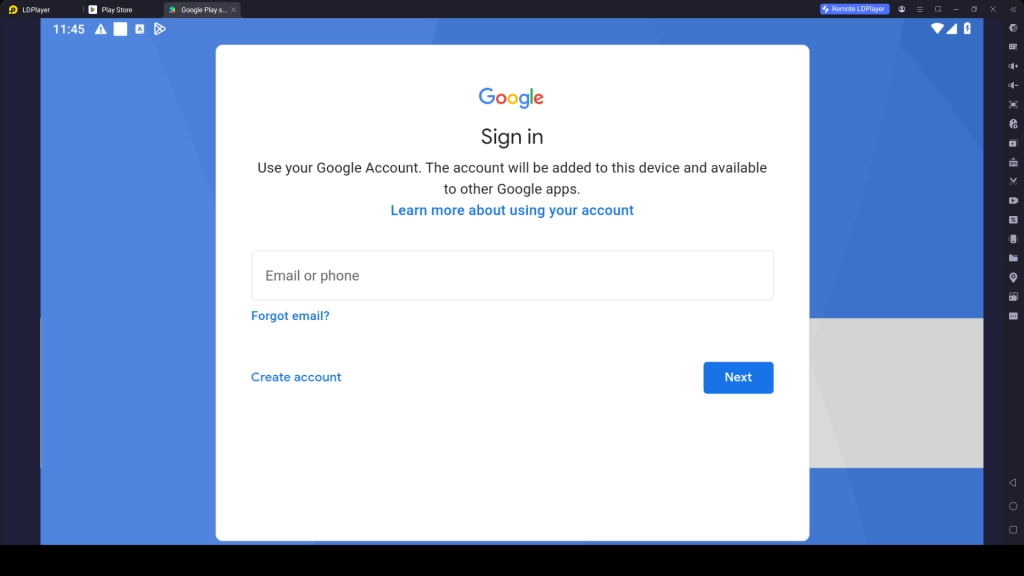
3.3 - Input your password correctly, complete any verification steps if Google asks for them.
3.4 - Read through the terms and conditions set by Google and hit Accept when you’re done.
3.5 - There could be an option regarding back-up services, turn it on or skip it for now.
3.6 - Head back to the Play Store search and type in “Light and Night”, then proceed with your download.
3.7 - Wait for the full installation to complete.
3.8 - Once the installation is completed, the Light and Night icon will show up on the LDPlayer homepage. So, it's already time to launch the game.
Step 4: Download Game Resources and Start Playing
After launching the Light and Night game for the first time through LPDLayer, there might be a need for extra resource downloads before you can start playing.
4.1 – Click the Light and Night icon in LDPlayer to launch the game.
4.2 – Give permission for all the necessary files to be downloaded by the game. It takes some time, depending on your internet speed.
4.3 – Once the download is finished, log in or create a new account.
4.4 – Choose your preferred login method such as Google, Facebook, or other available options.
4.5 – After logging in, you can play Light and Night on your PC! Enjoy bigger visuals, smoother gameplay, and easy controls with LDPlayer.
Common Issues and Easy Fixes for LDPlayer
While playing Light and Night using LDPlayer on your computer, you might experience some technical glitches while playing the game. But don’t panic as they are very common and can be solved easily. Some examples of common issues and their solutions are listed below.
Fix LDPlayer Freezing Issues in Light and Night
If LDPlayer keeps freezing when playing Light and Night, such as the emulator stopping, hanging, or lagging on you, there is no need to be anxious. It is quite a normal problem that can be solved by following a few simple optimization steps.
How to fix freezing issues:
- Restart LDPlayer to fix small glitches.
- Turn on Intel VT-x or AMD-V virtualization in your PC settings.
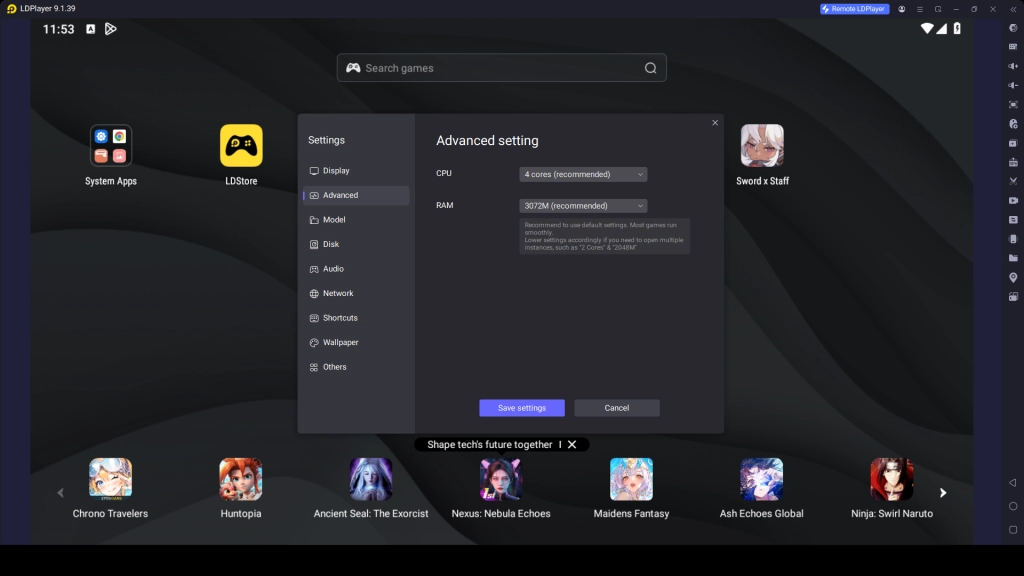
- Go to LDPlayer Settings → Advanced Settings → Configure CPU cores and RAM (set CPU to 2 or 4 cores and RAM to around 4 GB.)
- Lower graphics settings by reducing resolution and setting FPS to 30 or 40.
- Update your graphics drivers to the latest version.
- Close all unused background apps to free up memory.
- Clear LDPlayer cache or create a new instance if the problem continues.
Fix “Version Not Supported” Error in LDPlayer
When you open Illusion Connect: Re on LDPlayer, you may see a pop up message saying “The current version of LDPlayer is not supported.” This usually happens when the game is updated but your emulator version remains out of date and not compatible with it.
How to fix it:
- Click on “Download Dedicated Version” from the popup message.
- Update LDPlayer 9 to the latest available version.
- Wait for the installation to finish completely.
- Open the updated LDPlayer and launch Illusion Connect: Re again.
- If the game is missing, just reinstall it using the search bar.
Don’t worry about your current gameplay progress. Your game data will stay safe as long as your account is linked properly.
Play Light and Night on PC with Special LDPlayer Features
There are many special features in LDPlayer that you can use for enhancing your gameplay experience in Light and Night. This way you can enhance visuals, improve controls, and make gameplay more comfortable. Below are the most useful features you can use:
Multi-Instance Feature for Optimal Progress & Decisions
The decisions that you make determine your story with varying relationships and endings when playing the Light and Night game. Sometimes, you might be interested in experimenting on various dialogues. In that case, you can use LDPlayer’s Multi-Instance and Synchronize features. Using these features, you can run multiple accounts at the same time and explore different story decisions without losing your progress.
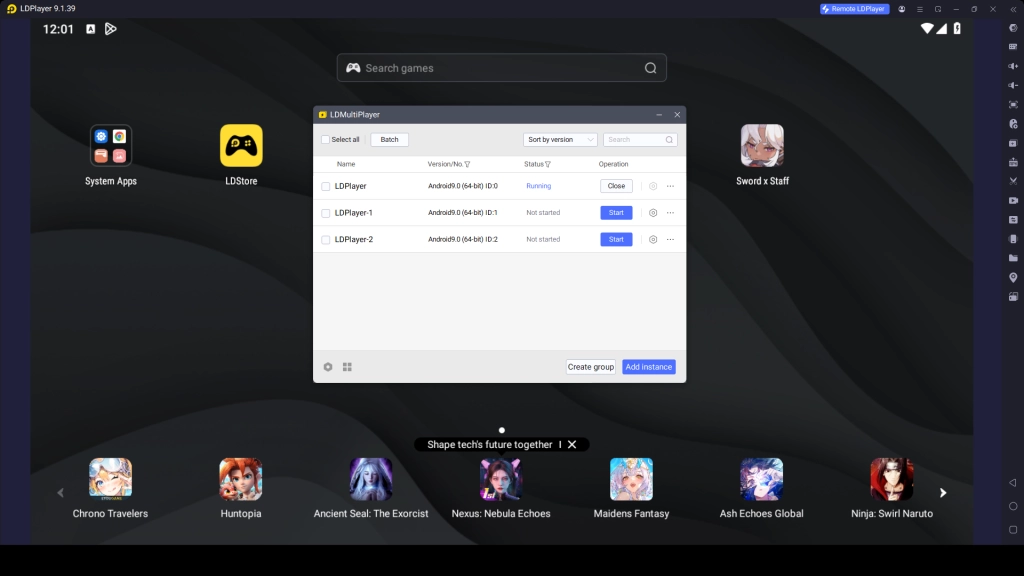
How to use Multi-Instance effectively:
- Open LDMultiplayer (Multi-Instance Manager) from your desktop or LDPlayer toolbar
- Click Create New Instance to open additional emulator windows
- Install and launch Light and Night on each instance
- Log in with different accounts
- Try different story choices, event outcomes, or reroll progress
- Keep the best account and continue your main journey
Play Light and Night with Mini Mode for Easy Multitasking
Light and Night is a story-based game, and while you are enjoying the story, you might also want to do other things like chatting, browsing, or working. In this case, LDPlayer’s Mini Mode is very helpful. This Mini Mode feature lets you reduce the emulator into a small window without closing the game. Your story will keep running, and you can easily come back to full screen anytime without restarting.
How to Use Mini Mode in LDPlayer:
- Open LDPlayer and start Light and Night
- Click the Mini Mode button on the emulator toolbar
- The game will switch into a small floating window
- Drag it anywhere on your screen for convenience
- Click it again to return to full-screen mode
Hot Recommend
Download LDPLAYER, play Light and Night on PC, enhance your gaming experience!


Conclusion
That is it! You have already installed Light and Night successfully on your computer with LDPlayer following the above steps from this guide. You can now enjoy beautiful graphics, seamless gaming, and convenient controls as you explore the world of romance within the game. Also, don’t forget to use the Multi-Instance and Mini Mode features to further enhance your gameplay experience and make it even more fun!
More from Light and Night: