How to Play Neverness to Everness (NTE) on PC?

Ashi Prasadi
|2026-04-23Looking for an amazing Neverness to Everness gameplay experience on PC with better graphics and smoother performance? Then LDPlayer is the best way to enjoy NTE with smooth controls and improved performance. You can follow this guide that walks you through the setup steps and highlights the best LDPlayer features you can use to upgrade your gameplay, improve controls, and get a much smoother overall experience. So, let’s have fun playing NTE on your PC!
Contents
How to Play Neverness to Everness (NTE) on PC with LDPlayer in 4 Easy Steps
Step 1: Download and Install LDPlayer Emulator
Before anything else, you need an Android emulator to run the mobile version of NTE on your computer. The LDPlayer 9 emulator is a great choice for running Neverness to Everness smoothly on PC.
1.1 –Go to the official LDPlayer website and download the latest version
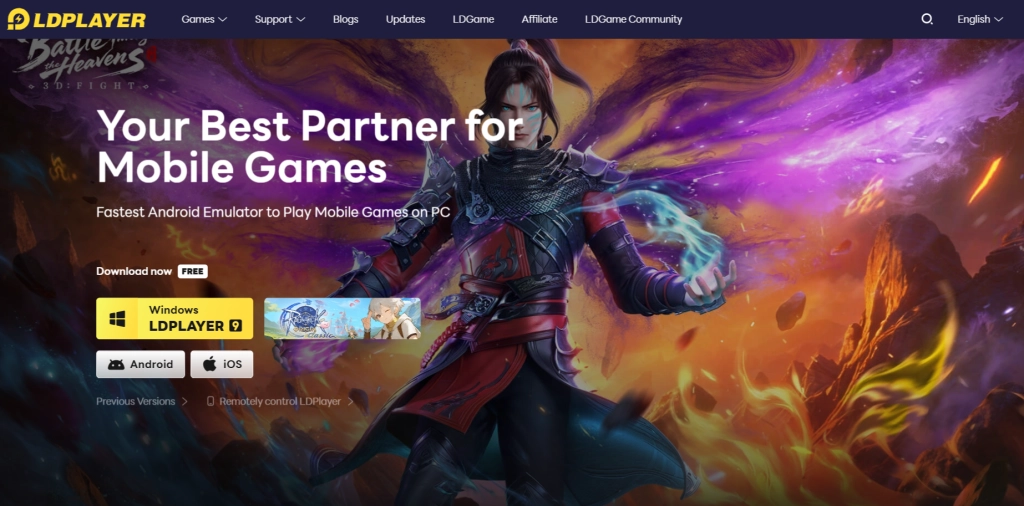
1.2 –Once the download finishes, double-click the installer file.
1.3 –Click Install and wait a few minutes for it to set up.
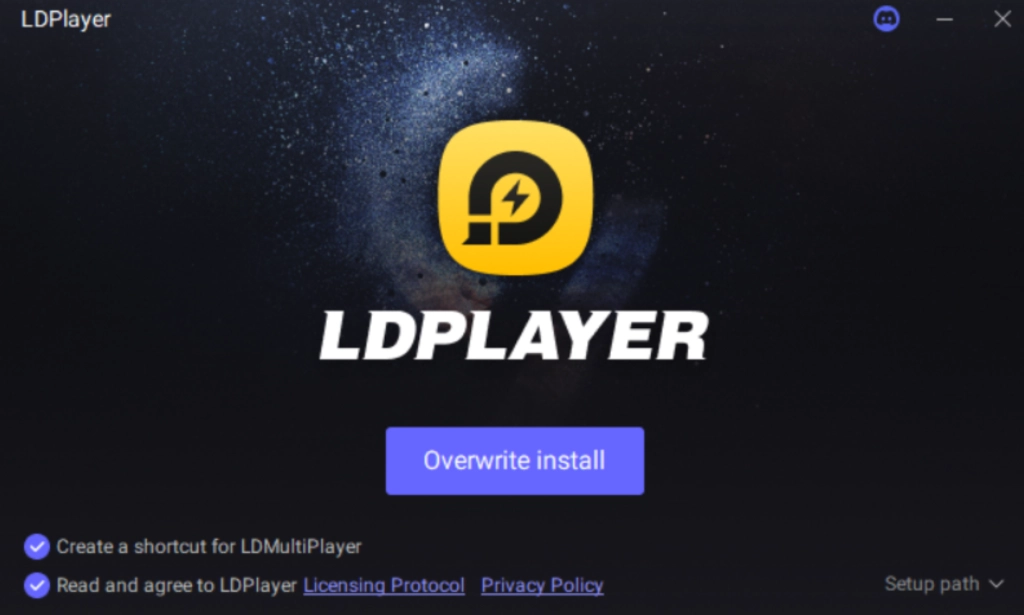
1.4 –After installation, open LDPlayer from your desktop shortcut or Start menu. It's now ready to use.
Step 2: Search and Download Neverness to Everness
Now the LDPlayer emulator is successfully installed on your PC. It’s time to get the game directly inside the emulator.
2.1 – Open LDPlayer and head to the search bar on the main screen.
2.2 – Type “Neverness to Everness (NTE)” and choose the official game from the results. (make sure to choose the official version of the game from N2E)
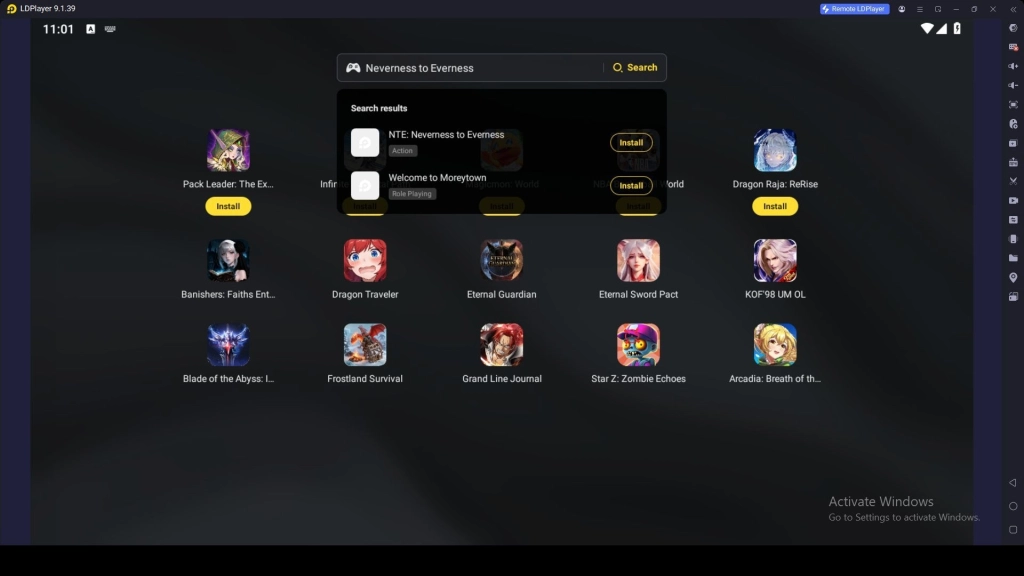
2.3 – Click the Install button to begin downloading the game.
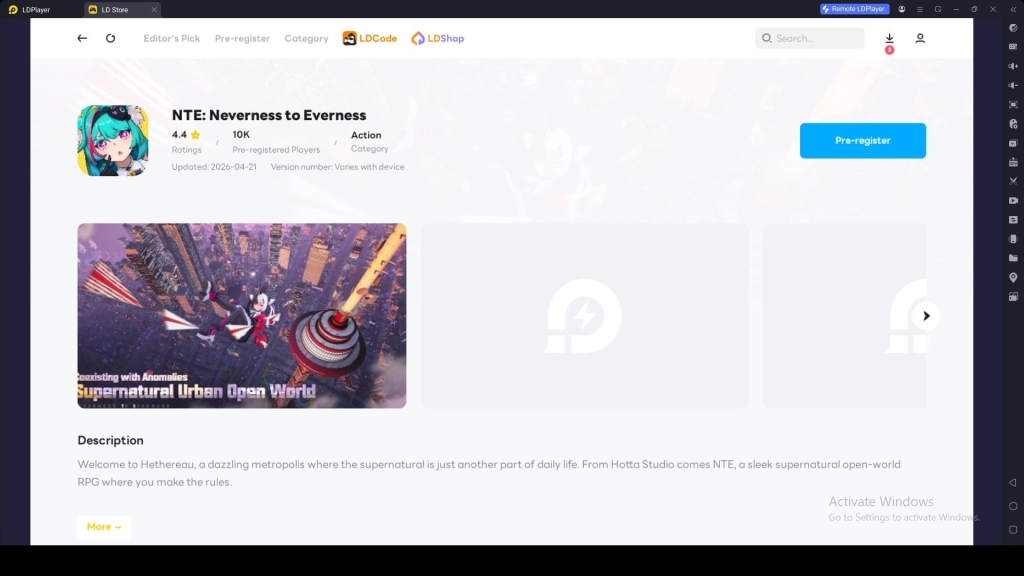
2.4 – If it takes you to the Google Play Store, simply follow the next step to continue.
Step 3: Sign in to Google Play Store (If Needed)
If you are not logged in to a Google Play Store account, you will be directly sent to the Play Store to create a new account or log in to an existing one.
3.1 –On the Play Store screen, click Sign In.
3.2 –Enter your Gmail address (or create a new one if you don’t have it).
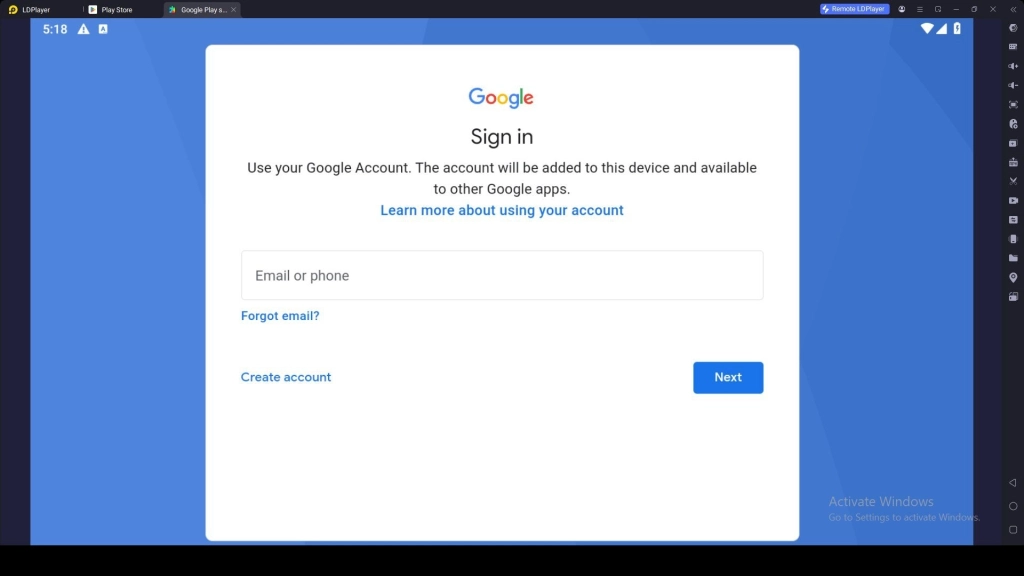
3.3 –Type your password and complete any security checks.
3.4 –Accept the terms and conditions.
3.5 –Choose whether to turn on Google backup (you can skip or accept).
3.6 –Go back, search for Neverness to Everness again, and tap Install.
3.7 –Wait for the download to finish. You’ll get a notification when it’s done.
3.8 –The game icon will appear on the LDPlayer home screen.
Step 4: Download Game Data and Start Playing
After installing the Neverness to Everness game and when you open it for the first time, you will be notified to download the extra in-game data files.
4.1 –Click the NTE icon to launch the game.
4.2 –Tap Confirm or OK to start downloading the game data (this can take some time depending on your internet speed).
4.3 –Once the download is complete, choose to create a new account or log in with an existing one.
4.4 –Pick your preferred login method (Google, Facebook, or others available).
4.5 –After logging in, you’re all set! Enjoy playing Neverness to Everness on your PC with a bigger screen and easy controls.
Hot Recommend
Download LDPLAYER, play NTE: Neverness to Everness on PC, enhance your gaming experience!


Common Problems and Easy Fixes
While you are going to play NTE on your PC with LDPlayer, sometimes you will face some issues. So, here are the common issues and how to fix them:
Resolve Unsupported Version Message in LDPlayer
Whenever you try to open Neverness to Everness (NTE) from the LDPlayer home screen, sometimes you might see an error like “The current version of LDPlayer is not supported.” This error usually means your emulator version is too old or not fully compatible with the latest game update.
How to Fix error:
- Click the “Download Dedicated Version” button shown in the error message
- Install the latest recommended LDPlayer version (LDPlayer 9 or a game-optimized build)
- Wait until the installation is fully completed
- Launch the new LDPlayer version and open Neverness to Everness (NTE) again
- If the game doesn’t appear, reinstall it inside the new instance
If you are worried about losing app data, you do not need to worry. Your data will stay safe during the update, so nothing important will be lost.
Running Out of Space? Make NTE Work Smoothly in LDPlayer
While you are trying to install Neverness to Everness (NTE), sometimes you may run into storage issues inside LDPlayer. This issue occurs when the emulator does not have enough allocated space for the game files.
How to fix storage issue:
- Make sure your LDPlayer instance has at least 6 GB or more free storage
- To fix that: Open LDPlayer Settings → Advanced Settings → Configure CPU cores and RAM
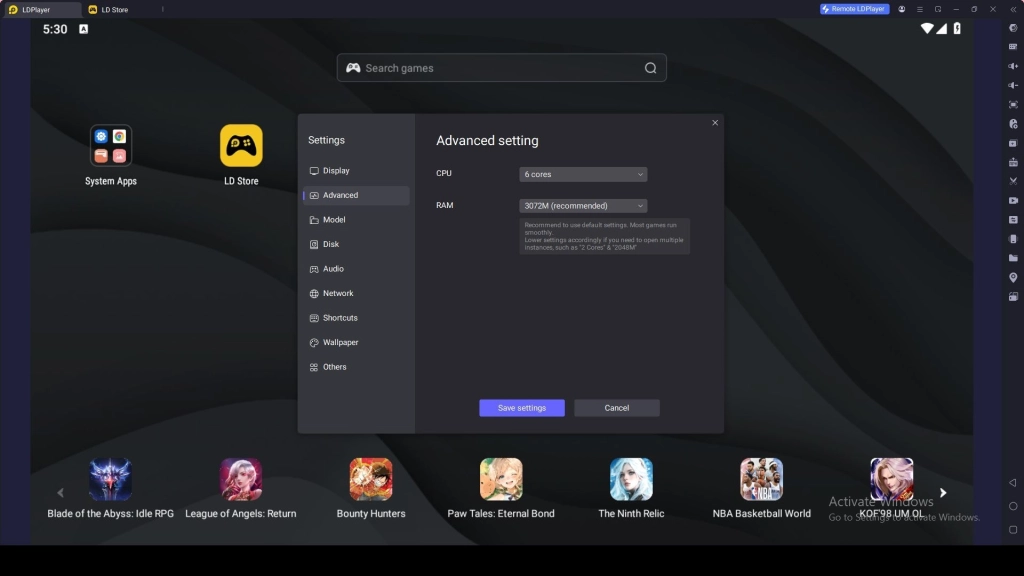
- Turn on the Auto-Expand Disk option
- Restart LDPlayer after saving changes
- Remove unused apps or clear unnecessary files to free up space
- Try downloading Neverness to Everness (NTE) again
After you have enough space, you can install the game smoothly without any errors.
Tired of Lag? Improve LDPlayer Performance
If your Neverness to Everness gameplay feels slow or laggy, especially during heavy action scenes with higher graphics, this can affect your overall gameplay experience. This happens due to low emulator performance settings or system limitations.
How to fix lag for smoother gameplay:
- Enable Virtualization Technology (VT) in your PC’s BIOS for better performance
- Go to LDPlayer Settings → Advanced Settings and increase CPU cores and RAM allocation
- Restart LDPlayer after applying the new settings
LDPlayer Features for a Better Gameplay Experience
There are many special features inside LDPlayer for an optimal gameplay experience while playing Neverness to Everness (NTE) on PC. So, here are the main features you can use for a smoother and better experience.
Key Mapping Setup for Manage Skills Easier
The Neverness to Everness gameplay is built around quick reactions, smooth movement, and well-timed combat skills. When you play it on PC using LDPlayer, you can maximize your performance by using the Keyboard Mapping feature. This feature helps you control everything more precisely with your keyboard and mouse. It makes exploring, fighting, and using abilities feel much faster and more comfortable compared to touch controls.
The best part is that you can fully adjust the controls based on your own play style. Here’s how to set it up:
- Open the Keyboard Mapping panel by Press F12 or click Keyboard mapping on the toolbar in LDPlayer while the game is running.
- Drag and place the on-screen buttons like movement, skills, and attack in positions that feel natural
- Assign keys for actions such as movement, skill casting, dodging, and interaction
- Match the layout with your in-game controls so everything feels smooth and familiar
- Save your setup so you can use it instantly every time you launch Neverness to Everness (NTE)
Execute Chain Attacks with Just One Key
Neverness to Everness focuses on fast combat flow, skill timing, and smooth ability chaining attacks. During intense fights, you often need to combine your character’s movement, skills, dodges, and attacks together. But doing all of these manually can feel harder, especially during boss battles or chaotic fights.
With LDPlayer’s Keyboard Macro feature, you can turn complex action chains into a single key press, making combat much easier and faster. So, here is how to set up chain attacks using Keyboard Macro:
- Open the Keyboard Mapping panel while running NTE
- Drag and place the Keyboard Macro tool onto your control layout
- Assign a key that you want to use for your full combo chain
- Record your actions step by step using commands like Tap, Delay, Loop, and Timing adjustments
- Match the sequence with your in-game skills, dodges, and movement actions
- Save the setup once your combo feels smooth and well-timed
After the setup is completed, you can trigger the full chain attack with just one key press. This makes Neverness to Everness combat feel more fluid and lets you focus more on strategy instead of multiple key management.
Use Multi-Instances & Sync for Obtain Higher Rarity Characters
If you are looking for a better NTE adventure and want to build teams with higher rarity characters, LDPlayer has an option for you to achieve it. It’s the LDPlayer’s Multi-Instances & Sync feature which allows you to create multiple instances and run several game accounts at the same time.
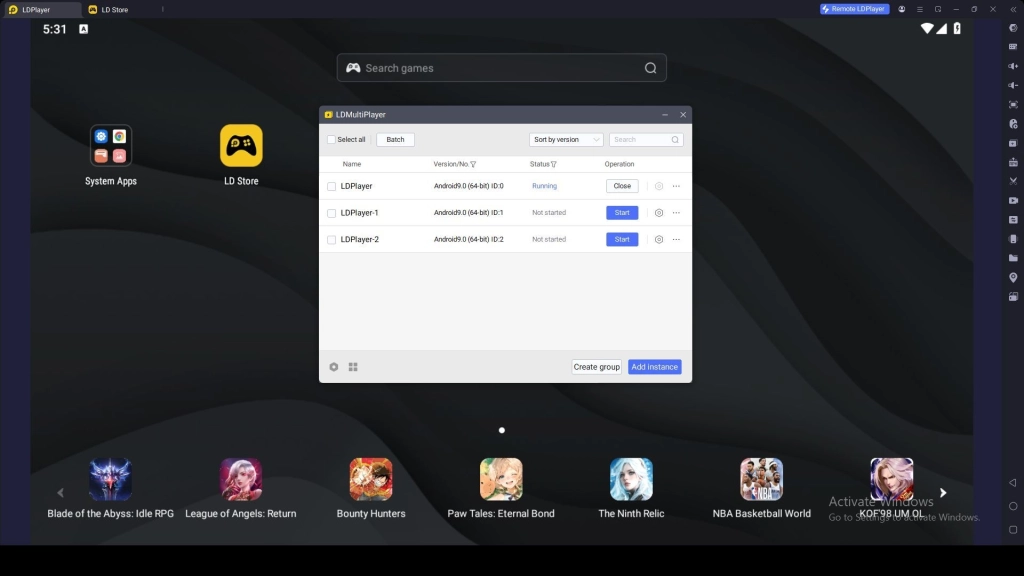
This feature helps you increase your chances of obtaining higher rarity characters with limited pulls. So, here is how the Multi-Instances & Sync feature works:
- Open LDMultiPlayer from your desktop or LDPlayer tools
- Create new instances or simply clone your existing NTE setup
- Log into different accounts on each instance without repeating full setup
- Use the Synchronizer tool to link all instances together
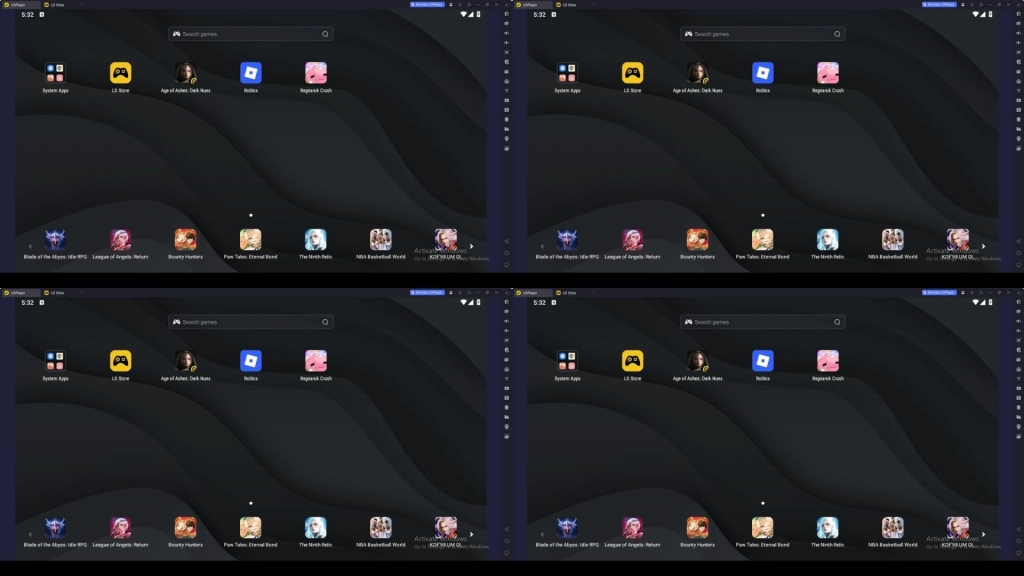
- Control one window and mirror the same actions across all accounts
Once everything is synced, you can perform the same actions in all instances at the same time. This makes Neverness to Everness (NTE) easier to manage across multiple accounts and helps you obtain higher rarity characters for your accounts more quickly than usual.
Conclusion
With all these details, you are now ready to enjoy Neverness to Everness (NTE) on PC with LDPlayer. You can experience epic gameplay with better graphics on a bigger screen, and even use powerful LDPlayer features for easier and smoother gameplay to become a better player from the beginning. So, jump in and enjoy the game on your PC in a smooth way!
More from Neverness to Everness: