
home page
Games
Pre-RegisterRPGStrategyAdventureCasualArcadeRacingActionSimulation
Support
LDPlayer 9 IntroductionEnable VTStartup Stuck at 50%/94%Fix Invalid Virtual DiskUpdate Graphics DriverKeyboard MappingEnable LDMultiplayerFPS Setting
Blogs
Updates
LDGame
Affiliate
LDGame Community
download ldplayer
Download LDPlayer
English
繁體中文한국어Tiếng ViệtภาษาไทยPусскийPortuguêsEspañolFrançaisDeutsch日本語Indonesiaالعربية

LDPlayer Support

EmailFacebookDiscordLDGame Customer Service(For LDPlayer account & recharge problem)

Products

LDCloudOSLinkEasyFunLDShop

About

About UsBusiness InquiryDMCA Takedown

Follow Us

©2025 LDPLAYER.NET , ALL RIGHTS RESERVED.JUST OKAY LIMITED , OFFICE F, 12/F, YHC TOWER , 1 SHEUNG YUET RD, KOWLOON BAY KLN, HONG KONG
Games and applications on this site are collected from the internet. If there is any infringement, please contact the email: support@ldplayer.net
Privacy Policy|GDPR Privacy Notice|Help Translate
English
繁體中文한국어Tiếng ViệtภาษาไทยPусскийPortuguêsEspañolFrançaisDeutsch日本語Indonesiaالعربية

Support/

Game Troubleshooting

How to Enable 165 FPS in Golden Spatula

2025-01-10

Golden Spatula, the latest strategy game published by Riot Games, welcomes players to build champion lineups, level them up, and equip items like the powerful golden spatula. Eight players compete in one-on-one battles, eliminating opponents until only one emerges victorious. To enjoy better gameplay on PC with LDPlayer, this blog contains the steps on how to set up high FPS (120 or 165 FPS) on PC.

Contents

  • Enable 165 FPS in Golden Spatula
  • Enable 120 FPS in Golden Spatula
  • Enable Tablet Mode and High FPS at The Same Time in Golden Spatula

Enable 165 FPS in Golden Spatula

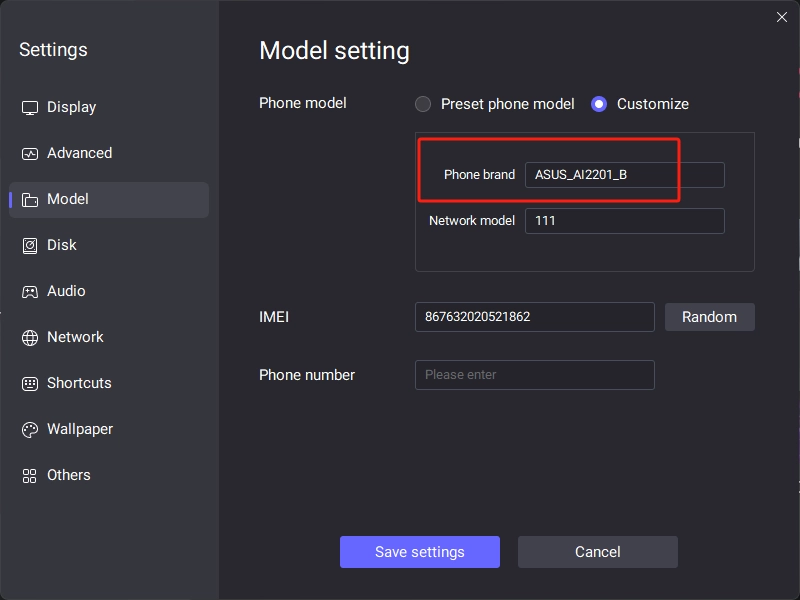
Step 1: Go to the emulator Settings > Model > Customize and set Phone brand into "ASUS_AI2201_B".
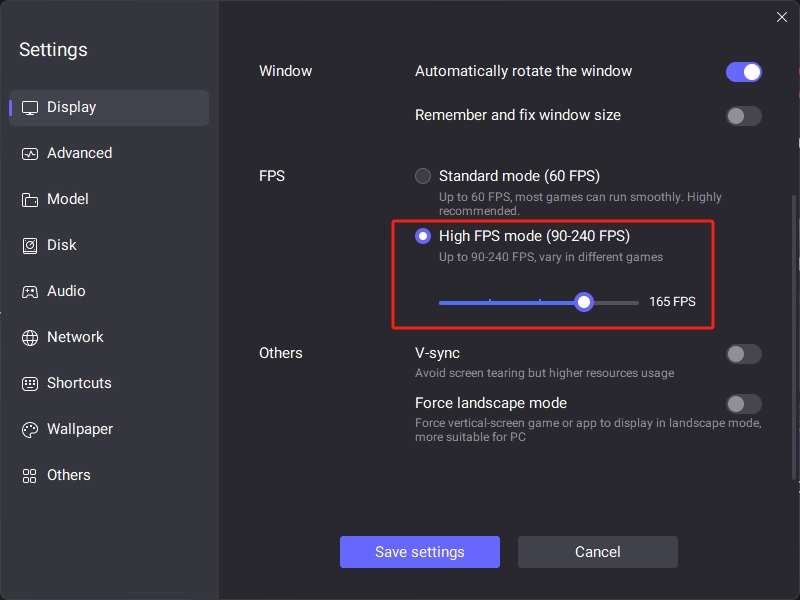
Step 2: Go to Display, scroll down to find FPS setting, enable high FPS mode and set FPS to 165 FPS. Then save the settings and restart the emulator for the changes to take effect.
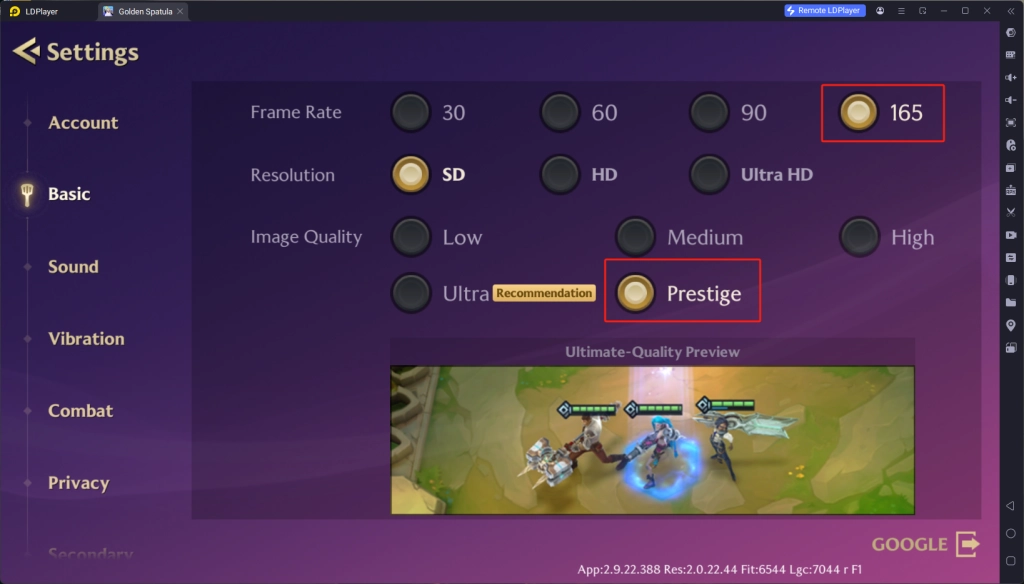
Step 3: Open Golden Spatula. Go to Setting > Basic > Frame Rate and check "165". Also check "Prestige" if you prefer the best image quality.
Enable 120 FPS in Golden Spatula

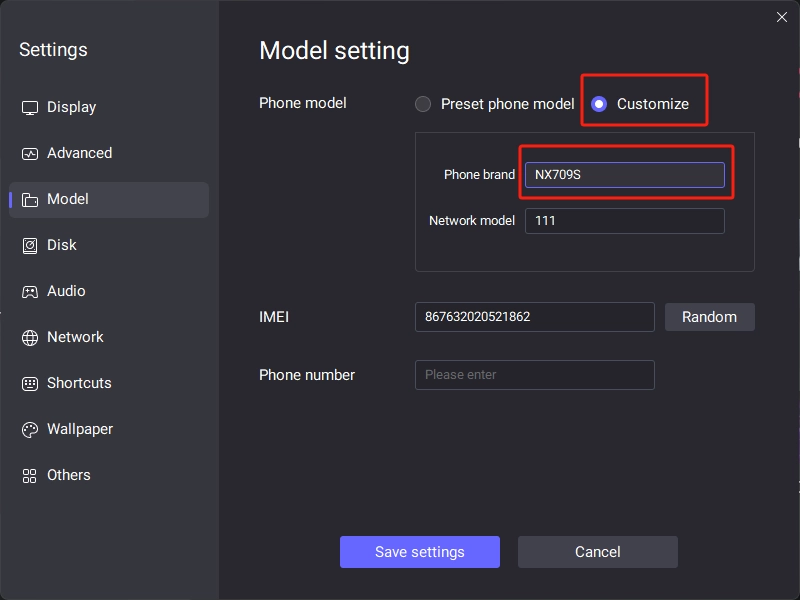
Step 1: Go to the emulator Settings > Model > Customize and set Phone brand into "NX709S".
Step 2: Go to Display, scroll down to find FPS setting, enable high FPS mode and set FPS to 120 FPS. Then save the settings and restart the emulator for the changes to take effect.
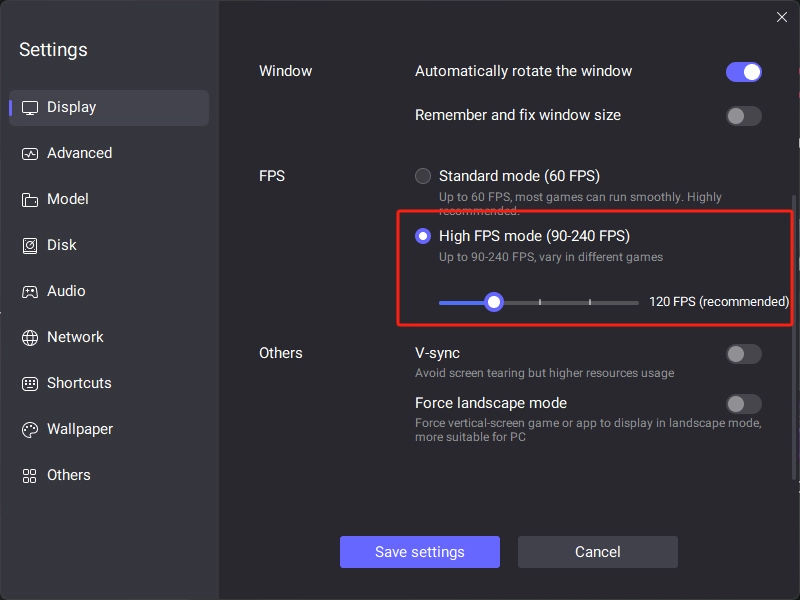
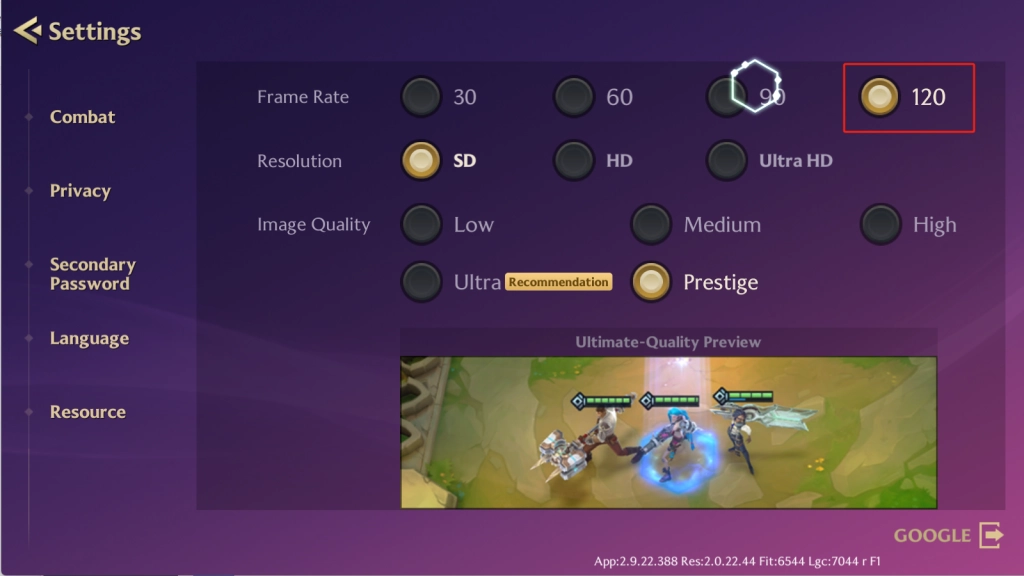
Step 3: Open Golden Spatula. Go to Setting > Basic > Frame Rate and check "120". 
For more optimization functions in Golden Spatula on LDPlayer, please refer to this guide on how to enable tablet mode for better in-game experience.

Enable Tablet Mode and High FPS at The Same Time in Golden Spatula

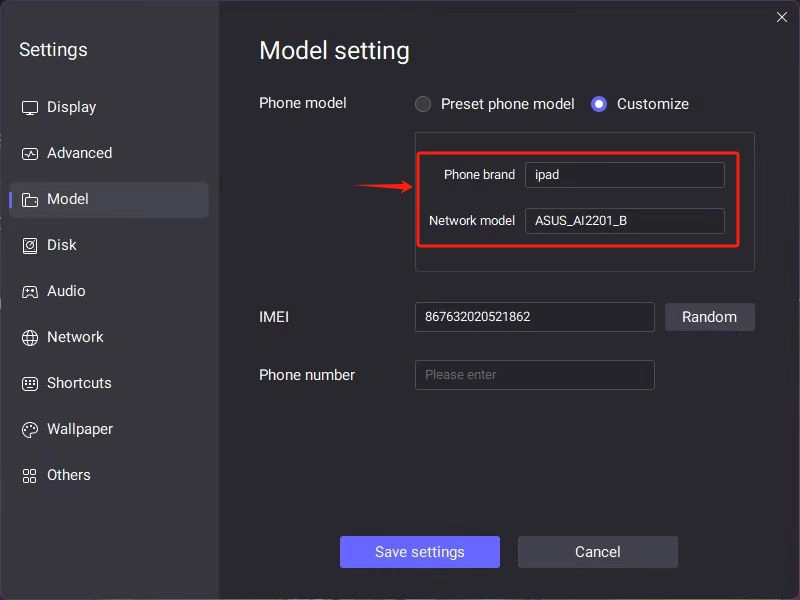
Step 1: Go to the emulator Settings > Model > Customize, set Phone brand into "ipad" and set "Network model" as "ASUS_AI2201_B" (165 FPS) or "NX709S" (120 FPS)
Step 2: Go to Display, scroll down to find FPS setting, enable high FPS mode and set FPS to 120 or 165 FPS. Then save the settings and restart the emulator for the changes to take effect.

Step 3: Open Golden Spatula. Go to Setting > Basic > Frame Rate and check "120" or "165". Also check "Prestige" if you prefer the best image quality.

Was this article helpful?
7 users found this helpful.
Video Tutorials
LDPlayer Introduction
Affiliate Program
Launch Error
Enable Virtual Technology
Function Instruction
Game Installation
Device Optimization
Multi-instance
Network Bridging
Data Recovery/Backup
Game Troubleshooting
Free Fire: Sensitivity, Firing & ViewPUBG MOBILE: Not-supported DeviceDeploy operators in Arknights during the pause processMobile Legends: Bang Bang: Load FailureFree Fire: Black ScreenHow to Fix The Unexpected Crouching And Mouse Stuck Issues in Free FireKing's Raid: Notice to App Player UsersApex Legends Mobile: Game Installation GuideIs Flixtools: Movies Box & TV Show Not WorkingOctopath Traveler: CotC: Installation GuideHow to Solve Pokemon TCG Pocket Tap to Start Button Missing IssueHow to Solve Apex Legends Mobile Device Not Compatible Problem in LDPlayerEx Astris Optimization Guide & FAQSet up Tablet Resolution for Better Gaming Experience in Golden SpatulaHow to Play Call of Duty: Mobile with Ultra GraphicsEnable 165 FPS in Golden SpatulaResolve the Hardware Requirement Warning on Intel Integrated GPUsHow to Optimize Gaming Experience in Order Daybreak