
home page
Games
Pre-RegisterRPGStrategyAdventureCasualArcadeRacingActionSimulation
Support
LDPlayer 9 IntroductionEnable VTStartup Stuck at 50%/94%Fix Invalid Virtual DiskUpdate Graphics DriverKeyboard MappingEnable LDMultiplayerFPS Setting
Blogs
Updates
LDGame
Affiliate
LDGame Community
download ldplayer
Download LDPlayer
English
繁體中文한국어Tiếng ViệtภาษาไทยPусскийPortuguêsEspañolFrançaisDeutsch日本語Indonesiaالعربية

LDPlayer Support

EmailFacebookDiscordLDGame Customer Service(For LDPlayer account & recharge problem)

Products

LDCloudOSLinkEasyFunLDShop

About

About UsBusiness InquiryDMCA Takedown

Follow Us

©2025 LDPLAYER.NET , ALL RIGHTS RESERVED.JUST OKAY LIMITED , OFFICE F, 12/F, YHC TOWER , 1 SHEUNG YUET RD, KOWLOON BAY KLN, HONG KONG
Games and applications on this site are collected from the internet. If there is any infringement, please contact the email: support@ldplayer.net
Privacy Policy|GDPR Privacy Notice|Help Translate
English
繁體中文한국어Tiếng ViệtภาษาไทยPусскийPortuguêsEspañolFrançaisDeutsch日本語Indonesiaالعربية

Support/

Device Optimization

How to Fix Instance Name Editing Not Working in LDMultiPlayer

2025-03-12

When using multiple instances, some players may encounter the issue where instance name editing cannot be saved in LDMultiPlayer. It’s due to the fact that the current user does not have the permission to write data in LDPlayer’s configuration folder. This guide includes detailed steps on how to grant such permission to make sure name editing and setting editing in LDMultiPlayer can be saved without any problem.


Step 1: Go to LDPlayer\LDPlayer9\vms and find the folder named “config”.
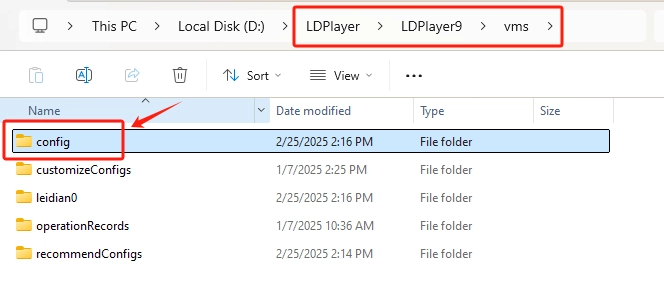
 

Step 2: Right click on this folder and select Properties in the dropdown menu.


Step 3: In the Properties window, go to the Security tab where all the permissions of different users are displayed, including “write” permission.
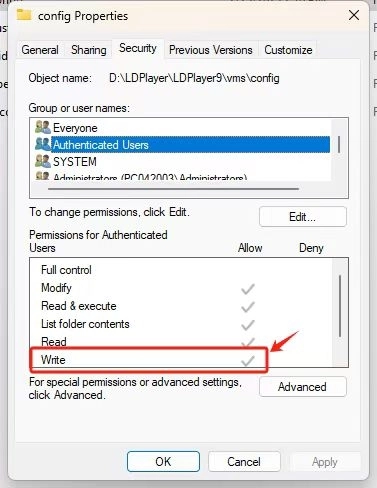
 

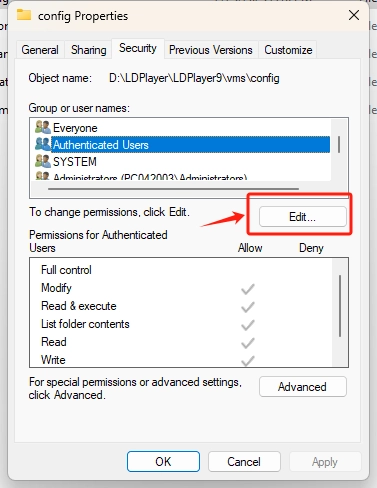
Step 4: Select the corresponding user, then click “Edit” to enter the permission setting window.
 

Step 5: Check “Allow” next to the permission “Write” to grant it to the selected user. And click “Apply” to save the change.
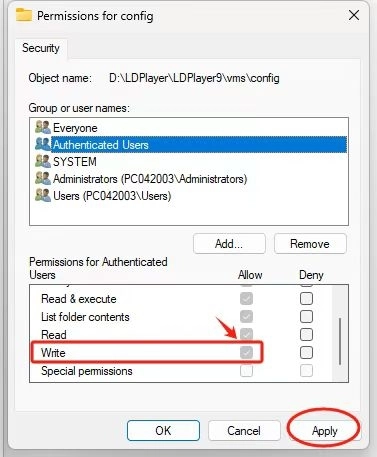
 

After doing the steps above, you will be able to change the instances’ names as you please.

Was this article helpful?
2 users found this helpful.
Video Tutorials
LDPlayer Introduction
Affiliate Program
Launch Error
Enable Virtual Technology
Function Instruction
Game Installation
Device Optimization
Update Graphics DriverDisable Hardware-Assisted VirtualizationLDPlayer Screen Flickering6 Tips to Fix LagsSwitch from Integrated GPU to Dedicated GPUHigh FPS/Graphics Setup GuideUninstalling KB4100347 UpdateConfigure RAM and CPU ProperlyOpenGL ErrorFix VirtualBox Preventing Win 10 Update (20H2)What is Hyper-V & Steps to Enable Hyper-VTurn off Windows Update Permanently on Win 10Turn off NotificationIncrease the CPU and RAM of LDPlayerCheck Used Graphics MemoryCreate Games/Apps ShortcutsHow to Fix Google Login Problem In LDPlayerSolve Locked Screen Issue on LDPlayerHow to Fix Instance Name Editing Not Working in LDMultiPlayerHow to Fix The Issue of The Recorded Script Stopping Automatically in LDPlayer
Multi-instance
Network Bridging
Data Recovery/Backup
Game Troubleshooting