
Games
Support
Blogs
Updates
LDGame
Affiliate
LDGame Community

Follow Us

LDPlayer Support

EmailEmailFacebookFacebookDiscordDiscordLDGame Customer ServiceLDGame Customer Service(For LDPlayer account & recharge problem)

Products

LDCloudLDCloudOSLinkOSLinkEasyFunEasyFun

About

About UsAbout UsBusiness InquiryBusiness Inquiry

©2026 LDPLAYER.NET, ALL RIGHTS RESERVED. JUST OKAY LIMITED, OFFICE F, 12/F, YHC TOWER, 1 SHEUNG YUET RD, KOWLOON BAY KLN, HONG KONG

Games and applications on this site are collected from the internet. If there is any infringement, please contact the email: support@ldplayer.net
Software Licensing ProtocolSoftware Licensing ProtocolTerms of UseTerms of UsePrivacy PolicyPrivacy PolicyGDPR Privacy NoticeGDPR Privacy NoticeHelp TranslateHelp Translate

Support/

Device Optimization

How to see how much graphics memory is being used

2018-12-13

Sometimes LDPlayer will crash or be stuck at 94% if the graphics memory is nearly used up. So you need to carry out particular actions such as reducing the instances of LDPlayer. But how do we know if it is used up? That's what we will say below.


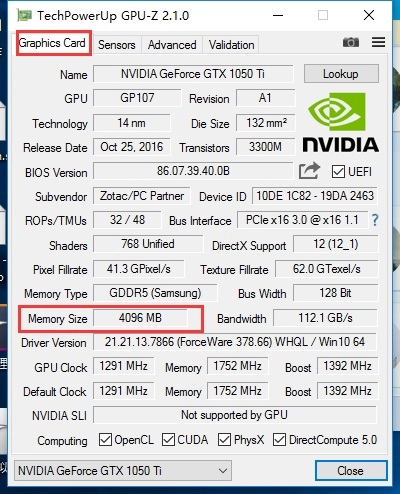
1. Click the following link to download GPU-Z. https://res.ldrescdn.com/other/GPU-Z_2.1.0.0.exe. You can choose whether to install it.


2. Open GPU-Z. 
How to see how much graphics memory is being used

As you can see the picture above, the memory size of graphics card is 4096 MB.


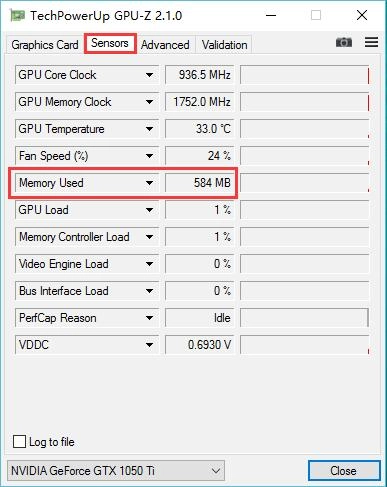
3. Click Sensors.
How to see how much graphics memory is being used

584 MB is the graphics memory that is being used.


Was this article helpful?
47 users found this helpful.
Video Tutorials
LDPlayer Introduction
Affiliate Program
Launch Error
Enable Virtual Technology
Function Instruction
Game Installation
Device Optimization
Update Graphics DriverDisable Hardware-Assisted VirtualizationLDPlayer Screen Flickering6 Tips to Fix LagsSwitch from Integrated GPU to Dedicated GPUHigh FPS/Graphics Setup GuideUninstalling KB4100347 UpdateConfigure RAM and CPU ProperlyOpenGL ErrorFix VirtualBox Preventing Win 10 Update (20H2)What is Hyper-V & Steps to Enable Hyper-VTurn off Windows Update Permanently on Win 10Turn off NotificationIncrease the CPU and RAM of LDPlayerCheck Used Graphics MemoryCreate Games/Apps ShortcutsHow to Fix Google Login Problem In LDPlayerSolve Locked Screen Issue on LDPlayerHow to Fix Instance Name Editing Not Working in LDMultiPlayerHow to Fix The Issue of The Recorded Script Stopping Automatically in LDPlayer
Multi-instance
Network Bridging
Data Recovery/Backup
Game Troubleshooting