
home page
Games
Pre-RegisterRPGStrategyAdventureCasualArcadeRacingActionSimulation
Support
LDPlayer 9 IntroductionEnable VTStartup Stuck at 50%/94%Fix Invalid Virtual DiskUpdate Graphics DriverKeyboard MappingEnable LDMultiplayerFPS Setting
Blogs
Updates
LDGame
Affiliate
LDGame Community
download ldplayer
Download LDPlayer
English
繁體中文한국어Tiếng ViệtภาษาไทยPусскийPortuguêsEspañolFrançaisDeutsch日本語Indonesiaالعربية

LDPlayer Support

EmailFacebookDiscordLDGame Customer Service(For LDPlayer account & recharge problem)

Products

LDCloudOSLinkEasyFunLDShop

About

About UsBusiness InquiryDMCA Takedown

Follow Us

©2025 LDPLAYER.NET , ALL RIGHTS RESERVED.JUST OKAY LIMITED , OFFICE F, 12/F, YHC TOWER , 1 SHEUNG YUET RD, KOWLOON BAY KLN, HONG KONG
Games and applications on this site are collected from the internet. If there is any infringement, please contact the email: support@ldplayer.net
Privacy Policy|GDPR Privacy Notice|Help Translate
English
繁體中文한국어Tiếng ViệtภาษาไทยPусскийPortuguêsEspañolFrançaisDeutsch日本語Indonesiaالعربية

Support/

Device Optimization

Disable Hardware-Assisted Virtualization in Avast to Speed Up

2021-06-22

Avast Free Antivirus has enabled hardware-assisted virtualization by default, which will occupy your Virtualization Technology all the time and result in the lag performance on LDPlayer. This tutorial will help you greatly improve the performance of LDPlayer on your computer if you happen to use the Avast antivirus.
 

Note: Disabling the Hardware-assisted virtualization feature in Avast will help LDPlayer fully use the function of VT and this will not damage your computer at all.


Four Simple Steps to Configure Settings in Avast Antivirus
 

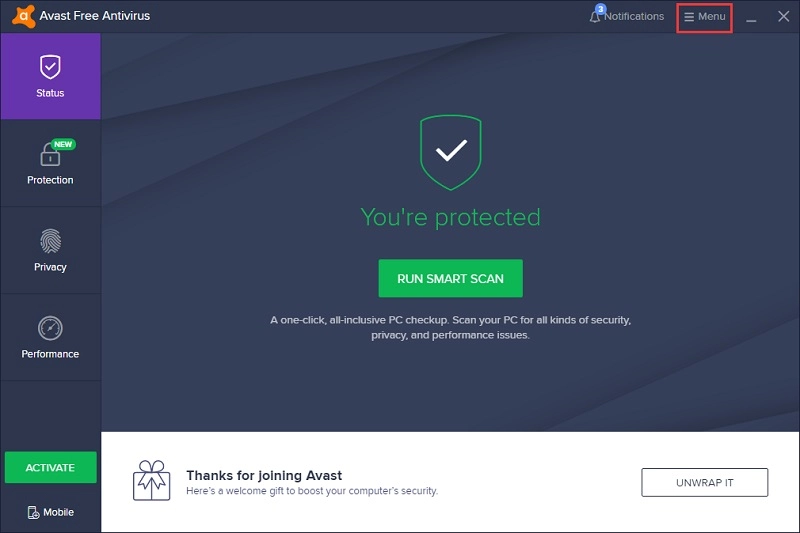
1. Open your Avast antivirus and click on Menu in the top right corner.
The solution to the lag resulting from anti-virus software


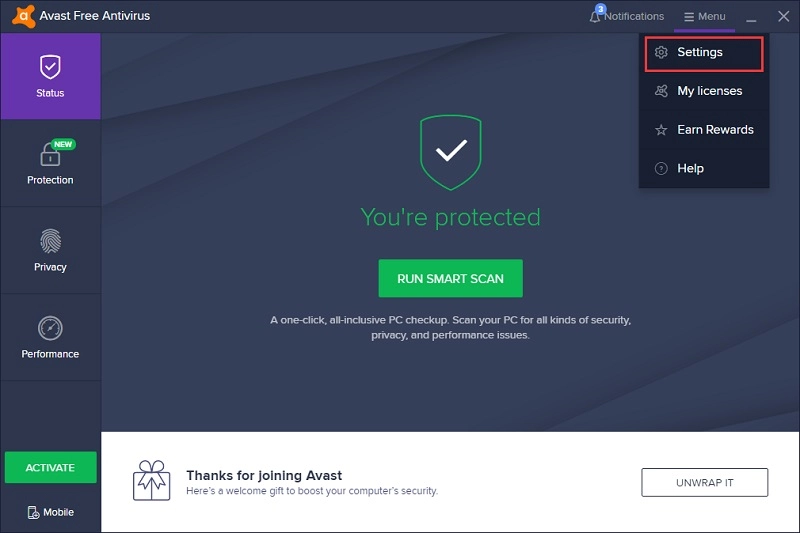
2. Select Settings from the drop down menu.
The solution to the lag resulting from anti-virus software


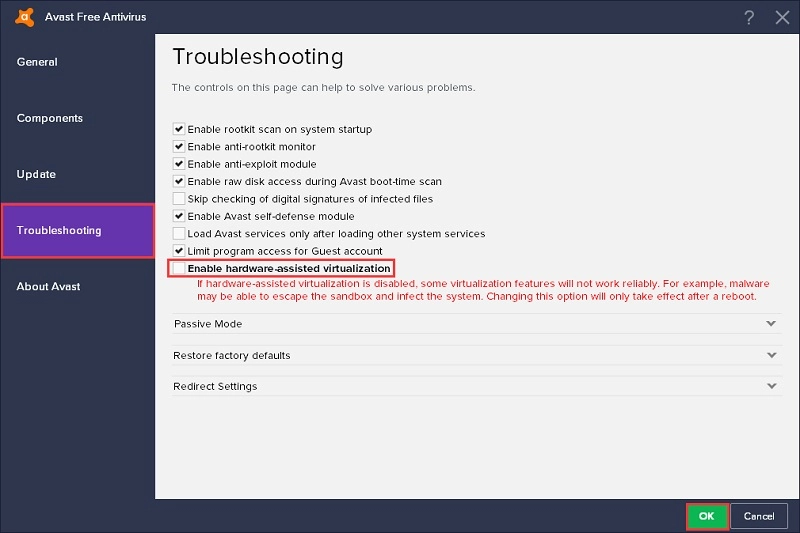
3. Go to "Troubleshooting" and uncheck Enable hardware-assisted virtualization.
The solution to the lag resulting from anti-virus software


4.  Click OK to save the changes and restart your computer.


Depending on which version of Avast antivirus you are on, the UI and settings may differ. Anyway, you just need to find the "Hardware-assisted Virtualization" setting and disable it. From now, you should experince way much smoother than before while playing games on PC with LDPlayer.


Thank you for using LDPlayer and if you have any further questions, you can always get help from our Email Support: support@ldplayer.net. Enjoy Android PC gaming with LDPlayer!

Was this article helpful?
10410 users found this helpful.
Video Tutorials
LDPlayer Introduction
Affiliate Program
Launch Error
Enable Virtual Technology
Function Instruction
Game Installation
Device Optimization
Update Graphics DriverDisable Hardware-Assisted VirtualizationLDPlayer Screen Flickering6 Tips to Fix LagsSwitch from Integrated GPU to Dedicated GPUHigh FPS/Graphics Setup GuideUninstalling KB4100347 UpdateConfigure RAM and CPU ProperlyOpenGL ErrorFix VirtualBox Preventing Win 10 Update (20H2)What is Hyper-V & Steps to Enable Hyper-VTurn off Windows Update Permanently on Win 10Turn off NotificationIncrease the CPU and RAM of LDPlayerCheck Used Graphics MemoryCreate Games/Apps ShortcutsHow to Fix Google Login Problem In LDPlayerSolve Locked Screen Issue on LDPlayerHow to Fix Instance Name Editing Not Working in LDMultiPlayerHow to Fix The Issue of The Recorded Script Stopping Automatically in LDPlayer
Multi-instance
Network Bridging
Data Recovery/Backup
Game Troubleshooting