
Game Installation
How to enable developer options on LDPlayer
2020-11-12
This short tutorial will walk you through a demonstration of how to enable developer options on LDPlayer.
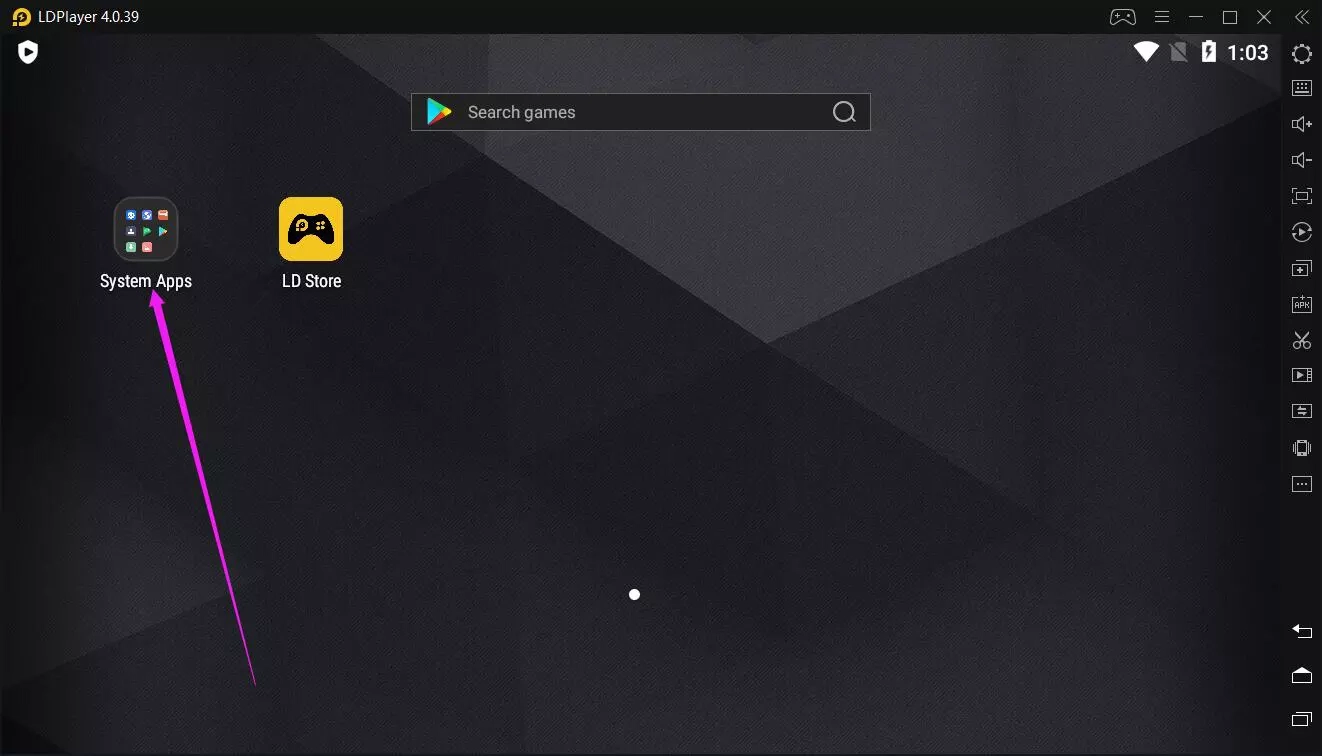
1. Click System Apps on the home screen of LDPlayer.
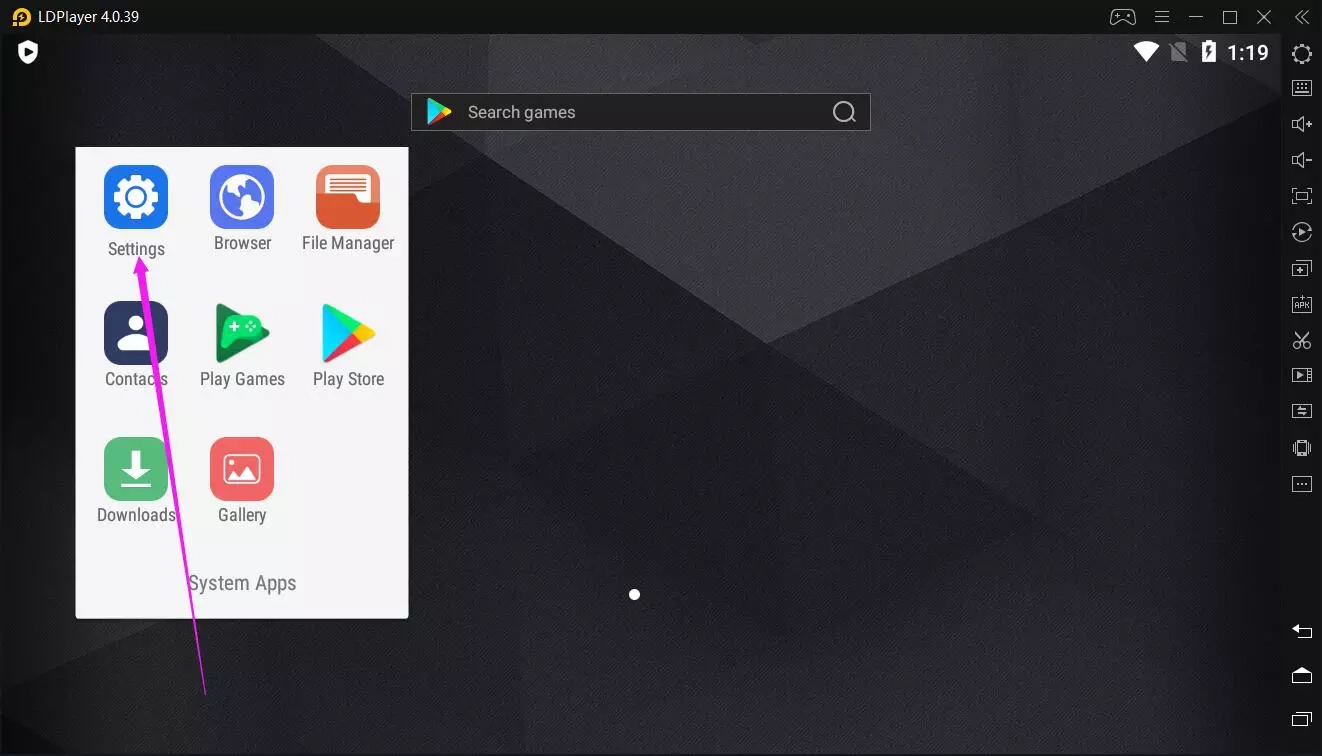
2. Click Settings.
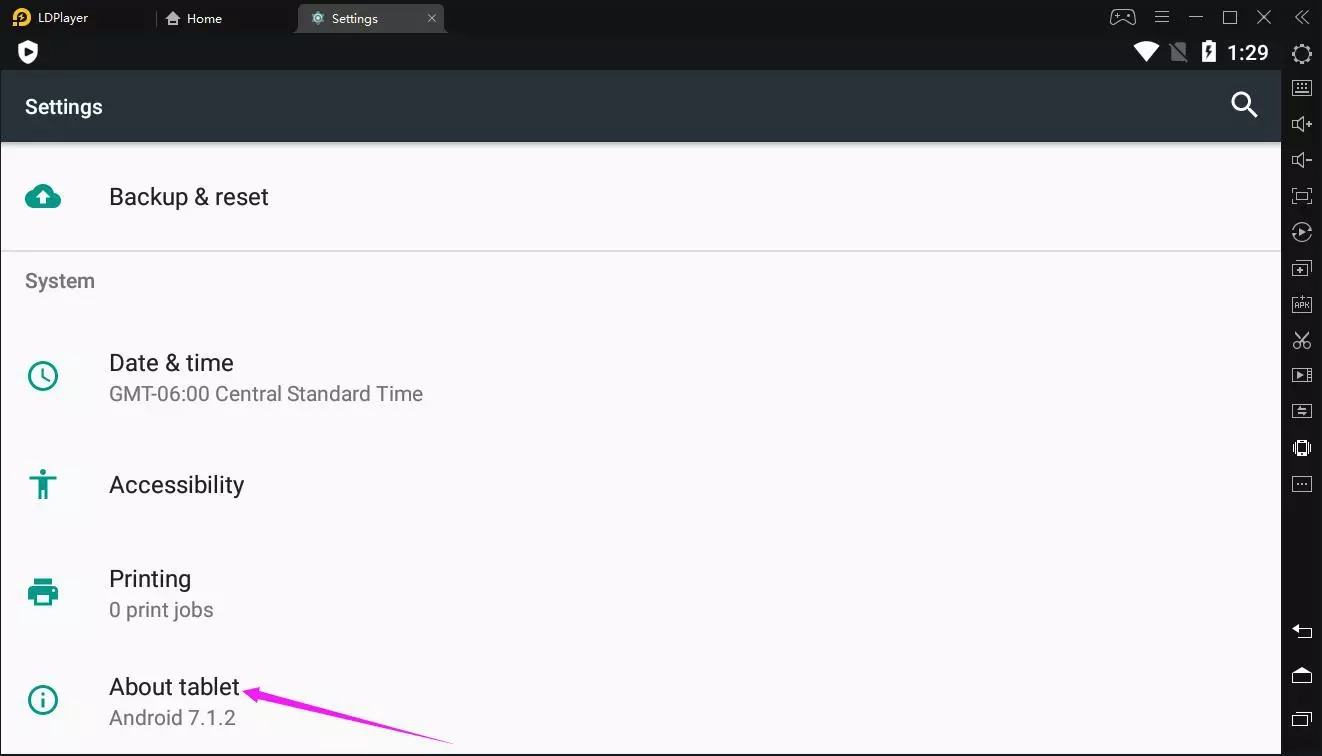
3. Scroll to the bottom of the page to find About Tablet and click it.
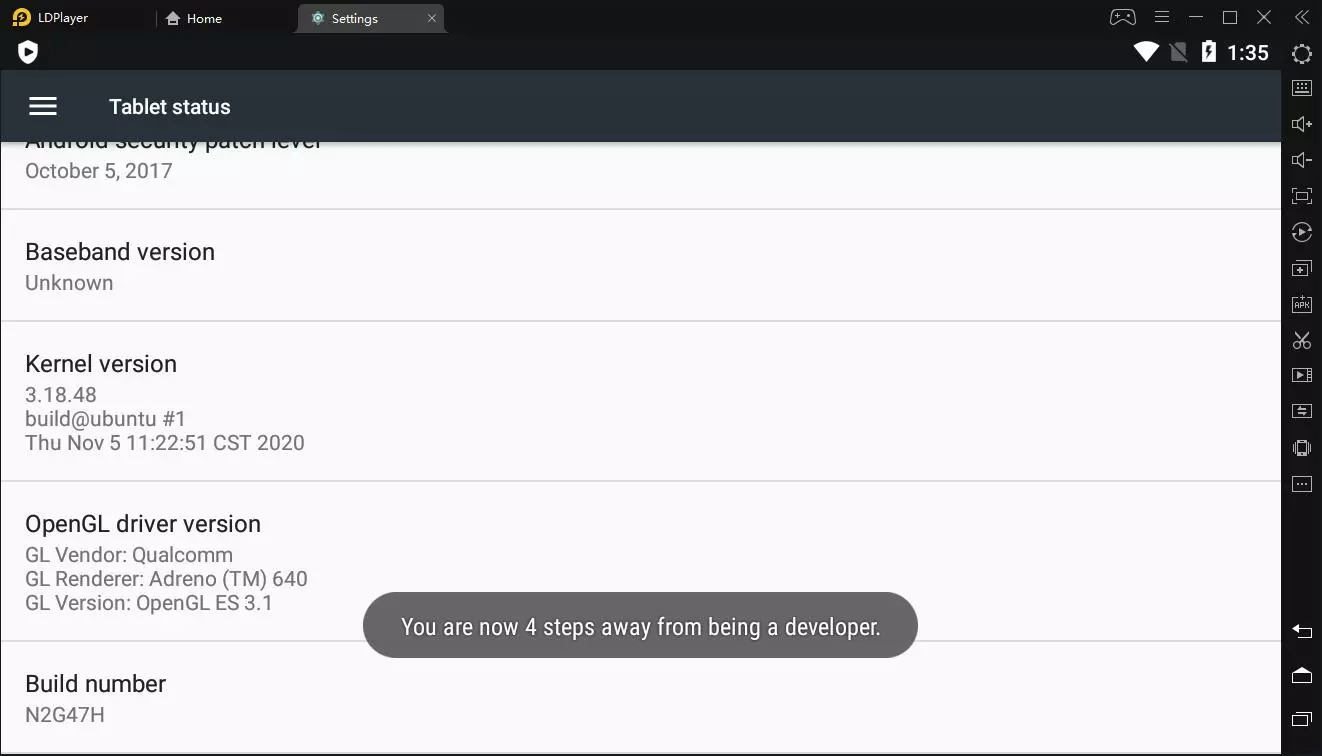
4. Scroll to the bottom of the page to find Build number and continuously click it seven times.
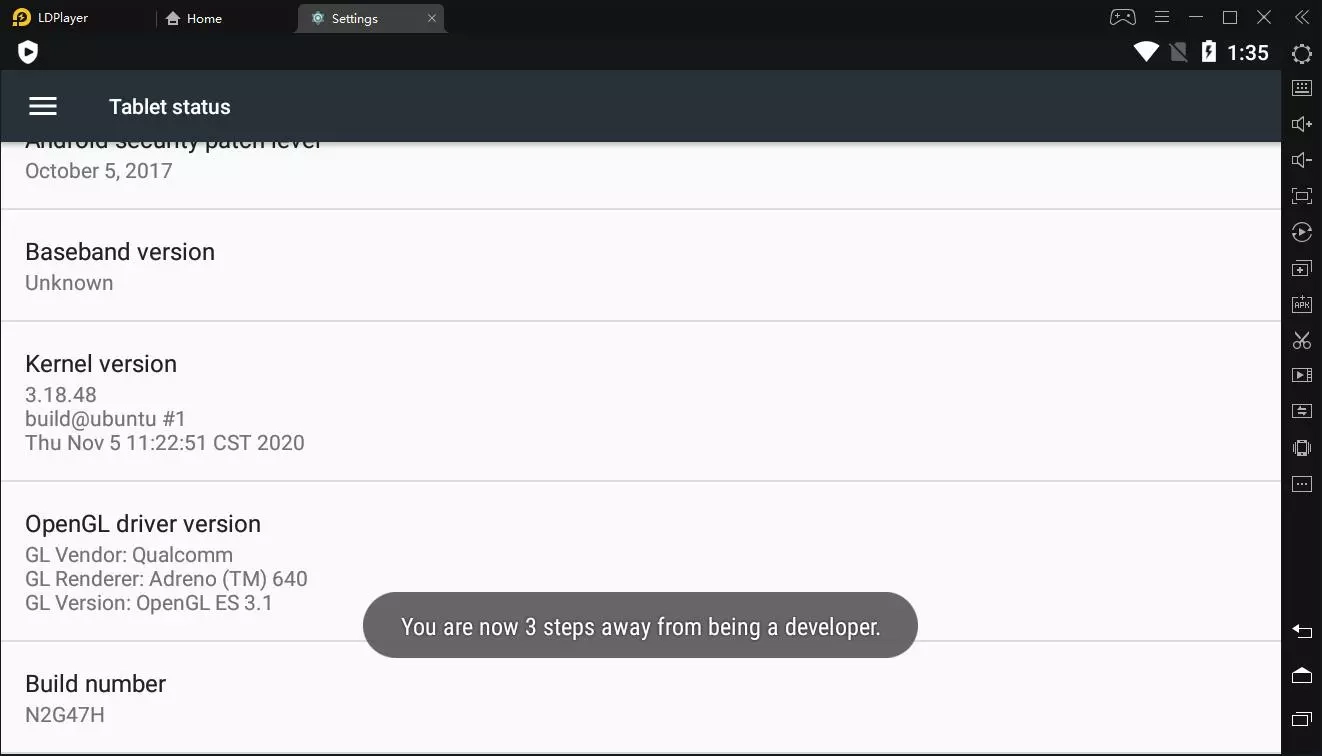
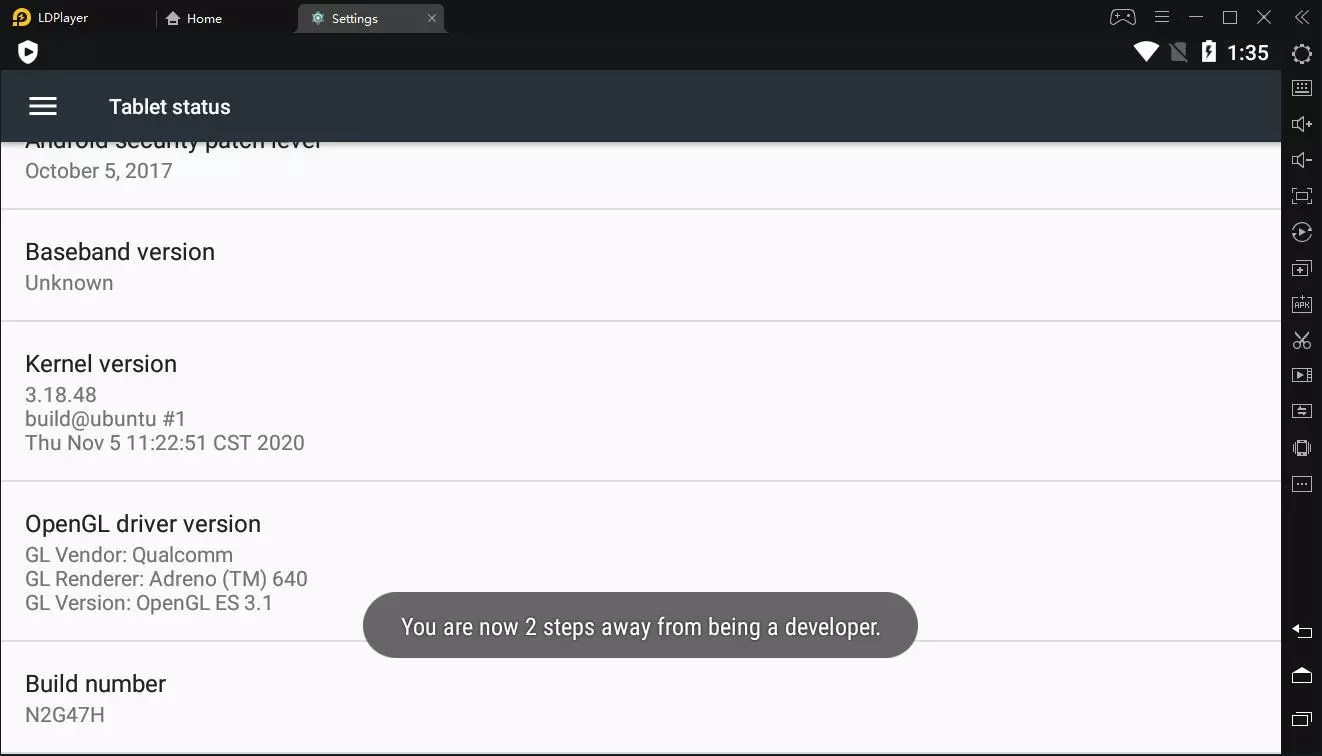
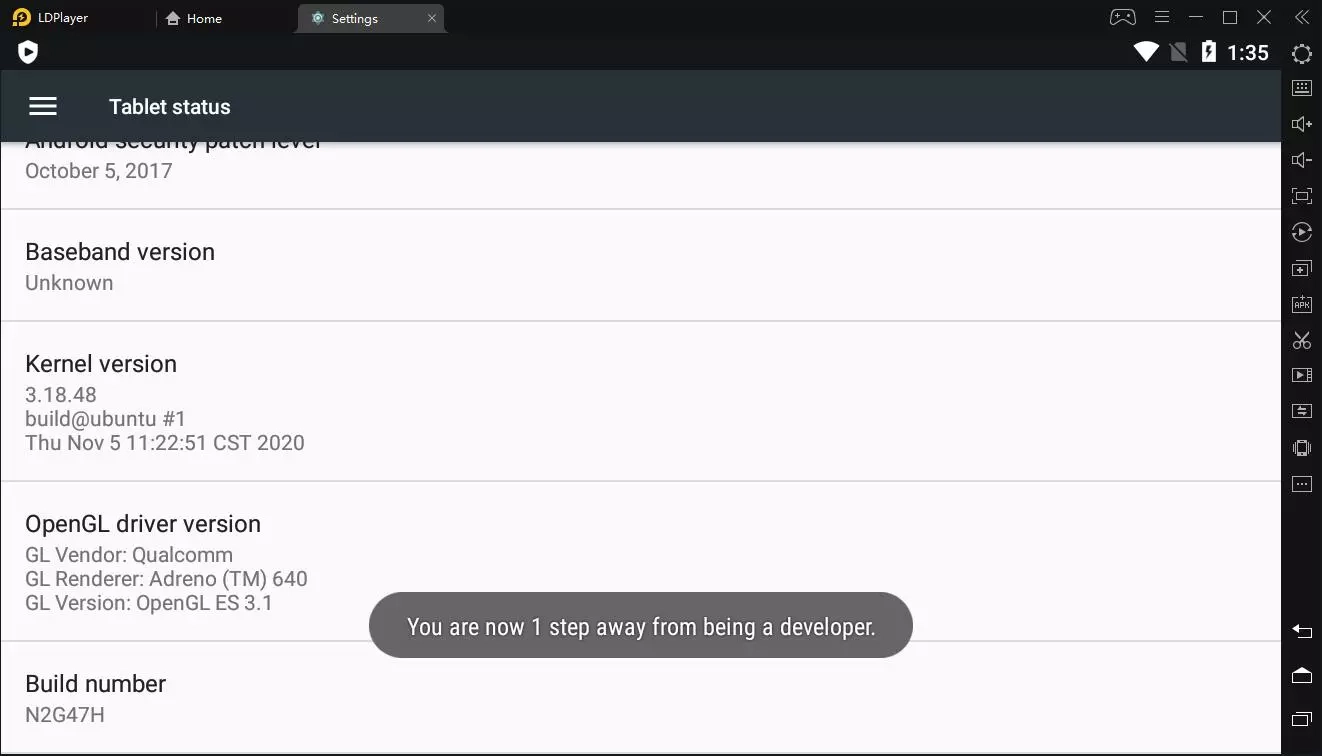
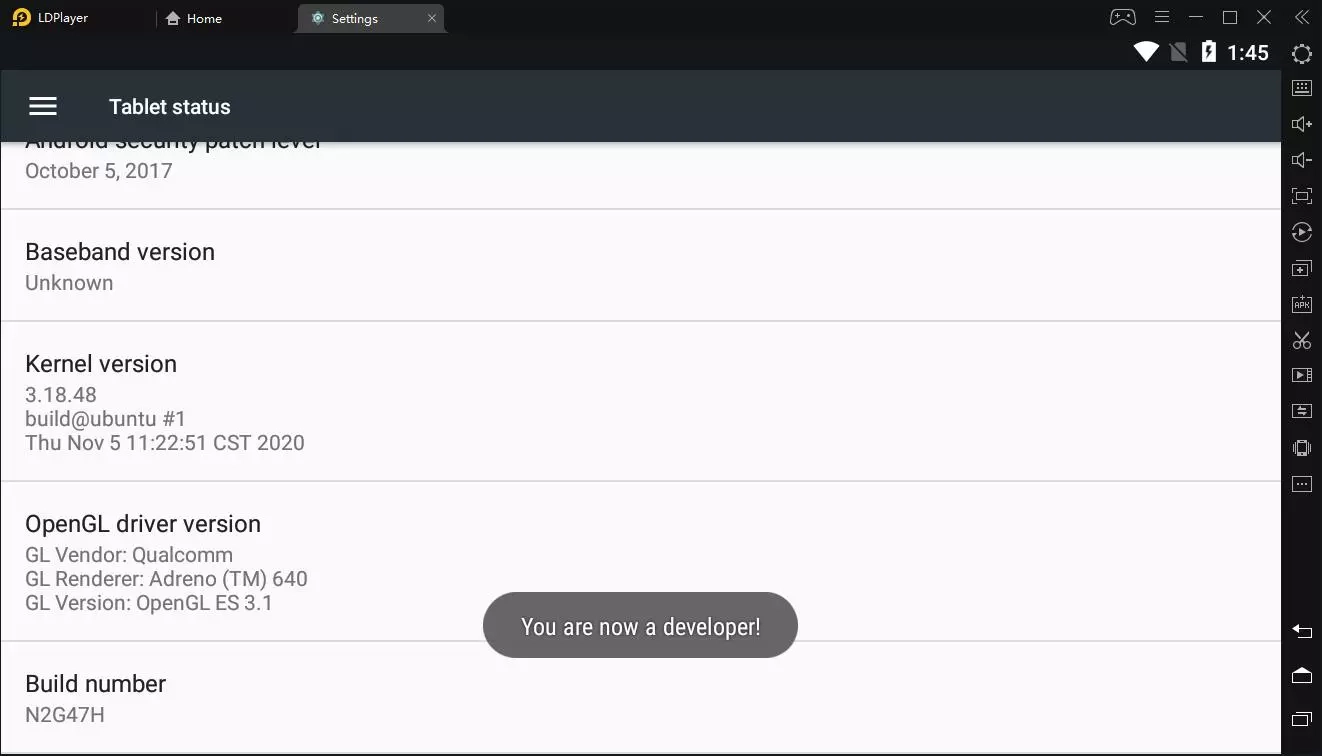
5. Click the following arrow on the right toolbar or press the Esc key on your keyboard to go back to the previous page.
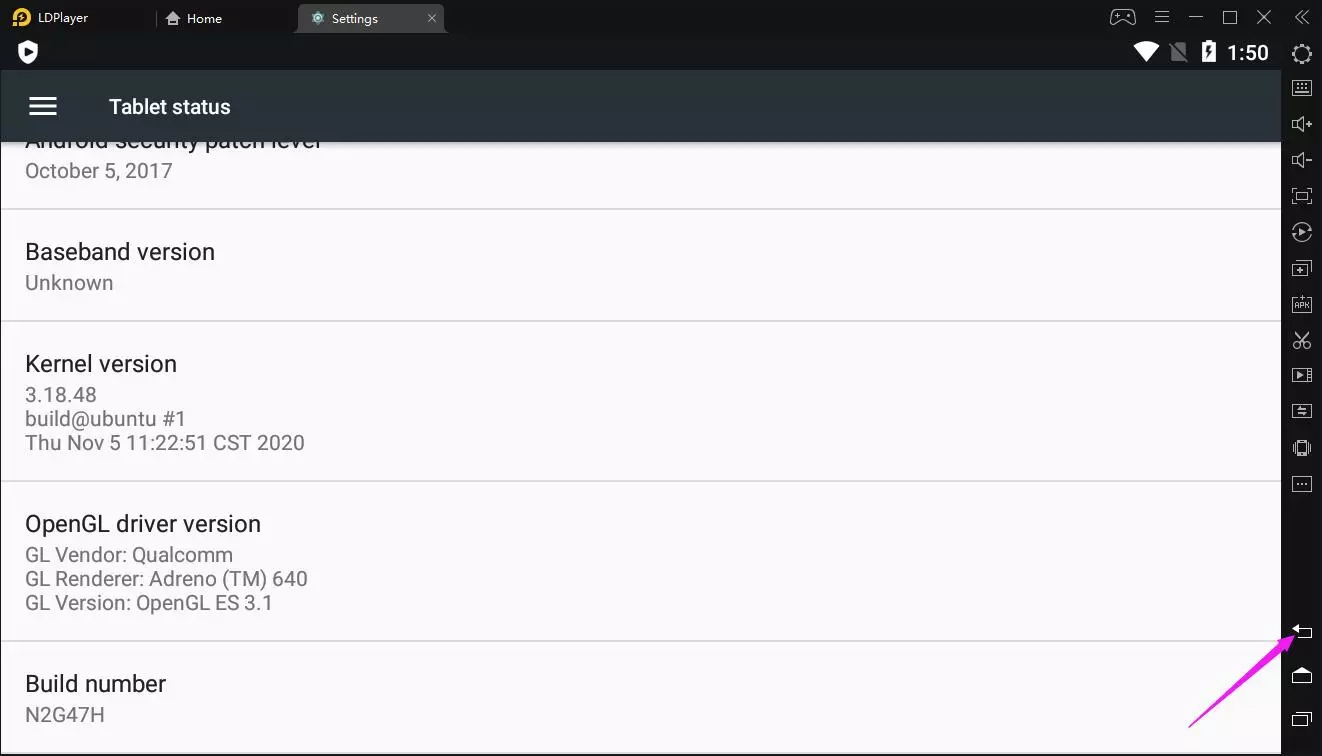
6. You're all done.
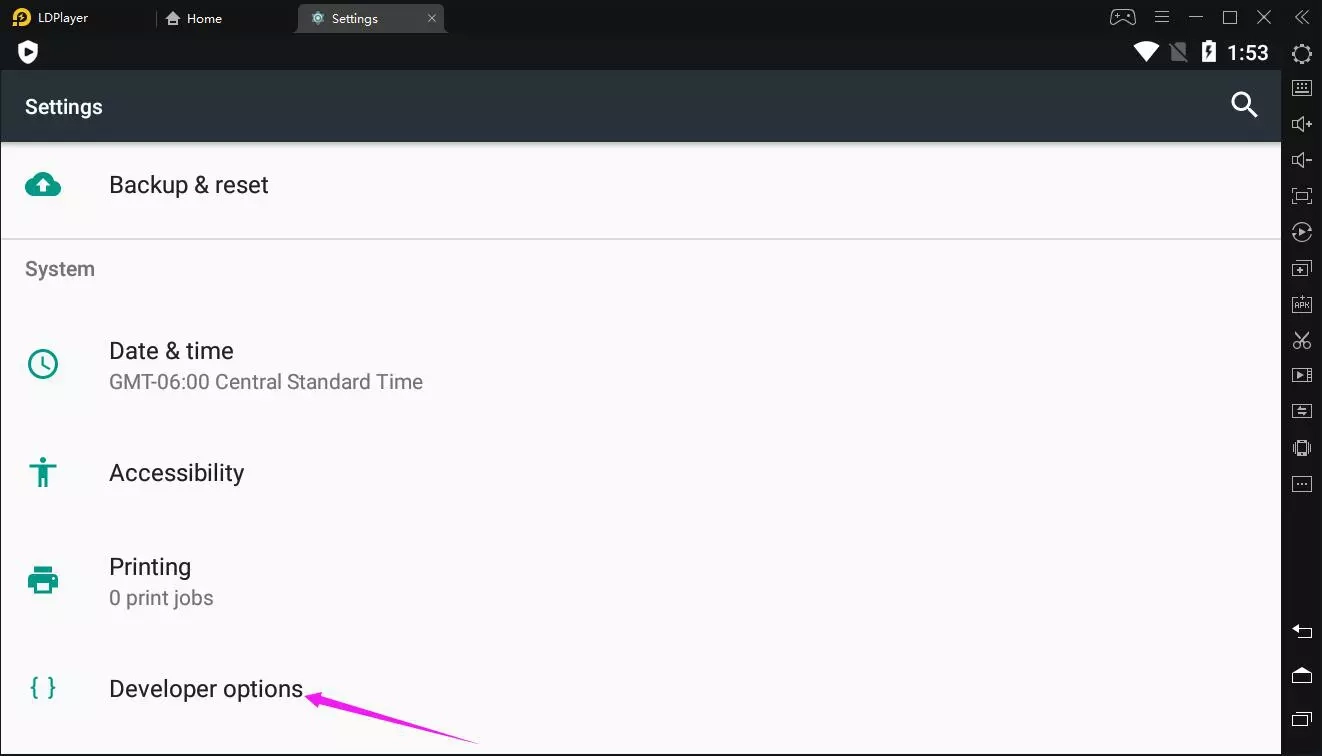 Click Developer options to enter its feature page and then scroll to the Input location.
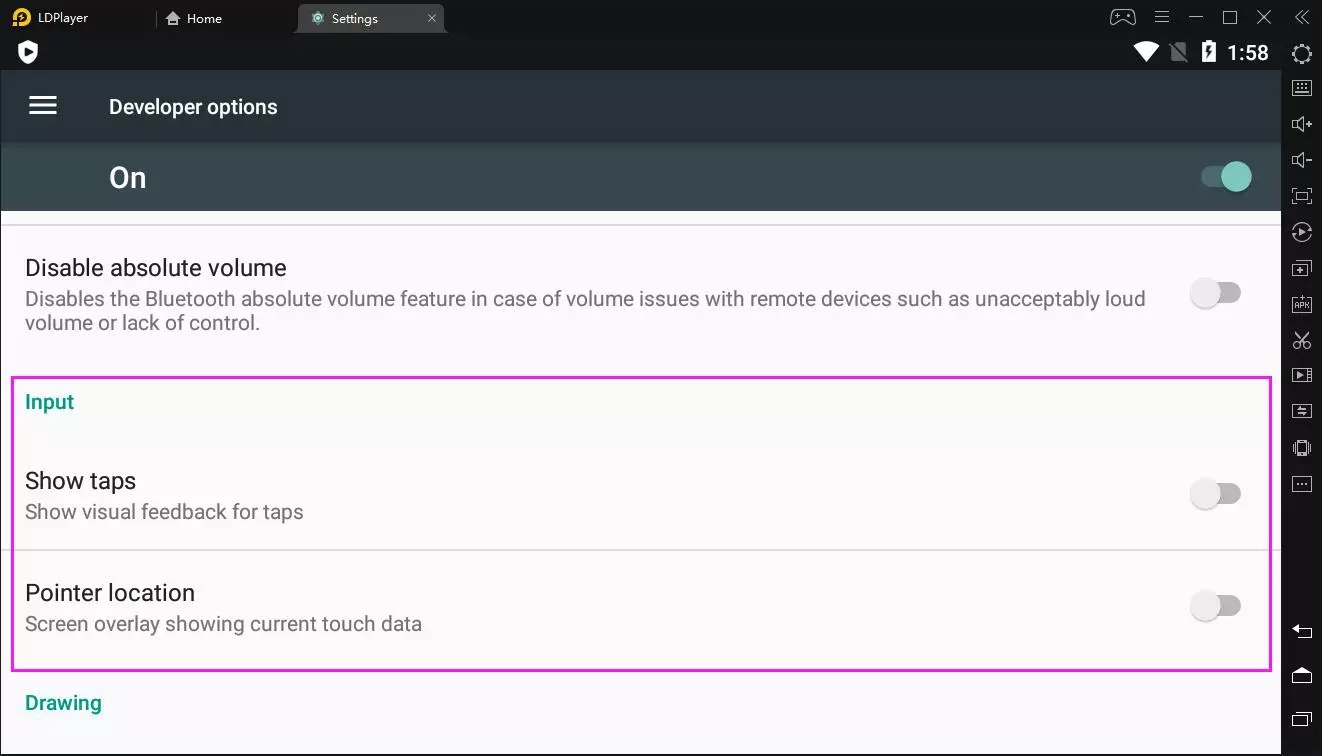
Here, you can enable Show taps (same as Show touches of LDPlayer 3) to display taps when you click the screen of LDPlayer. A circle appears under your pointer and follows you as you move around the screen. A tap works like a pointer when you record a video on your LDPlayer. (This feature isn't working on LDPlayer 4)
Also, you can enable Pointer location to show the pointer (tap) location on LDPlayer with cross-hairs. A bar appears across the top of the screen to track the cross-hair coordinates. As you move the pointer, the coordinates in the bar track the cross-hair location and the pointer path draws on the screen.