
Function Instruction
Gamepad on Emulator | How to Use Gamepad Controller
2020-03-06
Game controller, the input device used to control characters in games significantly influences gaming. It is said that a top PC gamer would do poorly in mobile games because he/she is not accustomed to onscreen control. Similarly, a gamepad user would find it hard to control the game if he/she is forced to use keyboard control. To better serve the gamepad users, LDPlayer 3.7 and above version has enabled gamepad control. Here is the instruction of using gamepad on LDPlayer.
1.Check LDPlayer Version
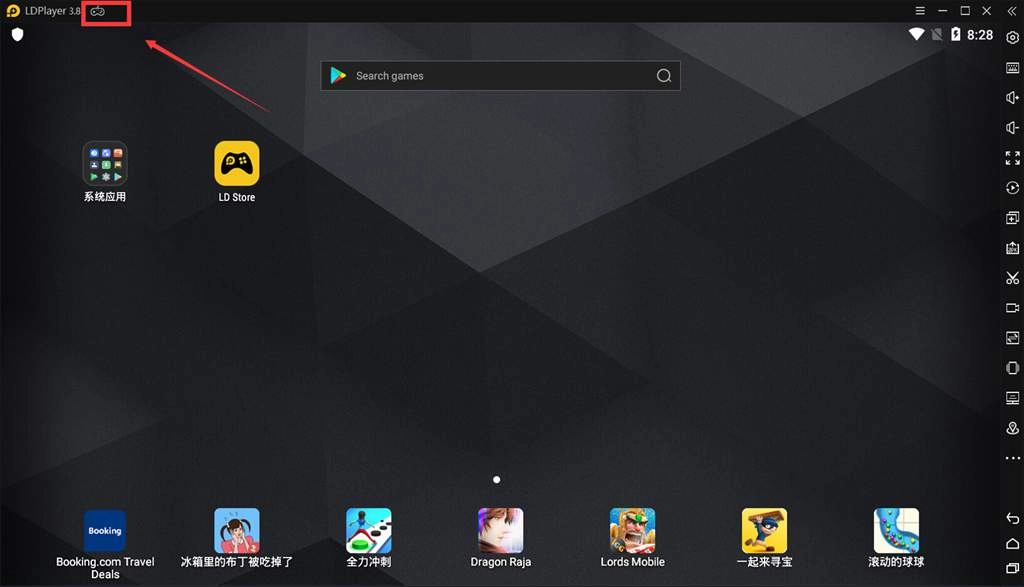
Open the LDPlayer on your computer. If you cannot find the gamepad icon on the top home page as follow, please download the latest LDPlayer here. If there is gamepad icon on your LDPlayer, then you proceed to the next step.
2.Check Gamepad
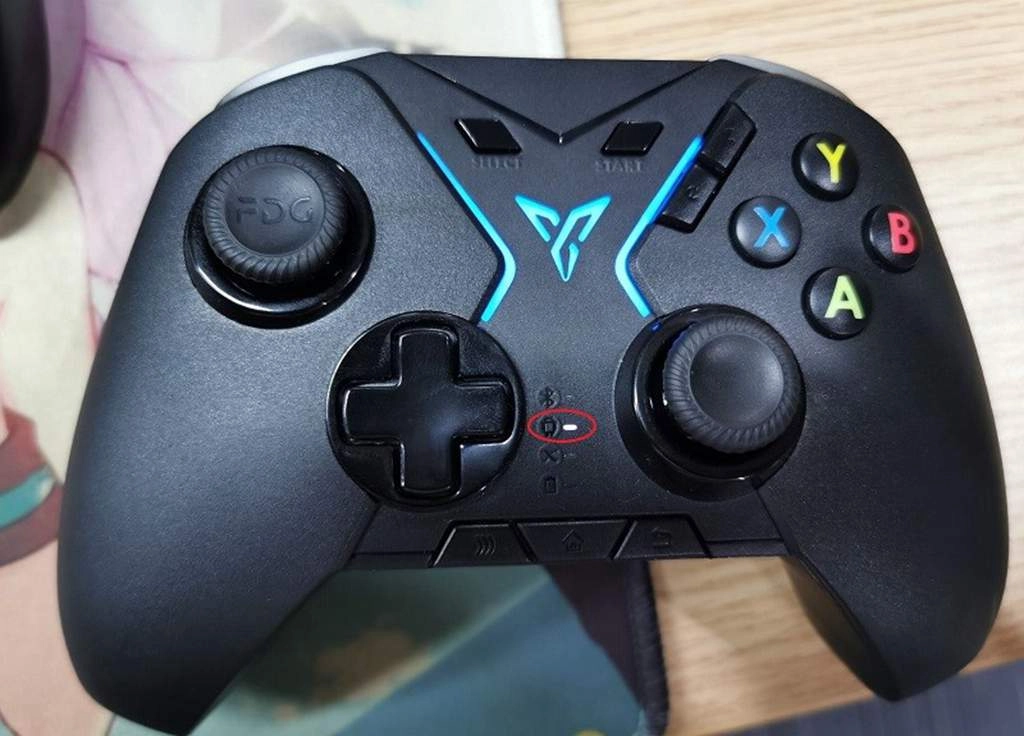
There are many types of gamepad in the market. Some support Android devices. Some do not. Make sure the gamepad you are going to connect to LDPlayer supports Android devices. Otherwise, it won’t respond correctly even if you successfully connect it to LDPlayer.
3.Connect Gamepad to LDPlayer
For wired gamepad: slide gamepad's USB cable into computer's USB port on either the back or the front of your PC.
For wireless gamepad: plug the wireless receiver into an available PC USB port. The PC will act like it is installing drivers.
Note that if the gamepad you are using support more than one operation system, please make sure you have switched it to Android mode. If it solely supports Android devices, then you don’t need to do anything. LDPlayer will automatically detect Gamepad and enable gamepad control.
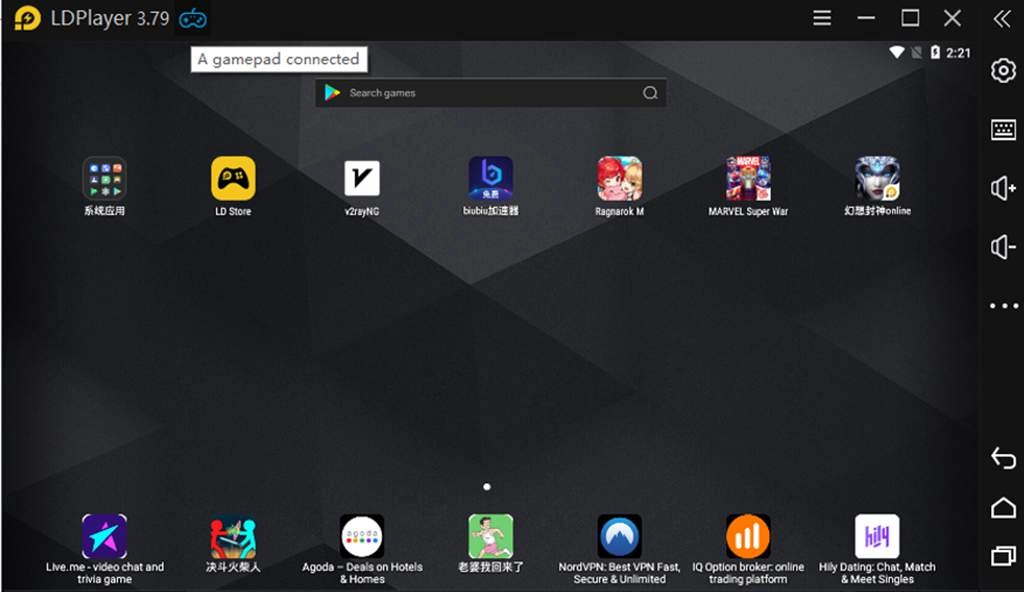
Once gamepad control is enabled, the message “A gamepad connected” will prompt out under the icon of gamepad as follows.
4. How to set up gamepad key mapping
Normally, LDPlayer has set the default scheme of gamepad control for most games. You should try to acquaint with the existing default keyboard settings first before you decide whether need to adjust the default settings or create custom keymapping.
Step 1: Click gamepad mapping icon to lunch the gamepad key mapping
There are two things you need to pay attention to in this step. The first one is that you have to run a game before you start gamepad key mapping. The second one is that there are two options for mapping, keyboard mapping and gamepad mapping. Pleasure make sure you choose the one with gamepad icon instead of keyboard icon.
Step 2: Drag icons from side bar to gameplay zone
In this step, you need to decide what operation you want to make adjustment and where you want to put the icons. When you finish the arrangement of icons, click the “Save” button in the lower right corner of the Settings screen to save your settings. You can also click the “Restore” button next to the “save” button to restore the default gamepad mappings.
5. Reference for Various Shortcut Keys in Key-Mapping Settings
After we learn how to set keyboard mapping, we can discuss what role these shortcut keys play when you are running games.
One Click Action

“Simple Touch” simulates a normal click on gamepad. The default key setting of it is the “A” button on the gamepad.
Move Control

When you are playing games, move control settings decide how you can control the roles to move in the game. This setting is usually used for action games and FPS.
Generate Repeat Click Actions

This icon is assigned for automatically repeated clicks based on “One Click Action”. The default frequency is 5 clicks/sec. You can also adjust the number of times as you like.
View Control

When you are playing some 3D games as such as “PUBG mobile” or “Dragon Nest M”, you need to convert the view of role. The above icon is assigned for control view.
Macro

This is a quick activation button for macro. After you set the key for it, you can activate the macro function anytime when you are playing games. Macro is a very powerful tool on LDPlayer. You can also learn more details through this article: Introduction to Keyboard Macro.
Conclusion
Gamepad will incredibly improve your experience of gaming, especially when you are accustomed to using gamepad to play games. If you have any other issues with connecting gamepad to your LDPlayer, please feel free to contact us on Facebook.