
Function Instruction
Introduction to LDPlayer Command Line Interface
2019-03-21
To begin with, go to the installation directory of LDPlayer to find a file named ldconsole.exe (or dnconsole.exe) and double-click on it.
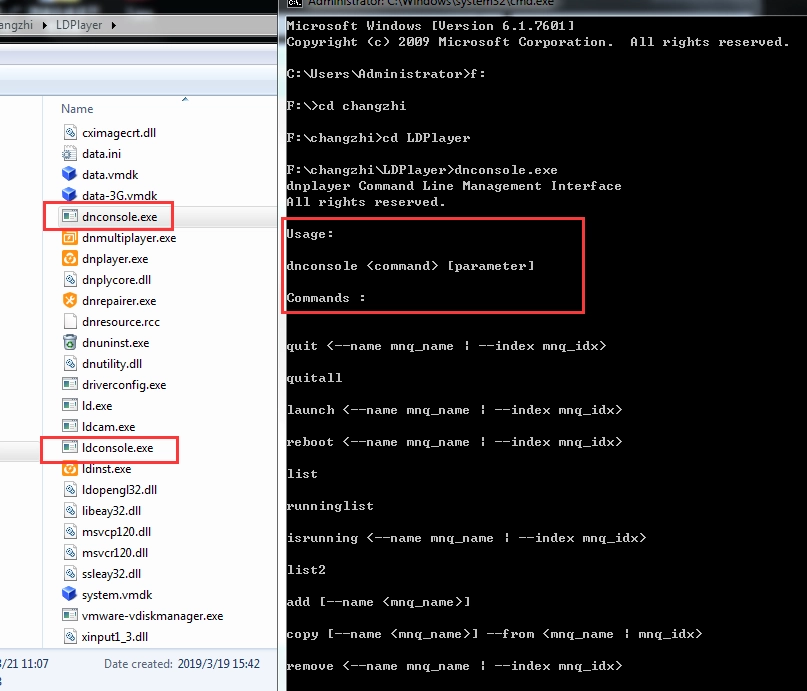
Type cmd into the search box or the Run dialog box (You can press the Windows key and R simultaneously to bring up the Run dialog box).
Type the path of ldconsole.exe (such as C:\Changzhi\LDPlayer\ldconsole.exe) into Command Prompt to show usage instructions. Most commands include the parameter -- name or -- index which is used to specify which emulator is to be operated.
For example:
--name LDPlayer
--index 0
Both of them are used to operate the first emualtor. "name" means the name of the emulator and "index" refers to the index of it. Let's take a look at various commands.
1. launch LDPlayer
launch <--name mnq_name | --index mnq_idx>
For example:
dnconsole.exe launch --name LDPlayer
dnconsole.exe launch --index 0
2. quit LDPlayer
quit <--name mnq_name | --index mnq_idx>
3. quit all LDPlayer instances
quitall
4. property setting
modify <--name mnq_name | --index mnq_idx>
[--resolution ]
[--cpu <1 | 2 | 3 | 4>]
[--memory <512 | 1024 | 2048 | 4096 | 8192>]
[--manufacturer asus]
[--model ASUS_Z00DUO]
[--pnumber 13812345678]
[--imei ]
[--imsi ]
[--simserial ]
[--androidid ]
[--mac ]
[--autorotate <1 | 0>]
[--lockwindow <1 | 0>]
For example:
dnconsole.exe modify --index 0 --resolution 600,360,160 --cpu 1 --memory 1024 --imei auto
5. create
add [--name mnq_name]
6. copy
copy [--name mnq_name] --from
7. delete
remove <--name mnq_name | --index mnq_idx>
8. install, uninstall, run and kill app
installapp <--name mnq_name | --index mnq_idx> --filename
installapp <--name mnq_name | --index mnq_idx> --packagename
uninstallapp <--name mnq_name | --index mnq_idx> --packagename
runapp <--name mnq_name | --index mnq_idx> --packagename
killapp <--name mnq_name | --index mnq_idx> --packagename
9. setprop/getprop/adb
setprop <--name mnq_name | --index mnq_idx> --key name --value val
getprop <--name mnq_name | --index mnq_idx> --key name
For example:
setprop --index 0 --key "phone.imei" --value "auto"
setprop --index 0 --key "phone.imsi" --value "auto"
setprop --index 0 --key "phone.simserial" --value "auto"
dnconsole.exe adb --name "LDPlayer" --command "shell pm list packages"
dnconsole.exe adb --index 0 --command "shell pm list packages"
10. list2
F:\changzhi\LDPlayer>dnconsole.exe list2
0,LDPlayer,2032678,1704928,1,7456,3500
1,LDPlayer-1,852422,590830,1,3772,3180
List2 returns multiple messages at one time, in turn:
index, title, top window handle, bind window handle, android started, pid, pid of vbox