
Function Instruction
User Guide – How to Use Video Recorder
2019-10-06
Whether you are playing mobile games on mobile or computer, there are always some meaningful game moments for you, such as, the “Penta Kills” in Mobile Legends: Bang Bang, the “Chicken Dinner” in PUBG Mobile, etc. However, most of the time, you can’t directly record these moments without screen recorder software. You have to download a recorder software which may causes lags when you are playing games.
Thus, it will be more convenient for you to play mobile games on PC with an emulator which contains video record function. LDPlayer has developed a build-in tool named Video Recorder. This tool can help you record those memorable game moments and form them into files for long-term preservation.

What is Video Recorder on LDPlayer
Video Recorder is a built-in recorder tool that can record your operations or game moments while you’re using LDPlayer. It can help you record those highlight game moments and then generate them into video files. After saving these video files, you can review your game moments at any time. Below is a simple tutorial about how to use Video Recorder on LDPlayer.
How to Use Video Recorder on LDPlayer
Step 1: Initiate Video Recording
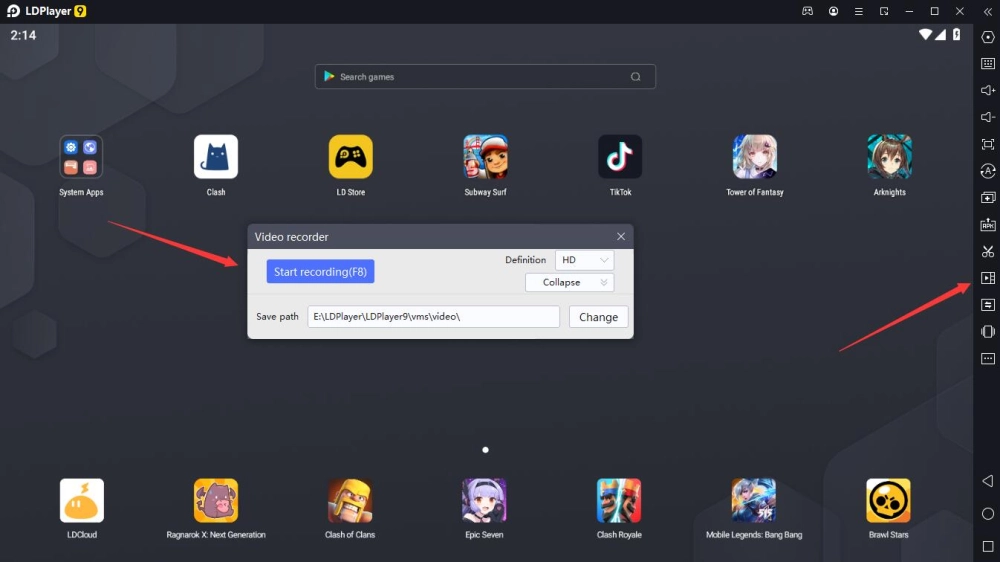
To get started with this useful LDPlayer tool, firstly, you should find the “Video Recorder” button in the toolbar and click it to activate this tool. After the Video Recorder Window appeared, you can choose the video definition you want. Generally, the video with higher definition will take up more computer capacity. After that, click the “Start” button to initiate video recording.
Step 2: End Video Recording
During the video record process, you can pause or end the video recording at any time by clicking the “Pause” and “End” button in the upper right corner. Please note that if you click the “End” button, the whole recording process will be ended and LDPlayer will automatically generate a video file for you.
Step 3: Play the Video
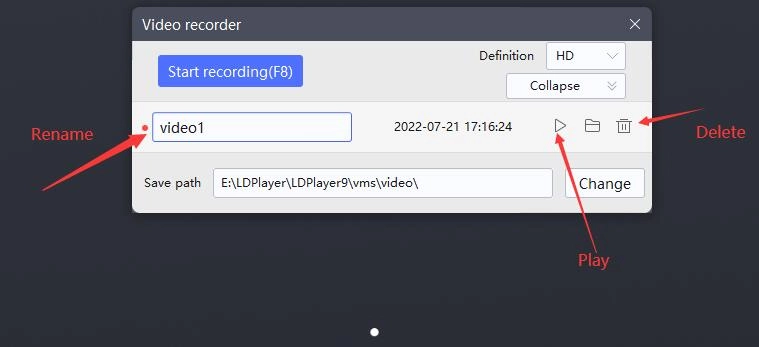
Got what you were looking for? Excellent! It’s time to play the recording video. You can do in one single action by pressing “play” icon to play your video. Of course, you can also click the “Rename” or “Delete” button to rename or delete your video.
How to Change The Video Default Directory
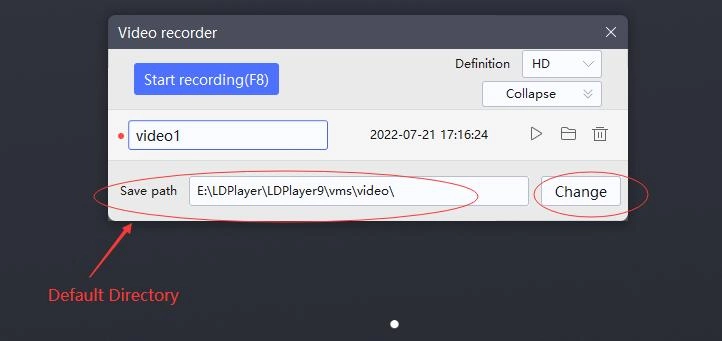
After ending the recording process, you will find that the video you just recorded has been automatically saved in the default directory on your computer. You can click the “view” button to locate your video files on computer. If you want to modify the default directory of your video files, you just need to click “change” button to modify the default directory.
Benefits for Using Video Recorder on LDPlayer
We’ve learned about how to use the Video Recorder on LDPlayer above. Now, you may want to know what we can do with this recorder. Let’s talk about some benefits of using Operation Recorder.
Record Highlight Moments
During your game career, there must be many meaningful moments, whether they’re your highlight operations or some funny moments. Video Recorder on LDPlayer can help you record these moments and save them for you.
Long-Term Preservation
Video Recorder can convert those moments you recorded into video files. You can save these videos for a long time and replay them anytime and anywhere. Even you can save them to your mobile devices for reviewing.
Convenient to Share
After you record the game moments you want on LDPlayer, you can share the videos by sending the video files to your friends. What’s more, you can even upload the videos to some websites, like YouTube. That will be a very interesting experience for you.

Better Record Experience
Video Recorder is one of the build-in features on LDPlayer. Compared to running extra record software while playing games, running the video recorder on LDPlayer will cause less occupation of CPU and RAM on your computer. Thus, you may meet less lag issues and get smoother gaming experience.
Conclusion
Video Recorder is one of the most useful functions on LDPlayer. It can not only record the remarkable moments of your game, but also help you keep and share these moments more conveniently. Moreover, there are also many useful tools on LDPlayer such as LDMultiplayer, Synchronizer tool, Operation Recorder, etc. All these tools can provide emulator gamers with more automatic operations and better gaming experience.