
Function Instruction
Synchronize Android Emulator | How to Use Synchronizer Tool
2019-08-16
We've already introduced the LDMultiPlayer tool which can help you launch multiple instances on your desktop using LDPlayer. If you are in need of multi-instances, you might also want to synchronize all your instances for some reasons. LDPlayer has developed a tool called Synchronizer, which is a great helper when you would like to control several interfaces at the same time. This amazing tool would make certain tasks easier to complete.
How Does Synchronizer Works
Synchronizer is a built-in function on LDPlayer. When you enable this tool on one instance, you can synchronize all your instances. Any operation in your main instance will auto-repeat on other instances, including clicking, dragging and typing. Before you turn on this tool, make sure all your instances have the same resolution and DPI.
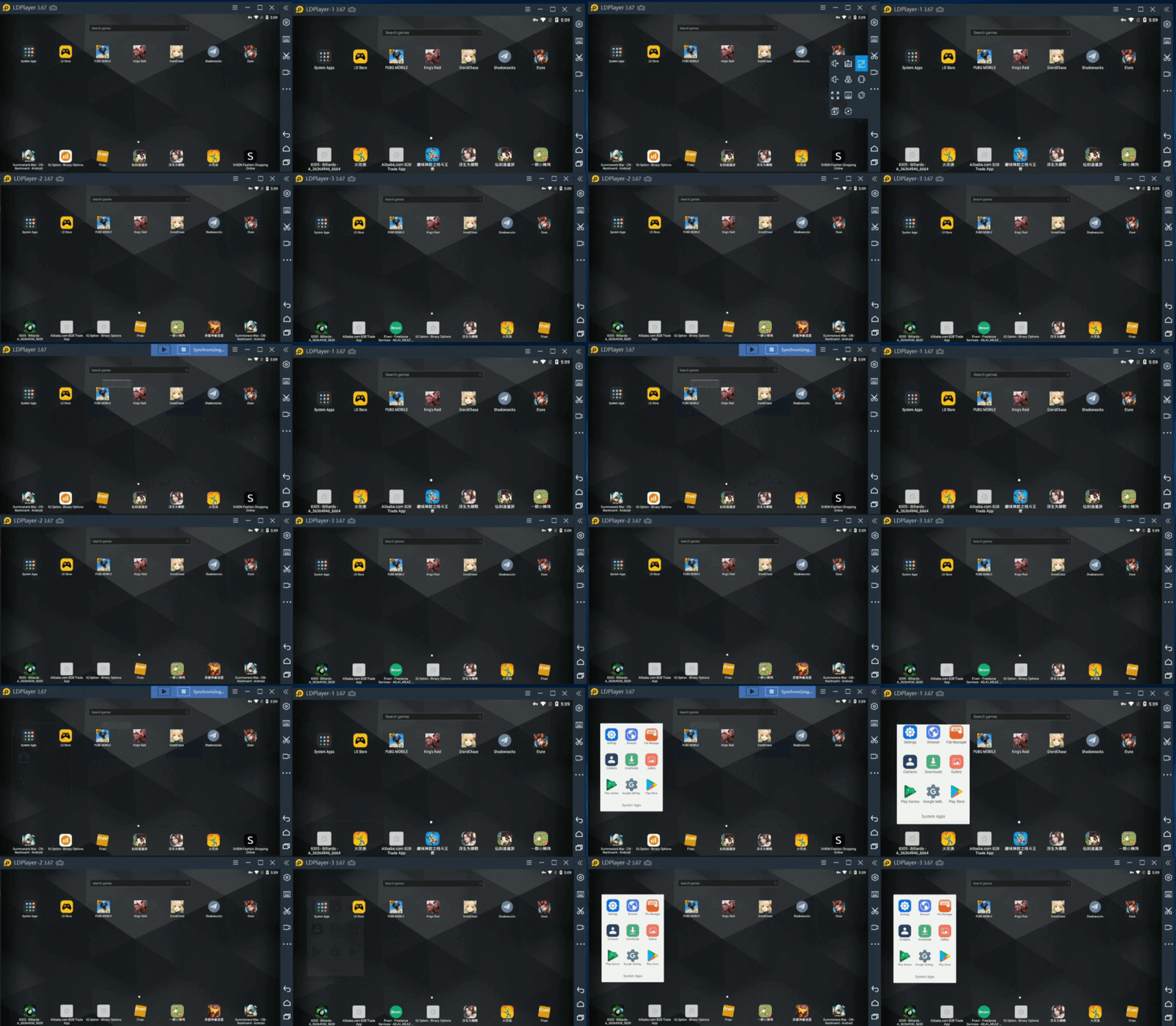
How to Enable Synchronizer on LDPlayer
1. Open LDPlayer Android emulator
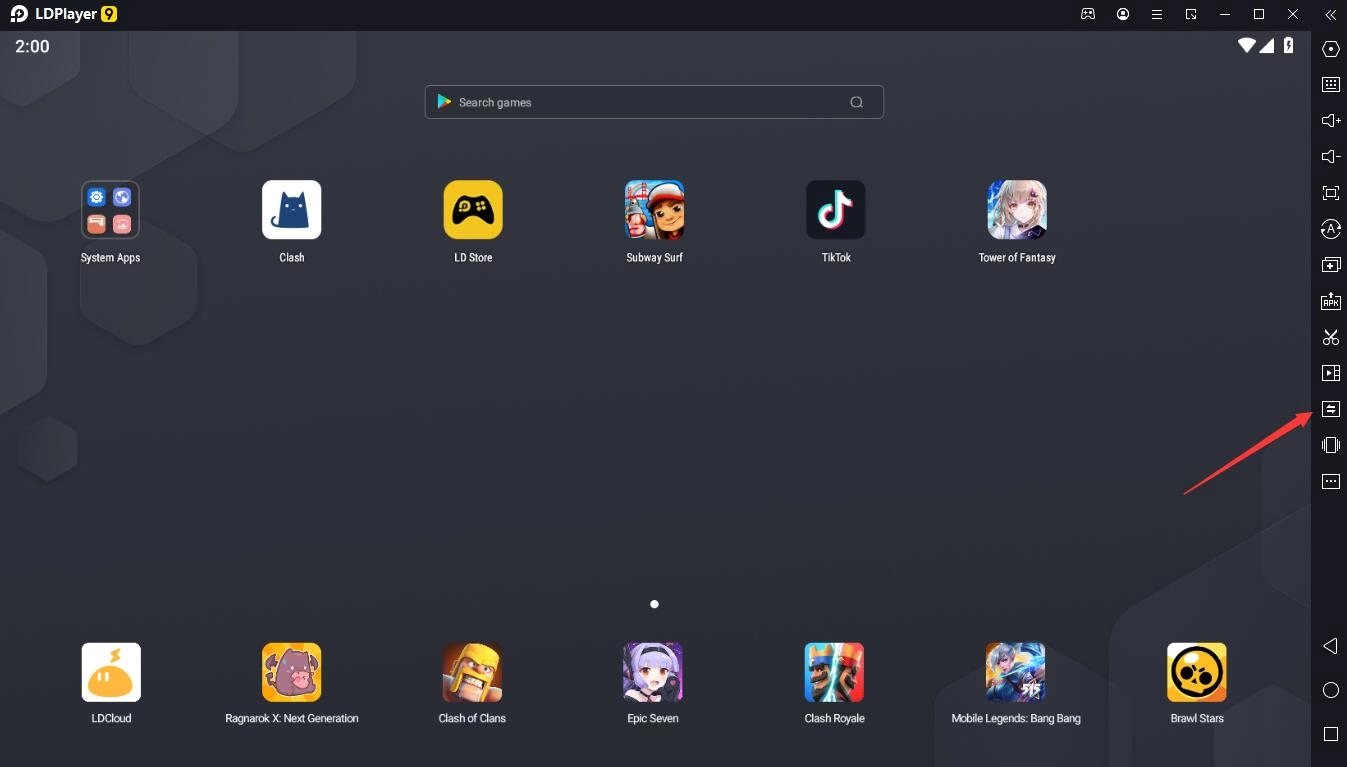
2. Click "three dots" in the sidebar to check more features
3. Find the icon of Synchronizer and click it. It looks this:
4. Click the "Start" button to begin synchronizing
NOTE: If you don't know how to use Synchronizer, please leave a message on LDPlayer official Facebook page!
Inspiring Tips for Using Synchronizer on LDPlayer
While you are playing game on pc with an android emulator, especially playing RPGs, using Synchronizer is good to control multiple accounts at the same time. Moreover, it is pretty useful if you want your multiple instances to do the same thing, such as conquering enemies and claiming event reward.
Open Multiple Accounts Simultaneously
If you need to log in several accounts at the same time, using Synchronizer can open the game simultaneously. This is a greatly convenient way to save your time on loading game.
Faster Rerolling on Gacha Games
When you are playing a new Gacha game, you might be dissatisfied with your first free gacha character. And if you want to reroll and repeat the process, it will take a lot of time to roll until you get the best one. But using Synchronizer tool can help you control several accounts to finish the same beginning process simultaneously and operate the rerolling faster.
Control Interface without Switching
It might be a little annoying when you need to continuously switch between interfaces. Using Synchronizer can avoid such inconvenience. You can control your game interfaces at the same time without any switch.
There're more features that you can explore on LDPlayer and Synchronizer is one of the best tools added on an Android emulator. You might also want to read:
How to Check the Configuration Info Using LDPlayer
How to Set Up Key Mapping
How to Record Video on LDPlayer