
home page
Games
Pre-RegisterRPGStrategyAdventureCasualArcadeRacingActionSimulation
Support
LDPlayer 9 IntroductionEnable VTStartup Stuck at 50%/94%Fix Invalid Virtual DiskUpdate Graphics DriverKeyboard MappingEnable LDMultiplayerFPS Setting
Blogs
Updates
LDGame
Affiliate
LDGame Community
download ldplayer
Download LDPlayer
English
繁體中文한국어Tiếng ViệtภาษาไทยPусскийPortuguêsEspañolFrançaisDeutsch日本語Indonesiaالعربية

LDPlayer Support

EmailFacebookDiscordLDGame Customer Service(For LDPlayer account & recharge problem)

Products

LDCloudOSLinkEasyFunLDShop

About

About UsBusiness InquiryDMCA Takedown

Follow Us

©2025 LDPLAYER.NET , ALL RIGHTS RESERVED.JUST OKAY LIMITED , OFFICE F, 12/F, YHC TOWER , 1 SHEUNG YUET RD, KOWLOON BAY KLN, HONG KONG
Games and applications on this site are collected from the internet. If there is any infringement, please contact the email: support@ldplayer.net
Privacy Policy|GDPR Privacy Notice|Help Translate
English
繁體中文한국어Tiếng ViệtภาษาไทยPусскийPortuguêsEspañolFrançaisDeutsch日本語Indonesiaالعربية

Support/

Function Instruction

How to Transfer Files Between LDPlayer and PC, Laptop

2021-06-22

This tutorial will help you understand how to transfer files from your computer to LDPlayer and vice versa. LDPlayer has developed a feature called Shared folder, in which you can manage and transfer the files storaged inside LDPlayer and your PC.


Transfer Files Between PC and LDPlayer Using File Transfer Feature
 

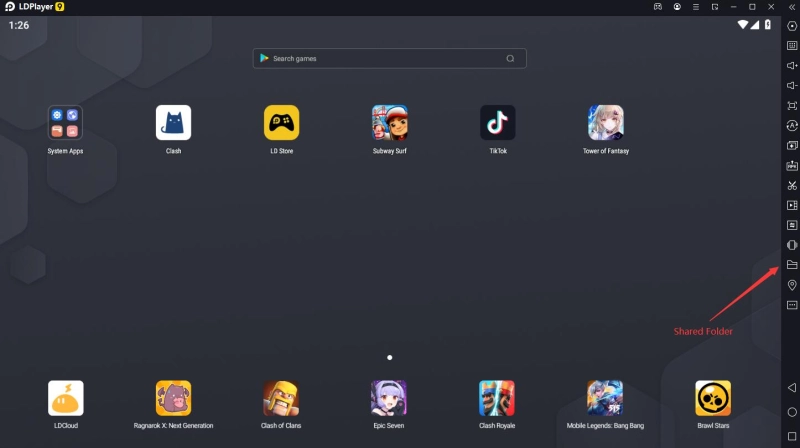
1. Open LDPlayer and find Shared folder (Ctrl+F5) feature from the toolbar.
How to Transfer Files Between LDPlayer and PC, Laptop


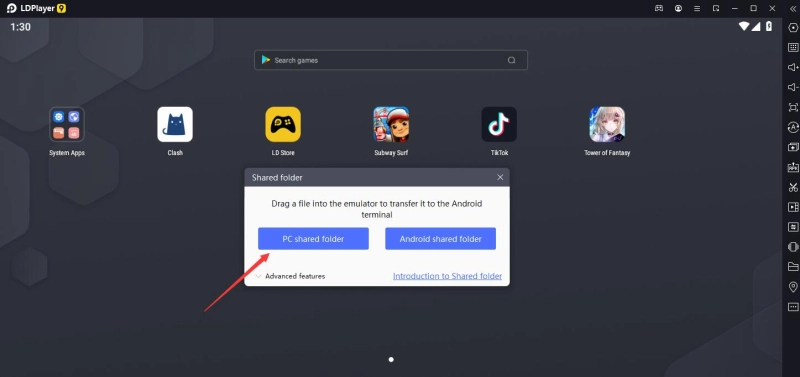
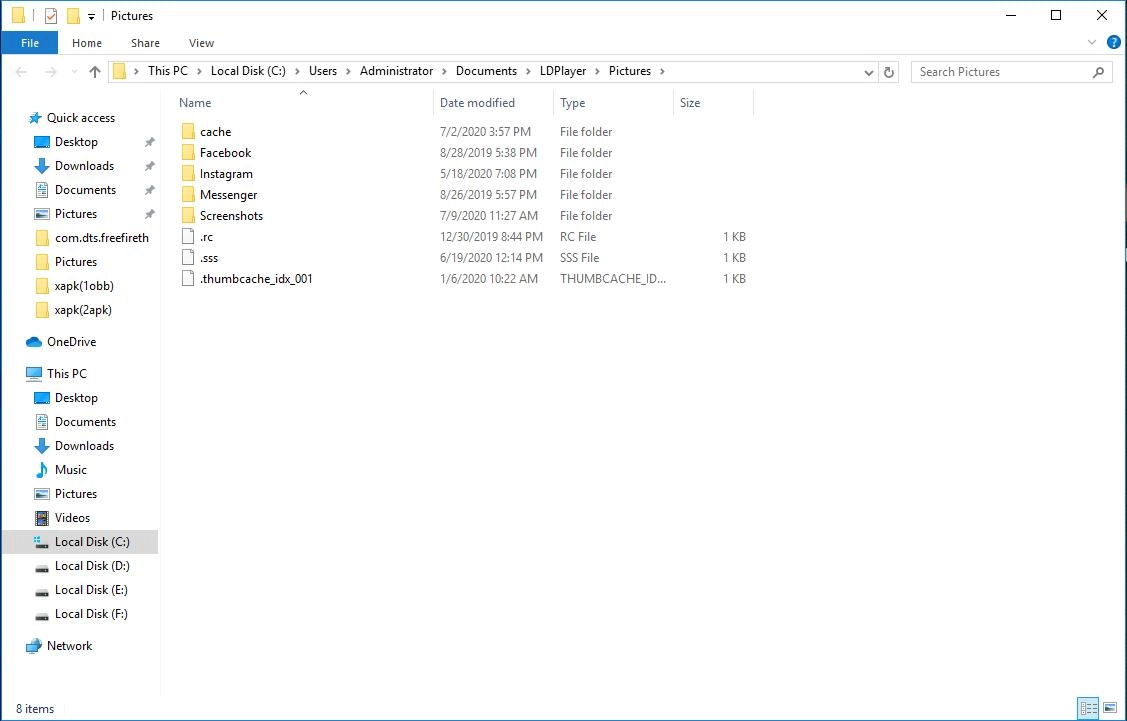
2. First open PC Shared Folder, and then you paste or move the wanted files from your PC into this PC Shared Folder. (This is for moving your PC files into the emulator)
How to Transfer Files Between LDPlayer and PC, Laptop

How to transfer files between PC and LDPlayer


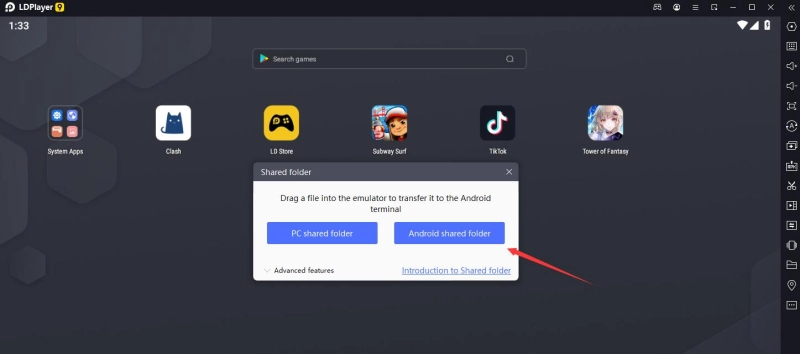
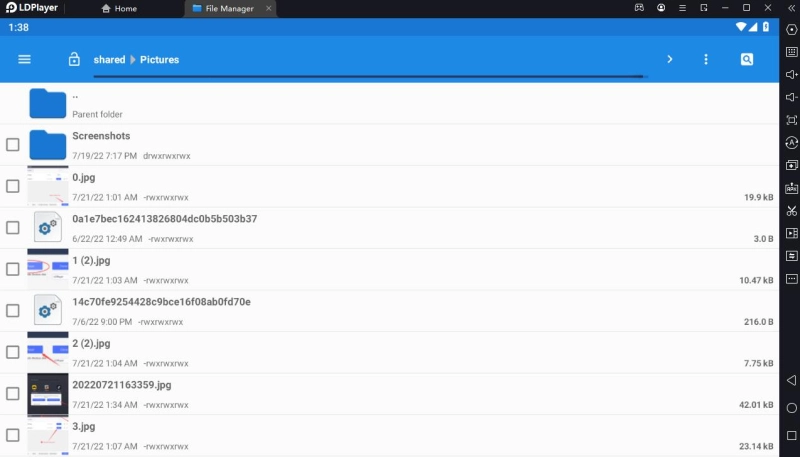
3. Now open Android Shared Folder and it will direct you into the Pictures storage folder inside your emulator. The files you just moved into the PC Shared Folder on your PC will show up in this Pictures folder on LDPlayer.
How to Transfer Files Between LDPlayer and PC, Laptop

How to Transfer Files Between LDPlayer and PC, Laptop


If you want to transfer the files from your emulator to your PC, you just move the files into Pictures storage folder inside your emulator and you will find the exact files in the PC shared folder on your PC.


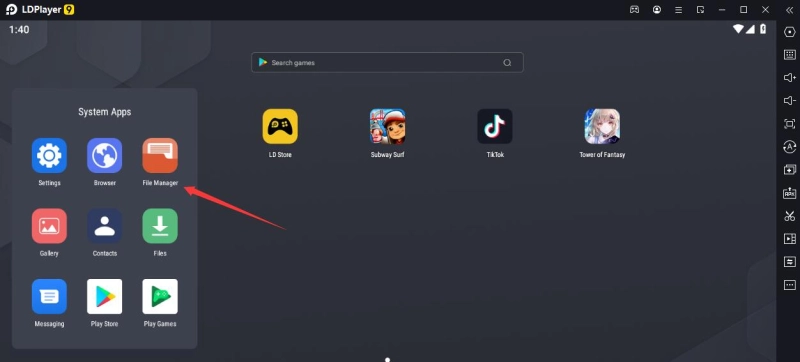
You can find and move the files you want to import from LDPlayer to your PC through the File Manager.
How to Transfer Files Between LDPlayer and PC, Laptop


To put it simply, you move some files in either one of the folders and you will find the copies from the other one. This helps you transfer files between LDPlayer and your PC without downloading any other apps or software.


Besides, when you directly drag a picture from your PC into LDPlayer, it will be also storaged in Pictures folder. Files imported inside LDPlayer can also be shared using other apps such as Whatsapp, Instagram, etc.


Thank you for using LDPlayer and if you have further questions, you can always get help at support@ldplayer.net


Was this article helpful?
2974 users found this helpful.
Video Tutorials
LDPlayer Introduction
Affiliate Program
Launch Error
Enable Virtual Technology
Function Instruction
Synchronizer ToolKeyboard MappingShared FolderKeyboard Macro Command120 FPS Setting: Play Games at 120 FPS on LDPlayer 9Operation Recorder: Write ScriptGamepad ControllerCommand Line InterfaceHide key PromptSwitch Languages of LDPlayerClear Disk Cache & Release Disk SpaceRecord Window PositionVideo RecorderXposed Installer SetupSwitch from Landscape to PortraitAdjust Y SensitivityDiagnostic InformationCloud Service & Sharing FeatureOperation Recorder: Merge Scripts
Game Installation
Device Optimization
Multi-instance
Network Bridging
Data Recovery/Backup
Game Troubleshooting